Create the service interceptor project in Eclipse
This walk-through demonstrates how to create, build, and deploy a service interceptor using Eclipse. Before you begin, ensure that all prerequisites mentioned in systems requirements are installed on your development machine.
To create a service interceptor project using Eclipse, complete the following steps:
-
Launch Eclipse and go to File > New > Maven Project. The New Maven Project wizard appears.
-
Uncheck Create a simple project (skip archetype selection) and click Next.
-
If the
server-services-interceptor-archetypehas not been added, skip this step.Otherwise, click the Add Archetype button on the right, type the following values in the Add Archetype wizard, and then click OK:
- GroupId:
com.esri.arcgis.enterprise.sdk - ArtifactId:
server-services-interceptor-archetype - Version:
12.0.0

- GroupId:
-
The
server-services-interceptor-archetypehas been added. Select this archetype and click Next.
-
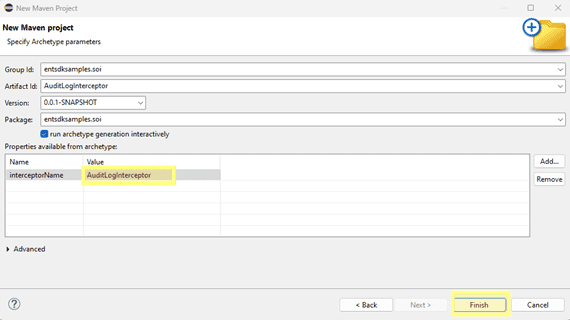
Enter the information in the parameters below and click Finish:
- GroupId — entsdksamples
- ArtifactId — AuditLogInterceptor
- Package — entsdksamples
- interceptorName — AuditLogInterceptor
The service interceptor project has been created, and the
Auditclass has been generated in the \src\main\java folder.Log Interceptor -
A new service interceptor project is created now. You should see
AuditJava class underLog Interceptor ..\src\main\javafolder.
Modify the code and package the service interceptor project
Building the service interceptor project will package the project’s classes, dependencies, and resources into a .interceptor file, which can be deployed to ArcGIS Server. Since it’s a Maven project, the Maven build lifecycle must be followed to build the service interceptor.
You can build the service interceptor project from either the Maven tool window or the Terminal tool window.

Since the project is created from server-services-interceptor-archetype, it automatically loads the boilerplate code that implements a ready-to-use service interceptor.
-
Open the
Auditclass located inLog Interceptor src\main\java(see A in above image). -
Copy and paste the following code into the
Auditclass.Log Interceptor.java Use dark colors for code blocks Copy import com.esri.arcgis.enterprise.interceptor.Interceptor; import com.esri.arcgis.enterprise.interceptor.server.IServerServicesInterceptor; import com.esri.arcgis.enterprise.interceptor.IInterceptorRequest; import com.esri.arcgis.enterprise.interceptor.IInterceptorResponse; import com.esri.arcgis.enterprise.interceptor.server.IServerServicesInterceptorChain; import com.esri.arcgis.enterprise.interceptor.server.IServerServicesInterceptorHelper; import com.esri.arcgis.enterprise.interceptor.IInterceptorConfig; import com.esri.arcgis.enterprise.interceptor.server.IServerInterceptorLogger; import jakarta.servlet.ServletException; import java.io.IOException; @Interceptor( name = "AuditLogInterceptor", displayName = "Audit Log Interceptor", description = "Audit Log Interceptor", urlPatterns = {"/MapServer/","/FeatureServer/"}, properties = {"prop1=value1"}, chainingOrder = 1 ) public class AuditLogInterceptor implements IServerServicesInterceptor { private IServerServicesInterceptorHelper interceptorHelper; private IServerInterceptorLogger logger; @Override public void init(IInterceptorConfig interceptorConfig, IServerServicesInterceptorHelper interceptorHelper, IServerInterceptorLogger logger){ // This code executes at the time of registration this.interceptorHelper = interceptorHelper; this.logger = logger; } @Override public void intercept( IInterceptorRequest request, IInterceptorResponse response, IServerServicesInterceptorChain filterChain) throws IOException, ServletException { // Continue the chain if it's not REST request if (!filterChain.isRestRequestChain()) { filterChain.intercept(request, response); return; } //To intercept the request, write your code here logUserAction(request, response); filterChain.intercept(request, response); //To intercept the response, write your code here } /* * Perform any cleanup required by the interceptor at the end of its lifecycle */ @Override public void cleanup() { } private void logUserAction(IInterceptorRequest request, IInterceptorResponse response) { String username = interceptorHelper.getUsername(request, response); String serviceName = interceptorHelper.getServiceName(request, response); String serviceType = interceptorHelper.getServiceType(request, response); String serviceProvider= interceptorHelper.getServiceProviderType(request, response); String operationName = interceptorHelper.getOperationName(request, response); String msg = "User '" + username + "' " + "accessed the service " + serviceName + "." + serviceType + ". " + "Service provider is " + serviceProvider + ". " + ((operationName != null && !operationName.isEmpty()) ? "Performed the operation - '" + operationName + "'." : ""); logger.info(msg); } } -
Set the
displayandName description(see B in above image). -
Follow these steps to build the project from the Maven Build:
-
i. Right-click the project and click Run As > Run Configuration. The Run configurations window appears.
-
ii. Expand Maven Build and click New_configuration.
-
iii. Click Workspace to set the current project as the workspace.
-
iv. Enter the following command in the Goals field:
clean install. -
v. Click Apply and click Run.
The project is built successfully with detailed log messages in the Console (see C in above image).
Alternatively, follow these steps to build the project from the Terminal view.
-
i. Click Terminal (see D in above image). If you can't find the Terminal tab, add it from Window > Show View > Other > Terminal (see E in above image).
-
ii. Click Open a Terminal and ensure the directory is pointing to the project's root directory.
-
ii. Run the following command to create a clean build of the project:
mvn clean install.
-
-
Once the build is complete, a new folder named target appears in the project's root directory, where you can find the
Auditfile (see F in above image).Log Interceptor.interceptor
If you want to add third-party libraries as dependencies, you can add them to the project's pom.xml (see H). The POM contains project configuration information, including the Java compiler (JDK) and plug-ins used, as well as the project version and dependencies. To learn more about POM dependency management, see Overview of Maven integration.
Deploy the service interceptor in ArcGIS Server
To deploy the service interceptor in ArcGIS Server, first upload the interceptor and then register the interceptor.