This sample demonstrates how to intercept responses from a hosted feature service. The incident management interceptor detects outgoing responses for add and query operations, applies value enrichment to designated fields, and forwards the modified response back to the client. Both PBF and JSON response formats are supported.
Supported ArcGIS Enterprise SDK Versions
- 12.0 Windows/Linux
Configure the hosted feature service for this sample
Follow the steps below to create a hosted feature service using Portal for ArcGIS.
- Download the sample dataset from here.
- In Portal for ArcGIS, go to Content > My Content and click the New item.
- Drag or upload
incidents.gdb(zipped) to the New item window.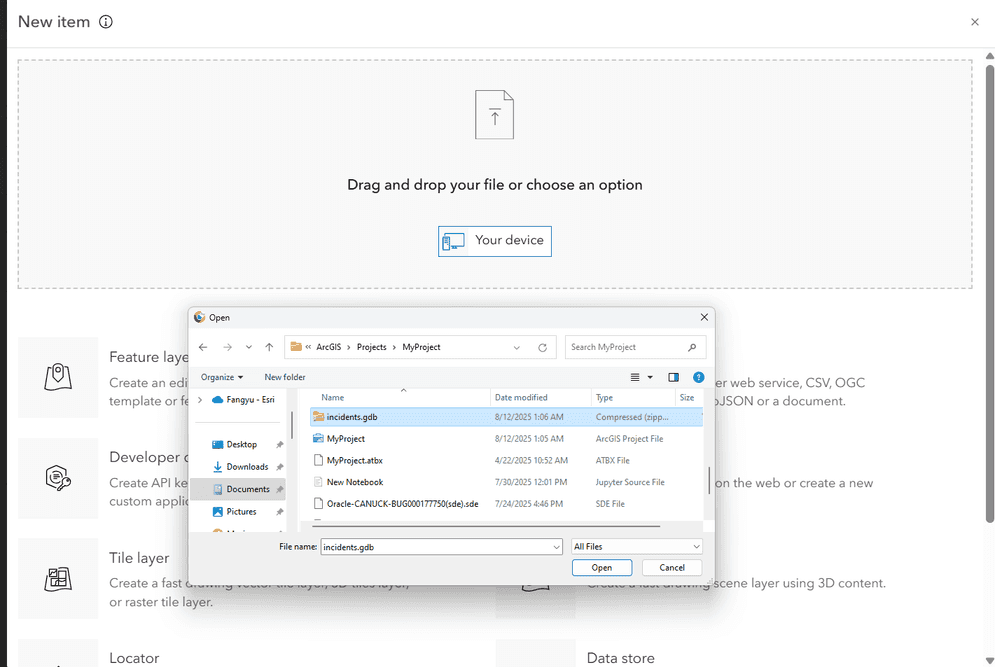
- Under File type, select
File geodatabase. Under How would you like to add this file? selectAdd incidents.gdb.zip and create a hosted feature layer. Click the Next.
- Ensure the Title for the hosted feature service is
incidentsand click the Save. - Navigate to Content > My Content and ensure that the incidents hosted feature layer item is available.
- Make sure to enable the editing capabilities for hosted feature service.

Alternatively, you can also create the editing-enabled hosted feature service using ArcGIS Pro.
Download the sample code
The pre-built incident management interceptor sample is available here: Incident Management Interceptor
Deploy the Interceptor
Deploying the interceptor is done in two parts: upload and register.
Upload and Register
After downloading the interceptor sample, follow the steps below to deploy the interceptor.
- Unzip the Incident Management Interceptor sample into a directory of your choosing.
- Navigate to the ArcGIS Server Administrator Directory and sign in as an administrator.
- Click uploads > upload.
- On the Upload Item page, click the Choose Fileand select the
Incidentfile located in theManagement.interceptor Incidentfolder in the directory where you unzipped the sample in Step 1 above.Management/target - Click the Upload. Once the file is uploaded, you will be directed to the Uploaded Item page. Copy the Item ID.
- Navigate to Home > system > interceptors. The corresponding URL is:
<domain.>/ <server-web-adaptor >/admin/system/interceptors - Click register and paste the value of the Item ID obtained in Step 5 into the input field.
- Click the Register to complete the register.
Verify the result
Once the interceptor is registered, it is functioning immediately. To inspect the behavior of the response enrichment interceptor, follow the steps below.
-
Add the incidents hosted feature service to a map in ArcGIS Map Viewer.
-
Select any of the records on the map to see the information popup for that feature.
-
Note that the following fields and their values are updated as shown below. The value for
lastwill reflect the current timestamp._action _date Field Value agency NYPD agency_name New York City Police Department status In Progress resolution_description This is a test resolution description last_action_date 2025-08-18T11:45:59-07:00 -
Create a new incident on the map by adding a new point feature. Choose the appropriate
complaint typeandlocation typeand leave the remaining information blank in the editing widget. -
The incident management interceptor will also have the incident fields populated with
address,street,_name city,zipcode,incident,_id agency,agency,_name resolutionand_description lastinformation is added._action _date