Identify features in a scene to select.
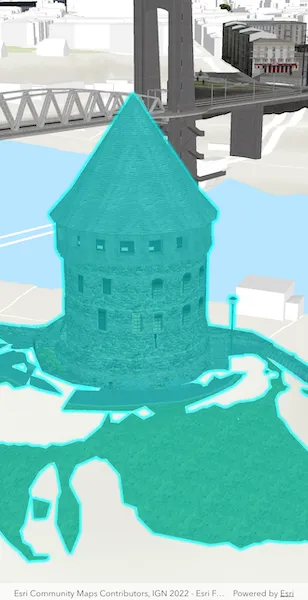
Use case
You can select features to visually distinguish them with a selection color or highlighting. This can be useful to demonstrate the physical extent or associated attributes of a feature, or to initiate another action such as centering that feature in the scene view.
How to use the sample
Tap on a building in the scene layer to select it. Deselect buildings by tapping away from the buildings.
How it works
- Create an
ArcGISSceneLayerpassing in the URL to a scene layer service. - Use
onTapcallback of theArcGISSceneViewto get the screen tap locationscreenPoint. - Call
ArcGISSceneViewController.identifyLayer(sceneLayer, screenPoint, tolerance, false, 1)to identify features in the scene. - From the resulting
IdentifyLayerResult, get the list of identifiedGeoElementswithresult.geoElements. - Get the first element in the list, checking that it is a feature, and call
sceneLayer.selectFeature(feature)to select it.
Relevant API
- ArcGISScene
- ArcGISSceneLayer
- ArcGISSceneView
About the data
This sample shows a Brest France Buildings Scene hosted on ArcGIS Online.
Tags
3D, buildings, identify, model, query, search, select
Sample code
select_features_in_scene_layer.dart
// Copyright 2025 Esri//// Licensed under the Apache License, Version 2.0 (the "License");// you may not use this file except in compliance with the License.// You may obtain a copy of the License at////   https://www.apache.org/licenses/LICENSE-2.0//// Unless required by applicable law or agreed to in writing, software// distributed under the License is distributed on an "AS IS" BASIS,// WITHOUT WARRANTIES OR CONDITIONS OF ANY KIND, either express or implied.// See the License for the specific language governing permissions and// limitations under the License.//
import 'package:arcgis_maps/arcgis_maps.dart';import 'package:arcgis_maps_sdk_flutter_samples/common/common.dart';import 'package:flutter/material.dart';
class SelectFeaturesInSceneLayer extends StatefulWidget {  const SelectFeaturesInSceneLayer({super.key});
  @override  State<SelectFeaturesInSceneLayer> createState() =>      _SelectFeaturesInSceneLayerState();}
class _SelectFeaturesInSceneLayerState extends State<SelectFeaturesInSceneLayer>    with SampleStateSupport {  // Create a controller for the scene view.  final _sceneViewController = ArcGISSceneView.createController();
  // Define an ArcGISSceneLayer.  final _sceneLayer = ArcGISSceneLayer.withUri(    Uri.parse(      'https://tiles.arcgis.com/tiles/P3ePLMYs2RVChkJx/arcgis/rest/services/Buildings_Brest/SceneServer/layers/0',    ),  );
  // A flag for when the scene view is ready.  var _ready = false;
  // A flag to prevent multiple taps.  bool _isSelecting = false;
  @override  Widget build(BuildContext context) {    return Scaffold(      body: Stack(        children: [          ArcGISSceneView(            controllerProvider: () => _sceneViewController,            onSceneViewReady: onSceneViewReady,            onTap: onTap,          ),          // Display a progress indicator and prevent interaction until state is ready.          LoadingIndicator(visible: !_ready),        ],      ),    );  }
  void onSceneViewReady() {    // Create a scene for this sample.    final scene = _setupScene();
    // Add buildings scene layer to the scene.    scene.operationalLayers.add(_sceneLayer);
    // Set it on the the ArcGISSceneView controller.    _sceneViewController.arcGISScene = scene;
    // Set the ready state variable to true to enable the sample UI.    setState(() => _ready = true);  }
  ArcGISScene _setupScene() {    // Create a scene with Topographic basemap.    final scene = ArcGISScene.withBasemapStyle(BasemapStyle.arcGISTopographic);
    // Create camera with initial latitude and longitude (GBP College, Berlin).    final camera = Camera.withLatLong(      latitude: 48.38282,      longitude: -4.49779,      altitude: 40,      heading: 41.65,      pitch: 71.2,      roll: 0,    );
    // Set the initial viewpoint to camera position at point.    _sceneViewController.setViewpoint(      Viewpoint.withExtentCamera(targetExtent: camera.location, camera: camera),    );
    // Add an elevation source.    scene.baseSurface.elevationSources.add(      ArcGISTiledElevationSource.withUri(        Uri.parse(          'https://elevation3d.arcgis.com/arcgis/rest/services/WorldElevation3D/Terrain3D/ImageServer',        ),      ),    );
    return scene;  }
  Future<void> onTap(Offset offset) async {    // Prevents multiple simultaneous selections.    if (_isSelecting) return;
    _isSelecting = true;
    try {      // Clear any previously selected feature.      _sceneLayer.clearSelection();
      // Identify feature at the tapped screen location.      final identifyLayerResult = await _sceneViewController.identifyLayer(        _sceneLayer,        screenPoint: offset,        tolerance: 22,      );
      // From the resulting IdentifyLayerResult, get the list of identified GeoElements with result.geoElements.      final geoElements = identifyLayerResult.geoElements;
      // Get the first element in the list, checking that it is a feature.      if (geoElements.isNotEmpty && geoElements.first is ArcGISFeature) {        final feature = geoElements.first as ArcGISFeature;        // Call sceneLayer.selectFeature(feature) to select it.        _sceneLayer.selectFeature(feature);      }    } finally {      // Release the lock after a feature is selected.      _isSelecting = false;    }  }}