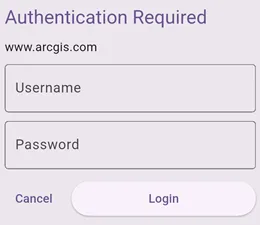
In this SDK, all aspects of ArcGIS and network authentication have been encapsulated into a single ArcGIS Maps SDK for Flutter toolkit component called the Authenticator. This component supports multiple types of authentication challenges, including ArcGIS authentication methods (OAuth and ArcGIS token), Integrated Windows Authentication (IWA), and Client Certificate (PKI). It also provides default user interfaces for login prompts, certificate selection prompts, and server trust dialogs. For example, here is the default UI prompting the user for username and password credentials:
Using the Authenticator toolkit component
-
Integrate the ArcGIS Maps SDK for Flutter Toolkit into your Flutter project by following steps in Install from pub.dev in the toolkit topic.
// Import the ArcGIS Maps SDK for Flutter package.import 'package:arcgis_maps/arcgis_maps.dart';// Import the ArcGIS Maps SDK for Flutter Toolkit package.import 'package:arcgis_maps_toolkit/arcgis_maps_toolkit.dart'; -
If the
Authenticatoris going to use OAuth, provide one or moreOAuthUserConfiguration(s); otherwise, the user will be prompted to sign in using a username and password to obtain aTokenCredential.// Define configuration(s) to use when OAuth is requested.// Use your portal to create OAuth credentials and replace// the client ID and redirect URL with your values.// Add to the list if you require more than a single// configuration.final oAuthUserConfigurations = [OAuthUserConfiguration(portalUri: Uri.parse('https://www.arcgis.com'),clientId: 'CLIENT_ID',redirectUri: Uri.parse('REDIRECT_URL'),),]; -
Place the
Authenticatorin your application’s widget tree as the parent of theArcGISMapView(or theArcGISSceneView). If necessary, associate yourOAuthUserConfiguration(s).// Add the Authenticator widget to handle authentication challenges// in your widget tree.child: Authenticator(// Associate your OAuth user configuration(s) defined earlier.oAuthUserConfigurations: oAuthUserConfigurations,// Add an ArcGIS map view widget as the child to the Authenticator,// and set the ArcGIS map view controller.child: ArcGISMapView(controllerProvider: () => mapViewController,onMapViewReady: onMapViewReady,),), -
During application sign out, you should revoke all tokens and clear all credentials from the credential store.
// Revoke all OAuth tokens.await Authenticator.revokeOAuthTokens();// Clear all credentials from the credential store.await Authenticator.clearCredentials();
To try the Authenticator component, check out the Maps SDK for Flutter Toolkit Example or the Authenticate with OAuth sample.