Discover connected features in a utility network using connected, subnetwork, upstream, and downstream traces.
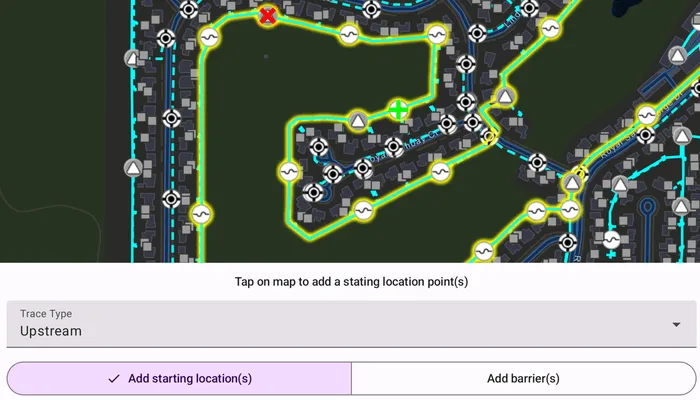
Use case
You can use a trace to visualize and validate the network topology of a utility network for quality assurance. Subnetwork traces are used for validating whether subnetworks, such as circuits or zones, are defined or edited appropriately.
How to use the sample
Tap on one or more features while ‘Add starting locations’ or ‘Add barriers’ is selected. When a junction feature is identified, you may be prompted to select a terminal. When an edge feature is identified, the distance from the tapped location to the beginning of the edge feature will be computed. Select the type of trace using the drop down menu. Click ‘Trace’ to initiate a trace on the network. Click ‘Reset’ to clear the trace parameters and start over.
How it works
- Create a
MapViewand identify the featureonSingleTapevent. - Create and load an
ArcGISMapwith a web map item URL that contains anUtilityNetwork. - Get and load the first
UtilityNetworkfrom the web map. - Get and load the
ServiceGeodatabasefrom the utility network and fetch the lineFeatureLayerfrom theServiceGeodatabase’s tables. - Add a
GraphicsOverlaywith symbology that distinguishes starting locations from barriers. - Identify features on the map and add a
Graphicthat represents its purpose (starting location or barrier) at the tapped location. - Create a
UtilityElementfor the identified feature. - Determine the type of this element using its
UtilityNetworkSourceTypeproperty. - If the element is a junction with more than one terminal, display a terminal picker. Then set the junction’s
UtilityTerminalproperty with the selected terminal. - If an edge, set its
FractionAlongEdgeproperty usingGeometryEngine.FractionAlong. - Add this
UtilityElementto a collection of starting locations or barriers. - Create
UtilityTraceParameterswith the selected trace type along with the collected starting locations and barriers (if applicable). - Set the
UtilityTraceParameters.TraceConfigurationwith the tier’sUtilityTier.getDefaultTraceConfiguration()result. - Run a
UtilityNetwork.trace()with the specified parameters. - For every
FeatureLayerin the map, select the features returned with elements matching theirUtilityNetworkSource.FeatureTablewith the layer’sFeatureTable.
Relevant API
- FractionAlong
- UtilityAssetType
- UtilityDomainNetwork
- UtilityElement
- UtilityElementTraceResult
- UtilityNetwork
- UtilityNetworkDefinition
- UtilityNetworkSource
- UtilityTerminal
- UtilityTier
- UtilityTraceConfiguration
- UtilityTraceParameters
- UtilityTraceResult
- UtilityTraceType
- UtilityTraversability
About the data
The Naperville Electric Map web map contains a utility network used to run the subnetwork-based trace shown in this sample. Authentication is required and handled within the sample code.
Additional information
Using utility network on ArcGIS Enterprise 10.8 requires an ArcGIS Enterprise member account licensed with the Utility Network user type extension. Please refer to the utility network services documentation.
This sample uses the GeoView-Compose Toolkit module to be able to implement a composable MapView. Use the UtilityNetworkTrace tool to help configure, run, and visualize UtilityNetworkTraces on a composable MapView.
Tags
condition barriers, downstream trace, geoview-compose, network analysis, subnetwork trace, toolkit, trace configuration, traversability, upstream trace, utility network, validate consistency
Sample code
/* Copyright 2025 Esri * * Licensed under the Apache License, Version 2.0 (the "License"); * you may not use this file except in compliance with the License. * You may obtain a copy of the License at * * http://www.apache.org/licenses/LICENSE-2.0 * * Unless required by applicable law or agreed to in writing, software * distributed under the License is distributed on an "AS IS" BASIS, * WITHOUT WARRANTIES OR CONDITIONS OF ANY KIND, either express or implied. * See the License for the specific language governing permissions and * limitations under the License. * */
package com.esri.arcgismaps.sample.traceutilitynetwork.components
import android.app.Applicationimport android.widget.Toastimport androidx.compose.ui.unit.dpimport androidx.lifecycle.AndroidViewModelimport androidx.lifecycle.viewModelScopeimport com.arcgismaps.ArcGISEnvironmentimport com.arcgismaps.Colorimport com.arcgismaps.data.ArcGISFeatureimport com.arcgismaps.data.QueryParametersimport com.arcgismaps.geometry.Geometryimport com.arcgismaps.geometry.GeometryEngineimport com.arcgismaps.geometry.Pointimport com.arcgismaps.geometry.Polylineimport com.arcgismaps.httpcore.authentication.ArcGISAuthenticationChallengeHandlerimport com.arcgismaps.httpcore.authentication.ArcGISAuthenticationChallengeResponseimport com.arcgismaps.httpcore.authentication.TokenCredentialimport com.arcgismaps.mapping.ArcGISMapimport com.arcgismaps.mapping.Viewpointimport com.arcgismaps.mapping.layers.FeatureLayerimport com.arcgismaps.mapping.layers.SelectionModeimport com.arcgismaps.mapping.symbology.SimpleLineSymbolimport com.arcgismaps.mapping.symbology.SimpleLineSymbolStyleimport com.arcgismaps.mapping.symbology.SimpleMarkerSymbolimport com.arcgismaps.mapping.symbology.SimpleMarkerSymbolStyleimport com.arcgismaps.mapping.symbology.UniqueValueimport com.arcgismaps.mapping.symbology.UniqueValueRendererimport com.arcgismaps.mapping.view.Graphicimport com.arcgismaps.mapping.view.GraphicsOverlayimport com.arcgismaps.mapping.view.IdentifyLayerResultimport com.arcgismaps.mapping.view.ScreenCoordinateimport com.arcgismaps.toolkit.geoviewcompose.MapViewProxyimport com.arcgismaps.utilitynetworks.UtilityElementimport com.arcgismaps.utilitynetworks.UtilityElementTraceResultimport com.arcgismaps.utilitynetworks.UtilityNetworkimport com.arcgismaps.utilitynetworks.UtilityNetworkSourceimport com.arcgismaps.utilitynetworks.UtilityNetworkSourceTypeimport com.arcgismaps.utilitynetworks.UtilityTerminalimport com.arcgismaps.utilitynetworks.UtilityTierimport com.arcgismaps.utilitynetworks.UtilityTraceParametersimport com.arcgismaps.utilitynetworks.UtilityTraceTypeimport com.esri.arcgismaps.sample.sampleslib.components.MessageDialogViewModelimport kotlinx.coroutines.flow.MutableStateFlowimport kotlinx.coroutines.flow.asStateFlowimport kotlinx.coroutines.launchimport kotlinx.coroutines.runBlockingimport kotlin.math.roundToLong
class TraceUtilityNetworkViewModel(application: Application) : AndroidViewModel(application) {
// The textual hint shown to the user private val _hint = MutableStateFlow<String?>(null) val hint = _hint.asStateFlow()
// Is trace utility network enabled private val _canTrace = MutableStateFlow(false) val canTrace = _canTrace.asStateFlow()
// The trace state used for the sample private val _traceState = MutableStateFlow(TraceState.ADD_STARTING_POINT) val traceState = _traceState.asStateFlow()
// Currently selected utility trace type private val _selectedTraceType = MutableStateFlow<UtilityTraceType>(UtilityTraceType.Connected) val selectedTraceType = _selectedTraceType.asStateFlow()
// Currently selected point type (start/barrier) private val _selectedPointType = MutableStateFlow(PointType.Start) val selectedPointType = _selectedPointType.asStateFlow()
// Terminal configuration options (high/low) private val _terminalConfigurationOptions = MutableStateFlow<List<UtilityTerminal>>(listOf()) val terminalConfigurationOptions = _terminalConfigurationOptions.asStateFlow()
// Currently selected terminal configuration private var _selectedTerminalConfigurationIndex = MutableStateFlow<Int?>(null)
// ArcGISMap holding the UtilityNetwork and operational layers val arcGISMap = ArcGISMap("https://sampleserver7.arcgisonline.com/portal/home/item.html?id=be0e4637620a453584118107931f718b")
// Used to handle map view animations val mapViewProxy = MapViewProxy()
// The utility network used for tracing private var utilityNetwork: UtilityNetwork? = null
// The medium voltage tier used for the electric distribution domain network private var mediumVoltageTier: UtilityTier? = null
// Create lists for starting locations and barriers private val utilityElementStartingLocations: MutableList<UtilityElement> = mutableListOf() private val utilityElementBarriers: MutableList<UtilityElement> = mutableListOf()
// Graphics overlay for the starting locations and barrier graphics val graphicsOverlay = GraphicsOverlay()
// Create symbols for the starting point and barriers private val startingPointSymbol = SimpleMarkerSymbol( style = SimpleMarkerSymbolStyle.Cross, color = Color.green, size = 25f ) private val barrierPointSymbol = SimpleMarkerSymbol( style = SimpleMarkerSymbolStyle.X, color = Color.red, size = 25f )
// Add custom unique renderer values for the electrical distribution layer private val electricalDistributionUniqueValueRenderer = UniqueValueRenderer( fieldNames = listOf("ASSETGROUP"), uniqueValues = listOf( UniqueValue( description = "Low voltage", label = "", symbol = SimpleLineSymbol( style = SimpleLineSymbolStyle.Dash, color = Color.green, width = 3f ), values = listOf(3) ), UniqueValue( description = "Medium voltage", label = "", symbol = SimpleLineSymbol( style = SimpleLineSymbolStyle.Solid, color = Color.green, width = 3f ), values = listOf(5) ) ) )
/** * Returns a [ArcGISAuthenticationChallengeHandler] to access the utility network URL. */ private fun getAuthenticationChallengeHandler(): ArcGISAuthenticationChallengeHandler { return ArcGISAuthenticationChallengeHandler { challenge -> val result: Result<TokenCredential> = runBlocking { TokenCredential.create(challenge.requestUrl, "viewer01", "I68VGU^nMurF", 0) } if (result.getOrNull() != null) { val credential = result.getOrNull() return@ArcGISAuthenticationChallengeHandler ArcGISAuthenticationChallengeResponse.ContinueWithCredential( credential!! ) } else { val ex = result.exceptionOrNull() return@ArcGISAuthenticationChallengeHandler ArcGISAuthenticationChallengeResponse.ContinueAndFailWithError( ex!! ) } } }
/** * Initializes view model by adding credentials, loading map and utility network, * and electrical device and distribution feature layers. */ suspend fun initializeTraceViewModel() {
ArcGISEnvironment.authenticationManager.arcGISAuthenticationChallengeHandler = getAuthenticationChallengeHandler()
// Load the map arcGISMap.load().onSuccess {
// The utility network used for tracing utilityNetwork = arcGISMap.utilityNetworks.first() utilityNetwork?.let { utilityNetwork ->
// Load the utility network utilityNetwork.load().onSuccess {
// Get the service geodatabase from the utility network val serviceGeodatabase = utilityNetwork.serviceGeodatabase
// Use the ElectricDistribution domain network val electricDistribution = utilityNetwork.definition?.getDomainNetwork("ElectricDistribution")
// Use the Medium Voltage Tier mediumVoltageTier = electricDistribution?.getTier("Medium Voltage Radial")
(serviceGeodatabase?.getTable(3)?.layer as FeatureLayer).apply { // Customize rendering for the layer renderer = electricalDistributionUniqueValueRenderer }
// Update hint values to reflect trace stage changes viewModelScope.launch { _traceState.collect { updateHint(it) } } } } } }
/** * Performs an identify operation to obtain the [ArcGISFeature] nearest to the * tapped [screenCoordinate]. The selected feature is then used to [identifyUtilityElement]. */ fun identifyNearestArcGISFeature( mapPoint: Point, screenCoordinate: ScreenCoordinate ) { viewModelScope.launch { // Identify the feature on the tapped location val identifyResults: List<IdentifyLayerResult> = mapViewProxy.identifyLayers( screenCoordinate = screenCoordinate, tolerance = 4.dp, returnPopupsOnly = false, maximumResults = 1 ).getOrElse { return@launch messageDialogVM.showMessageDialog( title = it.message.toString(), description = it.cause.toString() ) } // If the identify returns a result, retrieve the geoelement as an ArcGISFeature identifyResults.firstOrNull()?.geoElements?.firstOrNull()?.let { identifiedFeature -> (identifiedFeature as? ArcGISFeature)?.let { arcGISFeature -> // Identify the utility element associated with the selected feature identifyUtilityElement( identifiedFeature = arcGISFeature, mapPoint = mapPoint ) } } } }
/** * Uses the [mapPoint] to identify any utility elements in the utility network. * Based on the [UtilityNetworkSourceType] create an element for a junction or an edge. */ private fun identifyUtilityElement( identifiedFeature: ArcGISFeature, mapPoint: Point ) { // Get the network source of the identified feature val utilityNetworkSource = utilityNetwork?.definition?.networkSources?.value?.firstOrNull { it.featureTable.tableName == identifiedFeature.featureTable?.tableName } ?: return handleError("Selected feature does not contain a Utility Network Source.")
// Check if the network source is a junction or an edge when (utilityNetworkSource.sourceType) { UtilityNetworkSourceType.Junction -> { // Create a junction element with the identified feature createJunctionUtilityElement( identifiedFeature = identifiedFeature, utilityNetworkSource = utilityNetworkSource ) }
UtilityNetworkSourceType.Edge -> { // Create an edge element with the identified feature createEdgeUtilityElement( identifiedFeature = identifiedFeature, mapPoint = mapPoint ) } } }
/** * Create a [UtilityElement] of the [identifiedFeature]. */ private fun createJunctionUtilityElement( identifiedFeature: ArcGISFeature, utilityNetworkSource: UtilityNetworkSource ) { // Find the code matching the asset group name in the feature's attributes val assetGroupCode = identifiedFeature.attributes["assetgroup"] as Int // Find the network source's asset group with the matching code utilityNetworkSource.assetGroups.first { it.code == assetGroupCode }.assetTypes // Find the asset group type code matching the feature's asset type code .first { it.code == identifiedFeature.attributes["assettype"].toString().toInt() }.let { utilityAssetType -> // Get the list of terminals for the feature val terminals = utilityAssetType.terminalConfiguration?.terminals ?: return handleError("Error retrieving terminal configuration")
// If there is only one terminal, use it to create a utility element when (terminals.size) { 1 -> { // Create a utility element utilityNetwork?.createElementOrNull( arcGISFeature = identifiedFeature, terminal = terminals.first() )?.let { utilityElement -> // Add the utility element to the map addUtilityElementToMap( identifiedFeature = identifiedFeature, mapPoint = identifiedFeature.geometry as Point, utilityElement = utilityElement ) } } // If there is more than one terminal, prompt the user to select one else -> { // Reset the index, as the user would need to make a choice _selectedTerminalConfigurationIndex.value = null // Get a list of terminal names from the terminal configuration val terminalConfiguration = utilityAssetType.terminalConfiguration ?: return // Update the list of available terminal options _terminalConfigurationOptions.value = terminalConfiguration.terminals // Show the dialog to choose a terminal configuration _traceState.value = TraceState.TERMINAL_CONFIGURATION_REQUIRED
viewModelScope.launch { _selectedTerminalConfigurationIndex.collect { selectedIndex -> if (selectedIndex != null) { // Create a utility element val element = utilityNetwork?.createElementOrNull( arcGISFeature = identifiedFeature, terminal = terminals[selectedIndex] ) ?: return@collect handleError( "Error creating utility element" ) // Add the utility element graphic to the map addUtilityElementToMap( identifiedFeature = identifiedFeature, mapPoint = identifiedFeature.geometry as Point, utilityElement = element ) // Dismiss the dialog to choose another point _traceState.value = TraceState.ADD_STARTING_POINT } } } } } } }
/** * Create a [UtilityElement] of the [identifiedFeature]. */ private fun createEdgeUtilityElement( identifiedFeature: ArcGISFeature, mapPoint: Point ) { // Create a utility element with the identified feature val element = (utilityNetwork?.createElementOrNull( arcGISFeature = identifiedFeature, terminal = null ) ?: return handleError("Error creating element")) // Calculate the fraction along these the map point is located element.fractionAlongEdge = GeometryEngine.fractionAlong( line = GeometryEngine.createWithZ( geometry = identifiedFeature.geometry!!, z = null // Remove the z-coordinate value from the identified geometry ) as Polyline, point = mapPoint, tolerance = -1.0 ).roundToThreeDecimals()
// Add the utility element graphic to the map addUtilityElementToMap( identifiedFeature = identifiedFeature, mapPoint = mapPoint, utilityElement = element ) // Update the hint text updateHint("Fraction along the edge: ${element.fractionAlongEdge}") }
/** * Add [utilityElement] to either the starting locations or barriers list * and add a graphic representing it to the [graphicsOverlay]. */ private fun addUtilityElementToMap( identifiedFeature: ArcGISFeature, mapPoint: Point, utilityElement: UtilityElement ) { graphicsOverlay.graphics.add( Graphic( geometry = GeometryEngine.nearestCoordinate( geometry = identifiedFeature.geometry!!, point = mapPoint )?.coordinate ).apply { // Add the element to the appropriate list (starting locations or barriers), // and add the appropriate symbol to the graphic when (_selectedPointType.value) { PointType.Start -> { utilityElementStartingLocations.add(utilityElement) symbol = startingPointSymbol _canTrace.value = true }
PointType.Barrier -> { utilityElementBarriers.add(utilityElement) symbol = barrierPointSymbol } } }) }
/** * Uses the elements selected as starting locations and (optionally) barriers * to perform a connected trace, then selects all connected elements * found in the trace to highlight them. */ fun traceUtilityNetwork() { // Check that the utility trace parameters are valid if (utilityElementStartingLocations.isEmpty()) { return handleError("No starting locations provided for trace.") }
val traceType = _selectedTraceType.value
// Create utility trace parameters for the given trace type val traceParameters = UtilityTraceParameters( traceType = traceType, startingLocations = utilityElementStartingLocations ).apply { // If any barriers have been created, add them to the parameters barriers.addAll(utilityElementBarriers) // Set the trace configuration using the tier from the utility domain network traceConfiguration = mediumVoltageTier?.getDefaultTraceConfiguration() }
// Run the utility trace and get the results viewModelScope.launch { // Update the trace state _traceState.value = TraceState.RUNNING_TRACE_UTILITY_NETWORK // Perform the trace with the above parameters, and obtain the results list val traceResults = utilityNetwork?.trace(traceParameters)?.getOrElse { return@launch handleError( title = "Error performing trace", description = it.message.toString() ) }
// Get the utility trace result's first result as a utility element trace result (traceResults?.first() as? UtilityElementTraceResult)?.let { utilityElementTraceResult -> // Ensure the result is not empty if (utilityElementTraceResult.elements.isEmpty()) return@launch handleError("No elements found in the trace result")
arcGISMap.operationalLayers.filterIsInstance<FeatureLayer>().forEach { featureLayer -> // Clear previous selection featureLayer.clearSelection() val params = QueryParameters().apply { returnGeometry = true // Used to calculate the viewpoint result } // Create query parameters to find features who's network source name matches the layer's feature table name utilityElementTraceResult.elements.filter { it.networkSource.name == featureLayer.featureTable?.tableName }.forEach { utilityElement -> params.objectIds.add(utilityElement.objectId) }
// Check if any trace results were added from the above filter if (params.objectIds.isNotEmpty()) { // Select features that match the query val featureQueryResult = featureLayer.selectFeatures( parameters = params, mode = SelectionMode.New ).getOrElse { return@launch handleError( title = it.message.toString(), description = it.cause.toString() ) }
// Create list of all the feature result geometries val resultGeometryList = mutableListOf<Geometry>() featureQueryResult.iterator().forEach { feature -> feature.geometry?.let { resultGeometryList.add(it) } }
// Obtain the union geometry of all the feature geometries GeometryEngine.unionOrNull(resultGeometryList)?.let { unionGeometry -> // Set the map's viewpoint to the union result geometry mapViewProxy.setViewpointAnimated(Viewpoint(boundingGeometry = unionGeometry)) } } else { Toast.makeText( getApplication(), "Trace result found 0 elements", Toast.LENGTH_SHORT ).show() } }
// Update the trace state _traceState.value = TraceState.TRACE_COMPLETED } } }
/** * Resets the trace, removing graphics and clearing selections. */ fun reset() { arcGISMap.operationalLayers.filterIsInstance<FeatureLayer>().forEach { it.clearSelection() } utilityElementBarriers.clear() utilityElementStartingLocations.clear() graphicsOverlay.graphics.clear() _traceState.value = TraceState.ADD_STARTING_POINT _canTrace.value = false _selectedTraceType.value = UtilityTraceType.Connected _selectedTerminalConfigurationIndex.value = null _selectedPointType.value = PointType.Start _terminalConfigurationOptions.value = listOf() }
/** * Update the [utilityTraceType] selected by the user */ fun updateTraceType(utilityTraceType: UtilityTraceType) { _selectedTraceType.value = utilityTraceType _traceState.value = TraceState.ADD_STARTING_POINT }
/** * Switch from adding .start points to adding .barrier, or vice versa. */ fun updatePointType(pointType: PointType) { _selectedPointType.value = pointType when (pointType) { PointType.Start -> { _traceState.value = TraceState.ADD_STARTING_POINT }
PointType.Barrier -> { _traceState.value = TraceState.ADD_BARRIER_POINT } } }
/** * Update the index used to select the [terminalConfigurationOptions] */ fun updateTerminalConfigurationOption(index: Int) { _selectedTerminalConfigurationIndex.value = index }
/** * Update the hint flow to display new [message]. */ private fun updateHint(message: String) { _hint.value = message }
// Create a message dialog view model for handling error messages val messageDialogVM = MessageDialogViewModel()
private fun handleError(title: String, description: String = "") { reset() _traceState.value = TraceState.TRACE_FAILED messageDialogVM.showMessageDialog(title, description) }
private fun Double.roundToThreeDecimals(): Double { return (this * 1000.0).roundToLong() / 1000.0 }}
enum class PointType { Start, Barrier}
object TraceState { const val ADD_STARTING_POINT = "Tap on map to add a stating location point(s)" const val ADD_BARRIER_POINT = "Tap on map to add a barrier point(s)" const val TERMINAL_CONFIGURATION_REQUIRED = "Select Terminal Configuration" const val RUNNING_TRACE_UTILITY_NETWORK = "Evaluating trace utility network" const val TRACE_COMPLETED = "Trace completed" const val TRACE_FAILED = "Fail to run trace"}/* Copyright 2025 Esri * * Licensed under the Apache License, Version 2.0 (the "License"); * you may not use this file except in compliance with the License. * You may obtain a copy of the License at * * http://www.apache.org/licenses/LICENSE-2.0 * * Unless required by applicable law or agreed to in writing, software * distributed under the License is distributed on an "AS IS" BASIS, * WITHOUT WARRANTIES OR CONDITIONS OF ANY KIND, either express or implied. * See the License for the specific language governing permissions and * limitations under the License. * */
package com.esri.arcgismaps.sample.traceutilitynetwork
import android.os.Bundleimport androidx.activity.ComponentActivityimport androidx.activity.compose.setContentimport androidx.activity.enableEdgeToEdgeimport androidx.compose.material3.MaterialThemeimport androidx.compose.material3.Surfaceimport androidx.compose.runtime.Composableimport androidx.compose.runtime.DisposableEffectimport com.arcgismaps.ApiKeyimport com.arcgismaps.ArcGISEnvironmentimport com.esri.arcgismaps.sample.sampleslib.theme.SampleAppThemeimport com.esri.arcgismaps.sample.traceutilitynetwork.screens.TraceUtilityNetworkScreen
class MainActivity : ComponentActivity() {
override fun onCreate(savedInstanceState: Bundle?) { super.onCreate(savedInstanceState) // authentication with an API key or named user is // required to access basemaps and other location services ArcGISEnvironment.apiKey = ApiKey.create(BuildConfig.ACCESS_TOKEN)
enableEdgeToEdge() setContent { SampleAppTheme { TraceUtilityNetworkApp() } } }
@Composable private fun TraceUtilityNetworkApp() { Surface(color = MaterialTheme.colorScheme.background) { TraceUtilityNetworkScreen( sampleName = getString(R.string.trace_utility_network_app_name) )
// remove credentials on screen dispose DisposableEffect(Unit) { onDispose { ArcGISEnvironment.authenticationManager.arcGISCredentialStore.removeAll() } } } }}/* Copyright 2025 Esri * * Licensed under the Apache License, Version 2.0 (the "License"); * you may not use this file except in compliance with the License. * You may obtain a copy of the License at * * http://www.apache.org/licenses/LICENSE-2.0 * * Unless required by applicable law or agreed to in writing, software * distributed under the License is distributed on an "AS IS" BASIS, * WITHOUT WARRANTIES OR CONDITIONS OF ANY KIND, either express or implied. * See the License for the specific language governing permissions and * limitations under the License. * */
@file:OptIn(ExperimentalMaterial3Api::class)
package com.esri.arcgismaps.sample.traceutilitynetwork.screens
import android.content.res.Configurationimport androidx.compose.foundation.backgroundimport androidx.compose.foundation.basicMarqueeimport androidx.compose.foundation.layout.Arrangementimport androidx.compose.foundation.layout.Boximport androidx.compose.foundation.layout.Columnimport androidx.compose.foundation.layout.Rowimport androidx.compose.foundation.layout.fillMaxSizeimport androidx.compose.foundation.layout.fillMaxWidthimport androidx.compose.foundation.layout.paddingimport androidx.compose.foundation.layout.wrapContentSizeimport androidx.compose.foundation.rememberScrollStateimport androidx.compose.foundation.verticalScrollimport androidx.compose.material.icons.Iconsimport androidx.compose.material.icons.filled.Settingsimport androidx.compose.material3.BasicAlertDialogimport androidx.compose.material3.Buttonimport androidx.compose.material3.DropdownMenuItemimport androidx.compose.material3.ExperimentalMaterial3Apiimport androidx.compose.material3.ExposedDropdownMenuBoximport androidx.compose.material3.ExposedDropdownMenuDefaultsimport androidx.compose.material3.FloatingActionButtonimport androidx.compose.material3.HorizontalDividerimport androidx.compose.material3.Iconimport androidx.compose.material3.MaterialThemeimport androidx.compose.material3.MenuAnchorTypeimport androidx.compose.material3.OutlinedButtonimport androidx.compose.material3.Scaffoldimport androidx.compose.material3.SegmentedButtonimport androidx.compose.material3.SegmentedButtonDefaultsimport androidx.compose.material3.SingleChoiceSegmentedButtonRowimport androidx.compose.material3.Surfaceimport androidx.compose.material3.Textimport androidx.compose.material3.TextFieldimport androidx.compose.runtime.Composableimport androidx.compose.runtime.LaunchedEffectimport androidx.compose.runtime.getValueimport androidx.compose.runtime.mutableStateOfimport androidx.compose.runtime.rememberimport androidx.compose.runtime.setValueimport androidx.compose.ui.Alignmentimport androidx.compose.ui.Modifierimport androidx.compose.ui.tooling.preview.Previewimport androidx.compose.ui.unit.dpimport androidx.compose.ui.util.fastForEachIndexedimport androidx.compose.ui.window.DialogPropertiesimport androidx.lifecycle.compose.collectAsStateWithLifecycleimport androidx.lifecycle.viewmodel.compose.viewModelimport com.arcgismaps.Colorimport com.arcgismaps.LoadStatusimport com.arcgismaps.mapping.view.SelectionPropertiesimport com.arcgismaps.toolkit.geoviewcompose.MapViewimport com.arcgismaps.utilitynetworks.UtilityTerminalimport com.arcgismaps.utilitynetworks.UtilityTraceTypeimport com.esri.arcgismaps.sample.sampleslib.components.BottomSheetimport com.esri.arcgismaps.sample.sampleslib.components.LoadingDialogimport com.esri.arcgismaps.sample.sampleslib.components.MessageDialogimport com.esri.arcgismaps.sample.sampleslib.components.SampleTopAppBarimport com.esri.arcgismaps.sample.sampleslib.theme.SampleAppThemeimport com.esri.arcgismaps.sample.traceutilitynetwork.components.PointTypeimport com.esri.arcgismaps.sample.traceutilitynetwork.components.TraceStateimport com.esri.arcgismaps.sample.traceutilitynetwork.components.TraceUtilityNetworkViewModel
/** * Main screen containing utility network map view and trace controls. */@Composablefun TraceUtilityNetworkScreen(sampleName: String) { // Create the view model used by the sample val mapViewModel: TraceUtilityNetworkViewModel = viewModel()
// Load map, utility network, and adds layers. LaunchedEffect(Unit) { mapViewModel.arcGISMap.apply { // Check if the network is not loaded if (utilityNetworks.isEmpty() || loadStatus.value == LoadStatus.NotLoaded) { mapViewModel.initializeTraceViewModel() } } }
// Observe relevant states val hintText by mapViewModel.hint .collectAsStateWithLifecycle(null) val selectedTraceType by mapViewModel.selectedTraceType .collectAsStateWithLifecycle() val selectedPointType by mapViewModel.selectedPointType .collectAsStateWithLifecycle(PointType.Start) val canPerformTrace by mapViewModel.canTrace .collectAsStateWithLifecycle(false) val traceState by mapViewModel.traceState .collectAsStateWithLifecycle(TraceState.ADD_STARTING_POINT) val terminalConfigurationOptions by mapViewModel.terminalConfigurationOptions .collectAsStateWithLifecycle(listOf())
// Set up the bottom sheet controls var isBottomSheetVisible by remember { mutableStateOf(false) }
Scaffold( topBar = { SampleTopAppBar(title = sampleName) }, content = { padding -> Box(modifier = Modifier.padding(padding)) { MapView( modifier = Modifier .fillMaxSize(), arcGISMap = mapViewModel.arcGISMap, mapViewProxy = mapViewModel.mapViewProxy, graphicsOverlays = listOf(mapViewModel.graphicsOverlay), selectionProperties = SelectionProperties(color = Color.yellow), onSingleTapConfirmed = { tapEvent -> // Identify tapped location if current state is valid. tapEvent.mapPoint?.let { mapViewModel.identifyNearestArcGISFeature( mapPoint = it, screenCoordinate = tapEvent.screenCoordinate ) } }, onDown = { isBottomSheetVisible = false } )
BottomSheet(isVisible = isBottomSheetVisible) { TraceOptions( hintText = hintText ?: "Trace Options", isTraceButtonEnabled = canPerformTrace, utilityTraceType = selectedTraceType, pointType = selectedPointType, traceState = traceState, onTraceSelected = mapViewModel::traceUtilityNetwork, onPointTypeChanged = mapViewModel::updatePointType, onTraceTypeSelected = mapViewModel::updateTraceType, onResetSelected = mapViewModel::reset ) } }
// Displays dialog to select a terminal configuration when required if (traceState == TraceState.TERMINAL_CONFIGURATION_REQUIRED) { TerminalConfigurationDialog( terminalConfigurationOptions = terminalConfigurationOptions, onTerminalConfigurationSelected = mapViewModel::updateTerminalConfigurationOption ) }
// Displays a loading dialog when trace is running if (traceState == TraceState.RUNNING_TRACE_UTILITY_NETWORK) { RunningTraceDialog( traceName = selectedTraceType.javaClass.simpleName.toString() ) }
// Displays a dialog when sample encounters an error mapViewModel.messageDialogVM.apply { if (dialogStatus) { MessageDialog( title = messageTitle, description = messageDescription, onDismissRequest = ::dismissDialog ) } } }, floatingActionButton = { if (!isBottomSheetVisible) { FloatingActionButton( modifier = Modifier.padding(bottom = 36.dp, end = 12.dp), onClick = { isBottomSheetVisible = true } ) { Icon(Icons.Filled.Settings, contentDescription = "Show Trace Options") } } } )}
/** * Displays dialog to select a terminal configuration when required */@Composablefun TerminalConfigurationDialog( terminalConfigurationOptions: List<UtilityTerminal>, onTerminalConfigurationSelected: (Int) -> Unit,) { BasicAlertDialog( onDismissRequest = {}, properties = DialogProperties() ) { Surface { Column( modifier = Modifier .verticalScroll(rememberScrollState()) .padding(24.dp), horizontalAlignment = Alignment.CenterHorizontally, verticalArrangement = Arrangement.spacedBy(12.dp) ) { Text( text = "Select Terminal", style = MaterialTheme.typography.titleMedium ) terminalConfigurationOptions.fastForEachIndexed { index, utilityTerminal -> OutlinedButton(onClick = { onTerminalConfigurationSelected(index) }) { Text(utilityTerminal.name) } } } } }}
/** * Trace options layout with options for the trace type, starting vs barrier locations, * reset and tracing buttons. */@Composablefun TraceOptions( isTraceButtonEnabled: Boolean, hintText: String, utilityTraceType: UtilityTraceType, pointType: PointType, traceState: String, onTraceTypeSelected: (UtilityTraceType) -> Unit, onPointTypeChanged: (PointType) -> Unit, onResetSelected: () -> Unit, onTraceSelected: () -> Unit) { Column( modifier = Modifier .wrapContentSize() .background(MaterialTheme.colorScheme.background) .padding(12.dp) .verticalScroll(rememberScrollState()), verticalArrangement = Arrangement.spacedBy(12.dp), horizontalAlignment = Alignment.CenterHorizontally ) { // Displays contextual hints Text(text = hintText, style = MaterialTheme.typography.labelLarge)
// Show a dropdown menu to pick a new trace type ExposedDropdownMenuBoxWithTraceTypes( selectedTraceType = utilityTraceType, onTraceTypeSelected = onTraceTypeSelected )
// Display segmented button for starting point type or barrier point type SegmentedButtonTracePointTypes( currentPointType = pointType, onPointTypeChanged = onPointTypeChanged, )
// Display a row with reset and trace controls Row( modifier = Modifier.fillMaxWidth(), horizontalArrangement = Arrangement.SpaceAround ) { OutlinedButton( onClick = { onResetSelected() }, enabled = traceState != TraceState.RUNNING_TRACE_UTILITY_NETWORK ) { Text("Reset") } Button( onClick = { onTraceSelected() }, enabled = isTraceButtonEnabled ) { Text("Trace") } } }}
/** * A ExposedDropdownMenuBox with a list of supported [UtilityTraceType]. */@OptIn(ExperimentalMaterial3Api::class)@Composablefun ExposedDropdownMenuBoxWithTraceTypes( selectedTraceType: UtilityTraceType, onTraceTypeSelected: (UtilityTraceType) -> Unit) { val traceOptions = listOf( UtilityTraceType.Downstream, UtilityTraceType.Upstream, UtilityTraceType.Subnetwork, UtilityTraceType.Connected )
var selectedTraceName by remember { mutableStateOf("") } var expanded by remember { mutableStateOf(false) }
LaunchedEffect(selectedTraceType) { selectedTraceName = selectedTraceType.javaClass.simpleName }
ExposedDropdownMenuBox( expanded = expanded, onExpandedChange = { expanded = !expanded } ) { TextField( modifier = Modifier .menuAnchor(MenuAnchorType.PrimaryNotEditable) .fillMaxWidth(), label = { Text("Trace Type") }, value = selectedTraceName, readOnly = true, onValueChange = { }, trailingIcon = { ExposedDropdownMenuDefaults.TrailingIcon(expanded = expanded) } ) ExposedDropdownMenu( expanded = expanded, onDismissRequest = { expanded = false } ) { traceOptions.forEachIndexed { index, traceType -> DropdownMenuItem( text = { Text(traceType.javaClass.simpleName) }, onClick = { expanded = false onTraceTypeSelected(traceType) } ) if (index < traceOptions.lastIndex) { HorizontalDivider() } } } }}
/** * A SingleChoiceSegmentedButtonRow with a choice between * starting or barrier point type. */@Composablefun SegmentedButtonTracePointTypes( currentPointType: PointType, onPointTypeChanged: (PointType) -> Unit) { var selectedIndex = when (currentPointType) { PointType.Start -> 0 PointType.Barrier -> 1 }
LaunchedEffect(currentPointType) { selectedIndex = if (currentPointType == PointType.Start) 0 else 1 }
SingleChoiceSegmentedButtonRow(modifier = Modifier.fillMaxWidth()) { val options = listOf("Add starting location(s)", "Add barrier(s)") options.forEachIndexed { index, label -> SegmentedButton( shape = SegmentedButtonDefaults.itemShape(index = index, count = options.size), onClick = { selectedIndex = index // Switch between Start/Barrier onPointTypeChanged(if (index == 0) PointType.Start else PointType.Barrier) }, selected = (index == selectedIndex) ) { Text( modifier = Modifier.basicMarquee(), text = label, maxLines = 1, style = MaterialTheme.typography.labelSmall ) } } }}
@Composablefun RunningTraceDialog(traceName: String) { LoadingDialog(loadingMessage = "Running $traceName trace...")}
@Preview(showBackground = true)@Preview(uiMode = Configuration.UI_MODE_NIGHT_YES, showBackground = true)@Composablefun PreviewTraceUtilityNetworkScreen() { SampleAppTheme { Surface { TraceOptions( isTraceButtonEnabled = true, hintText = "Trace options", utilityTraceType = UtilityTraceType.Downstream, pointType = PointType.Start, traceState = TraceState.ADD_STARTING_POINT, onTraceTypeSelected = { }, onPointTypeChanged = { }, onResetSelected = { }, onTraceSelected = { } ) } }}
@Preview(showBackground = true)@Preview(uiMode = Configuration.UI_MODE_NIGHT_YES, showBackground = true)@Composablefun PreviewTerminalConfigurationDialog() { SampleAppTheme { Surface { TerminalConfigurationDialog(listOf()) {} } }}
@Preview(showBackground = true)@Preview(uiMode = Configuration.UI_MODE_NIGHT_YES, showBackground = true)@Composablefun PreviewRunningTraceDialog() { SampleAppTheme { Surface { RunningTraceDialog("Downstream") } }}