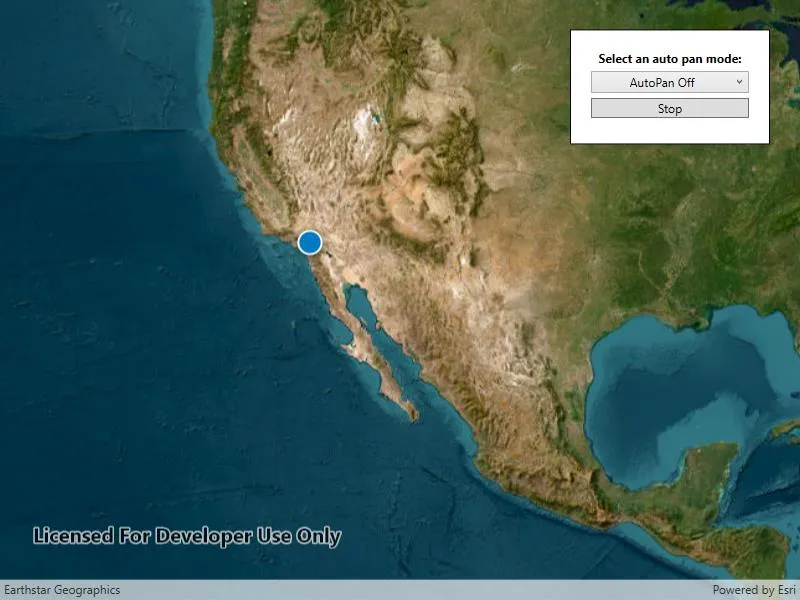
Display your current position on the map, as well as switch between different types of auto pan modes.
Use case
When using a map within a GIS, it may be helpful for a user to know their own location within a map, whether that’s to aid the user’s navigation or to provide an easy means of identifying/collecting geospatial information at their location.
How to use the sample
Select an autopan mode, then use the button to start and stop location display.
How it works
- Create a
MapView. - Set the
LocationDisplay.AutoPanModethat corresponds with the selected element of the combo box. - Set the
LocationDisplay.IsEnabledbool from theMapViewto true. - Set the
LocationDisplay.IsEnabledbool from theMapViewto false when the stop button is pressed.
Relevant API
- LocationDisplay
- LocationDisplay.AutoPanMode
- Map
- MapView
Additional information
Location permissions are required for this sample.
Tags
compass, GPS, location, map, mobile, navigation
Sample code
// Copyright 2018 Esri.//// Licensed under the Apache License, Version 2.0 (the "License"); you may not use this file except in compliance with the License.// You may obtain a copy of the License at: http://www.apache.org/licenses/LICENSE-2.0//// Unless required by applicable law or agreed to in writing, software distributed under the License is distributed on an// "AS IS" BASIS, WITHOUT WARRANTIES OR CONDITIONS OF ANY KIND, either express or implied. See the License for the specific// language governing permissions and limitations under the License.
using Esri.ArcGISRuntime.Mapping;using Esri.ArcGISRuntime.UI;using System;using System.Collections.Generic;using System.Windows;
namespace ArcGIS.WPF.Samples.DisplayDeviceLocation{    [ArcGIS.Samples.Shared.Attributes.Sample(        name: "Display device location with autopan modes",        category: "Location",        description: "Display your current position on the map, as well as switch between different types of auto pan modes.",        instructions: "Select an autopan mode, then use the button to start and stop location display.",        tags: new[] { "GPS", "compass", "location", "map", "mobile", "navigation" })]    public partial class DisplayDeviceLocation    {        // Dictionary to store the different auto pan modes.        private readonly Dictionary<string, LocationDisplayAutoPanMode> _autoPanModes =            new Dictionary<string, LocationDisplayAutoPanMode>        {            { "AutoPan Off", LocationDisplayAutoPanMode.Off },            { "Re-Center", LocationDisplayAutoPanMode.Recenter },            { "Navigation", LocationDisplayAutoPanMode.Navigation },            { "Compass", LocationDisplayAutoPanMode.CompassNavigation }        };
        public DisplayDeviceLocation()        {            InitializeComponent();            Initialize();        }
        private void Initialize()        {            // Add event handler for when this sample is unloaded.            Unloaded += SampleUnloaded;
            // Create new Map with basemap.            var myMap = new Map(BasemapStyle.ArcGISImageryStandard);
            // Provide used Map to the MapView.            MyMapView.Map = myMap;
            // Set navigation types as items source and set default value.            AutoPanModeComboBox.ItemsSource = _autoPanModes.Keys;
            // Show in the UI that LocationDisplay.AutoPanMode is off by default.            AutoPanModeComboBox.SelectedItem = "AutoPan Off";
            // Update the UI when the user pans the view, changing the location mode.            MyMapView.LocationDisplay.AutoPanModeChanged += (sender, args) =>            {                if (MyMapView.LocationDisplay.AutoPanMode == LocationDisplayAutoPanMode.Off)                {                    AutoPanModeComboBox.SelectedItem = "AutoPan Off";                }            };        }
        private void AutoPanModeComboBox_SelectionChanged(object sender, System.Windows.Controls.SelectionChangedEventArgs e)        {            // Change the auto pan mode based on the new selection.            MyMapView.LocationDisplay.AutoPanMode = _autoPanModes[AutoPanModeComboBox.SelectedItem.ToString()];        }
        private async void StartStopButton_Click(object sender, RoutedEventArgs e)        {            // Try to start or stop the location display data source.            try            {                if (MyMapView.LocationDisplay.IsEnabled)                {                    await MyMapView.LocationDisplay.DataSource.StopAsync();                }                else                {                    await MyMapView.LocationDisplay.DataSource.StartAsync();                }            }            // An exception will be thrown on if location is turned off on your Windows device.            catch (Exception ex)            {                MessageBox.Show(ex.Message, "Error");            }            finally            {                // Flip the button text if the LocationDisplay.IsEnabled property was changed.                // Button text won't change if start button was pressed but location access wasn't authorized.                StartStopButton.Content = MyMapView.LocationDisplay.IsEnabled ? "Stop" : "Start";            }        }
private void SampleUnloaded(object sender, RoutedEventArgs e) { // Stop the location data source. MyMapView.LocationDisplay?.DataSource?.StopAsync(); } }}<UserControl x:Class="ArcGIS.WPF.Samples.DisplayDeviceLocation.DisplayDeviceLocation" xmlns="http://schemas.microsoft.com/winfx/2006/xaml/presentation" xmlns:x="http://schemas.microsoft.com/winfx/2006/xaml" xmlns:esri="http://schemas.esri.com/arcgis/runtime/2013"> <Grid> <esri:MapView x:Name="MyMapView" /> <Border Width="200" Style="{StaticResource BorderStyle}"> <StackPanel> <TextBlock Margin="0,0,0,5" FontWeight="Bold" Text="Select an auto pan mode:" TextAlignment="Center" TextWrapping="Wrap" /> <ComboBox x:Name="AutoPanModeComboBox" Margin="0,0,0,5" HorizontalContentAlignment="Center" SelectionChanged="AutoPanModeComboBox_SelectionChanged" /> <Button x:Name="StartStopButton" Margin="0,0,0,5" Click="StartStopButton_Click" Content="Start" /> </StackPanel> </Border> </Grid></UserControl>