Constructing an ItemGraph can give us a lot of valuable information- the question then becomes, how can we best use it? Though analyzing our graphs purely in Python is possible, combining our graphs with the added capabilities of ArcGIS Knowledge allows us to take our analysis to the next level and easily visualize complex dependency structures.
For customers with access to an ArcGIS Enterprise with ArcGIS Knowledge Server enabled, version 2.4.3 of the ArcGIS API for Python introduces a handy tool- the ItemGraph.to_knowledge_graph() function. This function allows for the creation of an ArcGIS Knowledge Service based on the contents of an ItemGraph, or the addition of an ItemGraph's contents to an existent Knowledge Graph.
An ItemGraph generated from any organization can be visualized in your Knowledge-enabled ArcGIS Enterprise. This means that if you generate a dependency graph based on items in an ArcGIS Online organization, you can still add them to a Knowledge Graph in your ArcGIS Enterprise org- something we'll show here.
Method Breakdown
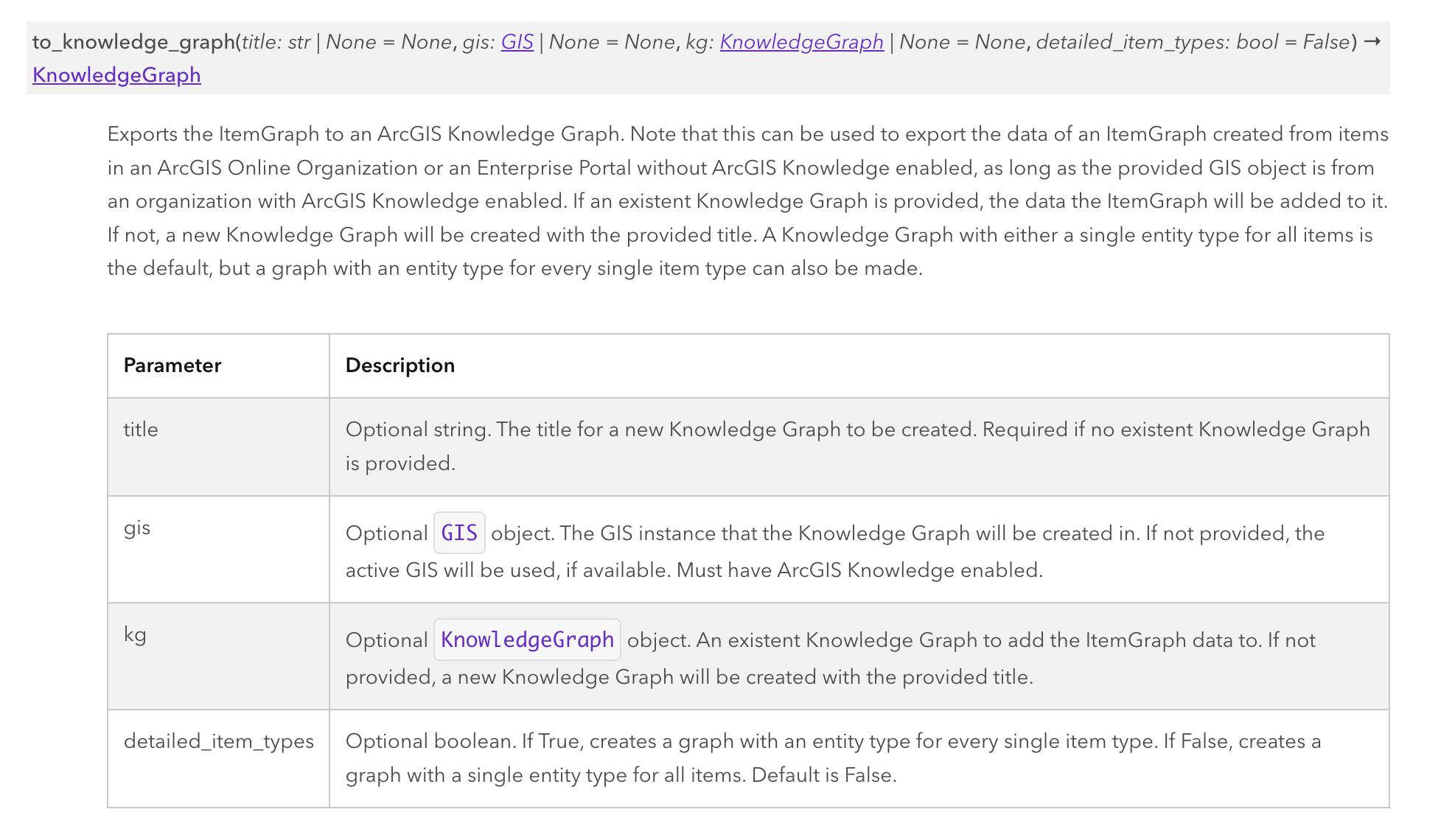 The function, at its simplest, requires one of two arguments: either the title of a new Knowledge Graph (
title), or a KnowledgeGraph object corresponding to an existent graph derived from an ItemGraph (kg).
The gis argument dictates the ArcGIS Enterprise organization where a new Knowledge Service is created, and is only necessary if your ItemGraph was constructed from items in an organization without ArcGIS Knowledge enabled. If your ItemGraph's .gis property is a Knowledge-enabled organization, then omitting this argument will result in a new Knowledge Service being created there by default.
One important thing to note is that the presence of the kg argument means that no new Knowledge Service will be created, and thus the title argument and gis argument become irrelevant if kg exists. Passing in an existent graph will result in the contents of the ItemGraph being added to the graph, making it useful for updating a graph over time.
The final argument above, detailed_item_types, dictates the data model of the Knowledge Graph. If True, the items in the graph will be added to the graph as Entity types corresponding to their item type. For example, if True, a Web Experience item is added as a webExperience entity, and a Web Map is added as a webMap entity. If False, they're both added as portalItem entities, a generic node type covering all item types.
In upcoming versions of the ArcGIS API for Python, additional parameters for capturing item information in the Knowledge Graph will be added, such as enabling detailed service types and including different item metadata properties on the entities.
Usage Examples
Creating a new Knowledge Graph
We'll start with the most simple use case- creating an ItemGraph on a Knowledge-enabled Enterprise and quickly publishing it to a Knowledge Graph.
# start by making the necessary imports
from arcgis.apps.itemgraph import create_dependency_graph
from arcgis.gis import GIS
# log into our org and grab our root nodes
kg_gis = GIS(profile = "your_enterprise_profile")
experience = kg_gis.content.get("e8f3337e8bde4deca08cdffedd4538be")
webmap = kg_gis.content.get("27789d55185c47b6b9b9e21e3a17573e")# create our graph- this is all items our root nodes need to exist
graph = create_dependency_graph(kg_gis, [experience, webmap])
graph.all_items()[ItemNode(id: e8f3337e8bde4deca08cdffedd4538be, item: Oceanic Experience), ItemNode(id: d099b5e5759f46da95102b06237f187a, item: Ugly Map), ItemNode(id: a6551b13d2154a84b41bcccff95eaec1, item: CA/OR Airports), ItemNode(id: 8390292e57bb498bbdf6c74e94e5cefa, item: CA/OR Airports), ItemNode(id: de26a3cf4cc9451298ea173c4b324736, item: World Street Map), ItemNode(id: 27789d55185c47b6b9b9e21e3a17573e, item: Map that should totally work), ItemNode(id: ab285e99a97f4d6b83ead1d9e76e52a0, item: Read-Only CA/OR Airports), ItemNode(id: 5282612d2cd64642845e02560b7f66f1, item: Read-Only CA/OR Airports), ItemNode(id: 999662a9b5154368958376b6b1832bc6, item: polygons), ItemNode(id: c5b0d2ac8a744f4b95b02ff07a1e5390, item: polygons), ItemNode(id: 273bf8d5c8ac400183fc24e109d20bcf, item: Community)]
# we can quickly convert it to a Knowledge Graph, all we need is to give it a name
kg = graph.to_knowledge_graph("Basic_KG")
kg
<arcgis.graph._service.KnowledgeGraph at 0x163bde660>
# look for it in your org's GUI, or retrieve it this way
kg_id = kg.properties['serviceItemId']
kg_gis.content.get(kg_id)
 Knowledge Graph by publisher2
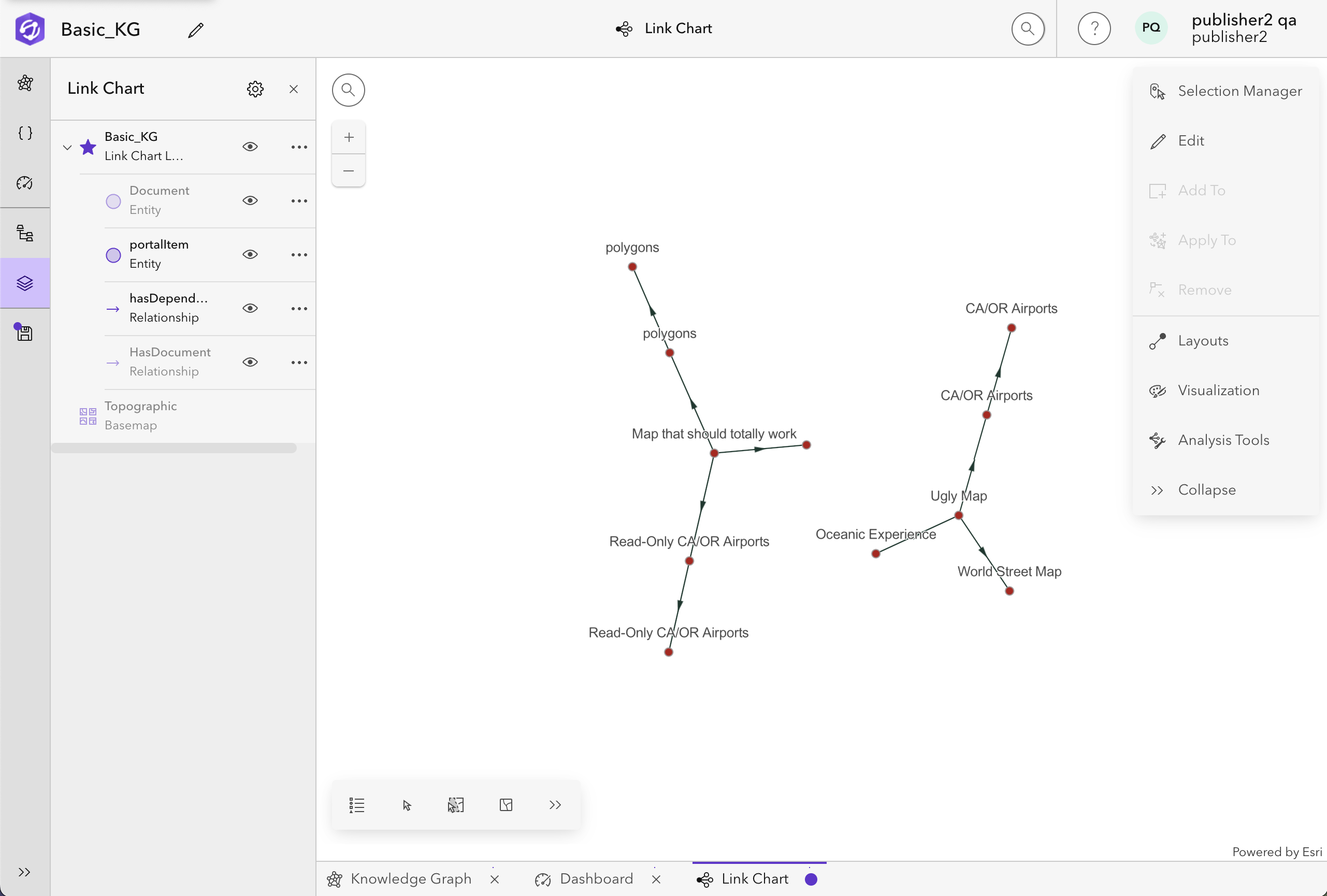
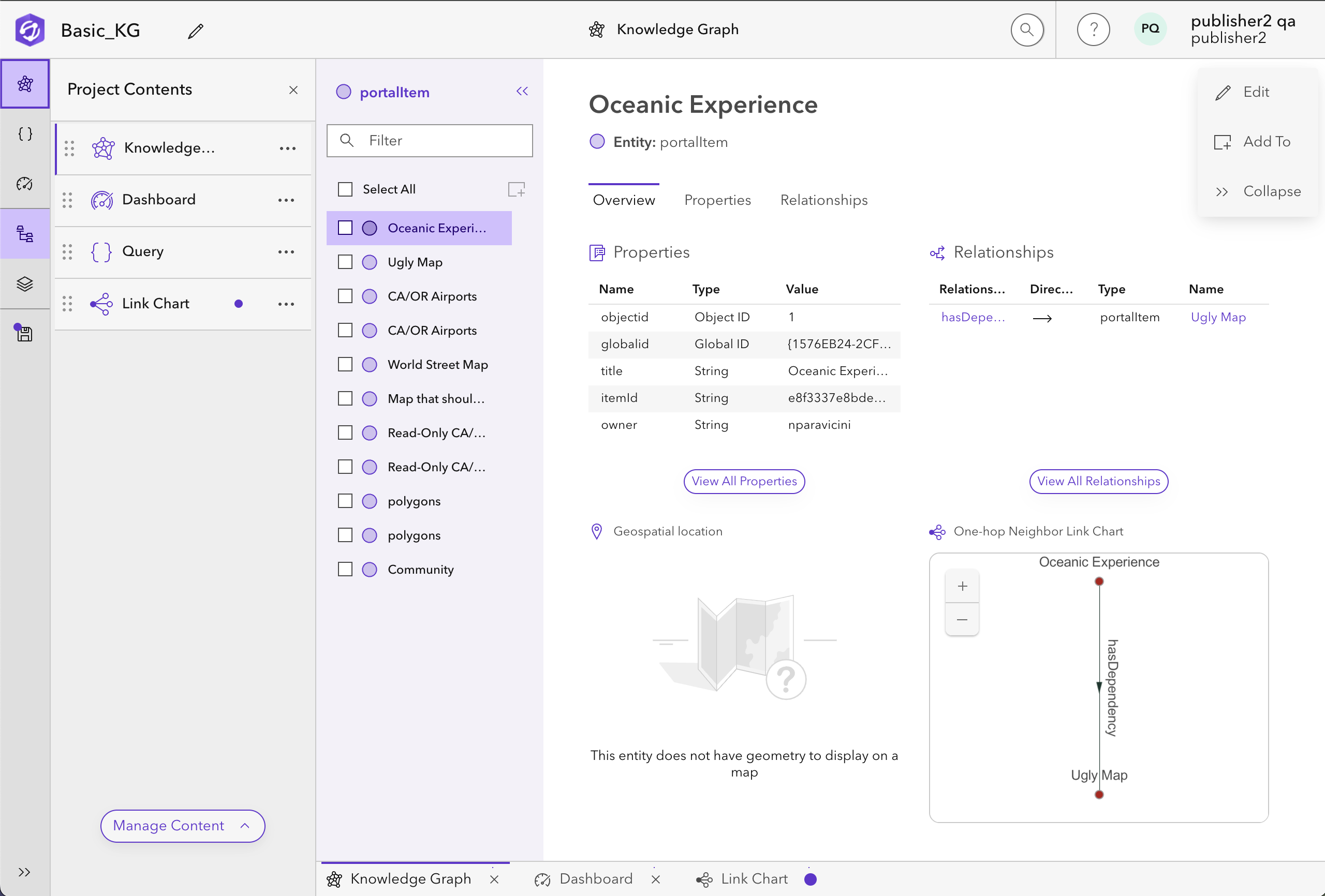
And it's as easy as that! We can look at the resulting graph in Knowledge Studio. Notice that all of our items from our graph.all_items() call are there, and they're all entities of type portalItem.
Adding to an existing Knowledge Graph
Say we want to add more items to the graph we just made- all we have to do is create a new ItemGraph, and then reference our KG object in the method call.
# create another ItemGraph
storymap = kg_gis.content.get("0e28eb3472854ff6a6831aa3769a1fda")
graph2 = create_dependency_graph(kg_gis, [storymap])
# look at what we should see
graph2.all_items()[ItemNode(id: 0e28eb3472854ff6a6831aa3769a1fda, item: LimerickStoryMap), ItemNode(id: 4577da5d9eee45c99b7593b24cf9e911, item: SimpleWebMap), ItemNode(id: e68b2a6c31ea48b7b78a1d7acfa6247a, item: SimpleWebMap_MIL1)]
# add it to our Knowledge Graph
graph2.to_knowledge_graph(kg = kg)
<arcgis.graph._service.KnowledgeGraph at 0x163bde660>
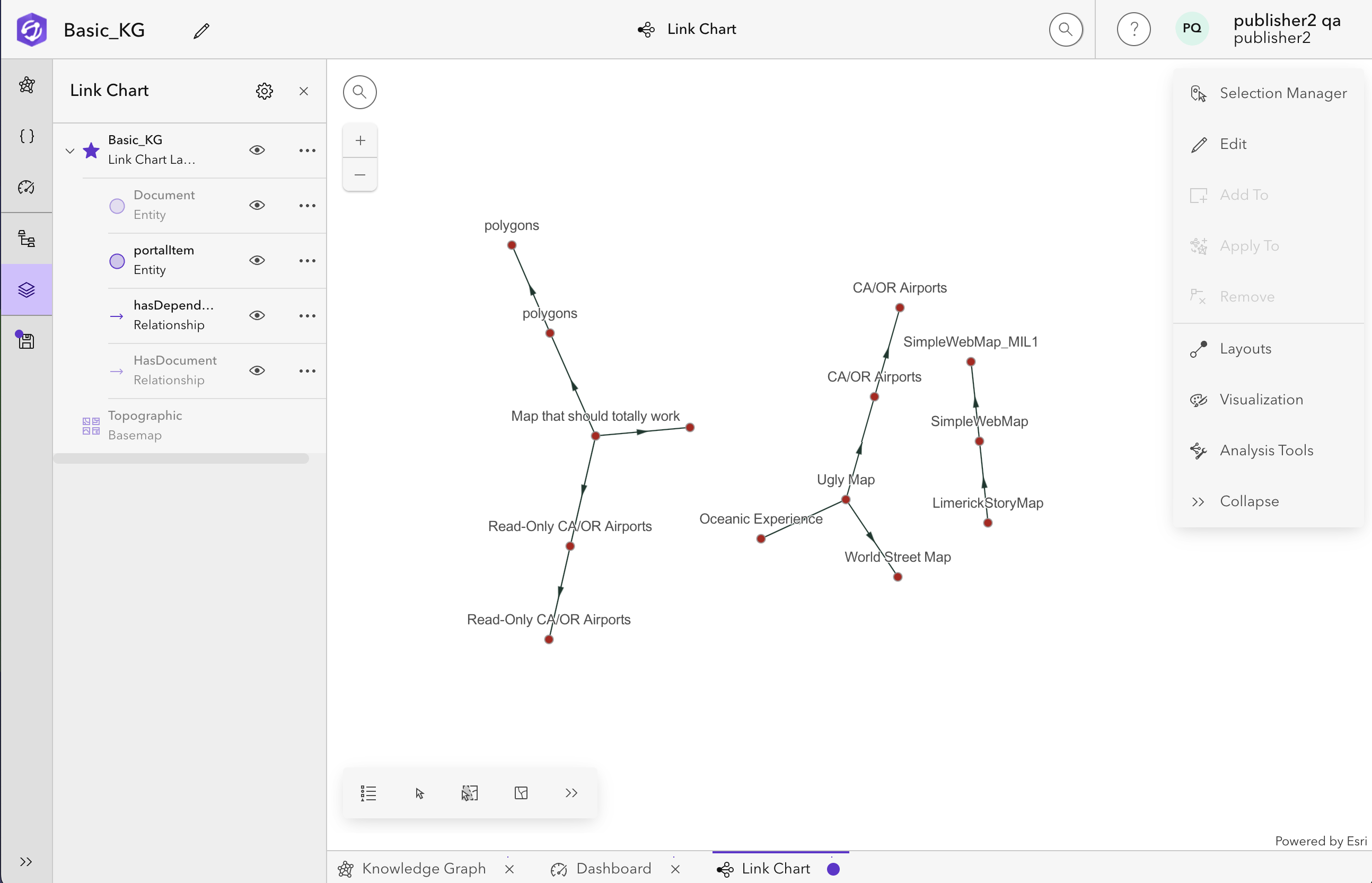
Let's take a look at our graph now! We'll see our StoryMap and its dependencies in there too.
Adding from a different organization and detailed item types
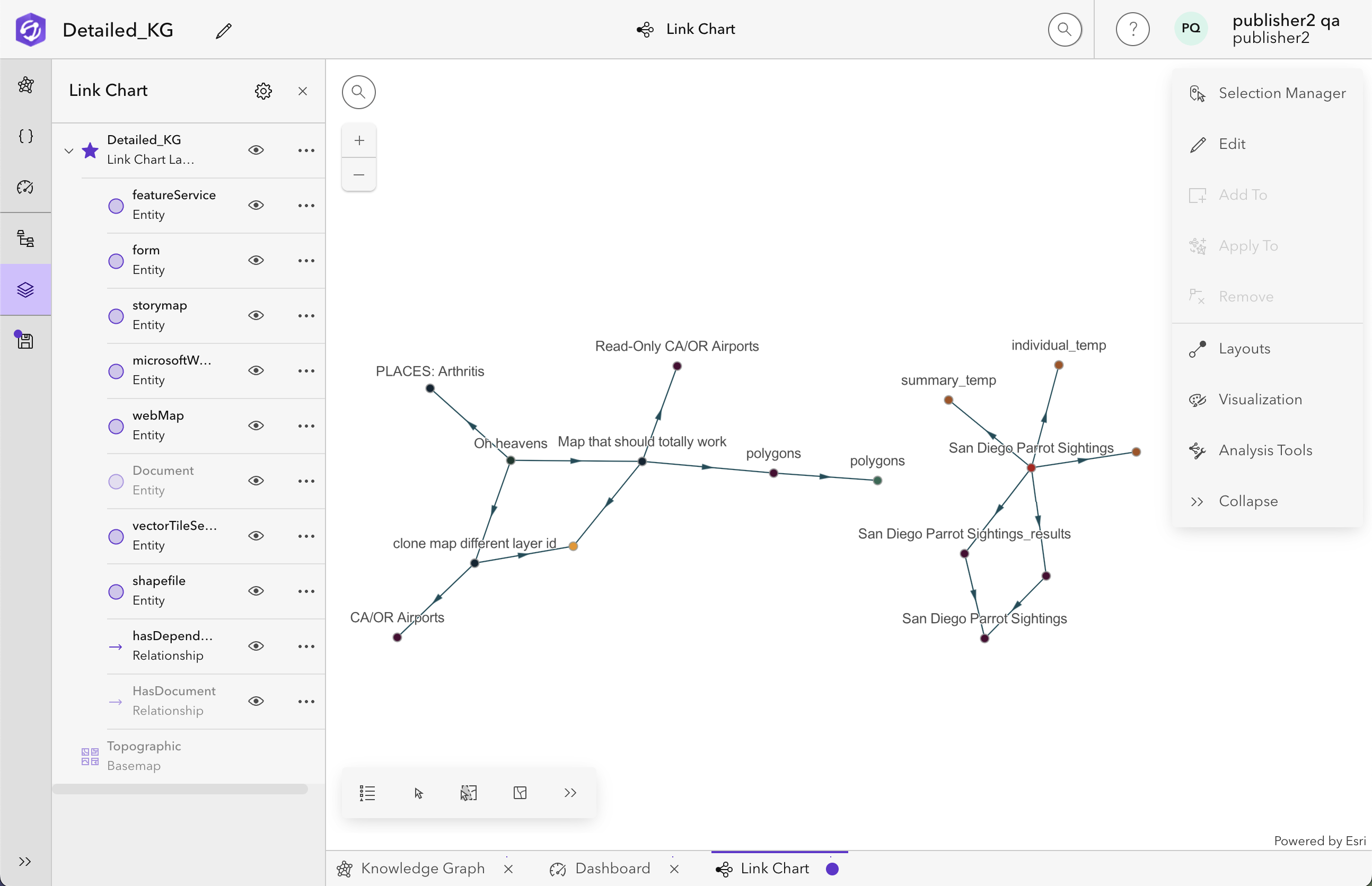
We're going to do 2 for 1 now- we'll show how you can display an ItemGraph created in a different organization, and show how we can make it more informative with detailed entity types in our new Knowledge Graph. We'll be working with an ArcGIS Online organization for this example.
# log into our online org and grab our root nodes
agol_gis = GIS(profile = "your_online_profile")
storymap = agol_gis.content.get("fd5801d2f66b43e1a20146d8761f758b")
survey = agol_gis.content.get("02d0702e1ef0468083f780791670c969")
# create our graph
graph = create_dependency_graph(agol_gis, [storymap, survey])
graph.all_items()[ItemNode(id: fd5801d2f66b43e1a20146d8761f758b, item: Oh heavens), ItemNode(id: 7099b3c2e979415e975d00e58afed77e, item: Map that should totally work), ItemNode(id: 55c85385338d434ba1194d9b2c2a60c8, item: polygons), ItemNode(id: d3a24f71ee864118968fa24e572c6dc2, item: polygons), ItemNode(id: 273bf8d5c8ac400183fc24e109d20bcf, item: Community), ItemNode(id: baaf98d1695f47db8d5dc701c0e5f864, item: Read-Only CA/OR Airports), ItemNode(id: 865ec0112fde477788c4f51c4a7baae6, item: clone map different layer id), ItemNode(id: 2113d04eade0432784e8edd336193e68, item: CA/OR Airports), ItemNode(id: 35983e54e61a40b8ac03148e197452ac, item: PLACES: Arthritis), ItemNode(id: 02d0702e1ef0468083f780791670c969, item: San Diego Parrot Sightings), ItemNode(id: a7192e06cfb446e1bab59849285e1038, item: San Diego Parrot Sightings_results), ItemNode(id: 41dd3cca32914cc7ae8fd3a727f44e17, item: San Diego Parrot Sightings), ItemNode(id: d818128edbab44099238bc44e4bf2df0, item: summary_individual_temp), ItemNode(id: 447ef32f6431488c9f9d7552f7d20ce0, item: individual_temp), ItemNode(id: 6a5d407b62954806ac31558c6774656f, item: summary_temp), ItemNode(id: 9fccd6b78482414994eb2c19f90a44c8, item: San Diego Parrot Sightings_form)]
# when we call the function, specify the Knowledge-enabled Enterprise as the gis, and enable detailed types
detailed_kg = graph.to_knowledge_graph(title = "Detailed_KG", gis = kg_gis, detailed_item_types = True)
detailed_kg
<arcgis.graph._service.KnowledgeGraph at 0x16b0b2350>
# we can see all of the entity types in our new knowledge graph
for entity_type in detailed_kg.datamodel["entity_types"]:
    print(entity_type)
featureService form storymap microsoftWord webMap Document vectorTileService shapefile
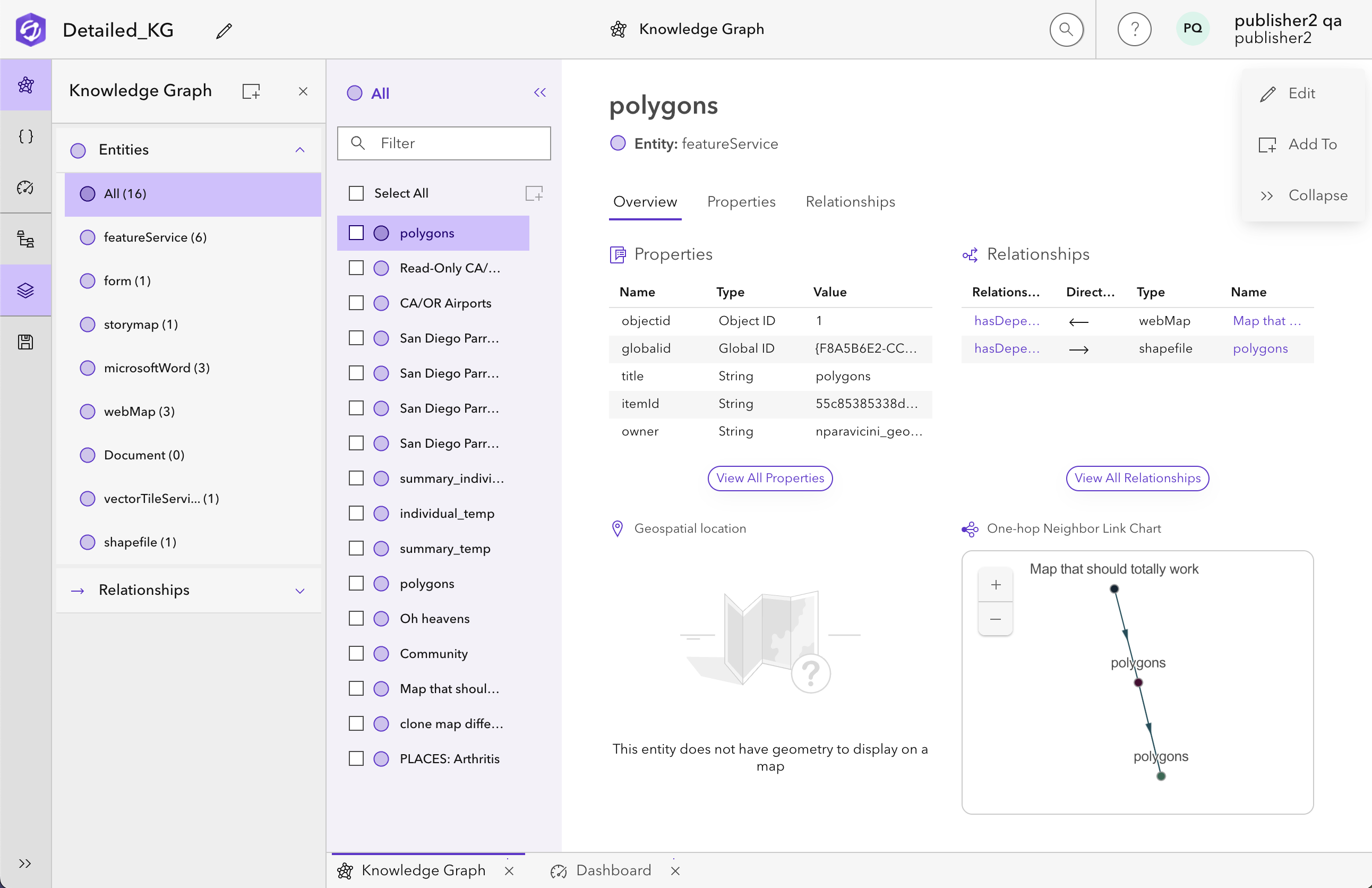
And we can see the result of this below! All of the entity types are present when looking in Knowledge Studio.