Filter 3D scene features out of a given geometry with a polygon filter.
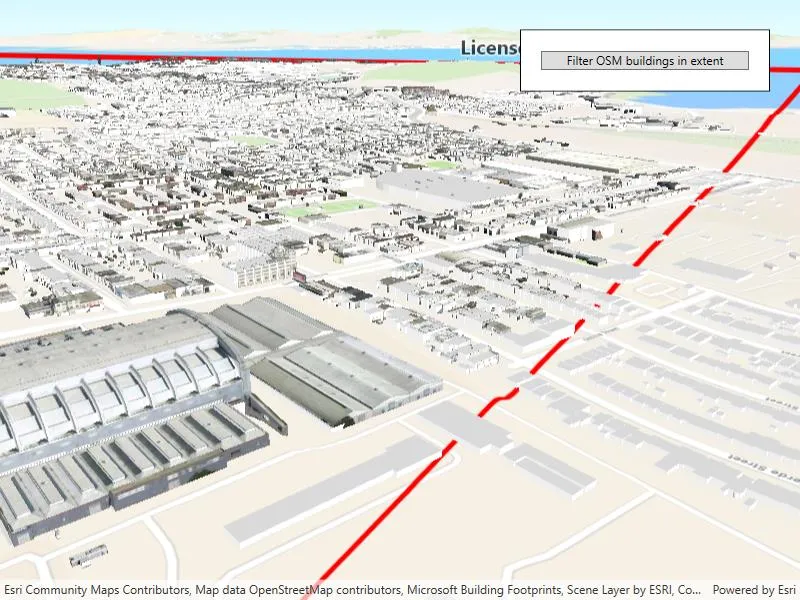
Use case
You can directly control what users see within a specific scene view to give a more focused or cleaner user experience by using a SceneLayerPolygonFilter to selectively show or hide scene features within a given area.
How to use the sample
The sample initializes showing the 3D buildings OpenStreetMap layer. Click the “Load detailed buildings” button to load an additional scene layer that contains more detailed buildings. Notice how the two scene layers overlap and clip into each other. Click the “Filter OSM buildings in extent” button, to set a SceneLayerPolygonFilter and filter out the OpenStreetMap buildings within the extent of the detailed buildings scene. Notice how the OSM buildings within and intersecting the extent of the detailed buildings layer are hidden. Click the “Reset scene” button to hide the detailed buildings scene layer and clear the OSM buildings filter.
How it works
- Add
BaseLayersto aBasemapfor the scene using a topographicArcGISVectorTileLayerand the OpenStreetMap 3D BuildingsArcGISSceneLayeras baselayers. - Create a
Surfacefor the scene and set the World Elevation 3D as an elevation source. - Add the 3D San Francisco Buildings
ArcGISSceneLayerto the scene’s operational layers. - Construct a
SceneLayerPolygonFilterwith the extent of the San Francisco Buildings Scene Layer and theSceneLayerPolygonFilterSpatialRelationship.Disjointenum to hide all features within the extent. - Set the
SceneLayerPolygonFilteron the OSM Buildings layer to hide all OSM buildings within the extent of the San Francisco Buildings layer.
Relevant API
- ArcGISSceneLayer
- SceneLayerPolygonFilter
- SceneLayerPolygonFilterSpatialRelationship
About the data
This sample uses the OpenStreetMap 3D Buildings which provides generic 3D outlines of buildings throughout the world. It is based on the OSM Daylight map distribution and is hosted by Esri. It uses the San Francisco 3D Buildings scene layer which provides detailed 3D models of buildings in San Francisco, California, USA.
Additional information
This sample uses SceneLayerPolygonFilterSpatialRelationship.Disjoint to hide all features within the extent of the given geometry. You can alternatively use the SceneLayerPolygonFilterSpatialRelationship.Contains enum to only show features within the extent of the geometry.
You can also show or hide features in a scene layer using ArcGISSceneLayer.SetFeatureVisible() or SetFeaturesVisible() and pass in a feature or list of features and a boolean value to set their visibility.
Tags
3D, buildings, disjoint, exclude, extent, filter, hide, OSM, polygon
Sample code
// Copyright 2023 Esri.//// Licensed under the Apache License, Version 2.0 (the "License"); you may not use this file except in compliance with the License.// You may obtain a copy of the License at: http://www.apache.org/licenses/LICENSE-2.0//// Unless required by applicable law or agreed to in writing, software distributed under the License is distributed on an// "AS IS" BASIS, WITHOUT WARRANTIES OR CONDITIONS OF ANY KIND, either express or implied. See the License for the specific// language governing permissions and limitations under the License.
using Esri.ArcGISRuntime.Geometry;using Esri.ArcGISRuntime.Mapping;using Esri.ArcGISRuntime.Symbology;using Esri.ArcGISRuntime.UI;using System;using System.Collections.Generic;using System.Linq;using System.Threading.Tasks;using System.Windows;using Geometry = Esri.ArcGISRuntime.Geometry.Geometry;using Polygon = Esri.ArcGISRuntime.Geometry.Polygon;
namespace ArcGIS.WPF.Samples.FilterFeaturesInScene{    [ArcGIS.Samples.Shared.Attributes.Sample(        name: "Filter features in scene",        category: "Scene",        description: "Filter 3D scene features out of a given geometry with a polygon filter.",        instructions: "The sample initializes showing the 3D buildings OpenStreetMap layer. Click the \"Load detailed buildings\" button to load an additional scene layer that contains more detailed buildings. Notice how the two scene layers overlap and clip into each other. Click the \"Filter OSM buildings in extent\" button, to set a `SceneLayerPolygonFilter` and filter out the OpenStreetMap buildings within the extent of the detailed buildings scene. Notice how the OSM buildings within and intersecting the extent of the detailed buildings layer are hidden. Click the \"Reset scene\" button to hide the detailed buildings scene layer and clear the OSM buildings filter.",        tags: new[] { "3D", "OSM", "buildings", "disjoint", "exclude", "extent", "filter", "hide", "polygon" })]    [ArcGIS.Samples.Shared.Attributes.OfflineData()]    public partial class FilterFeaturesInScene    {        // ArcGIS Online services.        private const string OsmTopographic = "https://www.arcgis.com/home/item.html?id=1e7d1784d1ef4b79ba6764d0bd6c3150";        private const string OsmBuildings = "https://www.arcgis.com/home/item.html?id=ca0470dbbddb4db28bad74ed39949e25";        private const string ElevationSource = "https://elevation3d.arcgis.com/arcgis/rest/services/WorldElevation3D/Terrain3D/ImageServer";        private const string DetailedBuildings = "https://tiles.arcgis.com/tiles/z2tnIkrLQ2BRzr6P/arcgis/rest/services/SanFrancisco_Bldgs/SceneServer";
        private ArcGISSceneLayer _detailedBuildingsSceneLayer;        private ArcGISSceneLayer _osmBuildingSceneLayer;
        private SceneLayerPolygonFilter _sceneLayerPolygonFilter;        private Graphic _cityExtentGraphic;        private Geometry _sceneLayerExtentPolygon;
        public FilterFeaturesInScene()        {            InitializeComponent();            _ = Initialize();        }
        private async Task Initialize()        {            MySceneView.Scene = new Scene();
            // Add base layers to the scene's basemap using OSM layers from AGOL.            MySceneView.Scene.Basemap.BaseLayers.Add(new ArcGISVectorTiledLayer(new Uri(OsmTopographic)));            MySceneView.Scene.Basemap.BaseLayers.Add(_osmBuildingSceneLayer = new ArcGISSceneLayer(new Uri(OsmBuildings)));
            // Create a surface with an elevation source for the scene.            var surface = new Surface();            surface.ElevationSources.Add(new ArcGISTiledElevationSource(new Uri(ElevationSource)));            MySceneView.Scene.BaseSurface = surface;
            // Create a scene layer for the detailed buildings.            _detailedBuildingsSceneLayer = new ArcGISSceneLayer(new Uri(DetailedBuildings));            await _detailedBuildingsSceneLayer.LoadAsync();
            // Construct a red polygon that shows the extent of the detailed buildings scene layer.            Envelope cityExtent = _detailedBuildingsSceneLayer.FullExtent;            var builder = new PolygonBuilder(MySceneView.SpatialReference);            builder.AddPoint(cityExtent.XMin, cityExtent.YMin);            builder.AddPoint(cityExtent.XMax, cityExtent.YMin);            builder.AddPoint(cityExtent.XMax, cityExtent.YMax);            builder.AddPoint(cityExtent.XMin, cityExtent.YMax);
            _sceneLayerExtentPolygon = builder.ToGeometry();
            // Create the SceneLayerPolygonFilter to later apply to the OSM buildings layer.            _sceneLayerPolygonFilter = new SceneLayerPolygonFilter(new List<Polygon>() { builder.ToGeometry() }, SceneLayerPolygonFilterSpatialRelationship.Disjoint);
            // Create the extent graphic so we can add it later with the detailed buildings scene layer.            var simpleLineSymbol = new SimpleLineSymbol(SimpleLineSymbolStyle.Solid, System.Drawing.Color.Red, 5.0f);            var simpleFillSymbol = new SimpleFillSymbol(SimpleFillSymbolStyle.Solid, System.Drawing.Color.Transparent, simpleLineSymbol);            _cityExtentGraphic = new Graphic(_sceneLayerExtentPolygon, simpleFillSymbol);
            MySceneView.GraphicsOverlays.Add(new GraphicsOverlay());
            LoadScene();
            await MySceneView.SetViewpointCameraAsync(new Camera(new MapPoint(-122.421, 37.7041, 207), 60, 70, 0));        }
        // Determine which step of the sample user is on.        private void MyButton_Click(object sender, RoutedEventArgs e)        {            switch (MyButton.Tag)            {                case "LoadScene":                    LoadScene();                    break;
                case "FilterScene":                    FilterScene();                    break;
                case "ResetScene":                    ResetScene();                    break;            }        }
        // Show the detailed buildings scene layer and extent graphic.        private void LoadScene()        {            // Update button tag and label to reflect next step.            MyButton.Tag = "FilterScene";            MyButton.Content = "Filter OSM buildings in extent";
            // Show the detailed buildings scene layer and the city extent graphic.            MySceneView.Scene.OperationalLayers.Add(_detailedBuildingsSceneLayer);            MySceneView.GraphicsOverlays.FirstOrDefault().Graphics.Add(_cityExtentGraphic);        }
        // Hide buildings within the detailed building extent so they don't clip.        private void FilterScene()        {            // Update button tag and label to reflect next step.            MyButton.Tag = "ResetScene";            MyButton.Content = "Reset scene";
            // Initially, the building layer does not have a polygon filter, set it.            if (_osmBuildingSceneLayer.PolygonFilter == null)            {                _osmBuildingSceneLayer.PolygonFilter = _sceneLayerPolygonFilter;            }            // After the scene is reset, the layer will have a polygon filter, but that filter will not have polygons set.            // Add the polygon back to the polygon filter.            else            {                _sceneLayerPolygonFilter.Polygons.Add((Polygon)_sceneLayerExtentPolygon);            }        }
        // Reset the scene to its original state.        private void ResetScene()        {            // Update button tag and label to reflect next step.            MyButton.Tag = "LoadScene";            MyButton.Content = "Load detailed buildings";
            // Remove the detailed buildings layer from the scene.            MySceneView.Scene.OperationalLayers.Clear();
            // Clear the OSM buildings polygon filter polygons list.            _osmBuildingSceneLayer.PolygonFilter.Polygons.Clear();
// Clear the graphics list in the graphics overlay to remove the red extent boundary graphic. MySceneView.GraphicsOverlays.FirstOrDefault().Graphics.Clear(); } }}<UserControl x:Class="ArcGIS.WPF.Samples.FilterFeaturesInScene.FilterFeaturesInScene" xmlns="http://schemas.microsoft.com/winfx/2006/xaml/presentation" xmlns:x="http://schemas.microsoft.com/winfx/2006/xaml" xmlns:esri="http://schemas.esri.com/arcgis/runtime/2013"> <Grid> <esri:SceneView x:Name="MySceneView" /> <Border Width="250" Style="{StaticResource BorderStyle}"> <Button x:Name="MyButton" Click="MyButton_Click" /> </Border> </Grid></UserControl>