Learn how to import data into your portal
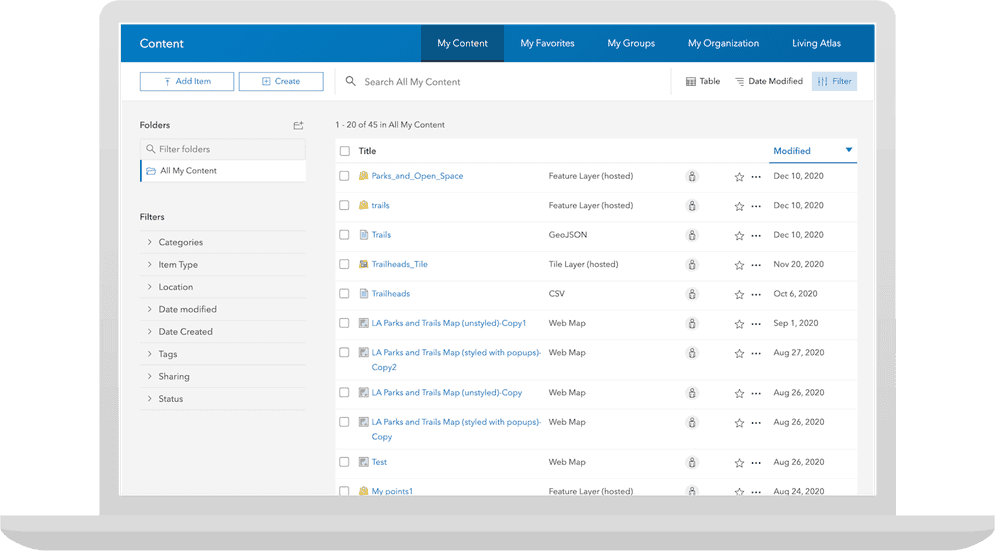
With an ArcGIS Online account
Initially your feature layer is private, but you can change the sharing level of the layer in your portal (only for ArcGIS Online and ArcGIS Enterprise accounts).
With the ArcGIS API for Python you can automate the process of importing and then publishing feature data as a web layer. The import process is a fast and easy way to turn static data into live web services that can be displayed, filtered, and edited within your applications.
In this tutorial, you will import different file types as items
Prerequisites
The ArcGIS API for Python tutorials use Jupyter Notebooks to execute Python code. If you are new to this environment, please see the guide to install the API and use notebooks locally.
Be sure you have completed the Download data tutorial or have downloaded the LA_Hub_Datasets from ArcGIS Online.
Steps
Import modules and log in
-
Use the
GISclass to log in to your portalArcGIS portal, also known as a portal, is a website with applications and tools that can be used to create, manage, access, and share geospatial content and data. It supports security and authentication, developer credentials, content and data service management, user and group management, and site administration. A portal can be hosted in Esri's infrastructure or your own infrastructure. using your ArcGIS Location Platform accountAn ArcGIS Location Platform account, formerly known as an ArcGIS Developer account, is an identity associated with an ArcGIS Location Platform subscription. , ArcGIS Online accountAn ArcGIS Online account, also known as an ArcGIS Organization account, is an identity associated with an ArcGIS Online subscription. It can be used to access ArcGIS tools and develop applications with ArcGIS location services for an organization. , or ArcGIS Enterprise accountAn ArcGIS Enterprise account is an identity for an instance of ArcGIS Enterprise. It can be used to access ArcGIS Enterprise tools, applications, and services, and to develop applications. .Use dark colors for code blocks from arcgis.gis import GIS, ItemProperties, ItemTypeEnum portal = GIS(username="<YOUR_USERNAME>")
Import the Trailheads CSV file
-
Create an
Itemobject to store the metadata for the CSV file. Use the fieldsProperties title,description,tags, anditem._type Use dark colors for code blocks portal = GIS(username="<YOUR_USERNAME>") trailhead_item_properties = ItemProperties( item_type = ItemTypeEnum.CSV, title="Trailheads", description = "Trailheads CSV file imported using the ArcGIS API for Python", tags="la, trailheads, csv, python, los, angeles" ) trailhead_item_properties -
Upload the file by calling the
addmethod on theFolderclass. Pass in the local path of the file and theItemobject. TheProperties addmethod is run asynchronously, so it return aFutureobject. Use theresult()method to return the resultingItemobject.Use dark colors for code blocks trailhead_item_properties = ItemProperties( item_type = ItemTypeEnum.CSV, title="Trailheads", description = "Trailheads CSV file imported using the ArcGIS API for Python", tags="la, trailheads, csv, python, los, angeles" ) trailhead_item_properties csv_file = './data/LA_Hub_datasets/LA_Hub_datasets/Trailheads.csv' # get the root folder, i.e. "MyContent" > "All my content" folder = portal.content.folders.get() folder csv_item = folder.add(item_properties = trailhead_properties, file = csv_file).result() -
Call the
publishmethod on the returnedItemto publish a feature layer. The results will be a newItemrepresenting the published service.Use dark colors for code blocks trailhead_item_properties = ItemProperties( item_type = ItemTypeEnum.CSV, title="Trailheads", description = "Trailheads CSV file imported using the ArcGIS API for Python", tags="la, trailheads, csv, python, los, angeles" ) trailhead_item_properties csv_file = './data/LA_Hub_datasets/LA_Hub_datasets/Trailheads.csv' # get the root folder, i.e. "MyContent" > "All my content" folder = portal.content.folders.get() folder csv_item = folder.add(item_properties = trailhead_properties, file = csv_file).result() trailhead_service = csv_item.publish() trailhead_service.url
Import the Trails GeoJSON file
-
Create an
Itemobject to store the metadata for the GeoJSON file. Use the fieldsProperties title,description,tags, anditem._type Use dark colors for code blocks trailhead_service = csv_item.publish() trailhead_service.url trails_properties = ItemProperties( title = "Trails", description = "Trails GeoJSON file imported using the ArcGIS API for Python", tags = "la, trails, geojson, python, los, angeles", item_type = ItemTypeEnum.GEOJSON ) trails_properties -
Upload the local GeoJSON file by calling the
addmethod on theFolderclass. Pass in the local file path and theItemobject. Since the add method runs asynchronously, it will return aProperties Futureobject. Use theresult()method to access the resultingItemobject.Use dark colors for code blocks trails_properties = ItemProperties( title = "Trails", description = "Trails GeoJSON file imported using the ArcGIS API for Python", tags = "la, trails, geojson, python, los, angeles", item_type = ItemTypeEnum.GEOJSON ) trails_properties geojson_file = './data/LA_Hub_datasets/LA_Hub_datasets/Trails.geojson' geojson_item = folder.add(item_properties = trails_properties, file = geojson_file).result() -
Call the
publishmethod on theItemto publish the service. This will return a newItemrepresenting the published service.Use dark colors for code blocks trails_properties = ItemProperties( title = "Trails", description = "Trails GeoJSON file imported using the ArcGIS API for Python", tags = "la, trails, geojson, python, los, angeles", item_type = ItemTypeEnum.GEOJSON ) trails_properties geojson_file = './data/LA_Hub_datasets/LA_Hub_datasets/Trails.geojson' geojson_item = folder.add(item_properties = trails_properties, file = geojson_file).result() trails_service = geojson_item.publish() trails_service
Import the Parks and Open Spaces Shapefile
-
Create an
Itemobject to store the metadata for the ZIP file. Use the fieldsProperties title,description,tags, anditem._type Use dark colors for code blocks trails_service = geojson_item.publish() trails_service parks_properties = { 'title': 'Parks and Open space', 'tags':'parks, open data, tutorials', 'type': 'Shapefile' } -
Upload the local ZIP file by calling the
addmethod on theFolderclass. Pass in the local file path and theItemobject. Since the add method runs asynchronously, it will return aProperties Futureobject. Use theresult()method to access the resultingItemobject.Use dark colors for code blocks parks_properties = { 'title': 'Parks and Open space', 'tags':'parks, open data, tutorials', 'type': 'Shapefile' } zip_file = './data/Parks_and_Open_Space.zip' # relative path to notebook shp_item = folder.add(item_properties = parks_properties, file = zip_file).result() shp_item -
Call the
publishmethod on the returnedItemto publish the service. This will return newItemrepresenting the published service.Use dark colors for code blocks parks_properties = { 'title': 'Parks and Open space', 'tags':'parks, open data, tutorials', 'type': 'Shapefile' } zip_file = './data/Parks_and_Open_Space.zip' # relative path to notebook shp_item = folder.add(item_properties = parks_properties, file = zip_file).result() shp_item parks_service = shp_item.publish() parks_service
Identify the Item Ids and URLs
-
Use the
urlandidproperties of each of the published service items to get the item IDAn item ID is a unique identifier representing a single item stored, managed, and accessed in a portal, such as a web map, hosted layer, or file. and service URL. You can use these to access your data in other tutorials and projects.Use dark colors for code blocks print(f"Trailheads (points) item id: {trailhead_service.id} , feature layer url : {trailhead_service.url}") print(f"Trails (polylines) item id: {trails_service.id}, feature layer url: {trails_service.url}") print(f"Parks (polygons) item id: {parks_service.id}, feature layer url: {parks_service.url}")
What's next?
Learn how to use additional functionality in these tutorials:
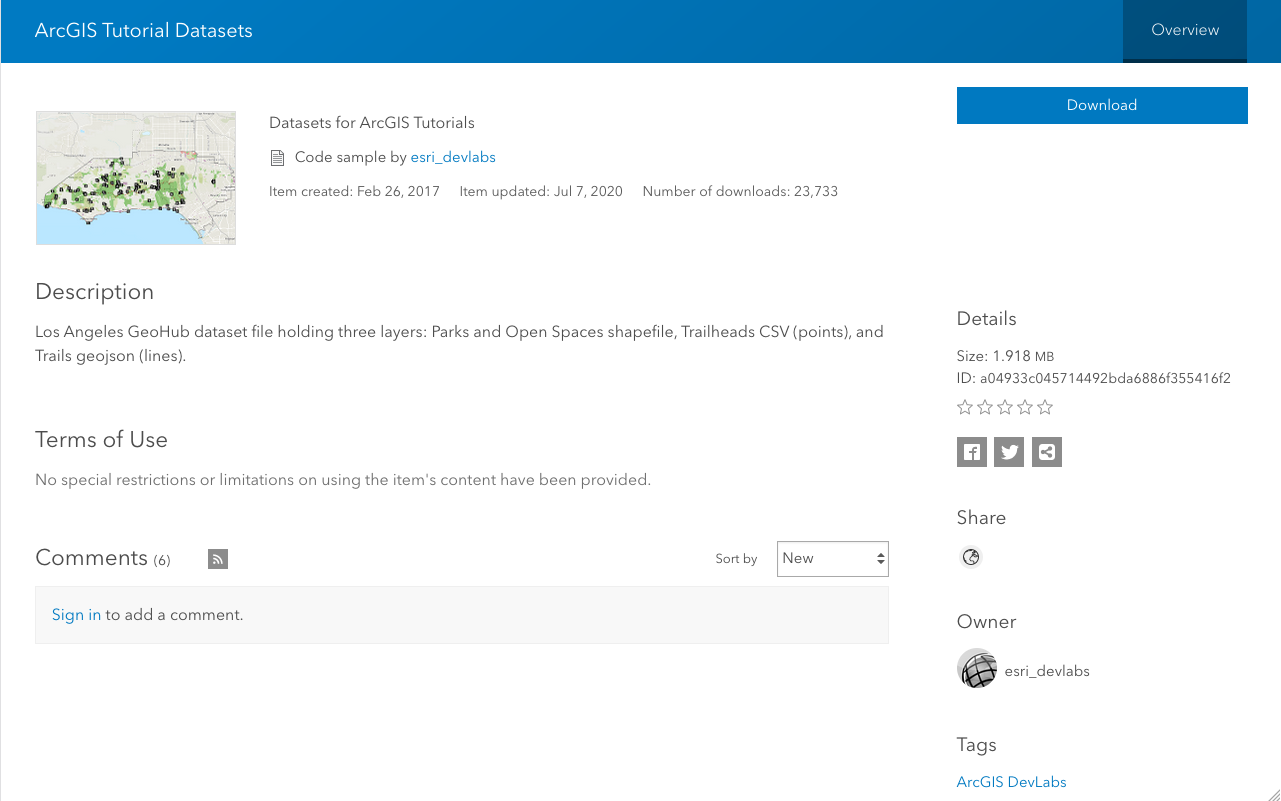
Download data
Automate downloading data from the cloud using the ArcGIS API for Python.
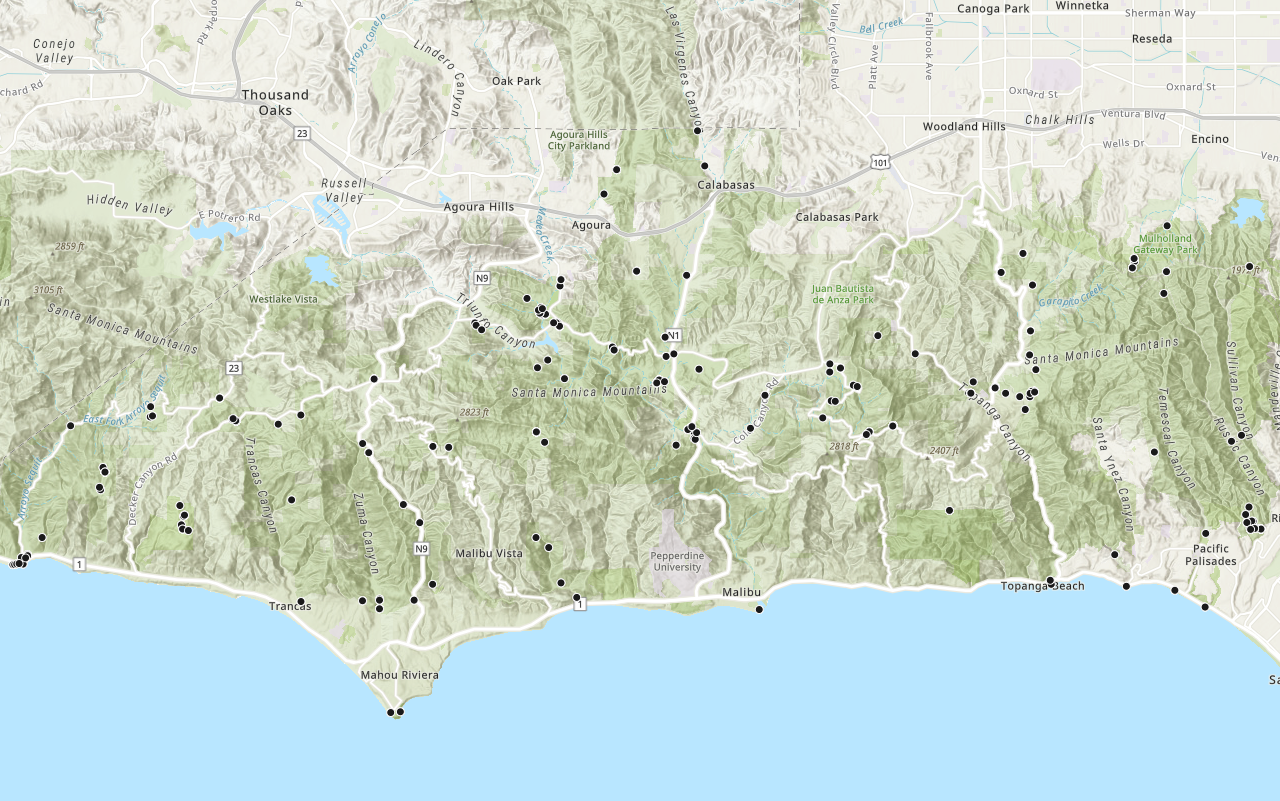
Add a layer from a portal item
Learn how to use a portal item to access and display point features from a feature service.
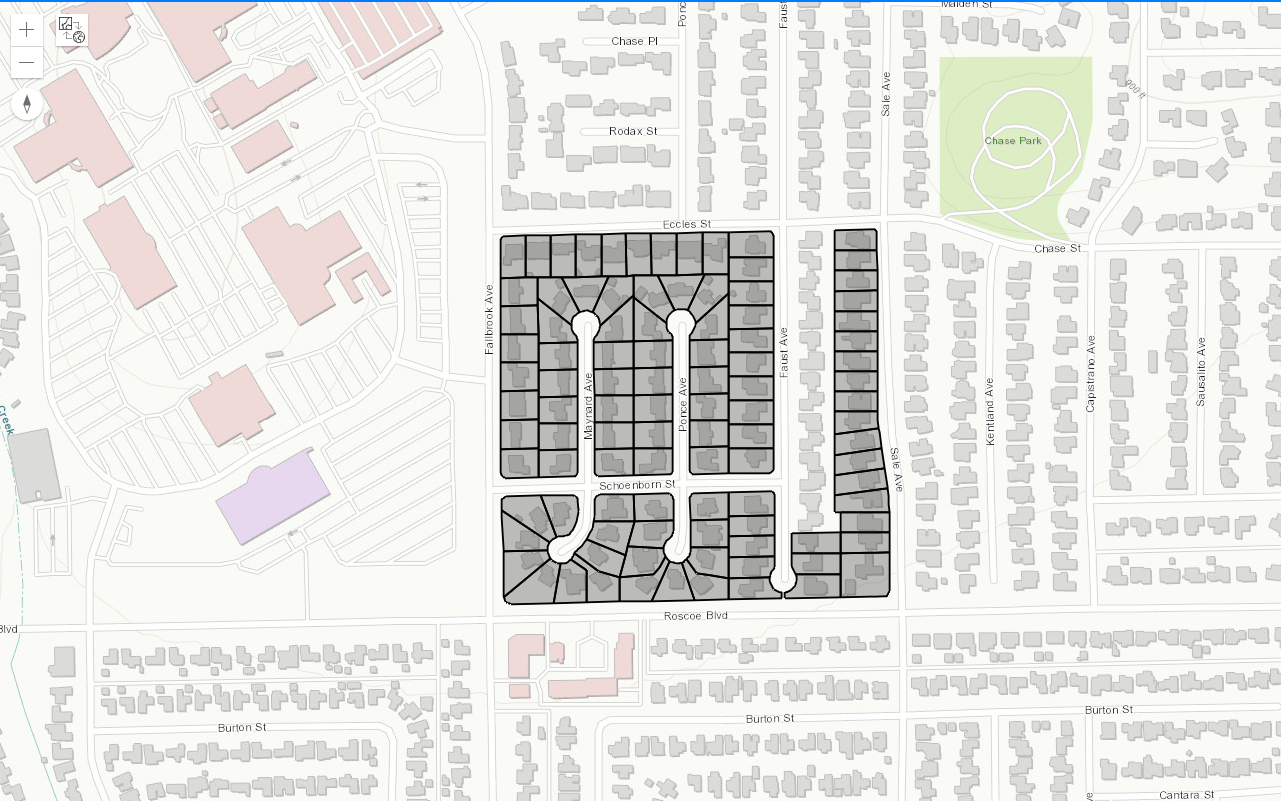
Query a feature layer (SQL)
Learn how to execute a SQL query to access polygon features from feature services.