This topic describes how to debug Java extensions with a dedicated instance in ArcGIS Enterprise on Kubernetes by attaching a remote debugger from IntelliJ IDEA to the ArcSOC process running inside a MapServer or ImageServer pod.
Prerequisites
| Requirement | Notes |
|---|---|
| IntelliJ IDEA | Must support Remote JVM Debug |
| kubectl | Configure access to the Kubernetes cluster |
| Visual Studio Code with Kubernetes extensions | Used to inspect pods and forward ports |
| Access to ArcGIS Enterprise on Kubernetes | Requires administrator privileges |
| SOE/SOI deployed to ArcGIS Enterprise on Kubernetes | Extension must be enabled on a Map/Image service |
How to enable debugging
1. Configure service instance settings
Using a single instance helps ensure that the debugger attaches to the correct ArcSOC process. This simplifies the process of identifying the correct ArcSOC process during debugging.
Please follow the steps below:
-
Navigate to the ArcGIS Server Admin REST endpoint:
https. For this guide, we will use:// <domain >/ <server Web Adaptor >/admin/services/ Sample World Cities. Map Server Sampleas a example, please find your debug map or image service.World Cities. Map Server -
Click Edit Service.
-
Set the following properties:
Use dark colors for code blocks Copy "maxInstancesPerNode": 1, "minInstancesPerNode": 1 -
Click Save Edit.
2. Upload and Enable the SOE extension
-
Sign in to ArcGIS Enterprise Manager:
https.:// <domain >/ <server Web Adaptor >/manager -
Ensure that the extension to debug into is deployed to ArcGIS Enterprise Manager.
-
Open the ArcGIS Enterprise portal.
-
Ensure that the extension is enabled with the published dedicated map service or image service, in here we use
Samplemap service.World Cities
3. Enable debug mode
-
Sign in ArcGIS Enterprise Manager:
https.:// <domain >/ <server Web Adaptor >/manager -
Go to Services and find the
Samplemap service.World Cities -
Go to the Advanced tab.
-
Enable: Enable debug mode

-
Configure the following optional settings:
Setting Example Suspend service at startup Enabled Time window 60 seconds Debug port range 8014–8020 -
For above optional settings, please specify a port range.
-
Click Save.
After this setting is saved, when you start a service with an SOE or SOI enabled, ArcGIS Server will select one of the available ports from this range, bind your service and extension’s process to this port, and listen to the incoming connection request on this port. If you start another service with an extension enabled afterward, ArcGIS Server will bind the new service and extension’s process to the next available port within the port range. If all the ports within the port range have been bound to the existing processes when a new service is being started with an SOE or SOI enabled, the service will still start successfully with the extension enabled but will not bind any port to its process.
4. Verify debug logging
Once you enabled 'debug' , then you must find the port number that ArcGIS Server is listening on, please follow below steps:
-
Access to the server logs in ArcGIS Enterprise Manager.
-
Enable
Infolevel at ArcGIS Enterprise Manager > Logs> Settings> Set default log level and click Save.
-
Find the port number that ArcGIS Server is listening on that mentioned as below log information and the port number selected by ArcGIS Server is 8016, and expected log message:
SO.E debugging is enabled on service 'xxx. Map Server'. The Arc SO C will listen for connections on port 8016 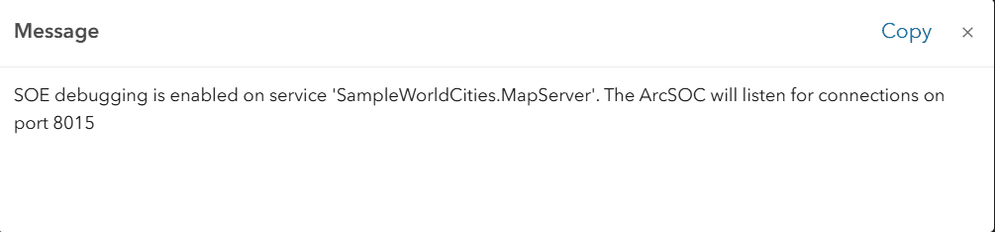
5. Identify the correct Kubernetes pod
Using Visual Studio Code
-
Open Visual Studio Code and enable the Kubernetes extension.
-
Add the existing cluster using the 'admin.config' file.
-
Wait for the cluster connection to complete.
-
Change the active Namespace to 'arcgis'.
-
Navigate to Workloads → Deployments.
-
Find the deployment matching "deploymentId": "kb3ha7fa1a3xmrhr4ocyp" (retrieved it from the service properties in ArcGIS Server Admin).

-
Confirm the map/image service name is match on the deployment.
-
Forward Ports: Right-click the deployment and select Forward Port.
-
Enter the following port mappings:
8443:8443 8000 :8000 <debug _port >:<debug :port > Based on above port number from ArcGIS Server log:
Use dark colors for code blocks Copy 8443:8443 8000:8000 8016:8016
6. Attach the IntelliJ remote debugger
-
Open the SOE/SOI project in IntelliJ IDEA.
-
Navigate to Run → Debug → Edit Configurations.
-
Click:
Use dark colors for code blocks Copy + → Remote JVM Debug -
Configure as below:
Field Value Name test Debugger Mode Attach to Remote JVM Transport Socket Host localhost Port 8016 Module Classpath downloadrestsoe.soe 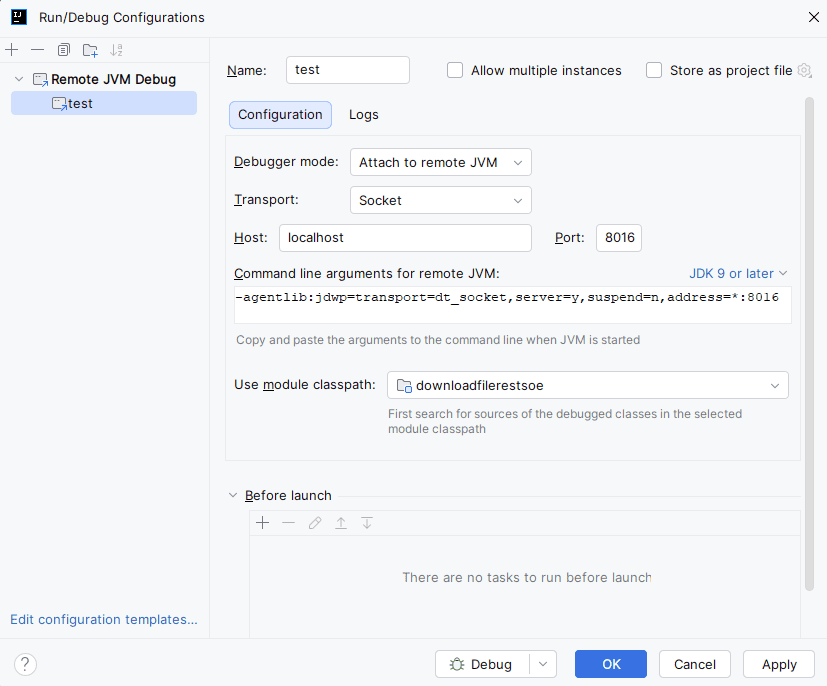
-
Click Apply.
-
Click Debug.
Expected debugger output:
Connected to the target VM, address: 'localhost:8016', transport: 'socket'.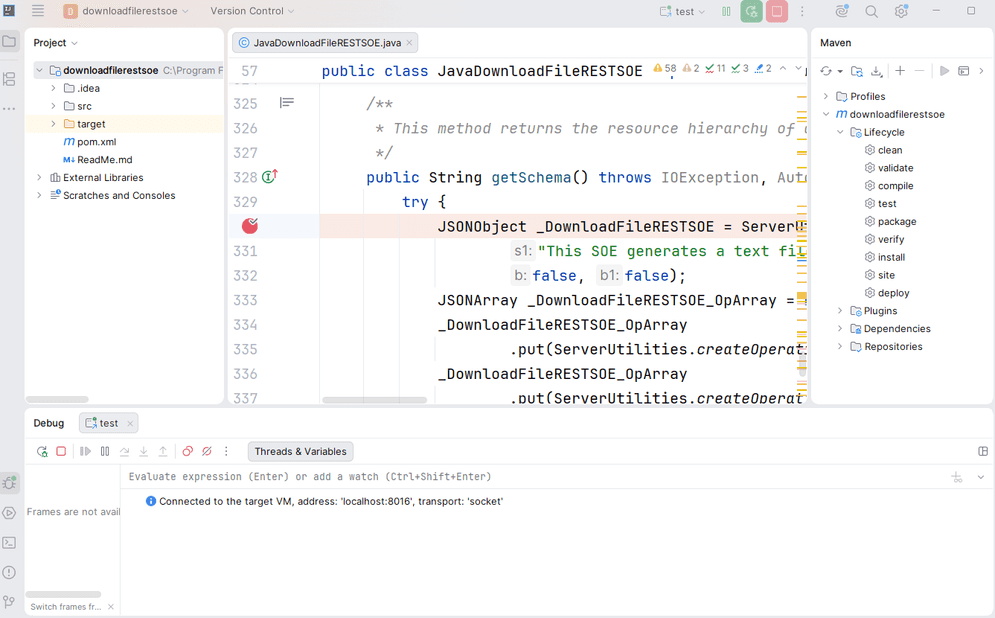
The debugger is now attached to the ArcSOC JVM process. Trigger service operations to hit breakpoints in the SOE/SOI code.
7. Disable debugging after testing
- Sign in ArcGIS Enterprise Manager.
- Navigate to: Services → Map/Image Service → Advanced.
- Disable:Enable debug mode.
- Click Save.
- Restart the service.
Disabling debug mode restores normal service behavior and improves security.
Debugging tips
1. Disable debugging when finished
Always disable debug mode after completing debugging sessions to restore normal performance and reduce security exposure.
2. Use a single service instance
Recommended settings:
"maxInstancesPerNode": 1,
"minInstancesPerNode": 1This simplifies identifying the correct ArcSOC process during debugging.