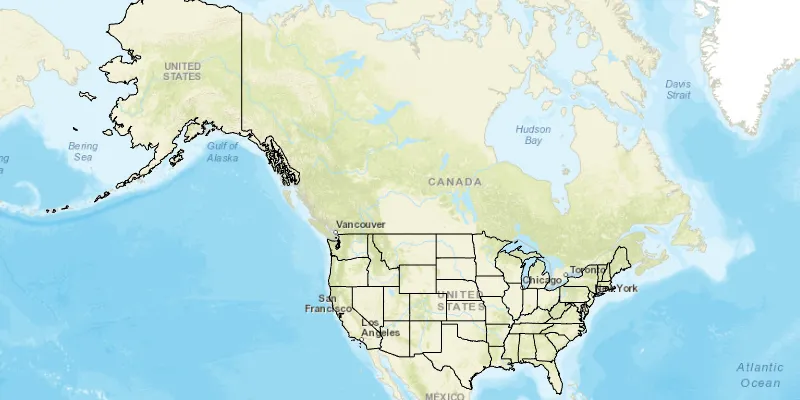
Start the Local Server and Local Map Service, create an ArcGIS Map Image Layer from the Local Map Service, and add it to a map.
Use case
For executing offline geoprocessing tasks in your ArcGIS Maps SDK for Java apps via an offline (local) server.
How to use the sample
The Local Server and local map service will automatically be started and, once running, a map image layer will be created and added to the map.
How it works
- Create and run a local server with
LocalServer.INSTANCE. - Start the server asynchronously with
Server.startAsync(). - Wait for server to be in the
LocalServerStatus.STARTEDstate.- Callbacks attached to
Server.addStatusChangedListener()will invoke whenever the status of the local server has changed.
- Callbacks attached to
- Create and run a local service, example of running a
LocalMapService.- Instantiate
LocalMapService(Url)to create a local map service with the given URL path to the map package (mpkxfile). - Start the service asynchronously with
LocalFeatureService.startAsync(). The service is added to the Local Server automatically.
- Instantiate
- Wait for the state of the map service to be
LocalServerStatus.STARTED.- Callbacks attached to
LocalFeatureService.addStatusChangedListener()will invoke whenever the status of the local service has changed.
- Callbacks attached to
- Create an ArcGIS map image layer from local map service.
- Create a
ArcGISMapImageLayer(Url)from local map service url provided byLocalMapService.getUrl(). - Add the layer to the map’s operational layers.
- Connect to the map image layer’s
LoadStatusChangedsignal. - When the layer’s status is
Loaded, set the map view’s extent to the layer’s full extent.
- Create a
Relevant API
- ArcGISMapImageLayer
- LocalMapService
- LocalServer
- LocalServerStatus
Additional information
Local Server can be downloaded for Windows and Linux platforms from your ArcGIS Developers dashboard. Local Server is not supported on macOS.
Specific versions of ArcGIS Maps SDK for Local Server are compatible with the version of ArcGIS Pro you use to create geoprocessing and map packages. For example, the ArcGIS Maps SDK for Java v100.11.0 is configured for ArcGIS Maps SDK for Local Server v100.10.0 which provides compatibility for packages created with ArcGIS Pro 2.7.x. For more information see the ArcGIS Developers guide.
To configure the ArcGIS Maps SDK for Java v100.11.0 to work with ArcGIS Maps SDK for Local Server 100.9.0:
- Development machine:
- Locate the Local Server installation directory and rename the folder from
LocalServer100.9toLocalServer100.10. - Update the environment variable from
RUNTIME_LOCAL_SERVER_100_9toRUNTIME_LOCAL_SERVER_100_10.
- Locate the Local Server installation directory and rename the folder from
- Deployment machine(s): Rename the deployment folder included with your application (or referenced by the LocalServerEnvironment.InstallPath property) from
LocalServer100.9toLocalServer100.10.
Tags
image, layer, local, offline, server
Sample code
/* * Copyright 2017 Esri. * * Licensed under the Apache License, Version 2.0 (the "License"); you may not * use this file except in compliance with the License. You may obtain a copy of * the License at * * http://www.apache.org/licenses/LICENSE-2.0 * * Unless required by applicable law or agreed to in writing, software * distributed under the License is distributed on an "AS IS" BASIS, WITHOUT * WARRANTIES OR CONDITIONS OF ANY KIND, either express or implied. See the * License for the specific language governing permissions and limitations under * the License. */
package com.esri.samples.local_server_map_image_layer;
import java.io.File;
import javafx.application.Application;import javafx.application.Platform;import javafx.geometry.Pos;import javafx.scene.Scene;import javafx.scene.control.Alert;import javafx.scene.control.Alert.AlertType;import javafx.scene.control.ProgressIndicator;import javafx.scene.layout.StackPane;import javafx.stage.Stage;
import com.esri.arcgisruntime.ArcGISRuntimeEnvironment;import com.esri.arcgisruntime.geometry.Envelope;import com.esri.arcgisruntime.layers.ArcGISMapImageLayer;import com.esri.arcgisruntime.loadable.LoadStatus;import com.esri.arcgisruntime.localserver.LocalMapService;import com.esri.arcgisruntime.localserver.LocalServer;import com.esri.arcgisruntime.localserver.LocalServerStatus;import com.esri.arcgisruntime.localserver.LocalService.StatusChangedEvent;import com.esri.arcgisruntime.mapping.ArcGISMap;import com.esri.arcgisruntime.mapping.BasemapStyle;import com.esri.arcgisruntime.mapping.Viewpoint;import com.esri.arcgisruntime.mapping.view.MapView;
public class LocalServerMapImageLayerSample extends Application {
  private static final int APPLICATION_WIDTH = 800;
  private ArcGISMapImageLayer imageLayer; // keep loadable in scope to avoid garbage collection  private MapView mapView;  private LocalMapService mapImageService;  private ProgressIndicator imageLayerProgress;
  @Override  public void start(Stage stage) {
    try {      // create stack pane and application scene      StackPane stackPane = new StackPane();      Scene scene = new Scene(stackPane);
      // set title, size, and add scene to stage      stage.setTitle("Local Server Map Image Layer Sample");      stage.setWidth(APPLICATION_WIDTH);      stage.setHeight(700);      stage.setScene(scene);      stage.show();
      // authentication with an API key or named user is required to access basemaps and other location services      String yourAPIKey = System.getProperty("apiKey");      ArcGISRuntimeEnvironment.setApiKey(yourAPIKey);
      // create a map with the streets basemap style      ArcGISMap map = new ArcGISMap(BasemapStyle.ARCGIS_STREETS);
      // create a map view and set the map to it      mapView = new MapView();      mapView.setMap(map);
      // track progress of loading map image layer to map      imageLayerProgress = new ProgressIndicator(ProgressIndicator.INDETERMINATE_PROGRESS);      imageLayerProgress.setMaxWidth(30);
      // check that local server install path can be accessed      if (LocalServer.INSTANCE.checkInstallValid()) {        LocalServer server = LocalServer.INSTANCE;        // start local server        server.addStatusChangedListener(status -> {          if (status.getNewStatus() == LocalServerStatus.STARTED) {            // start map image service            String mapServiceURL = new File(System.getProperty("data.dir"), "./samples-data/local_server/RelationshipID.mpkx").getAbsolutePath();            mapImageService = new LocalMapService(mapServiceURL);            mapImageService.addStatusChangedListener(this::addLocalMapImageLayer);            mapImageService.startAsync();          }        });        server.startAsync();      } else {        Platform.runLater(() -> {          Alert dialog = new Alert(AlertType.INFORMATION);          dialog.initOwner(mapView.getScene().getWindow());          dialog.setHeaderText("Local Server Load Error");          dialog.setContentText("Local Geoprocessing Failed to load.");          dialog.show();        });      }
      // add the map view and progress indicator to the stack pane      stackPane.getChildren().addAll(mapView, imageLayerProgress);      StackPane.setAlignment(imageLayerProgress, Pos.CENTER);    } catch (Exception e) {      // on any error, display the stack trace.      e.printStackTrace();    }  }
  /**   * Once the map service starts, a map image layer is created from that service and added to the map.   * <p>   * When the map image layer is done loading, the view will zoom to the location of were the image has been added.   *   * @param status status of feature service   */  private void addLocalMapImageLayer(StatusChangedEvent status) {
    // check that the map service has started    if (status.getNewStatus() == LocalServerStatus.STARTED && mapView.getMap() != null) {      // get the url of where map service is located      String url = mapImageService.getUrl();      // create a map image layer using url      imageLayer = new ArcGISMapImageLayer(url);      // set viewpoint once layer has loaded      imageLayer.addDoneLoadingListener(() -> {        Envelope extent = imageLayer.getFullExtent();        if (imageLayer.getLoadStatus() == LoadStatus.LOADED && extent != null) {          mapView.setViewpoint(new Viewpoint(extent));          Platform.runLater(() -> imageLayerProgress.setVisible(false));        } else {          Alert alert = new Alert(Alert.AlertType.ERROR, "Image Layer Failed to Load!");          alert.show();        }      });      imageLayer.loadAsync();      // add image layer to map      mapView.getMap().getOperationalLayers().add(imageLayer);    }  }
  /**   * Stops and releases all resources used in application.   */  @Override  public void stop() {
    if (mapView != null) {      mapView.dispose();    }  }
  /**   * Opens and runs application.   *   * @param args arguments passed to this application   */  public static void main(String[] args) {
    Application.launch(args);  }}