This sample shows how the multiply blendMode is used to blend layers in a basemap to allow the hillshade layer peek through the top layer of the basemap.
Blend modes define how layers should blend together to create an interesting effect in a layer, or even to produce what seems like a new layer. Unlike using transparency, which can result in a washed-out top layer, blend modes create a variety of vibrant and intriguing results by blending a layer with the layers below it.
This sample displays the Community style vector tile layer over the World Hillshade layer. Both layers are added as part of the map’s basemap.
If the layers were added without multiply blend mode applied to the vector tile layer then the map would look like the following: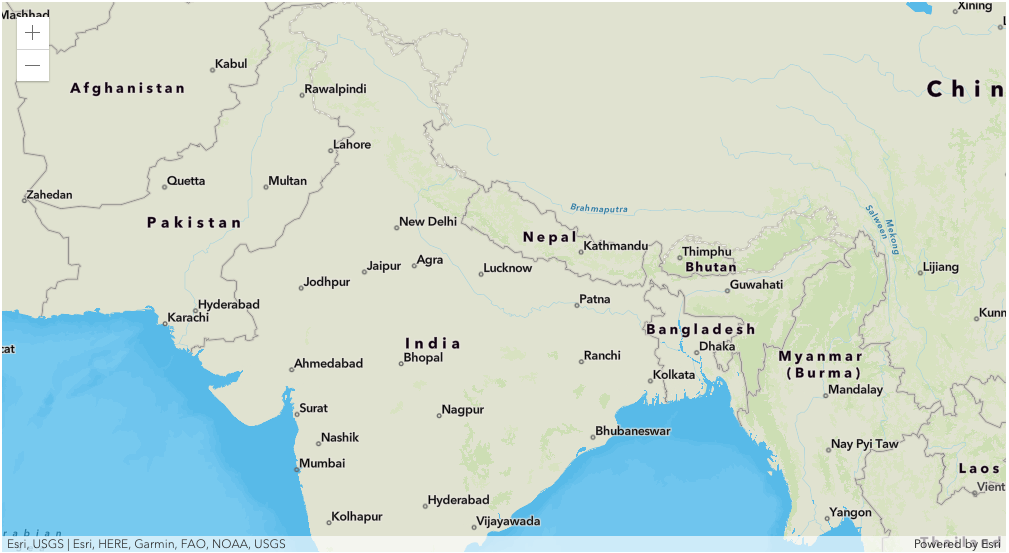
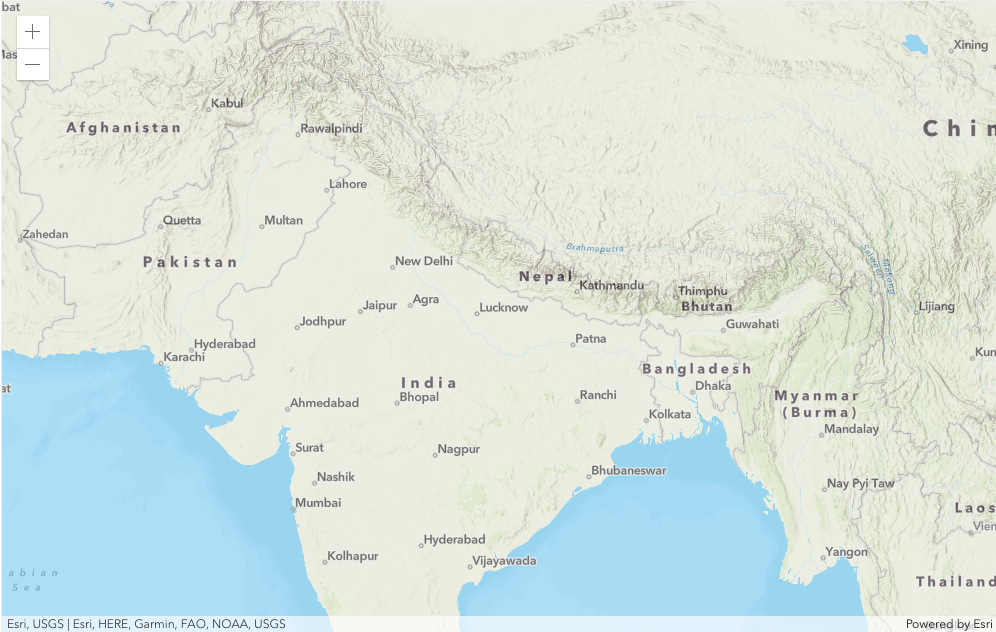
If opacity (0.7) is set on the vector tile layer, then the map would look like the following. You can see the hillshade show through the top layer. However, the opacity washes out the top layer.
const map = new Map({ basemap: { baseLayers: [ new TileLayer({ // World Hillshade portalItem: { id: "1b243539f4514b6ba35e7d995890db1d" }, }), new VectorTileLayer({ // This multiplies the top and background layer colors // which accentuates parts of the map through contrast // and enables hillshades to show through the top layer. blendMode: "multiply", // Community style (World Edition) portalItem: { id: "273bf8d5c8ac400183fc24e109d20bcf" }, }), ], },});