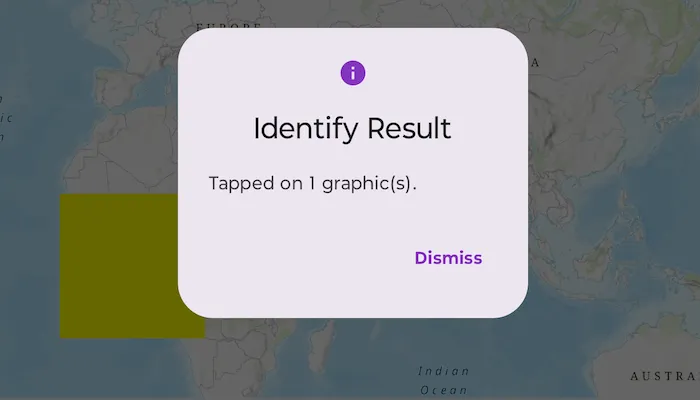
Display a message when a graphic on the map is tapped.
Use case
A user may wish to select a graphic on a map to view relevant information about it.
How to use the sample
Tap on a graphic to identify it. You will see an alert message displayed.
How it works
- Create a
GraphicsOverlayand add it to the MapView. - Build a Graphic from a
Polygonand aSimpleFillSymboland add it to the graphics overlay. - Listen for MapView.onSingleTapConfirmed to obtain the ScreenCoordinate where the user tapped.
- Identify the graphic on the map view using
MapViewProxy.identifyfunction while providing thegraphicsOverlay,screenCoordinate,tolerance,maximumResults.
Relevant API
- Graphic
- GraphicsOverlay
- IdentifyGraphicsOverlayResult
- MapView
- MapViewProxy
Tags
graphics, identify
Sample code
/* Copyright 2025 Esri * * Licensed under the Apache License, Version 2.0 (the "License"); * you may not use this file except in compliance with the License. * You may obtain a copy of the License at * *    http://www.apache.org/licenses/LICENSE-2.0 * * Unless required by applicable law or agreed to in writing, software * distributed under the License is distributed on an "AS IS" BASIS, * WITHOUT WARRANTIES OR CONDITIONS OF ANY KIND, either express or implied. * See the License for the specific language governing permissions and * limitations under the License. * */
package com.esri.arcgismaps.sample.identifygraphics.components
import android.app.Applicationimport androidx.lifecycle.AndroidViewModelimport androidx.lifecycle.viewModelScopeimport androidx.compose.ui.unit.dpimport com.arcgismaps.Colorimport com.arcgismaps.geometry.Pointimport com.arcgismaps.geometry.Polygonimport com.arcgismaps.geometry.PolygonBuilderimport com.arcgismaps.geometry.SpatialReferenceimport com.arcgismaps.mapping.ArcGISMapimport com.arcgismaps.mapping.BasemapStyleimport com.arcgismaps.mapping.Viewpointimport com.arcgismaps.mapping.symbology.SimpleFillSymbolimport com.arcgismaps.mapping.symbology.SimpleFillSymbolStyleimport com.arcgismaps.mapping.symbology.SimpleRendererimport com.arcgismaps.mapping.view.Graphicimport com.arcgismaps.mapping.view.GraphicsOverlayimport com.arcgismaps.mapping.view.ScreenCoordinateimport com.arcgismaps.toolkit.geoviewcompose.MapViewProxyimport com.esri.arcgismaps.sample.sampleslib.components.MessageDialogViewModelimport kotlinx.coroutines.launch
class IdentifyGraphicsViewModel(app: Application) : AndroidViewModel(app) {
    // Create a polygon from a list of points    private val polygon: Polygon = PolygonBuilder(SpatialReference.webMercator()).apply {        addPoint(Point(x = -20e5, y = 20e5))        addPoint(Point(x = 20e5, y = 20e5))        addPoint(Point(x = 20e5, y = -20e5))        addPoint(Point(x = -20e5, y = -20e5))    }.toGeometry()
    // ArcGISMap displayed by the MapView using a topographic basemap.    val arcGISMap = ArcGISMap(BasemapStyle.ArcGISTopographic).apply {        // Set an initial viewpoint with the polygon graphic centered on the screen.        initialViewpoint = Viewpoint(            center = polygon.extent.center,            scale = 1.3e8        )    }
    // MapViewProxy enables identify operations from the ViewModel.    val mapViewProxy = MapViewProxy()
    // Graphics overlay that holds the polygon graphic and a renderer.    private val graphicsOverlay = GraphicsOverlay().apply {        // Configure the graphics overlay with a renderer and add a graphic for the polygon.        val polygonFillSymbol = SimpleFillSymbol(            style = SimpleFillSymbolStyle.Solid,            color = Color.yellow        )
        renderer = SimpleRenderer(polygonFillSymbol)        graphics.add(Graphic(geometry = polygon))    }
    val graphicsOverlays = listOf(graphicsOverlay)
    // Dialog view model to present error messages.    val messageDialogVM = MessageDialogViewModel()
    init {        // Load the map and handle any load failures.        viewModelScope.launch {            arcGISMap.load().onFailure { error ->                messageDialogVM.showMessageDialog(error)            }        }    }
    /**     * Called when single tap is detected on the map. Identifies graphics in [graphicsOverlay] near the     * [screenCoordinate] using [mapViewProxy], then shows the number of identified graphics in an     * alert dialog.     */    fun identifyGraphics(screenCoordinate: ScreenCoordinate) {        viewModelScope.launch {            mapViewProxy.identify(                graphicsOverlay = graphicsOverlay,                screenCoordinate = screenCoordinate,                tolerance = 12.dp,                returnPopupsOnly = false,                maximumResults = 10            ).onSuccess { identifyResult ->                val count = identifyResult.graphics.size                val message = if (count > 0) {                    "Tapped on $count graphic(s)."                } else {                    "No graphics at tapped location."                }                // Show an alert dialog with the identify result.                messageDialogVM.showMessageDialog(                    title = "Identify Result",                    description = message                )            }.onFailure { error ->                messageDialogVM.showMessageDialog(error)            }        }    }}
/* Copyright 2025 Esri * * Licensed under the Apache License, Version 2.0 (the "License"); * you may not use this file except in compliance with the License. * You may obtain a copy of the License at * * http://www.apache.org/licenses/LICENSE-2.0 * * Unless required by applicable law or agreed to in writing, software * distributed under the License is distributed on an "AS IS" BASIS, * WITHOUT WARRANTIES OR CONDITIONS OF ANY KIND, either express or implied. * See the License for the specific language governing permissions and * limitations under the License. * */
package com.esri.arcgismaps.sample.identifygraphics
import android.os.Bundleimport androidx.activity.ComponentActivityimport androidx.activity.enableEdgeToEdgeimport androidx.activity.compose.setContentimport androidx.compose.material3.MaterialThemeimport androidx.compose.material3.Surfaceimport androidx.compose.runtime.Composableimport com.esri.arcgismaps.sample.sampleslib.theme.SampleAppThemeimport com.esri.arcgismaps.sample.identifygraphics.screens.IdentifyGraphicsScreen
class MainActivity : ComponentActivity() {
override fun onCreate(savedInstanceState: Bundle?) { super.onCreate(savedInstanceState)
enableEdgeToEdge() setContent { SampleAppTheme { IdentifyGraphicsApp() } } }
@Composable private fun IdentifyGraphicsApp() { Surface(color = MaterialTheme.colorScheme.background) { IdentifyGraphicsScreen( sampleName = getString(R.string.identify_graphics_app_name) ) } }}/* Copyright 2025 Esri * * Licensed under the Apache License, Version 2.0 (the "License"); * you may not use this file except in compliance with the License. * You may obtain a copy of the License at * * http://www.apache.org/licenses/LICENSE-2.0 * * Unless required by applicable law or agreed to in writing, software * distributed under the License is distributed on an "AS IS" BASIS, * WITHOUT WARRANTIES OR CONDITIONS OF ANY KIND, either express or implied. * See the License for the specific language governing permissions and * limitations under the License. * */
package com.esri.arcgismaps.sample.identifygraphics.screens
import androidx.compose.foundation.layout.Columnimport androidx.compose.foundation.layout.fillMaxSizeimport androidx.compose.foundation.layout.paddingimport androidx.compose.material3.Scaffoldimport androidx.compose.runtime.Composableimport androidx.compose.ui.Modifierimport androidx.lifecycle.viewmodel.compose.viewModelimport com.arcgismaps.toolkit.geoviewcompose.MapViewimport com.esri.arcgismaps.sample.identifygraphics.components.IdentifyGraphicsViewModelimport com.esri.arcgismaps.sample.sampleslib.components.MessageDialogimport com.esri.arcgismaps.sample.sampleslib.components.SampleTopAppBar
@Composablefun IdentifyGraphicsScreen(sampleName: String) { val viewModel: IdentifyGraphicsViewModel = viewModel()
Scaffold( topBar = { SampleTopAppBar(title = sampleName) }, content = { paddingValues -> Column( modifier = Modifier .fillMaxSize() .padding(paddingValues) ) { MapView( modifier = Modifier .fillMaxSize(), arcGISMap = viewModel.arcGISMap, mapViewProxy = viewModel.mapViewProxy, graphicsOverlays = viewModel.graphicsOverlays, onSingleTapConfirmed = { tapEvent -> viewModel.identifyGraphics(tapEvent.screenCoordinate) } ) }
// Show a dialog if the sample encounters an error. viewModel.messageDialogVM.apply { if (dialogStatus) { MessageDialog( title = messageTitle, description = messageDescription, onDismissRequest = ::dismissDialog ) } } } )}