Display an alert message when a graphic is clicked.
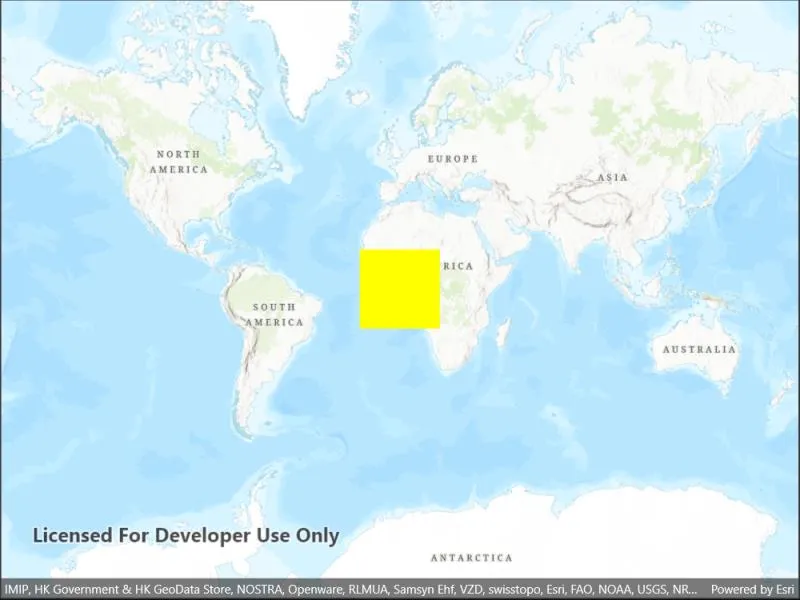
Use case
A user may wish to select a graphic on a map to view relevant information about it.
How to use the sample
Select a graphic to identify it. You will see an alert message displayed.
How it works
- Create a
GraphicsOverlayand add it to theMapView. - Add a
Graphicalong with aSimpleFillSymbolto the graphics overlay. - Create a
Pointfrom the location tapped on the map view by the user. - Identify the graphic on the map view with
IdentifyGraphicsOverlayAsync(graphicsOverlay, pointClicked, tolerance, max results).
Relevant API
- Graphic
- GraphicsOverlay
- MapView
Tags
graphics, identify
Sample code
// Copyright 2022 Esri.//// Licensed under the Apache License, Version 2.0 (the "License"); you may not use this file except in compliance with the License.// You may obtain a copy of the License at: http://www.apache.org/licenses/LICENSE-2.0//// Unless required by applicable law or agreed to in writing, software distributed under the License is distributed on an// "AS IS" BASIS, WITHOUT WARRANTIES OR CONDITIONS OF ANY KIND, either express or implied. See the License for the specific// language governing permissions and limitations under the License.
using Esri.ArcGISRuntime.Data;using Esri.ArcGISRuntime.Geometry;using Esri.ArcGISRuntime.Mapping;using Esri.ArcGISRuntime.Symbology;using Esri.ArcGISRuntime.UI;
using Colors = System.Drawing.Color;
namespace ArcGIS.Samples.IdentifyGraphics{    [ArcGIS.Samples.Shared.Attributes.Sample(        name: "Identify graphics",        category: "GraphicsOverlay",        description: "Display an alert message when a graphic is clicked.",        instructions: "Select a graphic to identify it. You will see an alert message displayed.",        tags: new[] { "graphics", "identify" })]    public partial class IdentifyGraphics : ContentPage    {        // Graphics overlay to host graphics        private GraphicsOverlay _polygonOverlay;
        public IdentifyGraphics()        {            InitializeComponent();
            // Create the UI, setup the control references and execute initialization            Initialize();        }
        private void Initialize()        {            // Create a map with 'Imagery with Labels' basemap and an initial location            Map myMap = new Map(BasemapStyle.ArcGISTopographic);
            // Create graphics overlay with graphics            CreateOverlay();
            // Hook into tapped event            MyMapView.GeoViewTapped += OnMapViewTapped;
            // Assign the map to the MapView            MyMapView.Map = myMap;        }
        private void CreateOverlay()        {            // Create polygon builder and add polygon corners into it            PolygonBuilder builder = new PolygonBuilder(SpatialReferences.WebMercator);            builder.AddPoint(new MapPoint(-20e5, 20e5));            builder.AddPoint(new MapPoint(20e5, 20e5));            builder.AddPoint(new MapPoint(20e5, -20e5));            builder.AddPoint(new MapPoint(-20e5, -20e5));
            // Get geometry from the builder            Polygon polygonGeometry = builder.ToGeometry();
            // Create symbol for the polygon            SimpleFillSymbol polygonSymbol = new SimpleFillSymbol(                SimpleFillSymbolStyle.Solid,               Colors.Yellow,                null);
            // Create new graphic            Graphic polygonGraphic = new Graphic(polygonGeometry, polygonSymbol);
            // Create overlay to where graphics are shown            _polygonOverlay = new GraphicsOverlay();            _polygonOverlay.Graphics.Add(polygonGraphic);
            // Add created overlay to the MapView            MyMapView.GraphicsOverlays.Add(_polygonOverlay);        }
        private async void OnMapViewTapped(object sender, Esri.ArcGISRuntime.Maui.GeoViewInputEventArgs e)        {            double tolerance = 10d; // Use larger tolerance for touch            int maximumResults = 1; // Only return one graphic            bool onlyReturnPopups = false; // Don't return only popups
            try            {                // Use the following method to identify graphics in a specific graphics overlay                IdentifyGraphicsOverlayResult identifyResults = await MyMapView.IdentifyGraphicsOverlayAsync(                    _polygonOverlay,                    e.Position,                    tolerance,                    onlyReturnPopups,                    maximumResults);
// Check if we got results if (identifyResults.Graphics.Count > 0) { // Make sure that the UI changes are done in the UI thread Microsoft.Maui.ApplicationModel.MainThread.BeginInvokeOnMainThread(async () => { await Application.Current.Windows[0].Page.DisplayAlertAsync("", "Tapped on graphic", "OK"); }); } } catch (Exception ex) { await Application.Current.Windows[0].Page.DisplayAlertAsync("Error", ex.ToString(), "OK"); } } }}<?xml version="1.0" encoding="utf-8" ?><ContentPage x:Class="ArcGIS.Samples.IdentifyGraphics.IdentifyGraphics" xmlns="http://schemas.microsoft.com/dotnet/2021/maui" xmlns:x="http://schemas.microsoft.com/winfx/2009/xaml" xmlns:esriUI="clr-namespace:Esri.ArcGISRuntime.Maui;assembly=Esri.ArcGISRuntime.Maui"> <Grid> <esriUI:MapView x:Name="MyMapView" /> </Grid></ContentPage>