OAuth credentials are an item used to support authentication workflows. They are required to implement user authentication and app authentication using OAuth 2.0 workflows.
Creating OAuth 2.0 credentials
Prerequisites
OAuth 2.0 credentials can be created using an ArcGIS Enterprise account with a user type of Creator or higher. To create credentials for app authentication, the account also requires a custom role with this additional privilege:
- General privileges > Content > Assign privileges to OAuth 2.0 applications
In addition to the account requirements, your ArcGIS Enterprise portal must be version 11.4 or greater. To learn more, go to the Product and account requirements.
Steps
The steps to create OAuth 2.0 credentials are explained in the Create OAuth credentials for app authentication tutorial:
Create OAuth credentials for app authentication
Both a client and client from OAuth 2.0 credentials are required to implement app authentication.
Privileges
OAuth credentials include a privilege selector that can authorize access to secure ArcGIS services. Once privileges are configured using the selector, the resulting access token will be authorized to access the specified services and perform operations.

The privileges available to OAuth credentials with an ArcGIS Enterprise account generally include:
- General portal operations, such as creating and managing items and groups.
- Administrative portal operations, such as inviting members, generating reports, and managing organization settings.
- Spatial analysis services for performing feature and raster analysis operations.
The exact privileges available depend on the user type and role of the ArcGIS Enterprise account that created the credentials.
Edit privileges
You can edit the privileges of your OAuth credentials to adjust the authorization level of your application.
-
Go to Settings on the item page of your OAuth credentials.
-
Under Application > Credentials, click the Edit button. In the warning that appears, click Continue. If this option is not available to your account, please refer to the Product and account requirements for app authentication.
-
Select a type of application that your key will be used in.
-
Select No item access if you do not want to grant access to any items, or select Grant access to specific items if you want to grant access to certain items in your portal. Then, click Next.
-
Select new privileges for your OAuth credentials using the privileges window. To view a list of all available privileges, go to Privileges.
-
Click Save to close the window. Then, click the Save button again under Application to update your developer credential.
Item access privileges
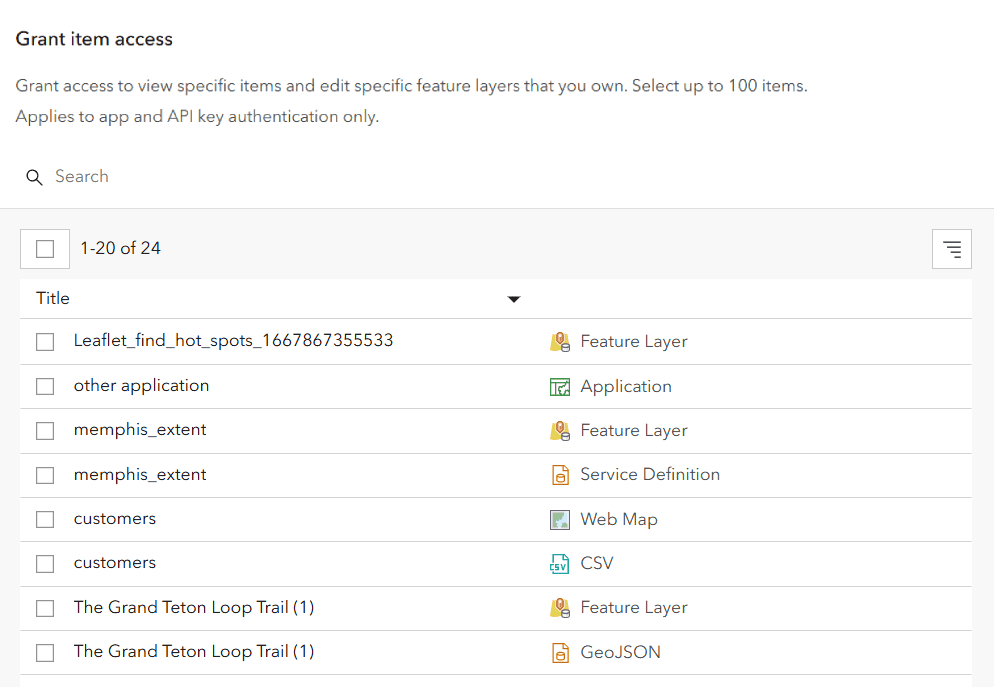
OAuth credentials also include an item access menu used to allow access to specific items in a portal. The resulting access tokens will be authorized to access any items you specify in this menu.
The items available in this menu include all of the items owned by your account with a sharing level of Private, Group, or Organization. OAuth credentials can be configured to access a maximum of 100 items.
Edit item access
You can edit the items that your OAuth credentials are authorized to access.
-
Go to Settings on the item page of your OAuth credentials.
-
Under Application > Credentials, click the Edit button. In the warning that appears, click Continue. If this option is not available to your account, please refer to the Product and account requirements for app authentication.
-
In the Item access window, select Grant access to specific items to grant access to specific items in your portal.
-
Select items to grant your OAuth credentials access to.
-
Click Save to close the window. Then, click the Save button again under Application to update your developer credential.
Referrers

A referrer is an HTTP header field used to identify the client requesting a server resource. This functions as a security measure, allowing applications to confirm their client's identity. When OAuth credentials have a specific HTTP referer header set, services can confirm that an incoming request's referrer matches one of the valid referrers assigned to that access token.
Specific domains can be provided or you can use wildcard characters (*) in the subdomain of your allowed referrer. For example https will allow the access token to be used on both https and https. While it is also possible to restrict access token use to specific paths (https), we do not recommend this method because browsers may remove the path due to privacy concerns.
Usage tracking
All services and content accessed with OAuth credentials are tracked. You can monitor the usage of credentials in order to view the consumption of services and the billing amount.
ArcGIS Enterprise developers use their portal to monitor service usage. In ArcGIS Enterprise, individual usage monitoring for OAuth credentials are not available. To monitor the total service usage within your organization, you can generate a usage report.