OAuth credentials are an item
Creating OAuth 2.0 credentials
Prerequisites
All ArcGIS Location Platform accounts have the correct privileges to create OAuth 2.0 credentials for app authentication by default.
Steps
The steps to create OAuth 2.0 credentials are explained in the Create OAuth credentials for app authentication tutorial:
Create OAuth credentials for app authentication
Both a client and client from OAuth 2.0 credentials are required to implement app authentication
Privileges
OAuth credentialsclient_id, client_secret, and redirect URIs. They are a type of developer credential.

The privileges available to OAuth credentials with an ArcGIS Location Platform account include:
- ArcGIS Location Services
ArcGIS Location Services, also referred to as Location Services, are services hosted by Esri that provide geospatial functionality for developing mapping applications. They include the ArcGIS Basemap Styles service, ArcGIS Static Basemap Tiles service, ArcGIS Places service, ArcGIS Geocoding service, ArcGIS Routing service, ArcGIS GeoEnrichment service, and ArcGIS Elevation service. An ArcGIS Location Platform or ArcGIS Online account is required to use the services. , such as the Basemap Styles serviceThe ArcGIS Basemap Styles service, also referred to as the Basemap Styles service, is a location service that provides basemap styles and data for the world. It returns styles as Mapbox styles and web maps, and data as vector tiles and/or map tiles. It supports all of the styles in the ArcGIS Basemap style and Open Basemap style family. An ArcGIS Location Platform or ArcGIS Online account is required to use the service. and Routing serviceA routing service is a service that uses network analysis and streets data to calculate the most effective path and turn-by-turn directions on a street network, optimize fleet routing and deliveries, find the closest facilities, calculate service areas, and more. It is hosted by Esri as the ArcGIS Routing service and can also be hosted in ArcGIS Enterprise. . - Portal
A portal service provides the functionality to securely create, access, and manage content, data services, users, and groups in a portal. The service can be hosted by Esri or in ArcGIS Enterprise. operations, such as creating and managing items. - Spatial analysis services
Spatial analysis services are services that perform geometry and statistical analyses on feature and raster data. for performing feature and raster analysis operations.
Edit privileges
You can edit the privileges of your OAuth credentials to adjust the authorization level of your application.
-
Go to Settings on the item page
An item page is a web page in ArcGIS Online or the developer dashboard used to access and manage the properties for an item and the content it references such as a web map, hosted layer, or file. of your OAuth credentialsOAuth credentials are an item that contains parameters required to implement user authentication or app authentication, including a .client_id,client_secret, and redirect URIs. They are a type of developer credential. -
Under Application > Credentials, click the Edit button. In the warning that appears, click Continue. .
-
Select a type of application that your key will be used in.
-
Select No item access if you do not want to grant access to any items, or select Grant access to specific items if you want to grant access to certain items in your portal. Then, click Next.
-
Select new privileges for your OAuth credentials using the privileges window. To view a list of all available privileges, go to Privileges.
-
Click Save to close the window. Then, click the Save button again under Application to update your developer credential.
Item access privileges

OAuth credentialsclient_id, client_secret, and redirect URIs. They are a type of developer credential.
The items available in this menu include all of the items owned by your ArcGIS Location Platform account. OAuth credentials can be configured to access a maximum of 100 items.
Edit item access
You can edit the items that your OAuth credentials are authorized to access.
-
Go to Settings on the item page
An item page is a web page in ArcGIS Online or the developer dashboard used to access and manage the properties for an item and the content it references such as a web map, hosted layer, or file. of your OAuth credentialsOAuth credentials are an item that contains parameters required to implement user authentication or app authentication, including a .client_id,client_secret, and redirect URIs. They are a type of developer credential. -
Under Application > Credentials, click the Edit button. In the warning that appears, click Continue. .
-
In the Item access window, select Grant access to specific items to grant access to specific items in your portal.
-
Select items to grant your OAuth credentials access to.
-
Click Save to close the window. Then, click the Save button again under Application to update your developer credential.
Referrers
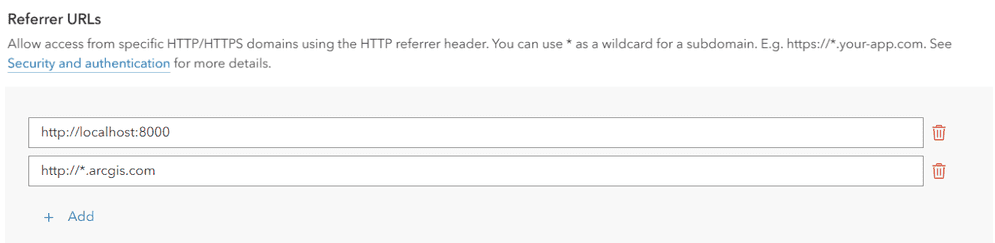
A referrer is an HTTP header field used to identify the client requesting a server resource. This functions as a security measure, allowing applications to confirm their client's identity. When OAuth credentialsclient_id, client_secret, and redirect URIs. They are a type of developer credential.referer header set, services can confirm that an incoming request's referrer matches one of the valid referrers assigned to that access token.
Specific domains can be provided or you can use wildcard characters (*) in the subdomain of your allowed referrer. For example https will allow the access token to be used on both https and https. While it is also possible to restrict access token use to specific paths (https), we do not recommend this method because browsers may remove the path due to privacy concerns.
Usage tracking
All services and content accessed with OAuth credentialsclient_id, client_secret, and redirect URIs. They are a type of developer credential.
ArcGIS Location Platform developers use their dashboardclient_id, client_secret, and redirect URIs. They are a type of developer credential.
-
Go to location.arcgis.com and sign in with an ArcGIS Location Platform account
An ArcGIS Location Platform account, formerly known as an ArcGIS Developer account, is an identity associated with an ArcGIS Location Platform subscription. . -
Click My dashboard > Usage > Developer credentials.
-
In the left sidebar, select the OAuth credentials
OAuth credentials are an item that contains parameters required to implement user authentication or app authentication, including a item you would like to review usage for.client_id,client_secret, and redirect URIs. They are a type of developer credential. -
In the Billing cycle selector, choose a billing cycle to inspect. The main panel of the window will show a usage report.

-
Review the usage report for your OAuth credentials
OAuth credentials are an item that contains parameters required to implement user authentication or app authentication, including a . Usage information is organized by secure resourceclient_id,client_secret, and redirect URIs. They are a type of developer credential.A secure resource is any item or service in an ArcGIS that requires an ArcGIS account and authentication to access. Examples include ArcGIS Location Services, and items and data services in an ArcGIS portal. . Click Download CSV to download the information as a.csvfile.
-
Click the dropdown button on a specific service to view a usage timeline. The panel will show the resource consumption for each day of the billing cycle.
