Learn how to create OAuth credentialsclient_id, client_secret, and redirect URIs. They are a type of developer credential.
OAuth credentialsclient_id, client_secret, and redirect URIs. They are a type of developer credential.client and redirect parameters that are used to implement all OAuth 2.0
This tutorial shows you how to create OAuth credentials for use in user authentication
Prerequisites
You need an ArcGIS Enterprise account
Steps
Sign in to your portal
You use your portal to create and manage items, including OAuth credentials.
- In your web browser, go to your ArcGIS Enterprise portal and sign in to your portal with your ArcGIS Enterprise account.
Create a new item
-
In your portal
ArcGIS portal, also known as a portal, is a website with applications and tools that can be used to create, manage, access, and share geospatial content and data. It supports security and authentication, developer credentials, content and data service management, user and group management, and site administration. A portal can be hosted in Esri's infrastructure or your own infrastructure. , click Content > My content > New item.

-
Click Developer credentials
Developer credentials are a type of item in a portal that contains parameters for authentication. There are two types of developer credentials: API key credentials and OAuth credentials. . -
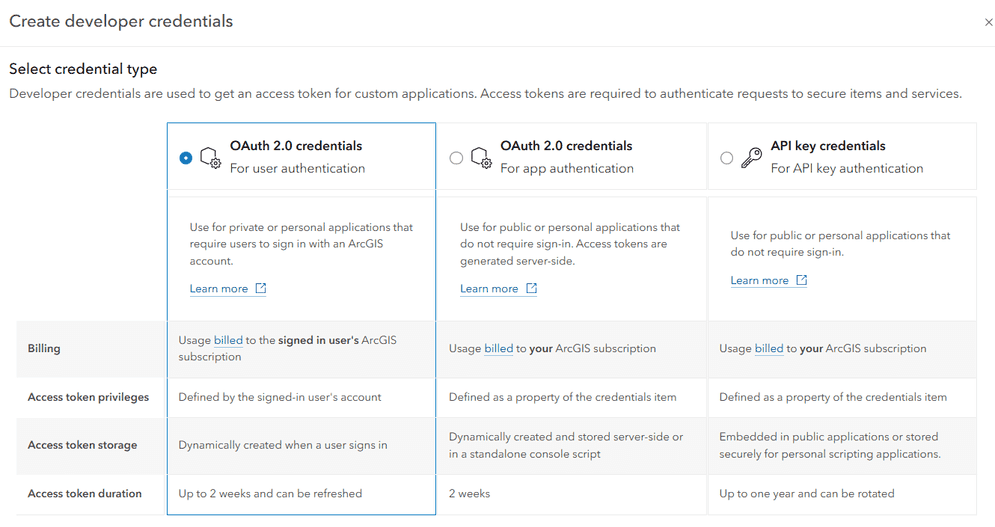
In the credential type screen, select OAuth 2.0 credentials
OAuth credentials are an item that contains parameters required to implement user authentication or app authentication, including a and click Next.client_id,client_secret, and redirect URIs. They are a type of developer credential.
Need troubleshooting help?
If the Developer credentials option is not visible when creating a new item, your ArcGIS Online account does not have the correct permissions. You need an ArcGIS account with a user type of Creator or higher. Learn more about user types in the ArcGIS Online documentation.
If the Select credential type menu does not display when creating developer credentials, OAuth 2.0 credentials will still be created by default. This menu only displays if your account has privileges to create multiple types of developer credentials, such as API key credentials
Add a redirect URL
A redirect URL is a required parameter of user authentication
-
In the next window, find the Redirect URLs field.
-
Under Redirect URLs, add the URL that you want to direct users to after completing authentication. This URL varies based on your application and typically takes the format of
"httpsor:// <server >[ :port]/callback.html" "http. This is a valid web page or server endpoint to which a user can be redirected after successful sign in.://my-arcgis-app :/auth" - For example, if you are running an application on
https, add://localhost :8080 httpsto the list of redirect URLs. The exact URL depends on the name of your callback page and the programming language you are using. If you are following a "Sign in with user authentication" ArcGIS tutorial, it will specify the name of your callback page.://localhost :8080/callback.html

- For example, if you are running an application on
-
Under Application environment, select the type of environment your application will run in. This will affect when the OAuth credentials appear in portal
ArcGIS portal, also known as a portal, is a website with applications and tools that can be used to create, manage, access, and share geospatial content and data. It supports security and authentication, developer credentials, content and data service management, user and group management, and site administration. A portal can be hosted in Esri's infrastructure or your own infrastructure. search results.
-
Click Next.
Save the item
After configuring the redirect URL of your OAuth credentials, you can save the credentials as a new item
-
If the Privileges window appears, click Next. These properties are not required in user authentication
User authentication is a type of authentication that allows users with an ArcGIS account to sign into an application and allow it to access ArcGIS content, services, and resources on their behalf. The typical authorization protocol used is OAuth2.0. . -
If the Item access window appears, click Skip. These properties are not required in user authentication
User authentication is a type of authentication that allows users with an ArcGIS account to sign into an application and allow it to access ArcGIS content, services, and resources on their behalf. The typical authorization protocol used is OAuth2.0. . -
In the Create developer credentials window, set the following properties:
- Title:
My OAuth credentials (for user authentication) - Folder:
Developer credentials(Create a new folder) - Tags:
User authentication - Description: Describe the application that these developer credentials will be used in.

Click Next.
- Title:
-
In the Summary window, review the properties and redirect URL you have set.
-
Click Create to create your OAuth credentials
OAuth credentials are an item that contains parameters required to implement user authentication or app authentication, including a .client_id,client_secret, and redirect URIs. They are a type of developer credential.
Need troubleshooting help?
If you do not see the windows titled "Privileges" or "Item access", steps 1-2 can be safely skipped. These settings are not required for user authentication
If you are using a version of ArcGIS Enterprise prior to 11.4, the "Create developer credentials" workflow is slightly different. The steps are as follows:
-
In the Create developer credentials window, set the following properties:
- Title:
My OAuth credentials (for user authentication) - Folder:
Developer credentials(Create a new folder) - Tags:
User authentication - Description: Describe the application that these developer credentials will be used in.
- Title:
-
Click Save to create your OAuth credentials
OAuth credentials are an item that contains parameters required to implement user authentication or app authentication, including a .client_id,client_secret, and redirect URIs. They are a type of developer credential.
To learn more, go to Developer credentials for ArcGIS Enterprise.
Copy the client ID and redirect URL
Your OAuth credentialsclient_id, client_secret, and redirect URIs. They are a type of developer credential.client parameter that is required to implement user authentication
-
On the item page
An item page is a web page in ArcGIS Online or the developer dashboard used to access and manage the properties for an item and the content it references such as a web map, hosted layer, or file. of your OAuth credentials, scroll down to Credentials. -
Copy the Client ID value and paste it into your application.

-
Click the Manage button to go to the Settings tab.

-
Under Redirect URLs, copy the redirect URL you provided earlier. Paste it into your application.
What's next?
Learn how to implement user authentication with ArcGIS APIs and SDKs:
Sign in with user authentication
Create an application that requires users to sign in with an ArcGIS account