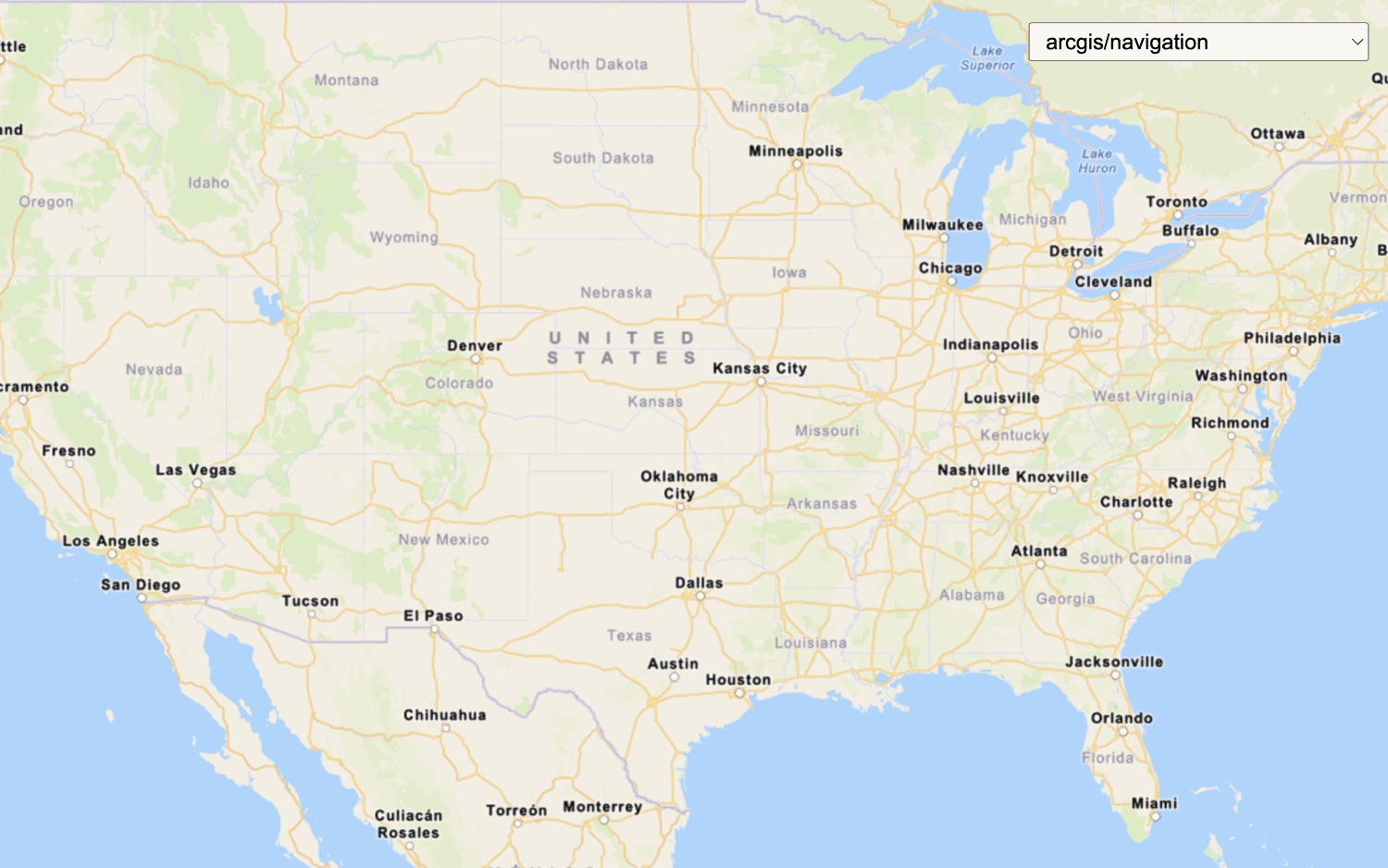
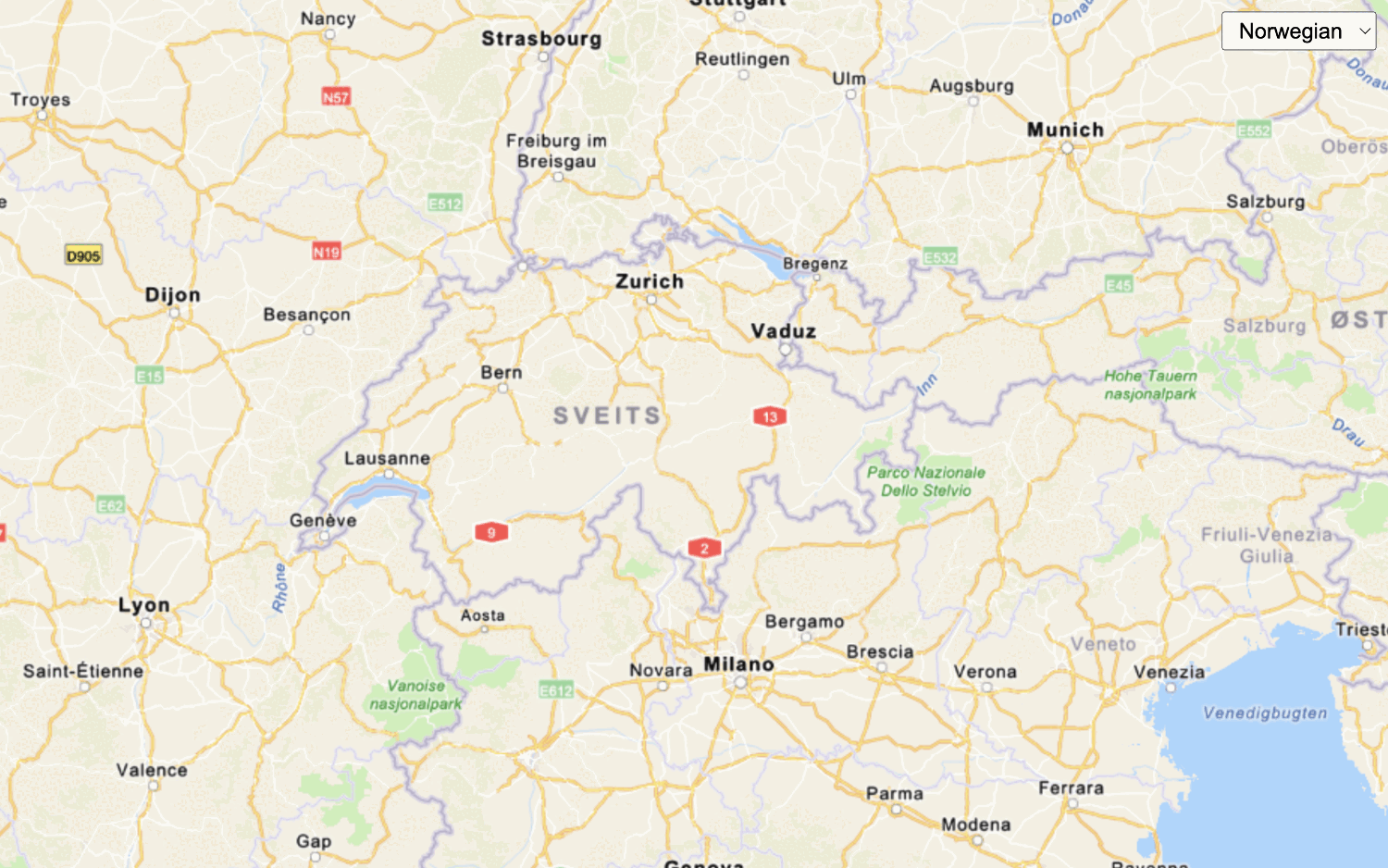
Learn how to add multiple basemap layers from different services to your map.
This tutorial shows how to display two basemap layers from different services in your application. You will use the World Imagery map tile servicearcgis/imagery/labels style from the ArcGIS Static Basemap Tiles service
Prerequisites
You need an ArcGIS Location Platform account.
ArcGIS Online and ArcGIS Enterprise accounts are not supported.
Steps
Get the starter app
Select a type of authentication and follow the steps to create a new app.
Choose API key authentication if you:
- Want the easiest way to get started.
- Want to build public applications
A public application is an application that allows anonymous access without requiring users to sign in with an ArcGIS account. It supports API key or app authentication. that access ArcGIS Location ServicesArcGIS Location Services, also referred to as Location Services, are services hosted by Esri that provide geospatial functionality for developing mapping applications. They include the ArcGIS Basemap Styles service, ArcGIS Static Basemap Tiles service, ArcGIS Static Maps service, ArcGIS Places service, ArcGIS Geocoding service, ArcGIS Routing service, ArcGIS GeoEnrichment service, and ArcGIS Elevation service. An ArcGIS Location Platform or ArcGIS Online account is required to use the services. and secure itemsAn item, also known as a content item, is a resource stored in a portal such as a web map, hosted layer, style, script tool, file, or notebook. . - Have an ArcGIS Location Platform or ArcGIS Online account.
Choose user authentication if you:
- Want to build private applications.
- Require application users to sign in with their own ArcGIS account
An ArcGIS account is an identity with a user type and set of privileges that can access specific ArcGIS products, tools, APIs, services, and resources. The main account types that can be used for development are an ArcGIS Location Platform account, ArcGIS Online account, and ArcGIS Enterprise account. ArcGIS Location Platform and ArcGIS Online accounts are also associated with a subscription. and access resources their behalf. - Have an ArcGIS Online account.
To learn more about both types of authentication, go to Authentication.
Set up authentication
Set developer credentials
Use the API key or OAuth developer credentials
Update the map
-
Remove the basemap and attribution code from the starter tutorial for now. You will add them back later.
Use dark colors for code blocks <script type="module"> import * as maplibregl from "maplibre-gl"; /* Use for API key authentication */ const accessToken = "YOUR_ACCESS_TOKEN"; // or /* Use for user authentication */ // const session = await arcgisRest.ArcGISIdentityManager.beginOAuth2({ // clientId: "YOUR_CLIENT_ID", // Your client ID from OAuth credentials // redirectUri: "YOUR_REDIRECT_URI", // The redirect URL registered in your OAuth credentials // portal: "https://www.arcgis.com/sharing/rest" // Your portal URL // }) // const accessToken = session.token; const basemapEnum = "arcgis/navigation"; const baseUrl = "https://static-map-tiles-api.arcgis.com/arcgis/rest/services/static-basemap-tiles-service/v1"; const map = new maplibregl.Map({ container: "map", style: { version: 8, sources: { "raster-tiles": { type: "raster", tiles: [ `${baseUrl}/${basemapEnum}/static/tile/{z}/{y}/{x}?token=${accessToken}` ], tileSize: 512 } }, layers: [ { id: "simple-tiles", type: "raster", source: "raster-tiles", minzoom: 0, maxzoom: 22 } ] }, zoom: 2, center: [-20, 30] }); fetch(`${baseUrl}/${basemapEnum}/static?token=${accessToken}`) // Display required Esri and data attribution .then((response) => response.json()) .then((data) => { map._controls[0]._innerContainer.innerText += " | Powered by Esri | " + data.copyrightText; }); </script> -
Change the map's center to
[-91.2996, 37.1174]and zoom level to4. This will focus the map on the United States of America.Use dark colors for code blocks Copy const map = new maplibregl.Map({ container: "map", zoom: 4, center: [-91.2996, 37.1174] // USA (x, y) });
Add basemap layer 1
Create a tile source and tile layer to access and display basemap layer from the World Imagery map tile service
-
Define a
tileto load raster tiles from the World Imagery map tile service.Source Use dark colors for code blocks const tileSource = { imagery: { type: "raster", tiles: [`https://ibasemaps-api.arcgis.com/arcgis/rest/services/World_Imagery/MapServer/tile/{z}/{y}/{x}?token=${accessToken}`], } }; -
Add the data attribution
Data attribution is the requirement to display the names of data source providers in all applications when accessing ArcGIS content, layers, or services. for the map tile layer source.- Go to the World Imagery item
An item, also known as a content item, is a resource stored in a portal such as a web map, hosted layer, style, script tool, file, or notebook. . - Scroll down to the Acknowledgments section and copy its value.
- Paste the copied value to the
attributionproperty.Use dark colors for code blocks const tileSource = { imagery: { type: "raster", tiles: [`https://ibasemaps-api.arcgis.com/arcgis/rest/services/World_Imagery/MapServer/tile/{z}/{y}/{x}?token=${accessToken}`], attribution: "Esri, Maxar, Earthstar Geographics, and the GIS User Community" } };
- Go to the World Imagery item
-
Define a
tilethat references theLayer tile.Source Use dark colors for code blocks const tileSource = { imagery: { type: "raster", tiles: [`https://ibasemaps-api.arcgis.com/arcgis/rest/services/World_Imagery/MapServer/tile/{z}/{y}/{x}?token=${accessToken}`], attribution: "Esri, Maxar, Earthstar Geographics, and the GIS User Community" } }; const tileLayer = { id: "imagery-raster", type: "raster", source: "imagery" };
Add basemap layer 2
In this step, you add another basemap layer from the Static Basemap Tiles service
-
Replace
basemaptoEnum arcgis/imagery/labelsandbaseto the Static Basemap Tiles service endpoint.Url Use dark colors for code blocks const basemapEnum = "arcgis/imagery/labels"; const baseUrl = "https://static-map-tiles-api.arcgis.com/arcgis/rest/services/static-basemap-tiles-service/v1"; -
Create a
staticusing the service.Basemap Tile Source Use dark colors for code blocks const basemapEnum = "arcgis/imagery/labels"; const baseUrl = "https://static-map-tiles-api.arcgis.com/arcgis/rest/services/static-basemap-tiles-service/v1"; const staticBasemapTileSource = { "raster-tiles": { type: "raster", tiles: [`${baseUrl}/${basemapEnum}/static/tile/{z}/{y}/{x}?token=${accessToken}`], tileSize: 512, attribution: "Powered by <a href='https://www.esri.com/en-us/home' target='_blank'>Esri</a> | Sources: Esri, TomTom, Garmin, FAO, NOAA, USGS, © OpenStreetMap contributors, and the GIS User Community" } }; -
Add a
staticthat references the basemap source.Basemap Tile Layer Use dark colors for code blocks const basemapEnum = "arcgis/imagery/labels"; const baseUrl = "https://static-map-tiles-api.arcgis.com/arcgis/rest/services/static-basemap-tiles-service/v1"; const staticBasemapTileSource = { "raster-tiles": { type: "raster", tiles: [`${baseUrl}/${basemapEnum}/static/tile/{z}/{y}/{x}?token=${accessToken}`], tileSize: 512, attribution: "Powered by <a href='https://www.esri.com/en-us/home' target='_blank'>Esri</a> | Sources: Esri, TomTom, Garmin, FAO, NOAA, USGS, © OpenStreetMap contributors, and the GIS User Community" } }; const staticBasemapTileLayer = { id: "static-basemap-tiles", type: "raster", source: "raster-tiles", minzoom: 0, maxzoom: 22 }; -
Add both sources and both layers to the map. Make sure that
tileis added first, followed byLayer static, so the static basemap tile layer appears on top of the map tile layer.Basemap Tile Layer Use dark colors for code blocks const map = new maplibregl.Map({ container: "map", style: { version: 8, sources: { ...tileSource, ...staticBasemapTileSource }, layers: [tileLayer, staticBasemapTileLayer] }, zoom: 4, center: [-91.2996, 37.1174] // USA (x, y) });
Run the app
Run the app.
The map should display basemap layers from the World Imagery map tile serviceWhat's next?
Learn how to use additional location services in these tutorials: