Configure the environment settings in a local scene to change the lighting conditions and background appearance.
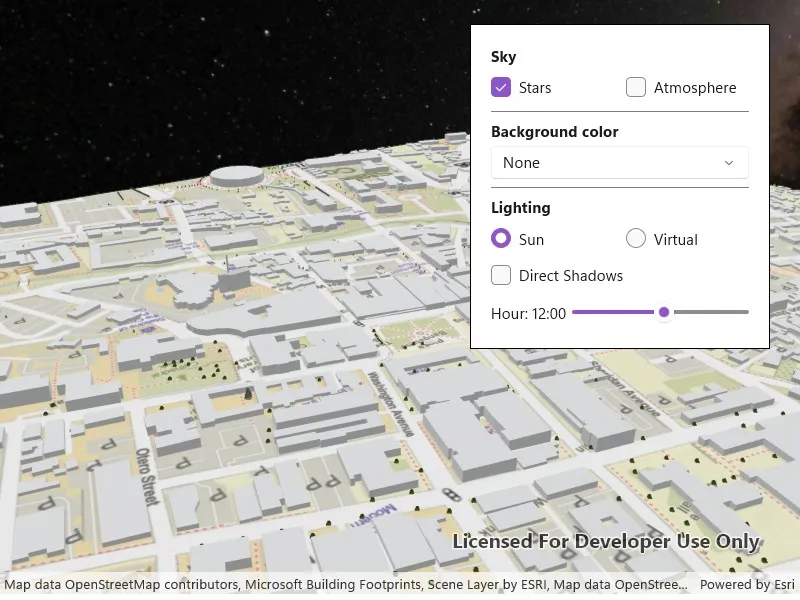
Use case
The scene environment defines the appearance of the local scene. This includes sky and background color settings, whether objects in the local scene cast shadows, and if virtual lighting or simulated sunlight is used to light the scene.
For an exploration scenario, like a city planning app, a developer might decide to enable sun lighting and direct shadows so the user can see how buildings and trees cast shadows at a given date and time.
For an analytic scenario, like examining a building scene layer, the developer may choose to use a virtual light source with shadows disabled and a solid background color instead of the atmosphere.
How to use the sample
At start-up, you will see a local scene with a set of scene environment controls. Adjusting the controls will change the scene’s environment altering the presentation of the scene.
Sky and Background color settings
Toggling the “Stars” and “Atmosphere” buttons will enable or disable those features.
Selecting a color from the dropdown will set a solid color for the background color. Selecting a new background color will disable the stars and atmosphere so you can see the new color.
Some notes about the behavior of the sky and background:
- The atmosphere is rendered in front of the stars and the stars are rendered in front of the background color.
- Stars are not rendered when using virtual lighting.
- To fully see the background color, atmosphere and stars must be deactivated.
- The background color shows in the night sky if the atmosphere is enabled and the stars are disabled.
Lighting settings
The lighting buttons switch between sun lighting and virtual lighting. Switching to virtual lighting disables the “Stars” button since stars do not exist in a virtually lit scene. The time slider is also disabled under virtual lighting since time does not have an effect on the virtual light.
The “Direct Shadows” button will enable or disable the rendering of shadows for 3d objects in the scene. Shadows are not rendered for surface terrain.
If sun lighting is active, the slider under the buttons will set the hour of the day ranging from midnight to 11pm (23:00). Dragging the bar will change the position of the simulated sun causing changes to shading and direct shadows.
How it works
- Create a
Scenefrom an online resource and add it to theLocalSceneView. The sample’s controls are updated to reflect the web scene’s initial environment. - Changes to the sky and background color settings will set values directly on the
SceneEnvironmentobject.IsAtmosphereEnabledandAreStarsEnabledare boolean properties dictating whether the atmosphere and star field are visible.- Colors selected from the dropdown are set to the
BackgroundColor.
- Changes to the settings in the lighting controls manipulate the
SceneLightingobject in theSceneEnvironment.Lightingproperty.- Switching between “Sun” and “Virtual” lighting assigns a new
SunLightingorVirtualLightingobject to the lighting property.- Sun lighting simulates the position of the sun based on a given date and time. This includes lighting conditions for day, twilight, and night.
- For virtual lighting, the light source is always on and is slightly offset from the camera. As the scene rotated or panned, the light source stays in the same position relative to the camera.
- The “Direct Shadows” button sets the
AreDirectShadowsEnabledboolean property on the lighting object. This toggles the shadows cast by objects in the scene. - If
SunLightingis active, manipulating the slider changes the hour of theSimulatedDateproperty on the lighting object.VirtualLightingdoes not have a slider because the lighting is always the same regardless of time.
- Switching between “Sun” and “Virtual” lighting assigns a new
Relevant API
- LocalSceneView
- Scene
- SceneEnvironment
- SceneLighting
- SunLighting
- VirtualLighting
About the data
The WebM Open 3D Esri Local Scene used for this sample contains a clipped local scene consisting of a surface and 3D objects representing the buildings. The scene is located in Santa Fe, New Mexico, USA.
Tags
3D, environment, lighting, scene
Sample code
// Copyright 2026 Esri.//// Licensed under the Apache License, Version 2.0 (the "License"); you may not use this file except in compliance with the License.// You may obtain a copy of the License at: http://www.apache.org/licenses/LICENSE-2.0//// Unless required by applicable law or agreed to in writing, software distributed under the License is distributed on an// "AS IS" BASIS, WITHOUT WARRANTIES OR CONDITIONS OF ANY KIND, either express or implied. See the License for the specific// language governing permissions and limitations under the License.
using Esri.ArcGISRuntime.Mapping;using Microsoft.UI.Xaml;using Microsoft.UI.Xaml.Controls;using System;using System.Collections.Generic;using System.Threading.Tasks;
namespace ArcGIS.WinUI.Samples.ConfigureSceneEnvironment{    [ArcGIS.Samples.Shared.Attributes.Sample(        name: "Configure scene environment",        category: "Scene",        description: "Configure the environment settings in a local scene to change the lighting conditions and background appearance.",        instructions: "At start-up, you will see a local scene with a set of scene environment controls. Adjusting the controls will change the scene's environment altering the presentation of the scene.",        tags: new[] { "3D", "environment", "lighting", "scene" })]    public partial class ConfigureSceneEnvironment    {        // Background color options for the dropdown.        private readonly List<(string Name, System.Drawing.Color Color)> _backgroundColorOptions = new()        {            ("None", System.Drawing.Color.Transparent),            ("Black", System.Drawing.Color.Black),            ("Red", System.Drawing.Color.Red),            ("Orange", System.Drawing.Color.Orange),            ("Yellow", System.Drawing.Color.Yellow),            ("Green", System.Drawing.Color.Green),            ("Blue", System.Drawing.Color.Blue),            ("Purple", System.Drawing.Color.Purple),            ("White", System.Drawing.Color.White),        };
        // Track lighting date/time state.        private DateTimeOffset _lightingDateTime = new DateTimeOffset(2026, 3, 20, 12, 0, 0, TimeSpan.Zero);        private TimeSpan _lightingTimeZoneOffset = TimeSpan.Zero;        private int _lightingHour = 12;
        public ConfigureSceneEnvironment()        {            InitializeComponent();            _ = Initialize();        }
        private async Task Initialize()        {            try            {                // Populate the background color combo box.                foreach (var colorOption in _backgroundColorOptions)                {                    BackgroundColorComboBox.Items.Add(colorOption.Name);                }
                // Create and load the scene from an ArcGIS Online web scene.                var scene = new Scene(new Uri("https://www.arcgis.com/home/item.html?id=fcebd77958634ac3874bbc0e6b0677a4"));                await scene.LoadAsync();
                // Set the scene on the local scene view.                MySceneView.Scene = scene;
                // Read initial environment state from the web scene.                var environment = scene.Environment;
                // Set sky controls to match the scene.                AtmosphereCheckBox.IsChecked = environment.IsAtmosphereEnabled;                StarsCheckBox.IsChecked = environment.AreStarsEnabled;
                // Set the background color control.                var bgColor = environment.BackgroundColor;                int colorIndex = _backgroundColorOptions.FindIndex(c => c.Color.ToArgb() == bgColor.ToArgb());                BackgroundColorComboBox.SelectedIndex = colorIndex >= 0 ? colorIndex : 0;
                // Set lighting controls based on the scene's lighting.                if (environment.Lighting is SunLighting sunLighting)                {                    // Record whether shadows are enabled.                    ShadowsCheckBox.IsChecked = sunLighting.AreDirectShadowsEnabled;
                    // Record the simulated time from the web scene.                    _lightingDateTime = sunLighting.SimulatedDate;
                    // Record the time zone offset if one was set on the web scene.                    if (sunLighting.DisplayTimeZone != null)                    {                        _lightingTimeZoneOffset = sunLighting.DisplayTimeZone.Value;                    }
                    // Record the localized hour from the web scene lighting.                    _lightingHour = _lightingDateTime.Add(_lightingTimeZoneOffset).Hour;
                    // Update controls: stars are available with sun lighting.                    SunRadioButton.IsChecked = true;                    StarsCheckBox.IsEnabled = true;                    HourSlider.IsEnabled = true;                    HourLabel.Opacity = 1;                    HourSlider.Opacity = 1;                    HourSlider.Value = _lightingHour;                    UpdateHourLabel();                }                else                {                    // Record whether shadows are enabled.                    ShadowsCheckBox.IsChecked = environment.Lighting.AreDirectShadowsEnabled;
                    // Update controls: stars and hour slider are not available with virtual lighting.                    VirtualRadioButton.IsChecked = true;                    StarsCheckBox.IsEnabled = false;                    HourSlider.IsEnabled = false;                    HourLabel.Opacity = 0.4;                    HourSlider.Opacity = 0.4;                }
                // Wire up event handlers after initialization to avoid premature event handling.                StarsCheckBox.Checked += StarsCheckBox_CheckedChanged;                StarsCheckBox.Unchecked += StarsCheckBox_CheckedChanged;                AtmosphereCheckBox.Checked += AtmosphereCheckBox_CheckedChanged;                AtmosphereCheckBox.Unchecked += AtmosphereCheckBox_CheckedChanged;                BackgroundColorComboBox.SelectionChanged += BackgroundColorComboBox_SelectionChanged;                SunRadioButton.Checked += SunRadioButton_Checked;                VirtualRadioButton.Checked += VirtualRadioButton_Checked;                ShadowsCheckBox.Checked += ShadowsCheckBox_CheckedChanged;                ShadowsCheckBox.Unchecked += ShadowsCheckBox_CheckedChanged;                HourSlider.ValueChanged += HourSlider_ValueChanged;            }            catch (Exception ex)            {                var dialog = new ContentDialog                {                    Title = "Error",                    Content = ex.Message,                    CloseButtonText = "OK"                };                dialog.XamlRoot = Content.XamlRoot;                await dialog.ShowAsync();            }        }
        // Sky event handlers.
        // Toggle the visibility of stars in the scene environment.        private void StarsCheckBox_CheckedChanged(object sender, RoutedEventArgs e)        {            MySceneView.Scene.Environment.AreStarsEnabled = StarsCheckBox.IsChecked == true;        }
        // Toggle the visibility of the atmosphere effect in the scene environment.        private void AtmosphereCheckBox_CheckedChanged(object sender, RoutedEventArgs e)        {            MySceneView.Scene.Environment.IsAtmosphereEnabled = AtmosphereCheckBox.IsChecked == true;        }
        // Background color event handler.
        // Update the scene background color and disable atmosphere/stars when a new color is selected.        private void BackgroundColorComboBox_SelectionChanged(object sender, SelectionChangedEventArgs e)        {            int index = BackgroundColorComboBox.SelectedIndex;            if (index < 0 || index >= _backgroundColorOptions.Count) return;
            // Set the environment background color to the selected color.            var newColor = _backgroundColorOptions[index].Color;            MySceneView.Scene.Environment.BackgroundColor = newColor;
            // Disable atmosphere and stars so the background color is visible.            MySceneView.Scene.Environment.IsAtmosphereEnabled = false;            MySceneView.Scene.Environment.AreStarsEnabled = false;
            // Update controls to reflect the disabled atmosphere and stars.            AtmosphereCheckBox.IsChecked = false;            StarsCheckBox.IsChecked = false;        }
        // Lighting event handlers.
        // Switch to sun lighting when the Sun radio button is selected.        private void SunRadioButton_Checked(object sender, RoutedEventArgs e)        {            // Create a new SunLighting object preserving current state.            var sunLighting = new SunLighting(_lightingDateTime, ShadowsCheckBox.IsChecked == true);
            // Set the SceneEnvironment.Lighting property to the new SunLighting object.            MySceneView.Scene.Environment.Lighting = sunLighting;
            // Enable stars and hour slider for sun lighting.            StarsCheckBox.IsEnabled = true;            HourSlider.IsEnabled = true;            HourLabel.Opacity = 1;            HourSlider.Opacity = 1;
            // Ensure the slider shows the correct hour.            _lightingHour = _lightingDateTime.Add(_lightingTimeZoneOffset).Hour;            HourSlider.Value = _lightingHour;            UpdateHourLabel();        }
        // Switch to virtual lighting when the Virtual radio button is selected.        private void VirtualRadioButton_Checked(object sender, RoutedEventArgs e)        {            // Create a new VirtualLighting object preserving shadow state.            var virtualLighting = new VirtualLighting(ShadowsCheckBox.IsChecked == true);
            // Set the SceneEnvironment.Lighting property to the new VirtualLighting object.            MySceneView.Scene.Environment.Lighting = virtualLighting;
            // Disable stars and hour slider for virtual lighting.            StarsCheckBox.IsEnabled = false;            HourSlider.IsEnabled = false;            HourLabel.Opacity = 0.4;            HourSlider.Opacity = 0.4;        }
        // Toggle direct shadows on the current lighting object.        private void ShadowsCheckBox_CheckedChanged(object sender, RoutedEventArgs e)        {            MySceneView.Scene.Environment.Lighting.AreDirectShadowsEnabled = ShadowsCheckBox.IsChecked == true;        }
        // Update the sun position when the hour slider value changes.        private void HourSlider_ValueChanged(object sender, Microsoft.UI.Xaml.Controls.Primitives.RangeBaseValueChangedEventArgs e)        {            // Calculate the new lighting hour.            int newHour = (int)HourSlider.Value;            int hourDiff = newHour - _lightingHour;            _lightingHour = newHour;
            // Update the time on the lighting object.            _lightingDateTime = _lightingDateTime.Add(TimeSpan.FromHours(hourDiff));            if (MySceneView.Scene.Environment.Lighting is SunLighting sunLighting)            {                sunLighting.SimulatedDate = _lightingDateTime;            }
            UpdateHourLabel();        }
        // Helper methods.
// Update the hour label text to reflect the current slider value. private void UpdateHourLabel() { HourLabel.Text = $"Hour: {_lightingHour}:00"; } }}<UserControl x:Class="ArcGIS.WinUI.Samples.ConfigureSceneEnvironment.ConfigureSceneEnvironment" xmlns="http://schemas.microsoft.com/winfx/2006/xaml/presentation" xmlns:x="http://schemas.microsoft.com/winfx/2006/xaml" xmlns:esriUI="using:Esri.ArcGISRuntime.UI.Controls"> <Grid> <esriUI:LocalSceneView x:Name="MySceneView" /> <Border Width="300" Style="{StaticResource BorderStyle}"> <StackPanel> <!-- Sky settings --> <TextBlock Margin="0,0,0,5" FontWeight="Bold" Text="Sky" /> <StackPanel Orientation="Horizontal"> <CheckBox x:Name="StarsCheckBox" Margin="0,0,15,0" Content="Stars" /> <CheckBox x:Name="AtmosphereCheckBox" Content="Atmosphere" /> </StackPanel> <Border Margin="0,8" BorderBrush="Gray" BorderThickness="0,0,0,1" />
<!-- Background color settings --> <TextBlock Margin="0,0,0,5" FontWeight="Bold" Text="Background color" /> <ComboBox x:Name="BackgroundColorComboBox" HorizontalAlignment="Stretch" /> <Border Margin="0,8" BorderBrush="Gray" BorderThickness="0,0,0,1" />
<!-- Lighting settings --> <TextBlock Margin="0,0,0,5" FontWeight="Bold" Text="Lighting" /> <StackPanel Margin="0,0,0,5" Orientation="Horizontal"> <RadioButton x:Name="SunRadioButton" Margin="0,0,15,0" Content="Sun" GroupName="LightingType" /> <RadioButton x:Name="VirtualRadioButton" Content="Virtual" GroupName="LightingType" /> </StackPanel> <CheckBox x:Name="ShadowsCheckBox" Margin="0,0,0,5" Content="Direct Shadows" /> <Grid ColumnDefinitions="Auto,*"> <TextBlock x:Name="HourLabel" MinWidth="75" Margin="0,0,5,0" VerticalAlignment="Center" Text="Hour: 12:00" /> <Slider x:Name="HourSlider" Grid.Column="1" Maximum="23" Minimum="0" SnapsTo="StepValues" StepFrequency="1" /> </Grid> </StackPanel> </Border> </Grid></UserControl>