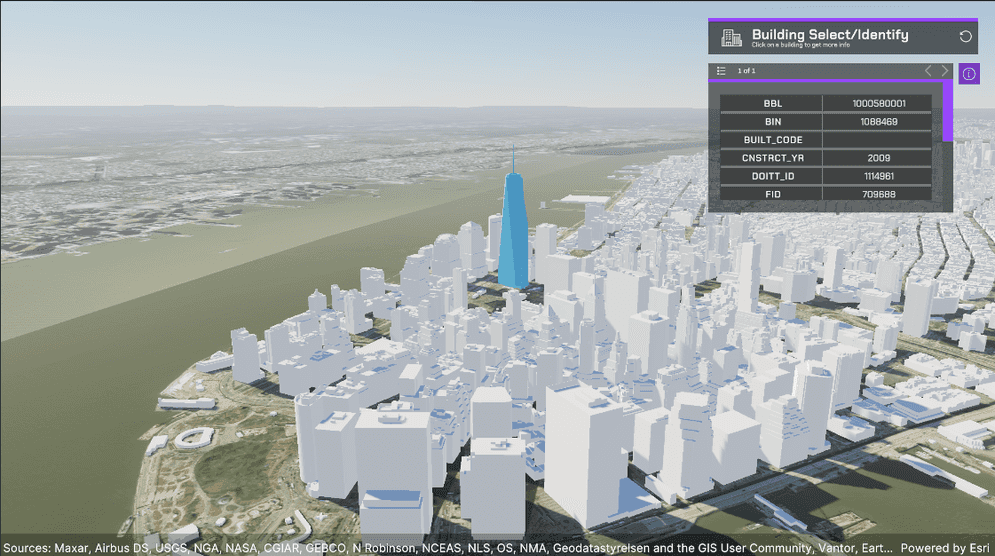
Get the identify results for individual/multiple buildings in a scene.
How to use the sample (SampleViewer)
- The SampleViewer Scene should open by default, if it is not open, click the SampleViewer scene to open it.
- Click play.
- Using the UI, enter an API key in the input field to the top left.
- Open the Samples drop down, and click Identify to open the level.
- While holding shift, click a building. The building's identify results will populate the table.
How to use the sample (Identify Scene)
- Open the Identify scene.
- Click on the ArcGISMap GameObject and set your API key in the Inspector window.
- Click play.
- While holding shift, click a building. The building's Identify Results will populate the table.
How it works
- Create an ArcGIS Map.
- Attach an ArcGIS Camera component to the active camera.
- Create a new Gameobject and call it SampleArcGISRaycast.
- Attach the ArcGISRaycast script to the SampleArcGISRaycast GameObject.
- Enter your APIKey in the APIMapCreator.
- Hit play. Once the scene is running hold shift and click a building. The building's Identify Results will populate the table.
About the data
Building models for New York are loaded from a 3D object scene layer hosted by Esri.
Elevation data is loaded from the Terrain 3D elevation layer hosted by Esri.
Tags
identify, raycast