API keys (legacy)
This tutorial shows how to migrate your application from an API key (legacy) to API key credentials with ArcGIS Online, and preserve the same privileges and item access.
Prerequisites
-
You need an ArcGIS Online account
An ArcGIS Online account, also known as an ArcGIS Organization account, is an identity associated with an ArcGIS Online subscription. It can be used to access ArcGIS tools and develop applications with ArcGIS location services for an organization. with the correct user type and role. Please review the Product and account requirements before proceeding. -
You need to know the privileges
Privileges are a set of permissions assigned to ArcGIS accounts, developer credentials, and applications that grant access to secure resources and functionality in ArcGIS. to assign to your API key. The privileges assigned to a key allow your application to access specific ArcGIS services and resources.
Steps
Sign in to your portal
You use your portal to create and manage items, including API key credentials.
- Sign in to your portal with your ArcGIS Online account.
Check the scopes of your API key (legacy)
API keys (legacy) can only be scoped to access location services
- Go to Content > My content.
- Click on the API key (legacy) item you want to replace. The item should have the label API key (legacy). You will then be redirected to the item page
An item page is a web page in ArcGIS Online or the developer dashboard used to access and manage the properties for an item and the content it references such as a web map, hosted layer, or file. of your API key (legacy) item.
- Under Credentials, click Manage.
- In API key (legacy), scroll down to the Location services section.
- Write down the selected scopes under Required service and Available services. These scopes will be replicated in your API key credentials
API key credentials are an item that contains the parameters used to create and manage long-lived access tokens for API key authentication. They are a type of developer credential. using privilegesPrivileges are a set of permissions assigned to ArcGIS accounts, developer credentials, and applications that grant access to secure resources and functionality in ArcGIS. .
Create API key credentials
-
In your portal
ArcGIS portal, also known as a portal, is a website with applications and tools that can be used to create, manage, access, and share geospatial content and data. It supports security and authentication, developer credentials, content and data service management, user and group management, and site administration. A portal can be hosted in Esri's infrastructure or your own infrastructure. , click Content > My content > New item.

-
Click Developer credentials
Developer credentials are a type of item in a portal that contains parameters for authentication. There are two types of developer credentials: API key credentials and OAuth credentials. > API key credentialsAPI key credentials are an item that contains the parameters used to create and manage long-lived access tokens for API key authentication. They are a type of developer credential. and click Next.
Need troubleshooting help?
If the Developer credentials option is not visible when creating a new item, your ArcGIS Online account does not have the correct permissions. You need an ArcGIS account with a user type of Creator or higher. Learn more about user types in the ArcGIS Online documentation.
If the API key credentials option is not visible when creating developer credentials, your ArcGIS Online account does not have the correct permissions. You need an ArcGIS account with a user type of Creator or higher. Your account must also have these additional privileges:
- General privileges > Content > Generate API keys
- General privileges > Content > Assign privileges to OAuth 2.0 applications
Your organization administrator can grant you these privileges using a custom role. To learn how, go to the ArcGIS Online documentation.
Select application type
Select items (optional)
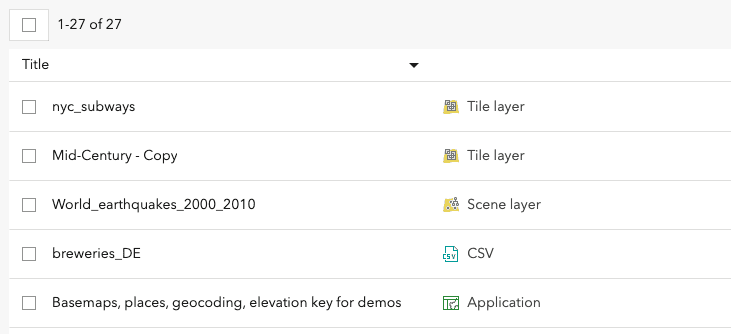
If your application will require access to specific private items, you will need to configure your developer credentials to access them. The Item access menu allows you to browse your portal's content and grant your API key access to specific items.
-
If your token does not require item access, select No item access. Then, click Next.
-
Otherwise, select Grant access to specific items.
-
Select the items you want to grant access to. You can select up to 100 items in this menu.
-
Click Next.
Select privileges
You can configure the settings of API key credentials to configure the privileges
-
In the Create developer credentials > Privileges window, select the privileges required by your application.
Learn more about privileges
Browse the table below to view available privileges, privilege strings, and descriptions for public applications
A public application is an application that allows anonymous access without requiring users to sign in with an ArcGIS account. It supports API key or app authentication. created with ArcGIS Online:Category Label Privilege string Description Basemaps Basemap styles service premium:user :basemaps Allow application to access the basemap styles service. Learn more Geocoding Geocode service premium:user :geocode Allow application to access the geocoding service. Learn more Routing Routing (Network analysis) premium:user :networkanalysis Allow application to access the routing service. Learn more Data enrichment GeoEnrichment service premium:user :geoenrichment Allow application to access the GeoEnrichment service. Learn more 
-
Click Next.
Need troubleshooting help?
If the Privileges window is not visible when creating API key credentials, your ArcGIS Online account does not have the correct permissions. You need an ArcGIS account with a user type of Creator or higher. Your account must also have these additional privileges:
- General privileges > Content > Generate API keys
- General privileges > Content > Assign privileges to OAuth 2.0 applications
Your organization administrator can grant you these privileges using a custom role. To learn how, go to the ArcGIS Online documentation.
If you don't see a specific privilege in the Privileges window, there are several possible reasons:
- The application type you selected may only allow a limited set of privileges. To access a broader set of privileges, choose a different type of application in the Where will you use these credentials? menu.
- Certain location services are only available for ArcGIS Location Platform. Check the privileges available for your product type in Security and authentication > Privileges.
- If you have an ArcGIS Location Platform account, you need to enable pay-as-you-go
Pay-as-you-go is a payment option in ArcGIS Location Platform that allows you to exceed the free usage tier and pay for additional location services and capabilities based on usage. in the Billing section of your dashboard to access some services, such as the GeoEnrichment service. - If you have an ArcGIS Online account, your account may not have the correct role to access the services you need. Contact your organization administrator.
Set the expiration date and referrers
API key credentials generate long-lived access tokens called API keys. API keys are valid for up to one year, and their expiration date is set when they are generated. You can also set referrers on an API key, which restrict the key to only be usable from authorized domains.
-
In the Create developer credentials window, click on the Expiration date field. Set the expiration date of the access token to one month from today's date.

-
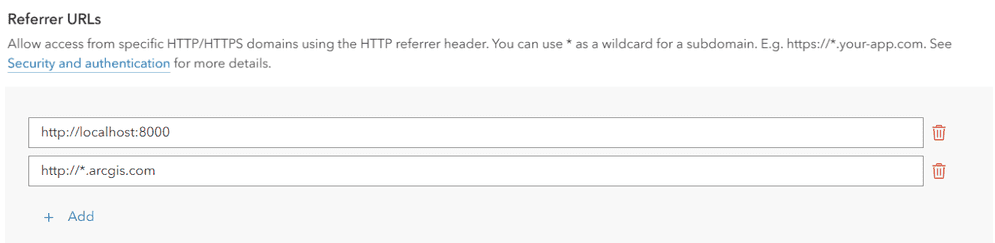
Set the Referrers field to the web domains you would like to restrict the access token to. This is highly recommended for security purposes. To learn more about referrers, go to API key credentials.
-
Click Next.
Save the item
After configuring the properties of your API key credentials, save the credentials as a new item.
-
In the Create developer credentials window, set the following properties:
- Title:
My API key credentials - Folder:
Developer credentials(Create a new folder) - Tags: Add tags related to the privileges of the credentials.
- Description: Describe the application that these developer credentials will be used in.

Click Next.
- Title:
-
In the Summary window, review the properties, privileges, and item access you have set.

-
Click Next.
Copy the API key
-
In the Create developer credentials > Generate API key window, select Generate the API key and go to item details page. I am ready to copy and save the key.

-
Click Next.
-
Copy the API key from the window that appears and paste it into your application.

Delete the API key (legacy)
Once you replace your API key (legacy)
- Go to Content > My content.
- Click on the API key (legacy) item you want to delete. You will then be redirected to the item page
An item page is a web page in ArcGIS Online or the developer dashboard used to access and manage the properties for an item and the content it references such as a web map, hosted layer, or file. of your API key (legacy) item. - Click on the Settings tab.
- In General, click Delete Item > Delete.
What's next?
Learn how to use your API key to access secure ArcGIS resources