Learn how to create OAuth credentialsclient_id, client_secret, and redirect URIs. They are a type of developer credential.
OAuth credentialsclient_id, client_secret, and redirect URIs. They are a type of developer credential.client and client parameters that are used to implement an OAuth 2.0
This tutorial shows you how to create OAuth credentials for use in app authentication and do the following:
- Configure privileges
Privileges are a set of permissions assigned to ArcGIS accounts, developer credentials, and applications that grant access to secure resources and functionality in ArcGIS. to allow your application to access ArcGIS services, content, and functionality. - Set authorized referrer URLs.
- Manage settings of the OAuth credentials and monitor usage using its item page
An item page is a web page in ArcGIS Online or the developer dashboard used to access and manage the properties for an item and the content it references such as a web map, hosted layer, or file. .
This tutorial focuses on creating OAuth 2.0 credentials for a private application with selected privileges and access.
Prerequisites
-
You need an ArcGIS Online account
An ArcGIS Online account, also known as an ArcGIS Organization account, is an identity associated with an ArcGIS Online subscription. It can be used to access ArcGIS tools and develop applications with ArcGIS location services for an organization. with the correct user type and role. Please review the Product and account requirements before proceeding. -
You need to know the privileges
Privileges are a set of permissions assigned to ArcGIS accounts, developer credentials, and applications that grant access to secure resources and functionality in ArcGIS. required by your application. The privileges assigned to developer credentials allow your application to access ArcGIS services and resources.
Steps
Sign in to your portal
You use your portal to create and manage items, including OAuth credentials.
- Sign in to your portal with your ArcGIS Online account.
Create a new item
-
In your portal
ArcGIS portal, also known as a portal, is a website with applications and tools that can be used to create, manage, access, and share geospatial content and data. It supports security and authentication, developer credentials, content and data service management, user and group management, and site administration. A portal can be hosted in Esri's infrastructure or your own infrastructure. , click Content > My content > New item.

-
Click Developer credentials
Developer credentials are a type of item in a portal that contains parameters for authentication. There are two types of developer credentials: API key credentials and OAuth credentials. . -
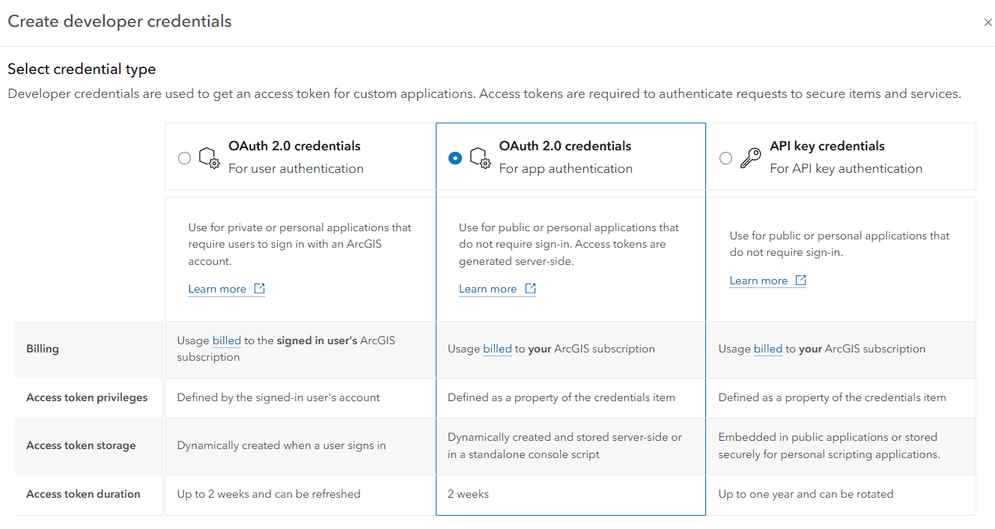
In the credential type screen, select OAuth 2.0 credentials
OAuth credentials are an item that contains parameters required to implement user authentication or app authentication, including a and click Next.client_id,client_secret, and redirect URIs. They are a type of developer credential.
Need troubleshooting help?
If the Developer credentials option is not visible when creating a new item, your ArcGIS Online account does not have the correct permissions. You need an ArcGIS account with a user type of Creator or higher. Learn more about user types in the ArcGIS Online documentation.
If the Select credential type menu does not display when creating developer credentials, OAuth 2.0 credentials will still be created by default. This menu only displays if your account has privileges to create multiple types of developer credentials, such as API key credentials
Select application type
You can configure your OAuth 2.0 credentials in the Where will you use these credentials? menu to define how your credentials will be used. This setting restricts where and how the credentials can be used and helps prevent unauthorized access to secure services.
-
For this tutorial, select Private application with selected privileges and access.

-
Click Next.
Select items (optional)
If your application will require access to specific private items
-
If your token does not require item access, select No item access. Then, click Next.
-
Otherwise, select Grant access to specific items.
-
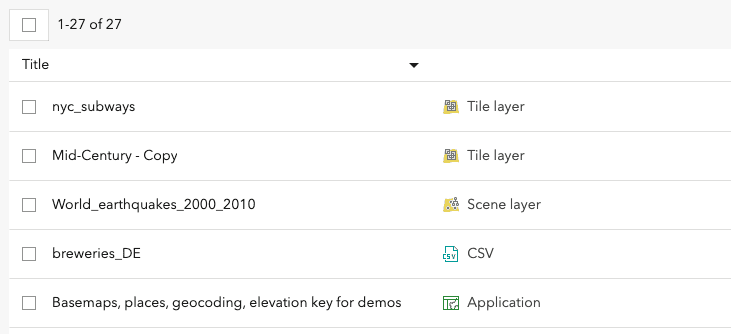
Select the items you want to grant access to. You can select up to 100 items in this menu.
-
Click Next.
Select privileges
You can configure the settings of OAuth 2.0 credentials to configure the privileges
-
In the Create developer credentials > Privileges window, browse the available privileges.
Learn more about privileges
Browse the table below to view available privileges, privilege strings, and descriptions for personal applications
A personal application is an application used exclusively by its owner and not shared with others. It supports API key, user authentication, or app authentication. created with ArcGIS Online:Category Label Privilege string Description Basemaps Basemap styles service premium:user :basemaps Allow application to access the basemap styles service. Learn more Geocoding Geocode service premium:user :geocode Allow application to access the geocoding service. Learn more Routing Routing (Network analysis) premium:user :networkanalysis Allow application to access the routing service. Learn more Data enrichment GeoEnrichment service premium:user :geoenrichment Allow application to access the GeoEnrichment service. Learn more Category Label Privilege string Description Feature analysis Spatial analysis service premium:user :spatialanalysis N/A - Privilege should not be used. Image analysis Image analysis service premium:publisher :rasteranalysis N/A - Privilege should not be used. Category Label Privilege string Description AI assistants Use AI assistants portal:user :use AI Assistants Allow member to use generative AI and ArcGIS assistants. Members View portal:user :view Org Users Allow application to view members of the organization. Members Take ArcGIS Pro license offline portal:user :arcgispro :take License Offline Allow member to take their ArcGIS Pro license offline. Groups Create, update, and delete portal:user :create Group Allow application to create, edit, and delete their own groups. Groups Join organizational groups portal:user :join Group Allow application to join groups within your organization. Groups Join external groups portal:user :join Non Org Group Allow application to join groups external to your organization. Groups View groups shared with organization portal:user :view Org Groups Allow application to view groups shared with the organization. Groups Invite partnered organization members portal:user :invite Partnered Collaboration Members Allow application to invite members from partnered collaboration organizations to groups. Groups Add members from other organizations portal:user :add External Members To Group Allow application to create groups that allow members from other organizations, as well as invite external members to groups. Content Publish hosted feature layers portal:publisher :publish Features Allow application to publish hosted feature layers from shapefiles, CSVs, etc. Content Publish hosted tile layers portal:publisher :publish Tiles Allow application to publish hosted tile layers from tile packages, features, etc. Content Publish hosted scene layers portal:publisher :publish Scenes Allow application to publish hosted scene layers. Content Published hosted tiled imagery layers portal:publisher :publish Tiled Imagery Allow application to publish hosted tiled imagery layers from a single image or collection of images. Requires an ArcGIS Image for ArcGIS Online user type extension. Content Publish hosted dynamic imagery layers portal:publisher :publish Dynamic Imagery Allow application to publish hosted dynamic imagery layers from a single image or collection of images. Content Create and edit notebooks premium:publisher :create Notebooks Allow application to create and edit interactive notebooks. Content Schedule notebooks premium:publisher :schedule Notebooks Allow application to schedule future automated runs of a notebook. Content View location tracks portal:user :view Tracks Allow application to view members' location tracks via shared track views when location sharing is enabled. Content Create and run data pipelines portal:publisher :create Data Pipelines Allow application to create, edit, and run data pipelines. Sharing Make groups visible to organization portal:user :share Group To Org Allow application to make groups discoverable by your organization. Sharing Make groups visible to public portal:user :share Group To Public Allow application to make groups discoverable by the public. Features Edit features:user :edit Allow application to edit features in editable layers that are not public, based on the edit options enabled on the layer. Features Edit with full control features:user :full Edit Allow application to add, delete, and update features in an editable, hosted feature layer, regardless of the editing options enabled on the layer. Premium content Advanced notebooks premium:publisher :create Advanced Notebooks Allow application to import and use ArcPy modules in ArcGIS Notebooks. Premium content Demographic Maps premium:user :demographics Allow application to access demographic maps in ArcGIS Living Atlas. Premium content Feature report premium:user :featurereport Allow application to create feature reports in ArcGIS Survey123. Category Label Privilege string Description Members Update portal:admin :update Users Allow application to reset passwords, update member account information, and update member categories within your organization. Members Delete portal:admin :delete Users Allow application to delete member accounts within your organization. Members Add portal:admin :invite Users Allow application to invite members to your organization. Members Disable portal:admin :disable Users Allow application to enable and disable member accounts within your organization. Members Change roles portal:admin :change User Roles Allow application to change the role a member account is assigned. Note, only members with the Administrator role can assign or unassign the Administrator role to other accounts. Members Manage licenses portal:admin :manage Licenses Allow application to assign licenses to members of your organization. Groups View all portal:admin :view Groups Allow application to view all groups within your organization. Groups Update portal:admin :update Groups Allow application to update groups within your organization. Groups Delete portal:admin :delete Groups Allow application to delete groups within your organization. Groups Reassign ownership portal:admin :reassign Groups Allow application to reassign groups to other members within your organization. Groups Assign members portal:admin :assign To Groups Allow application to assign your members to, update your member's group role, and remove your members from groups within your organization. Groups Link to organization-specific group portal:admin :manage Enterprise Groups Allow application to link group membership to an organization-specific group. Groups Create with leaving disallowed portal:admin :create Leaving Disallowed Group Allow application to create and own groups that do not allow members to leave (administrative groups). Content View all portal:admin :view Items Allow application to view all content within your organization. Content Publish web tools portal:publisher :publish Server GP Services Allow application to publish web tools. Content Create and manage administrative reports portal:admin :create Reports Allow application to create and manage administrative reports for your organization Organization settings Security and infrastructure portal:admin :manage Security Allow application to manage the organization's security and infrastructure settings. Organization settings Organization website portal:admin :manage Website Allow application to manage the organization's website settings. Organization settings Collaborations portal:admin :manage Collaborations Allow application to manage the organization's collaborations. Organization settings Credits portal:admin :manage Credits Allow application to manage the organization's credit budgeting settings. Organization settings Member roles portal:admin :manage Roles Allow application to manage the organization's member roles. Organization settings Utility services portal:admin :manage Utility Services Allow application to manage the organization's utility service settings 
-
Select the privileges required by your application and click Next.
Need troubleshooting help?
If the Privileges window is not visible when creating API key credentials, your ArcGIS Online account does not have the correct permissions. You need an ArcGIS account with a user type of Creator or higher. Your account must also have these additional privileges:
- General privileges > Content > Generate API keys
- General privileges > Content > Assign privileges to OAuth 2.0 applications
Your organization administrator can grant you these privileges using a custom role. To learn how, go to the ArcGIS Online documentation.
If you don't see a specific privilege in the Privileges window, there are several possible reasons:
- The application type you selected may only allow a limited set of privileges. To access a broader set of privileges, choose a different type of application in the Where will you use these credentials? menu.
- Certain location services are only available for ArcGIS Location Platform. Check the privileges available for your product type in Security and authentication > Privileges.
- If you have an ArcGIS Location Platform account, you need to enable pay-as-you-go
Pay-as-you-go is a payment option in ArcGIS Location Platform that allows you to exceed the free usage tier and pay for additional location services and capabilities based on usage. in the Billing section of your dashboard to access some services, such as the GeoEnrichment service. - If you have an ArcGIS Online account, your account may not have the correct role to access the services you need. Contact your organization administrator.
Set referrer URLs
You can set referrer URLs on OAuth credentialsclient_id, client_secret, and redirect URIs. They are a type of developer credential.
-
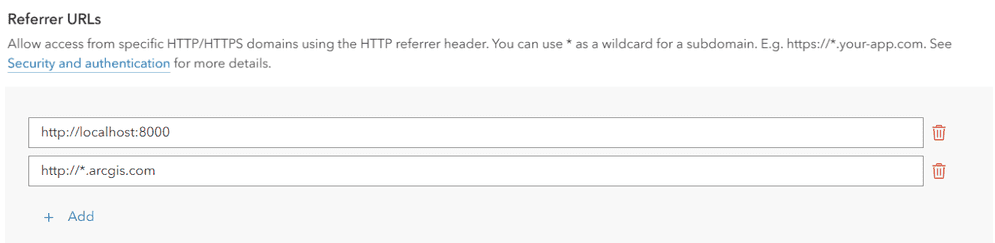
In the next window, scroll down to Referrer URLs.
-
Set the Referrers field to the web domains you would like to restrict the access token to. To learn more about referrers, go to OAuth credentials (for app authentication).
-
Click Next.
Save the item
After configuring the properties of your OAuth credentials, you can save the credentials as a new item
-
In the Create developer credentials window, set the following properties:
- Title:
My OAuth credentials (for app authentication) - Folder:
Developer credentials(Create a new folder) - Tags: Add tags related to the privileges
Privileges are a set of permissions assigned to ArcGIS accounts, developer credentials, and applications that grant access to secure resources and functionality in ArcGIS. of the credentials. - Description: Describe the application that these developer credentials will be used in.

Click Next.
- Title:
-
In the Summary window, review the properties, privileges
Privileges are a set of permissions assigned to ArcGIS accounts, developer credentials, and applications that grant access to secure resources and functionality in ArcGIS. , and item access you have set. -
Click Create to create your OAuth credentials
OAuth credentials are an item that contains parameters required to implement user authentication or app authentication, including a .client_id,client_secret, and redirect URIs. They are a type of developer credential.
Copy the client ID and client secret
Your OAuth credentialsclient_id, client_secret, and redirect URIs. They are a type of developer credential.client and client parameters that are required to implement app authentication
-
On the item page
An item page is a web page in ArcGIS Online or the developer dashboard used to access and manage the properties for an item and the content it references such as a web map, hosted layer, or file. of your OAuth credentials, scroll down to Credentials. -
Copy the Client ID and Client Secret values and paste them into your application. Never expose the value of your client secret.

Manage your credentials
After creating an OAuth credentialsclient_id, client_secret, and redirect URIs. They are a type of developer credential.
To learn more and see management steps, go to OAuth credentials (for app authentication).
Additional resources
Learn more about app authentication