Learn how to display a map
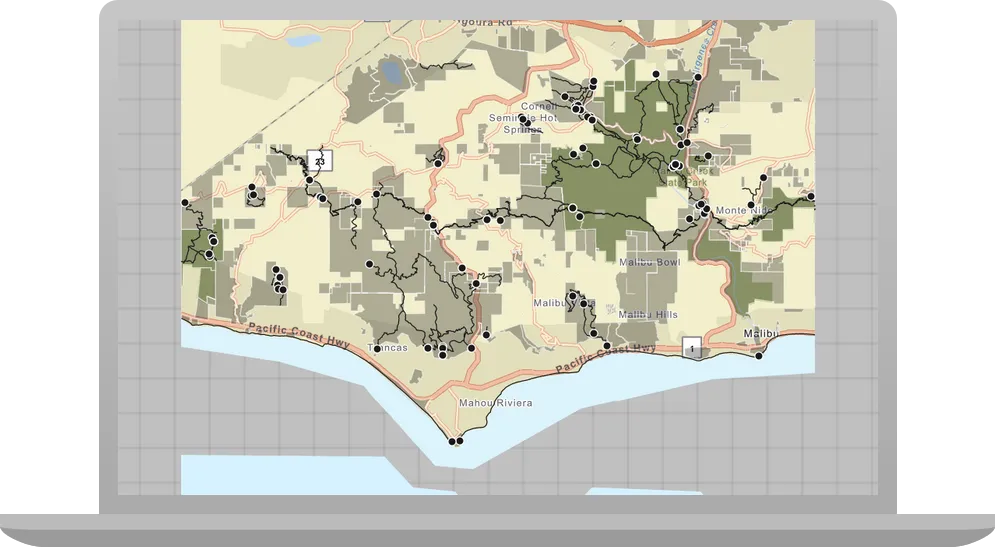
In this tutorial you use the MobileMapPackage class to access the .mmpk file, MahouRivieraTrails.mmpk, and load it to read its contents. The map within the mobile map package contains a basemap layer and data layers and does not require a network connection.
Prerequisites
Before starting this tutorial:
-
You need an ArcGIS Location Platform or ArcGIS Online account.
-
Confirm that your system meets the minimum system requirements.
-
An IDE for Java.
Steps
Open a Java project
-
To start this tutorial, complete the Display a map tutorial, or download and unzip the Display a map solution into a new folder.
-
Open the build.gradle file as a project in IntelliJ IDEA.
Prepare files before coding the app
Modify the files from the Display a map tutorial so they can be used in this tutorial: you will replace imports, change the application title, and remove unnecessary code.
-
In IntelliJ IDEA’s Project tool window, open src/main/java/com.example.app and double-click App. Add the following imports, replacing those from the
Display a maptutorial:App.javapackage com.example.app;import java.io.File;import com.esri.arcgisruntime.loadable.LoadStatus;import com.esri.arcgisruntime.mapping.MobileMapPackage;import com.esri.arcgisruntime.ArcGISRuntimeEnvironment;import com.esri.arcgisruntime.mapping.view.MapView;import javafx.scene.control.Alert;import javafx.application.Application;import javafx.scene.Scene;import javafx.scene.layout.StackPane;import javafx.stage.Stage;public class App extends Application {65 collapsed linesprivate MapView mapView;private MobileMapPackage mobileMapPackage;@Overridepublic void start(Stage stage) {try {// create the stack pane and JavaFX application sceneStackPane stackPane = new StackPane();Scene scene = new Scene(stackPane);// set title, size, and add scene to stagestage.setTitle("Display a map from a mobile map package");stage.setWidth(800);stage.setHeight(700);stage.setScene(scene);stage.show();ArcGISRuntimeEnvironment.setApiKey("YOUR_ACCESS_TOKEN");// create a map viewmapView = new MapView();//Set the location of the .mmpk file to the project root folderfinal String mmpkPath = new File(System.getProperty("user.dir"), "./MahouRivieraTrails.mmpk").getAbsolutePath();mobileMapPackage = new MobileMapPackage(mmpkPath);mobileMapPackage.loadAsync();mobileMapPackage.addDoneLoadingListener(() -> {if (mobileMapPackage.getLoadStatus() == LoadStatus.LOADED && mobileMapPackage.getMaps().size() > 0) {//add the map from the mobile map package to the map viewmapView.setMap(mobileMapPackage.getMaps().get(0));} else {Alert alert = new Alert(Alert.AlertType.ERROR, "Failed to load the mobile map package");alert.show();}});// add the map view to stack panestackPane.getChildren().add(mapView);} catch (Exception e) {// on any error, display the stack tracee.printStackTrace();}}// Stops and releases all resources used in application.@Overridepublic void stop() {if (mapView != null) {mapView.dispose();}}public static void main (String[] args){Application.launch(args);}} -
In the
start()life-cycle method, change the title that will appear on the application window toDisplay a map from a mobile map package.App.java@Overridepublic void start(Stage stage) {try {// create the stack pane and JavaFX application sceneStackPane stackPane = new StackPane();Scene scene = new Scene(stackPane);// set title, size, and add scene to stagestage.setTitle("Display a map from a mobile map package");stage.setWidth(800);stage.setHeight(700);stage.setScene(scene);stage.show(); -
Delete the map, setting the map on the map view, and the map’s initial viewpoint. The mobile map package will be used in place of this code later on in the tutorial.
App.java// create a map view to display the map and add it to the stack panemapView = new MapView();stackPane.getChildren().add(mapView);ArcGISMap map = new ArcGISMap(BasemapStyle.ARCGIS_TOPOGRAPHIC);// set the map on the map viewmapView.setMap(map);mapView.setViewpoint(new Viewpoint(34.02700, -118.80543, 144447.638572));
Add a mobile map package to the project
Add a mobile map package (.mmpk) for distribution with your app.
-
Create or download the
MahouRivieraTrails.mmpkmobile map package. Complete the Create a mobile map package tutorial to create the package yourself. Otherwise, download the solution file: MahouRiveraTrails.mmpk. -
Copy
MahouRivieraTrails.mmpkin the system file manager and paste it to the project’s root directory in IntelliJ IDEA’s Project tool window. See IntelliJ IDEA’s documentation for additional methods of importing files for alternative approaches (Import files), if necessary.
Create a mobile map package
Create a MobileMapPackage and assign it to the mobileMapPackage member variable. Also surround your code with a Java try statement, which will be later followed by a catch that prints a standard stack trace.
30 collapsed lines
// Copyright 2020 Esri// Licensed under the Apache License, Version 2.0 (the "License");// you may not use this file except in compliance with the License.// You may obtain a copy of the License at//// http://www.apache.org/licenses/LICENSE-2.0//// Unless required by applicable law or agreed to in writing, software// distributed under the License is distributed on an "AS IS" BASIS,// WITHOUT WARRANTIES OR CONDITIONS OF ANY KIND, either express or implied.// See the License for the specific language governing permissions and// limitations under the License.
package com.example.app;
import java.io.File;
import com.esri.arcgisruntime.loadable.LoadStatus;import com.esri.arcgisruntime.mapping.MobileMapPackage;import com.esri.arcgisruntime.ArcGISRuntimeEnvironment;import com.esri.arcgisruntime.mapping.view.MapView;
import javafx.scene.control.Alert;import javafx.application.Application;import javafx.scene.Scene;import javafx.scene.layout.StackPane;import javafx.stage.Stage;
public class App extends Application {
private MapView mapView;
private MobileMapPackage mobileMapPackage;
    @Override    public void start(Stage stage) {
        try {
            // create the stack pane and JavaFX application scene            StackPane stackPane = new StackPane();            Scene scene = new Scene(stackPane);
            // set title, size, and add scene to stage
            stage.setTitle("Display a map from a mobile map package");
            stage.setWidth(800);            stage.setHeight(700);            stage.setScene(scene);            stage.show();
ArcGISRuntimeEnvironment.setApiKey("YOUR_ACCESS_TOKEN");
// create a map view mapView = new MapView();
//Set the location of the .mmpk file to the project root folder final String mmpkPath = new File(System.getProperty("user.dir"), "./MahouRivieraTrails.mmpk").getAbsolutePath(); mobileMapPackage = new MobileMapPackage(mmpkPath);33 collapsed lines
mobileMapPackage.loadAsync(); mobileMapPackage.addDoneLoadingListener(() -> { if (mobileMapPackage.getLoadStatus() == LoadStatus.LOADED && mobileMapPackage.getMaps().size() > 0) { //add the map from the mobile map package to the map view mapView.setMap(mobileMapPackage.getMaps().get(0)); } else { Alert alert = new Alert(Alert.AlertType.ERROR, "Failed to load the mobile map package"); alert.show(); } });
// add the map view to stack pane stackPane.getChildren().add(mapView);
} catch (Exception e) { // on any error, display the stack trace e.printStackTrace(); }
}
// Stops and releases all resources used in application. @Override public void stop() { if (mapView != null) { mapView.dispose(); } } public static void main (String[] args){ Application.launch(args); }}Load the mobile map package file and display its map
-
The following code shows how to load the mobile map package (.mmpk) file to get a list of its maps and then select the map you want to display. It also adds the
trystatement’s closingcatchstatement.App.java60 collapsed lines// Copyright 2020 Esri// Licensed under the Apache License, Version 2.0 (the "License");// you may not use this file except in compliance with the License.// You may obtain a copy of the License at//// http://www.apache.org/licenses/LICENSE-2.0//// Unless required by applicable law or agreed to in writing, software// distributed under the License is distributed on an "AS IS" BASIS,// WITHOUT WARRANTIES OR CONDITIONS OF ANY KIND, either express or implied.// See the License for the specific language governing permissions and// limitations under the License.package com.example.app;import java.io.File;import com.esri.arcgisruntime.loadable.LoadStatus;import com.esri.arcgisruntime.mapping.MobileMapPackage;import com.esri.arcgisruntime.ArcGISRuntimeEnvironment;import com.esri.arcgisruntime.mapping.view.MapView;import javafx.scene.control.Alert;import javafx.application.Application;import javafx.scene.Scene;import javafx.scene.layout.StackPane;import javafx.stage.Stage;public class App extends Application {private MapView mapView;private MobileMapPackage mobileMapPackage;@Overridepublic void start(Stage stage) {try {// create the stack pane and JavaFX application sceneStackPane stackPane = new StackPane();Scene scene = new Scene(stackPane);// set title, size, and add scene to stagestage.setTitle("Display a map from a mobile map package");stage.setWidth(800);stage.setHeight(700);stage.setScene(scene);stage.show();ArcGISRuntimeEnvironment.setApiKey("YOUR_ACCESS_TOKEN");// create a map viewmapView = new MapView();//Set the location of the .mmpk file to the project root folderfinal String mmpkPath = new File(System.getProperty("user.dir"), "./MahouRivieraTrails.mmpk").getAbsolutePath();mobileMapPackage = new MobileMapPackage(mmpkPath);mobileMapPackage.loadAsync();mobileMapPackage.addDoneLoadingListener(() -> {if (mobileMapPackage.getLoadStatus() == LoadStatus.LOADED && mobileMapPackage.getMaps().size() > 0) {//add the map from the mobile map package to the map viewmapView.setMap(mobileMapPackage.getMaps().get(0));} else {Alert alert = new Alert(Alert.AlertType.ERROR, "Failed to load the mobile map package");alert.show();}});// add the map view to stack panestackPane.getChildren().add(mapView);} catch (Exception e) {// on any error, display the stack tracee.printStackTrace();}}12 collapsed lines// Stops and releases all resources used in application.@Overridepublic void stop() {if (mapView != null) {mapView.dispose();}}public static void main (String[] args){Application.launch(args);}} -
Run the app. Ensure to run the app as a Gradle task and not as an application in your IDE. In the Gradle tool window, under Tasks > application, double-click run.
You should see a map of trail heads, trails, and parks for the area south of the Santa Monica mountains. You can zoom, rotate, drag, and double-tap the map view to explore the map.