There are a number of ways to get started to develop with ArcGIS Maps SDK for Java. If you are new, follow the steps below to get started with Java and IntelliJ IDEA.
1. Sign up for an account
To use ArcGIS Maps SDK for Java to access content
If you do not have an account, select one of the options below:
2. Get the SDK and dependencies
To use the ArcGIS Maps SDK for Java you need to:
Install a supported JDK
- Download a JDK, filtering for your operating system, architecture, and version.
- Use the installation guide and follow the instructions.
Install a Java IDE with Gradle integrated
- Download and install IntelliJ IDEA Community Edition.
Get the ArcGIS Maps SDK for Java
- Expand the accordion below: Gradle build script.
- Copy the script into your Java project’s
build.gradlefile. - Reload the build script and execute the run task to download and unpack the API dependencies.
For additional considerations, go to Install and set up.
plugins {    id 'application'    id 'org.openjfx.javafxplugin' version '0.1.0'    id 'idea'}
idea {    module {        downloadJavadoc = true    }}
ext {    arcgisVersion = '200.6.0'}
repositories {    mavenCentral()    maven {        url 'https://esri.jfrog.io/artifactory/arcgis'    }}
configurations {    natives}
dependencies {    implementation "com.esri.arcgisruntime:arcgis-java:$arcgisVersion"    natives "com.esri.arcgisruntime:arcgis-java-jnilibs:$arcgisVersion"    natives "com.esri.arcgisruntime:arcgis-java-resources:$arcgisVersion"    // handle SLF4J http://www.slf4j.org/codes.html#StaticLoggerBinder using a no-operation logger    implementation "org.slf4j:slf4j-nop:2.0.16"}
javafx {    version = "21.0.5"    modules = [ 'javafx.controls', 'javafx.graphics', 'javafx.fxml', 'javafx.web', 'javafx.media' ]}
task copyNatives(type: Copy) {    description = "Copies the arcgis native libraries into the .arcgis directory for development."    group = "build"    configurations.natives.asFileTree.each {        from(zipTree(it))    }    into "${System.properties.getProperty("user.home")}/.arcgis/$arcgisVersion"}
run {    dependsOn copyNatives}
The copyNatives task in this Gradle build script will transfer all dependencies into a .arcgis folder located in the user’s home directory.
3. Get an access token
To access secure ArcGIS services and resources, you need to use an access token
4. Create your first mapping application
Follow the step-by-step instructions in the Display a map tutorial to create your first mapping application. The following code shows how you can create and display a map.
// Authenticate with an API key access token or user authentication is required to access basemaps// and other location services.ArcGISRuntimeEnvironment.setApiKey("YOUR_ACCESS_TOKEN");
// Create a map with the standard imagery basemap style.ArcGISMap map = new ArcGISMap(BasemapStyle.ARCGIS_IMAGERY_STANDARD);
// Create a new MapView object.mapView = new MapView();// Set the MapView with the map.mapView.setMap(map);
Once you are done building your application, make sure to license it before deploying to production. For more information, see License and deployment topic for details.
5. Follow the tutorials
Go to the tutorials to create and run applications to perform different operations.
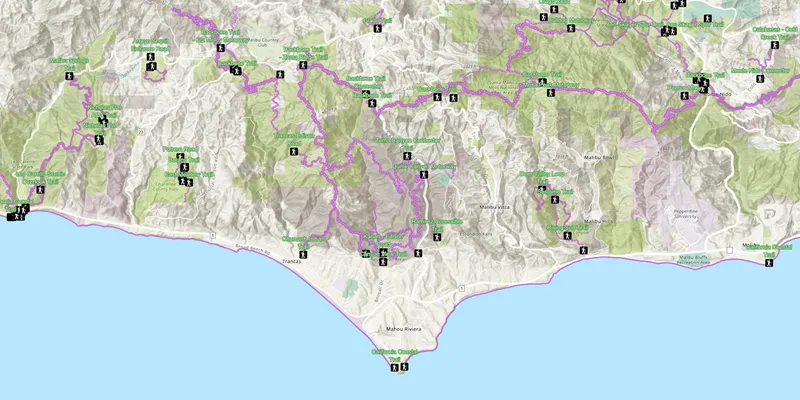
Display a web map
Display a preauthored map stored as an ArcGIS Online portal item.

Add a point, line, and polygon
Learn how to display a point, line, and polygon graphic in a map.
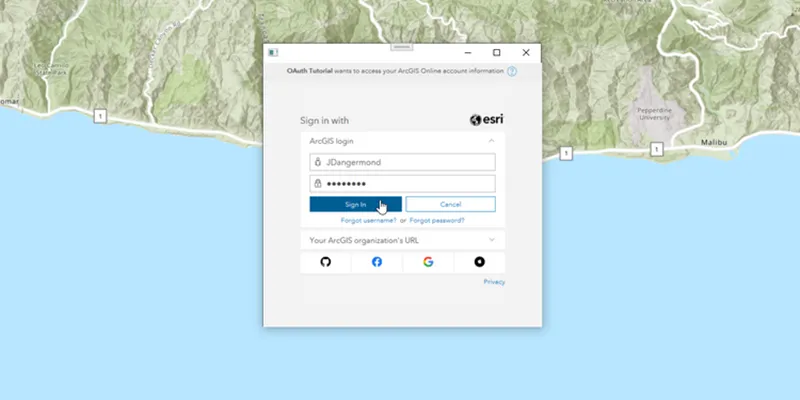
Access services with OAuth credentials
Learn how to implement user authentication to access a secure ArcGIS service with OAuth credentials.
6. Explore the samples
Go to the samples to learn how to perform more tasks with the API.
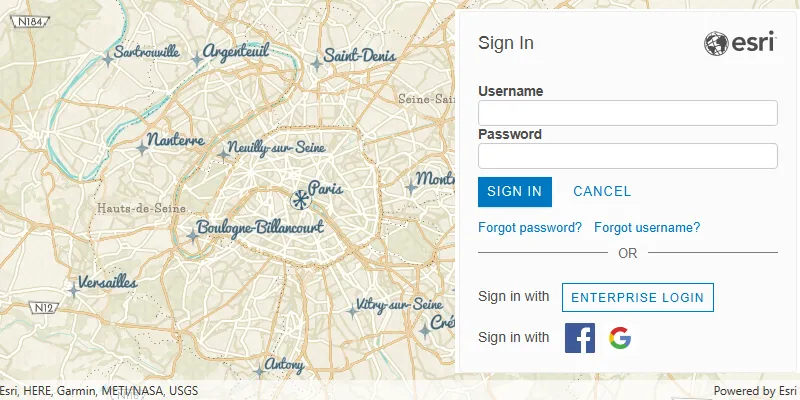
OAuth
Authenticate with ArcGIS Online (or ArcGIS Enterprise) using OAuth2 to access secured resources.
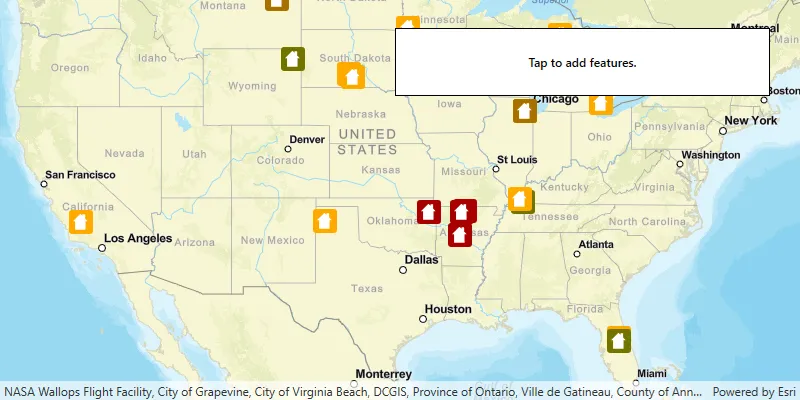
Add features
Add features to a feture layer.
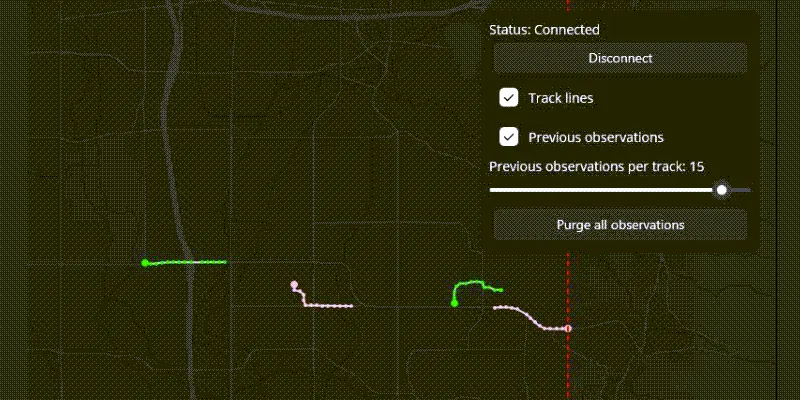
Add dynamic entity layer
Display data from an ArcGIS stream service using a dynamic entity layer.
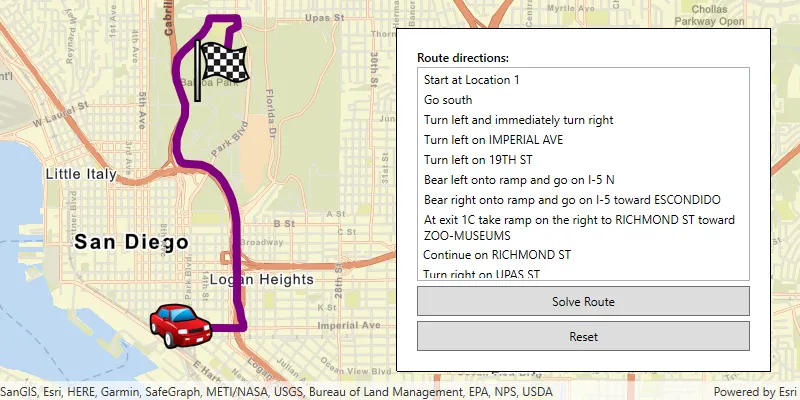
Find route
Display directions for a route between two points.