Learn how to create and display a map
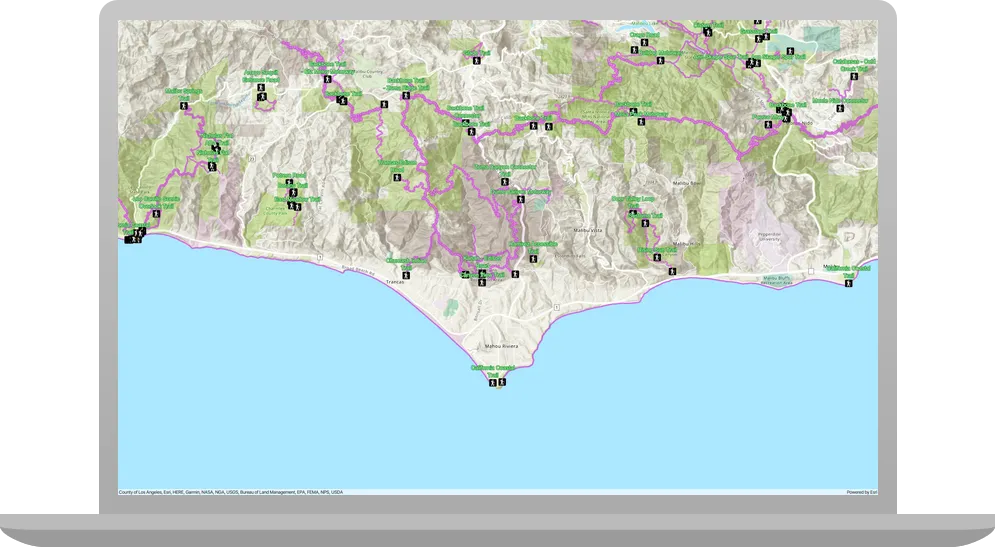
A web map
In this tutorial, you use a web map
Prerequisites
Before starting this tutorial:
-
You need an ArcGIS Location Platform or ArcGIS Online account.
-
Confirm that your system meets the minimum system requirements.
-
An IDE for Java.
Steps
Open a Java project with Gradle
-
To start this tutorial, complete the Display a map tutorial, or download and unzip the Display a map solution into a new folder.
-
Open the build.gradle file as a project in IntelliJ IDEA.
-
If you downloaded the solution, get an access token and set the API key.
An API key
An API key is a long-lived access token created using API key credentials. They are valid for up to one year and are typically embedded directly into client applications. gives your app access to secure resourcesA secure resource is any item or service in an ArcGIS that requires an ArcGIS account and authentication to access. Examples include ArcGIS Location Services, and items and data services in an ArcGIS portal. used in this tutorial.-
Go to the Create an API key tutorial to obtain a new API key access token
An access token is an authorization string that provides access to secure ArcGIS content, data, and services. Its capabilities are determined by the privileges it supports. It is obtained by implementing API key authentication, User authentication, or App authentication. using your ArcGIS Location PlatformAn ArcGIS Location Platform account, formerly known as an ArcGIS Developer account, is an identity associated with an ArcGIS Location Platform subscription. or ArcGIS OnlineAn ArcGIS Online account, also known as an ArcGIS Organization account, is an identity associated with an ArcGIS Online subscription. It can be used to access ArcGIS tools and develop applications with ArcGIS location services for an organization. account. Ensure that the following privilegePrivileges are a set of permissions assigned to ArcGIS accounts, developer credentials, and applications that grant access to secure resources and functionality in ArcGIS. is enabled: Location services > Basemaps > Basemap styles service. Copy the access token as it will be used in the next step. -
In IntelliJ IDEA’s Project tool window, open src/main/java/com.example.app and double-click App.
-
In the
start()method, set the API key property on theArcGISRuntimeEnvironmentwith your access tokenAn access token is an authorization string that provides access to secure ArcGIS content, data, and services. Its capabilities are determined by the privileges it supports. It is obtained by implementing API key authentication, User authentication, or App authentication. . Replace YOUR_ACCESS_TOKEN with your copied access token. Be sure to surround your access token with double quotes as it is a string.App.javaArcGISRuntimeEnvironment.setApiKey("YOUR_ACCESS_TOKEN");
-
Prepare files before coding the app
Modify the files from the Display a map tutorial so that they can be used in this tutorial: you will add and remove imports, change the application title, and remove unnecessary code.
-
In IntelliJ IDEA’s Project tool window, open src/main/java/com.example.app and double-click App.
-
Add the following imports above the existing imports:
App.javaimport com.esri.arcgisruntime.portal.Portal;import com.esri.arcgisruntime.portal.PortalItem;import com.esri.arcgisruntime.ArcGISRuntimeEnvironment;import com.esri.arcgisruntime.mapping.ArcGISMap;import com.esri.arcgisruntime.mapping.view.MapView; -
Remove the following imports:
App.javaimport com.esri.arcgisruntime.mapping.BasemapStyle;import com.esri.arcgisruntime.mapping.Viewpoint; -
In the
start()life-cycle method, change the title that will appear on the application window toDisplay a web map tutorial.App.java35 collapsed lines// Copyright 2020 Esri// Licensed under the Apache License, Version 2.0 (the "License");// you may not use this file except in compliance with the License.// You may obtain a copy of the License at//// http://www.apache.org/licenses/LICENSE-2.0//// Unless required by applicable law or agreed to in writing, software// distributed under the License is distributed on an "AS IS" BASIS,// WITHOUT WARRANTIES OR CONDITIONS OF ANY KIND, either express or implied.// See the License for the specific language governing permissions and// limitations under the License.package com.example.app;import com.esri.arcgisruntime.portal.Portal;import com.esri.arcgisruntime.portal.PortalItem;import com.esri.arcgisruntime.ArcGISRuntimeEnvironment;import com.esri.arcgisruntime.mapping.ArcGISMap;import com.esri.arcgisruntime.mapping.view.MapView;import javafx.application.Application;import javafx.scene.Scene;import javafx.scene.layout.StackPane;import javafx.stage.Stage;public class App extends Application {private MapView mapView;public static void main(String[] args) {Application.launch(args);}@Overridepublic void start(Stage stage) {// set the title and size of the stage and show itstage.setTitle("Display a web map tutorial");stage.setWidth(800);stage.setHeight(700);stage.show();28 collapsed lines// create a JavaFX scene with a stack pane as the root node// and add it to the sceneStackPane stackPane = new StackPane();Scene scene = new Scene(stackPane);stage.setScene(scene);ArcGISRuntimeEnvironment.setApiKey("YOUR_ACCESS_TOKEN");// create a map view to display the map and add it to the stack panemapView = new MapView();stackPane.getChildren().add(mapView);mapView.setMap(map);}/*** Stops and releases all resources used in application.*/@Overridepublic void stop() {if (mapView != null) {mapView.dispose();}}} -
In
start()method, delete the code for creating a map from a basemap and setting a viewpoint. The web map defines the characteristics of the map, so you don’t have to set them in your app.App.java55 collapsed lines// Copyright 2020 Esri// Licensed under the Apache License, Version 2.0 (the "License");// you may not use this file except in compliance with the License.// You may obtain a copy of the License at//// http://www.apache.org/licenses/LICENSE-2.0//// Unless required by applicable law or agreed to in writing, software// distributed under the License is distributed on an "AS IS" BASIS,// WITHOUT WARRANTIES OR CONDITIONS OF ANY KIND, either express or implied.// See the License for the specific language governing permissions and// limitations under the License.package com.example.app;import com.esri.arcgisruntime.ArcGISRuntimeEnvironment;import com.esri.arcgisruntime.mapping.ArcGISMap;import com.esri.arcgisruntime.mapping.BasemapStyle;import com.esri.arcgisruntime.mapping.Viewpoint;import com.esri.arcgisruntime.mapping.view.MapView;import javafx.application.Application;import javafx.scene.Scene;import javafx.scene.layout.StackPane;import javafx.stage.Stage;public class App extends Application {private MapView mapView;public static void main(String[] args) {Application.launch(args);}@Overridepublic void start(Stage stage) {// set the title and size of the stage and show itstage.setTitle("Display a map tutorial");stage.setWidth(800);stage.setHeight(700);stage.show();// create a JavaFX scene with a stack pane as the root node, and add it to the sceneStackPane stackPane = new StackPane();Scene scene = new Scene(stackPane);stage.setScene(scene);ArcGISRuntimeEnvironment.setApiKey("YOUR_ACCESS_TOKEN");// create a map view to display the map and add it to the stack panemapView = new MapView();stackPane.getChildren().add(mapView);ArcGISMap map = new ArcGISMap(BasemapStyle.ARCGIS_TOPOGRAPHIC);// set the map on the map viewmapView.setMap(map);mapView.setViewpoint(new Viewpoint(34.02700, -118.80543, 144447.638572));14 collapsed lines}/*** Stops and releases all resources used in application.*/@Overridepublic void stop() {if (mapView != null) {mapView.dispose();}}}
Get the web map item ID
You can use ArcGIS tools
- Go to the LA Trails and Parks web map
in the Map Viewer in ArcGIS Online
ArcGIS Online is a GIS mapping, analytics, data hosting, and content management software as a service (SaaS) product. It includes applications, tools, APIs, and location services for users and developers. It is subscription-based and requires an ArcGIS Online account. . This web map displays trails, trailheads and parks in the Santa Monica Mountains. - Make a note of the item ID at the end of the browser’s URL. The item ID should be
41281c51f9de45edaf1c8ed44bb10e30
Display the web map
You can create a mapPortalItem class to access the web map, and the ArcGISMap class to create and display a map from it.
-
In the
start()method, create a newPortal(java.lang.String,boolean)referencing ArcGIS OnlineArcGIS Online is a GIS mapping, analytics, data hosting, and content management software as a service (SaaS) product. It includes applications, tools, APIs, and location services for users and developers. It is subscription-based and requires an ArcGIS Online account. as theportalUrlparameter andfalsefor theloginRequiredparameter.App.java53 collapsed lines// Copyright 2020 Esri// Licensed under the Apache License, Version 2.0 (the "License");// you may not use this file except in compliance with the License.// You may obtain a copy of the License at//// http://www.apache.org/licenses/LICENSE-2.0//// Unless required by applicable law or agreed to in writing, software// distributed under the License is distributed on an "AS IS" BASIS,// WITHOUT WARRANTIES OR CONDITIONS OF ANY KIND, either express or implied.// See the License for the specific language governing permissions and// limitations under the License.package com.example.app;import com.esri.arcgisruntime.portal.Portal;import com.esri.arcgisruntime.portal.PortalItem;import com.esri.arcgisruntime.ArcGISRuntimeEnvironment;import com.esri.arcgisruntime.mapping.ArcGISMap;import com.esri.arcgisruntime.mapping.view.MapView;import javafx.application.Application;import javafx.scene.Scene;import javafx.scene.layout.StackPane;import javafx.stage.Stage;public class App extends Application {private MapView mapView;public static void main(String[] args) {Application.launch(args);}@Overridepublic void start(Stage stage) {// set the title and size of the stage and show itstage.setTitle("Display a web map tutorial");stage.setWidth(800);stage.setHeight(700);stage.show();// create a JavaFX scene with a stack pane as the root node// and add it to the sceneStackPane stackPane = new StackPane();Scene scene = new Scene(stackPane);stage.setScene(scene);ArcGISRuntimeEnvironment.setApiKey("YOUR_ACCESS_TOKEN");// create a map view to display the map and add it to the stack panemapView = new MapView();stackPane.getChildren().add(mapView);Portal portal = new Portal("https://www.arcgis.com", false);13 collapsed lines}/*** Stops and releases all resources used in application.*/@Overridepublic void stop() {if (mapView != null) {mapView.dispose();}}} -
Create a
PortalItemfor the web mapA web map is a map stored as a JSON object that defines properties such as the basemap layer, data layers, layer styles, and pop-up styles. Its JSON structure is defined by the web map specification. , by passing theportaland the web map’s item IDAn item ID is a unique identifier representing a single item stored, managed, and accessed in a portal, such as a web map, hosted layer, or file. as parameters. -
Create an
ArcGISMap(com.esri.arcgisruntime.portal.PortalItem)using theportalItemas the constructor parameter.App.java57 collapsed lines// Copyright 2020 Esri// Licensed under the Apache License, Version 2.0 (the "License");// you may not use this file except in compliance with the License.// You may obtain a copy of the License at//// http://www.apache.org/licenses/LICENSE-2.0//// Unless required by applicable law or agreed to in writing, software// distributed under the License is distributed on an "AS IS" BASIS,// WITHOUT WARRANTIES OR CONDITIONS OF ANY KIND, either express or implied.// See the License for the specific language governing permissions and// limitations under the License.package com.example.app;import com.esri.arcgisruntime.portal.Portal;import com.esri.arcgisruntime.portal.PortalItem;import com.esri.arcgisruntime.ArcGISRuntimeEnvironment;import com.esri.arcgisruntime.mapping.ArcGISMap;import com.esri.arcgisruntime.mapping.view.MapView;import javafx.application.Application;import javafx.scene.Scene;import javafx.scene.layout.StackPane;import javafx.stage.Stage;public class App extends Application {private MapView mapView;public static void main(String[] args) {Application.launch(args);}@Overridepublic void start(Stage stage) {// set the title and size of the stage and show itstage.setTitle("Display a web map tutorial");stage.setWidth(800);stage.setHeight(700);stage.show();// create a JavaFX scene with a stack pane as the root node// and add it to the sceneStackPane stackPane = new StackPane();Scene scene = new Scene(stackPane);stage.setScene(scene);ArcGISRuntimeEnvironment.setApiKey("YOUR_ACCESS_TOKEN");// create a map view to display the map and add it to the stack panemapView = new MapView();stackPane.getChildren().add(mapView);Portal portal = new Portal("https://www.arcgis.com", false);String itemId = "41281c51f9de45edaf1c8ed44bb10e30";PortalItem portalItem = new PortalItem(portal, itemId);ArcGISMap map = new ArcGISMap(portalItem);16 collapsed linesmapView.setMap(map);}/*** Stops and releases all resources used in application.*/@Overridepublic void stop() {if (mapView != null) {mapView.dispose();}}} -
Use the existing code to display the new
ArcGISMapon themapViewwithMapView.setMap().App.java53 collapsed lines// Copyright 2020 Esri// Licensed under the Apache License, Version 2.0 (the "License");// you may not use this file except in compliance with the License.// You may obtain a copy of the License at//// http://www.apache.org/licenses/LICENSE-2.0//// Unless required by applicable law or agreed to in writing, software// distributed under the License is distributed on an "AS IS" BASIS,// WITHOUT WARRANTIES OR CONDITIONS OF ANY KIND, either express or implied.// See the License for the specific language governing permissions and// limitations under the License.package com.example.app;import com.esri.arcgisruntime.portal.Portal;import com.esri.arcgisruntime.portal.PortalItem;import com.esri.arcgisruntime.ArcGISRuntimeEnvironment;import com.esri.arcgisruntime.mapping.ArcGISMap;import com.esri.arcgisruntime.mapping.view.MapView;import javafx.application.Application;import javafx.scene.Scene;import javafx.scene.layout.StackPane;import javafx.stage.Stage;public class App extends Application {private MapView mapView;public static void main(String[] args) {Application.launch(args);}@Overridepublic void start(Stage stage) {// set the title and size of the stage and show itstage.setTitle("Display a web map tutorial");stage.setWidth(800);stage.setHeight(700);stage.show();// create a JavaFX scene with a stack pane as the root node// and add it to the sceneStackPane stackPane = new StackPane();Scene scene = new Scene(stackPane);stage.setScene(scene);ArcGISRuntimeEnvironment.setApiKey("YOUR_ACCESS_TOKEN");// create a map view to display the map and add it to the stack panemapView = new MapView();stackPane.getChildren().add(mapView);Portal portal = new Portal("https://www.arcgis.com", false);String itemId = "41281c51f9de45edaf1c8ed44bb10e30";PortalItem portalItem = new PortalItem(portal, itemId);ArcGISMap map = new ArcGISMap(portalItem);mapView.setMap(map);14 collapsed lines}/*** Stops and releases all resources used in application.*/@Overridepublic void stop() {if (mapView != null) {mapView.dispose();}}} -
Run the app. Ensure to run the app as a Gradle task and not as an application in your IDE. In the Gradle tool window, under Tasks > application, double-click run.
You should see a map of trails, trailheads and parks in the Santa Monica Mountains . Click, drag, and scroll the mouse wheel on the map view to explore the map.
What’s next?
Learn how to use additional API features, ArcGIS location services, and ArcGIS tools in these tutorials: