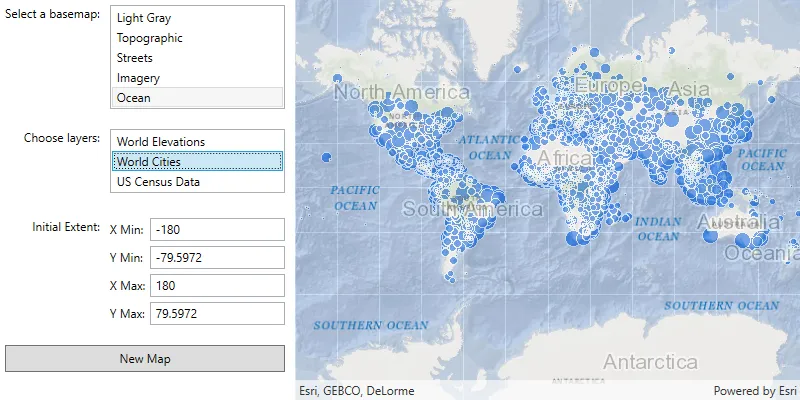
Maps
You can use a map to:
- Display a basemap layer
A basemap layer is the layer in a map or scene that displays basemap data. The data source for a basemap layer is typically a basemap service. such as streets or satellite imagery. - Access and display data layers
A data layer is a layer that references geographic data from a file or a service and is used to visualize the data in a map or scene. based on files or services, including data you have authored. - Provide context for temporary points, lines, polygons, or text displayed as graphics
A graphic is a visual element composed of a geometry, symbol, and attributes that is displayed on a map or scene. . - Inspect data layers and display information from attributes
Attributes are fields and values for a single feature or non-spatial record. They are typically stored in a database or service such as a feature service. . - Measure distance and explore spatial relationships between geometries
A geometry is a geometric shape, such as a point, polyline, or polygon, that contains one or more coordinates and a spatial reference. . - Save a collection of layers as a web map
A web map is a map stored as a JSON object that defines properties such as the basemap layer, data layers, layer styles, and pop-up styles. Its JSON structure is defined by the web map specification. to be shared across ArcGIS.
How a map works
A map
For offline
Map
A map contains a collection of layers
You can open an existing map or create one entirely with code. To create a map, you typically first add a basemap layer
// Authenticate with an API key access token or user authentication is required to access basemaps// and other location services.ArcGISRuntimeEnvironment.setApiKey("YOUR_ACCESS_TOKEN");
// Create a map with the standard imagery basemap style.ArcGISMap map = new ArcGISMap(BasemapStyle.ARCGIS_IMAGERY_STANDARD);
You can also open a map stored in a portal
ArcGISMap webMap = new ArcGISMap("https://www.arcgis.com/home/item.html?id=acc027394bc84c2fb04d1ed317aac674");Layer
Each layer
The Layer class is the base class for all types of layers. The type of layer you create depends on the type of data you want to display. For example, to display feature data you can create a FeatureLayer that references an online service (such as a feature service
// Create a new trail heads feature layer from its URL.FeatureLayer trailheadsLayer = new FeatureLayer(new ServiceFeatureTable(trailheadsURL));// Create a new trails feature layer from its URL.FeatureLayer trailsLayer = new FeatureLayer(new ServiceFeatureTable(trailsURL));// Create a new open spaces feature layer from its URL.FeatureLayer openSpacesLayer = new FeatureLayer(new ServiceFeatureTable(parksOpenSpace));
// Add all feature layers to the map.map.getOperationalLayers().addAll(Arrays.asList(openSpacesLayer, trailsLayer, trailheadsLayer));
MapView
A map view
A map view
- Access data for data layers and graphics.
- Display the current location as a point on the map.
- Identify and select features at a specified location.
- Export an image of the current display.
- Rotate the map display.
- Apply a time extent to filter the display of features.
- Filter layer data using attribute and spatial criteria.
Display a mapMapView control. Changes you make to the map, such as adding, removing, or reordering layers, will immediately be reflected in the map view display. The ArcGISMap.setInitialViewpoint() property will determine the area of the map shown when the map loads. You can also use MapView.setViewpointAsync() and MapView.setViewpointRotationAsync() to programmatically change the map area or orientation shown in the display.
private MapView mapView;
// ...
// Create a new MapView object.mapView = new MapView();// Set the MapView with the map.mapView.setMap(map);
// Set a Viewpoint for the MapView with a (Latitude, Longitude) and Scale.mapView.setViewpoint(new Viewpoint(34.027, -118.805, 72223.819286));
Examples
Create and display a map
You can display a basic map by creating one with a basemap layer, setting its initial extent, and adding it to a map view. To learn how to add additional data, see the Layers topic.
Steps
- Create a new
ArcGISMap, passing aBasemapStyleinto the constructor. - Optionally, add one or more data layers to the map.
- Assign the map to a
MapViewcontrol in your app. - Set the map view
Viewpointto focus on a specified area of the map.
27 collapsed lines
package com.esri.examples;
import com.esri.arcgisruntime.ArcGISRuntimeEnvironment;import com.esri.arcgisruntime.mapping.ArcGISMap;import com.esri.arcgisruntime.mapping.BasemapStyle;import com.esri.arcgisruntime.mapping.Viewpoint;import com.esri.arcgisruntime.mapping.view.MapView;
import javafx.application.Application;import javafx.scene.Scene;import javafx.scene.layout.StackPane;import javafx.stage.Stage;
public class CreateAndDisplayAMap extends Application { private MapView mapView;
@Override public void start(Stage stage) { StackPane stackPane = new StackPane(); Scene scene = new Scene(stackPane);
stage.setTitle("Maps-2d Examples"); stage.setWidth(800); stage.setHeight(700); stage.setScene(scene); stage.show();
ArcGISRuntimeEnvironment.setApiKey("YOUR_ACCESS_TOKEN");
// Create a new ArcGISMap and pass in a Basemap style into the constructor. ArcGISMap map = new ArcGISMap(BasemapStyle.ARCGIS_NAVIGATION);
mapView = new MapView(); // Assign the map to the MapView control. mapView.setMap(map); // Set the map view Viewpoint to focus on a specified area of the map. mapView.setViewpoint(new Viewpoint(34.027, -118.805, 72223.819286));15 collapsed lines
stackPane.getChildren().add(mapView); }
@Override public void stop() { if (mapView != null) { mapView.dispose(); } }
public static void main(String[] args) { launch(args); }}You can also create and save a web map
Display a web map
You can open a web map
Steps
- Create a
Portalobject to connect to the portal that hosts a web map you want to load. If you don’t provide a portal URL, the connection defaults to ArcGIS Online. - Create a
PortalItemobject using the item IDAn item ID is a unique identifier representing a single item stored, managed, and accessed in a portal, such as a web map, hosted layer, or file. for the item that stores the web map. - Create a new map, passing the portal item
An item, also known as a content item, is a resource stored in a portal such as a web map, hosted layer, style, script tool, file, or notebook. into the constructor. - Assign the map to a
MapViewcontrol in your app.
26 collapsed lines
package com.esri.examples;
import com.esri.arcgisruntime.ArcGISRuntimeEnvironment;import com.esri.arcgisruntime.mapping.ArcGISMap;import com.esri.arcgisruntime.mapping.view.MapView;import com.esri.arcgisruntime.portal.Portal;import com.esri.arcgisruntime.portal.PortalItem;import javafx.application.Application;import javafx.scene.Scene;import javafx.scene.layout.StackPane;import javafx.stage.Stage;
public class DisplayAWebMap extends Application { private MapView mapView;
@Override public void start(Stage stage) { StackPane stackPane = new StackPane(); Scene scene = new Scene(stackPane);
stage.setTitle("Maps-2d Examples"); stage.setWidth(800); stage.setHeight(700); stage.setScene(scene); stage.show();
ArcGISRuntimeEnvironment.setApiKey("YOUR_ACCESS_TOKEN");
// Create a Portal object to connect to the portal. Portal portal = new Portal("https://www.arcgis.com", false); String itemId = "41281c51f9de45edaf1c8ed44bb10e30";
// Create a PortalItem object using the item ID that references the web map. PortalItem portalItem = new PortalItem(portal, itemId);
// Create a new map with the portal item ID. ArcGISMap map = new ArcGISMap(portalItem);
mapView = new MapView(); // Assign the map to a MapView control in your application. mapView.setMap(map);15 collapsed lines
stackPane.getChildren().add(mapView); }
@Override public void stop() { if (mapView != null) { mapView.dispose(); } }
public static void main(String[] args) { launch(args); }}Display a mobile map
This example displays a map
Steps
- Create a
MobileMapPackageusing the path to a local .mmpk file. - Call
MobileMapPackage.loadAsync()to load the package. - When the package loads, get the first map from the package using the
MobileMapPackage.getMaps()property. - Display the map in a
MapView.
30 collapsed lines
package com.esri.examples;
import com.esri.arcgisruntime.ArcGISRuntimeEnvironment;import com.esri.arcgisruntime.loadable.LoadStatus;import com.esri.arcgisruntime.mapping.MobileMapPackage;import com.esri.arcgisruntime.mapping.view.MapView;import javafx.application.Application;import javafx.scene.Scene;import javafx.scene.control.Alert;import javafx.scene.layout.StackPane;import javafx.stage.Stage;
import java.io.File;
public class DisplayAMobileMap extends Application { private MapView mapView; private MobileMapPackage mobileMapPackage;
@Override public void start(Stage stage) { try { StackPane stackPane = new StackPane(); Scene scene = new Scene(stackPane);
stage.setTitle("Maps-2d Examples"); stage.setWidth(800); stage.setHeight(700); stage.setScene(scene); stage.show();
ArcGISRuntimeEnvironment.setApiKey("YOUR_ACCESS_TOKEN");
mapView = new MapView();
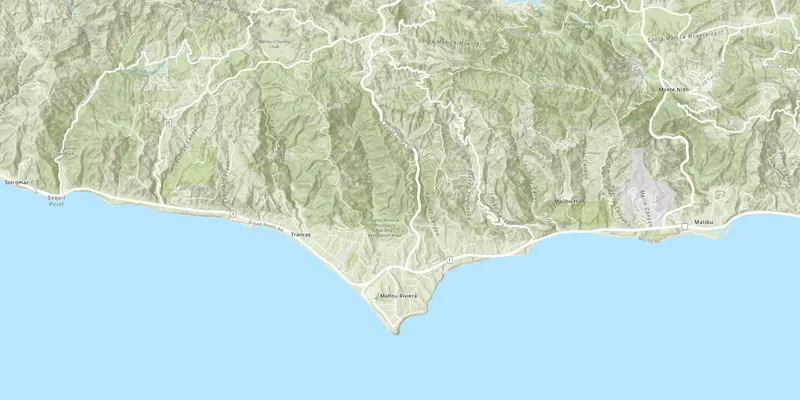
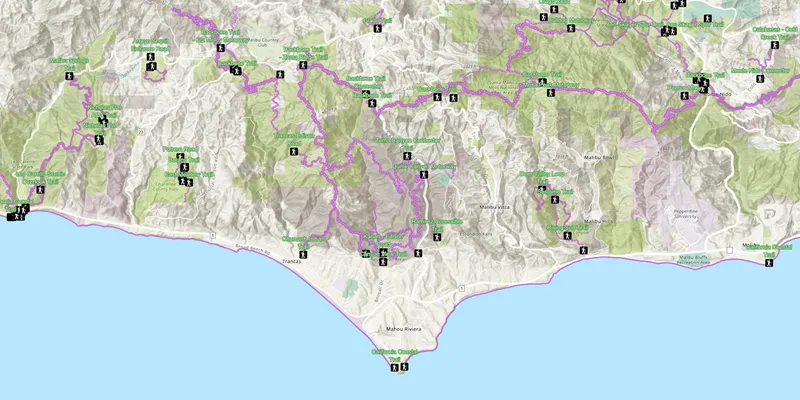
final String mobileMapPackagePath = new File(System.getProperty("user.dir"), "./MahouRivieraTrails.mmpk").getAbsolutePath();
// Create a MobileMapPackage using the path to a local .mmpk file. mobileMapPackage = new MobileMapPackage(mobileMapPackagePath); // Load the mobile map package asynchronously. mobileMapPackage.loadAsync(); mobileMapPackage.addDoneLoadingListener(() -> { if(mobileMapPackage.getLoadStatus() == LoadStatus.LOADED && mobileMapPackage.getMaps().size() > 0) { // When the package loads, get the first map from the package. // Display the map in a MapView. mapView.setMap(mobileMapPackage.getMaps().get(0)); } else { Alert alert = new Alert(Alert.AlertType.ERROR, "Failed to load the mobile map package"); alert.show(); } });18 collapsed lines
stackPane.getChildren().add(mapView); } catch (Exception e) { e.printStackTrace(); } }
@Override public void stop() { if(mapView != null) { mapView.dispose(); } }
public static void main(String[] args) { launch(args); }}Use API key access tokens
An API key access tokenApiKeyResource.
Tutorials

Samples
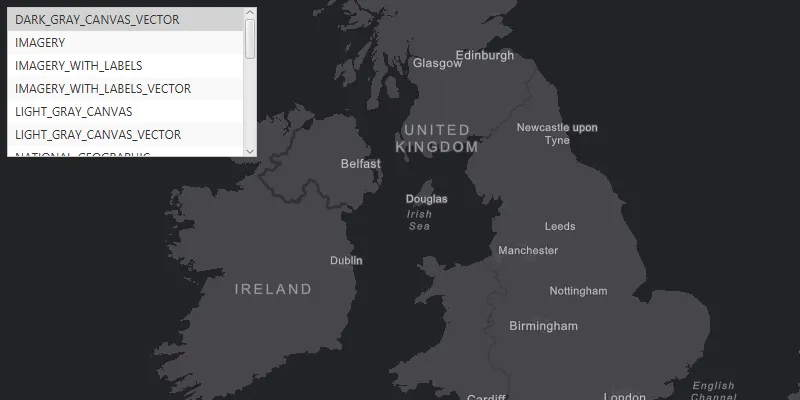
Change basemap
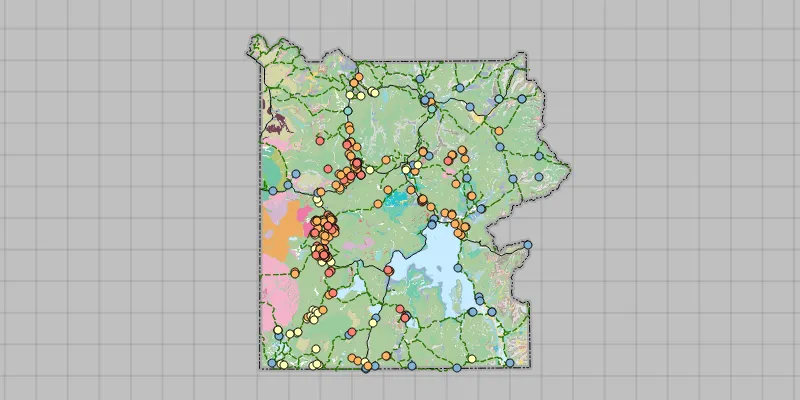
Open mobile map package
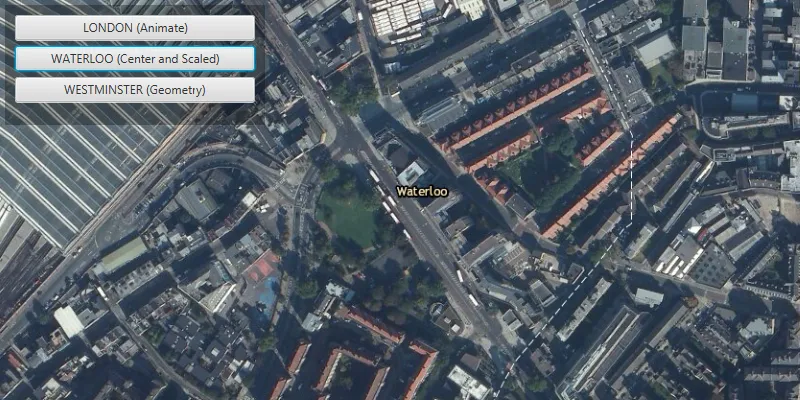
Change viewpoint
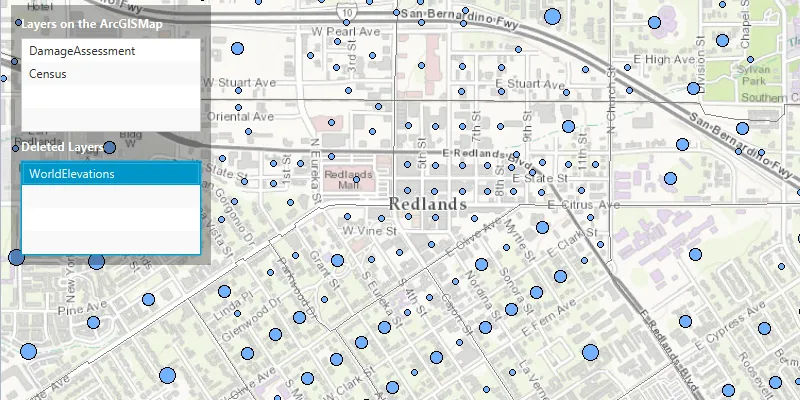
Manage operational layers
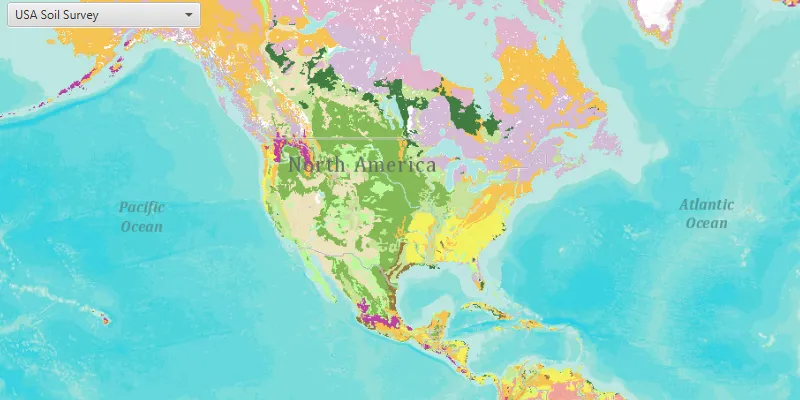
Open map (URL)