Learn how to create and display a scene
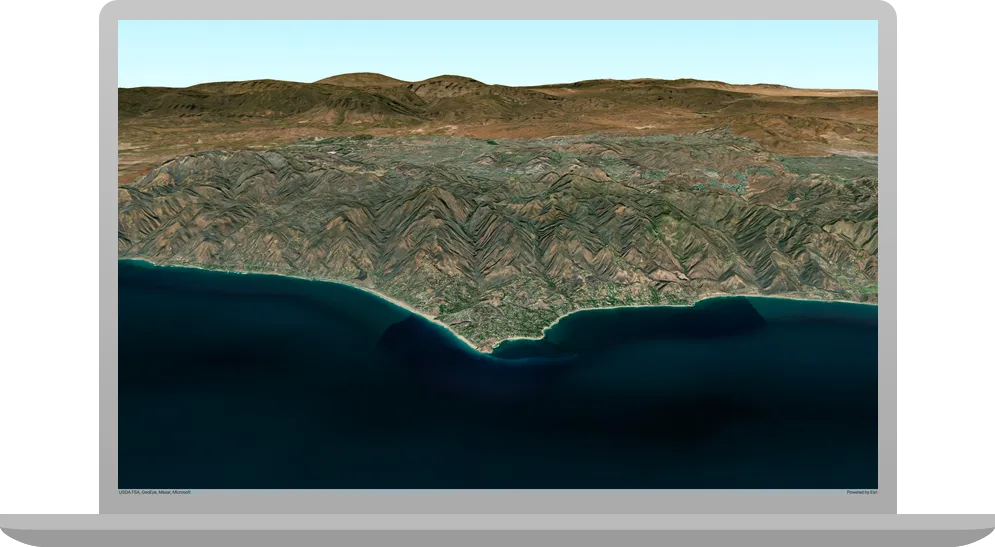
Like a map
In this tutorial, you create and display a scene
The scene and code will be used as the starting point for other 3D tutorials.
Prerequisites
Before starting this tutorial:
-
You need an ArcGIS Location Platform or ArcGIS Online account.
-
Confirm that your system meets the minimum system requirements.
-
An IDE for Java.
Steps
Create a new Java project with Gradle
-
Open IntelliJ IDEA.
-
From the Welcome to IntelliJ IDEA screen, click the New Project button. (If you’re already inside a project, click File > New > Project in the menu bar.)
-
In the New Project window, do the following:
-
Enter a name for your new project and choose a location to save it. Your app name can contain only Latin characters, digits,
_,-and:. -
Deselect Create Git repository, if necessary
-
Select Java as your programming language, if necessary
-
Select Gradle as your build system
-
Select a supported JDK
-
Select Groovy as your Gradle build language (i.e. DSL), if necessary
-
Check the Add sample code box, if necessary
-
Click Advanced Settings to expand the drop-down. Set the Gradle distribution to Wrapper and check the Auto-select box for the Gradle version. Optionally, you can enable or disable the ability to use these settings for future projects. For GroupId enter com.example.app. You can leave the default for ArtifactId.
-
Click Create to build your new project.
-
-
In the Project tool window, replace the contents of the build.gradle file with the following script to configure your app and reference the API. Make sure that you load the gradle changes after modifying build.gradle.
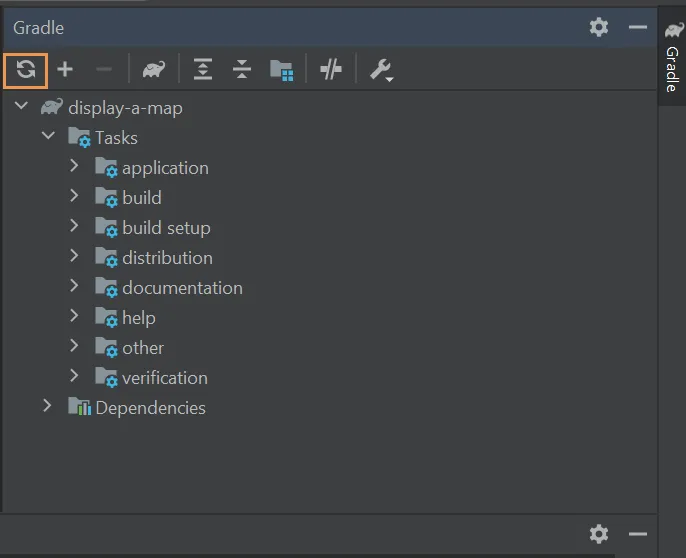
To load the Gradle changes, in the Gradle window, click the Reload All Gradle Projects icon in the upper left corner.
 build.gradleplugins {id 'application'id 'org.openjfx.javafxplugin' version '0.1.0'id 'idea'}idea {module {downloadJavadoc = true}}ext {arcgisVersion = '200.6.0'}repositories {mavenCentral()maven {url 'https://esri.jfrog.io/artifactory/arcgis'}}configurations {natives}dependencies {implementation "com.esri.arcgisruntime:arcgis-java:$arcgisVersion"natives "com.esri.arcgisruntime:arcgis-java-jnilibs:$arcgisVersion"natives "com.esri.arcgisruntime:arcgis-java-resources:$arcgisVersion"implementation 'org.slf4j:slf4j-nop:2.0.16'}javafx {version = "21.0.5"modules = [ 'javafx.controls', 'javafx.graphics', 'javafx.fxml', 'javafx.web', 'javafx.media' ]}application {mainModule = "com.example.app"mainClass = "com.example.app.App"}task copyNatives(type: Copy) {description = "Copies the arcgis native libraries into the .arcgis directory for development."group = "build"configurations.natives.asFileTree.each {from(zipTree(it))}into "${System.properties.getProperty("user.home")}/.arcgis/$arcgisVersion"}run {dependsOn copyNatives}wrapper {gradleVersion = '8.10.2'}
 -
Click View > Tool Windows > Gradle to open the Gradle view, then in Tasks > build, double-click copyNatives. This unpacks the native library dependencies to $USER_HOME/.arcgis.
You can also run Gradle tasks via the command line. Consult Gradle’s documentation to learn how this is done.
-
In the Project tool window, under your package com.example.app, right-click Main and click Refactor > Rename….
-
Rename the Java class to App and click Refactor.
Add import statements
-
In App.java, add import statements to reference the ArcGIS and JavaFX classes.
App.javapackage com.example.app;import com.esri.arcgisruntime.ArcGISRuntimeEnvironment;import com.esri.arcgisruntime.geometry.Point;import com.esri.arcgisruntime.geometry.SpatialReferences;import com.esri.arcgisruntime.mapping.ArcGISScene;import com.esri.arcgisruntime.mapping.ArcGISTiledElevationSource;import com.esri.arcgisruntime.mapping.BasemapStyle;import com.esri.arcgisruntime.mapping.Surface;import com.esri.arcgisruntime.mapping.view.Camera;import com.esri.arcgisruntime.mapping.view.SceneView;import javafx.application.Application;import javafx.scene.Scene;import javafx.scene.layout.StackPane;import javafx.stage.Stage;public class App extends Application {
Add a UI for the scene view
A scene view
-
In App.java, define a class named
Appthat extends the JavaFXApplicationclass.-
Add a private member variable for a
SceneView.The
sceneViewmember variable allows you to easily reference yourSceneViewfrom other parts of the application. -
Inside the
main()method, replace the print statement with a call toApplication.launch(args).This code calls the static method
launch()of the JavaFX classApplication, which creates an instance of yourAppclass on the JavaFX Application Thread and then calls thestart()method. For a description of the JavaFX life-cycle, seeApplication. -
Override the
start()method, in which you configure the JavaFXStagewith a title and dimensions, and then show it.Note that the
start()method is abstract in the JavaFXApplicationclass and must be overridden in your application code. Thestart()method takes a single parameter of the JavaFX typeStage. -
Create a JavaFX
StackPane, and use it to create a JavaFXScene. Then set thesceneon thestage.
App.java30 collapsed lines// Copyright 2021 Esri// Licensed under the Apache License, Version 2.0 (the "License");// you may not use this file except in compliance with the License.// You may obtain a copy of the License at//// http://www.apache.org/licenses/LICENSE-2.0//// Unless required by applicable law or agreed to in writing, software// distributed under the License is distributed on an "AS IS" BASIS,// WITHOUT WARRANTIES OR CONDITIONS OF ANY KIND, either express or implied.// See the License for the specific language governing permissions and// limitations under the License.package com.example.app;import com.esri.arcgisruntime.ArcGISRuntimeEnvironment;import com.esri.arcgisruntime.geometry.Point;import com.esri.arcgisruntime.geometry.SpatialReferences;import com.esri.arcgisruntime.mapping.ArcGISScene;import com.esri.arcgisruntime.mapping.ArcGISTiledElevationSource;import com.esri.arcgisruntime.mapping.BasemapStyle;import com.esri.arcgisruntime.mapping.Surface;import com.esri.arcgisruntime.mapping.view.Camera;import com.esri.arcgisruntime.mapping.view.SceneView;import javafx.application.Application;import javafx.scene.Scene;import javafx.scene.layout.StackPane;import javafx.stage.Stage;public class App extends Application {private SceneView sceneView;public static void main(String[] args) {Application.launch(args);}@Overridepublic void start(Stage stage) {// set the title and size of the stage and show itstage.setTitle("Display a scene tutorial");stage.setWidth(800);stage.setHeight(700);stage.show();// create a JavaFX scene with a stack pane as the root node, and add it to the sceneStackPane stackPane = new StackPane();Scene fxScene = new Scene(stackPane);stage.setScene(fxScene);}} -
-
Initialize your member variable,
sceneView, and add it to the JavaFX UI.App.java47 collapsed lines// Copyright 2021 Esri// Licensed under the Apache License, Version 2.0 (the "License");// you may not use this file except in compliance with the License.// You may obtain a copy of the License at//// http://www.apache.org/licenses/LICENSE-2.0//// Unless required by applicable law or agreed to in writing, software// distributed under the License is distributed on an "AS IS" BASIS,// WITHOUT WARRANTIES OR CONDITIONS OF ANY KIND, either express or implied.// See the License for the specific language governing permissions and// limitations under the License.package com.example.app;import com.esri.arcgisruntime.ArcGISRuntimeEnvironment;import com.esri.arcgisruntime.geometry.Point;import com.esri.arcgisruntime.geometry.SpatialReferences;import com.esri.arcgisruntime.mapping.ArcGISScene;import com.esri.arcgisruntime.mapping.ArcGISTiledElevationSource;import com.esri.arcgisruntime.mapping.BasemapStyle;import com.esri.arcgisruntime.mapping.Surface;import com.esri.arcgisruntime.mapping.view.Camera;import com.esri.arcgisruntime.mapping.view.SceneView;import javafx.application.Application;import javafx.scene.Scene;import javafx.scene.layout.StackPane;import javafx.stage.Stage;public class App extends Application {private SceneView sceneView;public static void main(String[] args) {Application.launch(args);}@Overridepublic void start(Stage stage) {// set the title and size of the stage and show itstage.setTitle("Display a scene tutorial");stage.setWidth(800);stage.setHeight(700);stage.show();// create a JavaFX scene with a stack pane as the root node, and add it to the sceneStackPane stackPane = new StackPane();Scene fxScene = new Scene(stackPane);stage.setScene(fxScene);// create a scene view to display the scene and add it to the stack panesceneView = new SceneView();stackPane.getChildren().add(sceneView);4 collapsed lines}}
Add a scene
Use the scene view
-
Create a new
ArcGISScenewith an imagery basemap.App.java53 collapsed lines// Copyright 2021 Esri// Licensed under the Apache License, Version 2.0 (the "License");// you may not use this file except in compliance with the License.// You may obtain a copy of the License at//// http://www.apache.org/licenses/LICENSE-2.0//// Unless required by applicable law or agreed to in writing, software// distributed under the License is distributed on an "AS IS" BASIS,// WITHOUT WARRANTIES OR CONDITIONS OF ANY KIND, either express or implied.// See the License for the specific language governing permissions and// limitations under the License.package com.example.app;import com.esri.arcgisruntime.ArcGISRuntimeEnvironment;import com.esri.arcgisruntime.geometry.Point;import com.esri.arcgisruntime.geometry.SpatialReferences;import com.esri.arcgisruntime.mapping.ArcGISScene;import com.esri.arcgisruntime.mapping.ArcGISTiledElevationSource;import com.esri.arcgisruntime.mapping.BasemapStyle;import com.esri.arcgisruntime.mapping.Surface;import com.esri.arcgisruntime.mapping.view.Camera;import com.esri.arcgisruntime.mapping.view.SceneView;import javafx.application.Application;import javafx.scene.Scene;import javafx.scene.layout.StackPane;import javafx.stage.Stage;public class App extends Application {private SceneView sceneView;public static void main(String[] args) {Application.launch(args);}@Overridepublic void start(Stage stage) {// set the title and size of the stage and show itstage.setTitle("Display a scene tutorial");stage.setWidth(800);stage.setHeight(700);stage.show();// create a JavaFX scene with a stack pane as the root node, and add it to the sceneStackPane stackPane = new StackPane();Scene fxScene = new Scene(stackPane);stage.setScene(fxScene);// create a scene view to display the scene and add it to the stack panesceneView = new SceneView();stackPane.getChildren().add(sceneView);ArcGISScene scene = new ArcGISScene(BasemapStyle.ARCGIS_IMAGERY_STANDARD);3 collapsed lines}} -
To display the scene in the scene view, call the
sceneView’ssetArcGISScene()method, passing the newly createdArcGISSceneas a parameter.App.java57 collapsed lines// Copyright 2021 Esri// Licensed under the Apache License, Version 2.0 (the "License");// you may not use this file except in compliance with the License.// You may obtain a copy of the License at//// http://www.apache.org/licenses/LICENSE-2.0//// Unless required by applicable law or agreed to in writing, software// distributed under the License is distributed on an "AS IS" BASIS,// WITHOUT WARRANTIES OR CONDITIONS OF ANY KIND, either express or implied.// See the License for the specific language governing permissions and// limitations under the License.package com.example.app;import com.esri.arcgisruntime.ArcGISRuntimeEnvironment;import com.esri.arcgisruntime.geometry.Point;import com.esri.arcgisruntime.geometry.SpatialReferences;import com.esri.arcgisruntime.mapping.ArcGISScene;import com.esri.arcgisruntime.mapping.ArcGISTiledElevationSource;import com.esri.arcgisruntime.mapping.BasemapStyle;import com.esri.arcgisruntime.mapping.Surface;import com.esri.arcgisruntime.mapping.view.Camera;import com.esri.arcgisruntime.mapping.view.SceneView;import javafx.application.Application;import javafx.scene.Scene;import javafx.scene.layout.StackPane;import javafx.stage.Stage;public class App extends Application {private SceneView sceneView;public static void main(String[] args) {Application.launch(args);}@Overridepublic void start(Stage stage) {// set the title and size of the stage and show itstage.setTitle("Display a scene tutorial");stage.setWidth(800);stage.setHeight(700);stage.show();// create a JavaFX scene with a stack pane as the root node, and add it to the sceneStackPane stackPane = new StackPane();Scene fxScene = new Scene(stackPane);stage.setScene(fxScene);// create a scene view to display the scene and add it to the stack panesceneView = new SceneView();stackPane.getChildren().add(sceneView);ArcGISScene scene = new ArcGISScene(BasemapStyle.ARCGIS_IMAGERY_STANDARD);// set the scene on the scene viewsceneView.setArcGISScene(scene);3 collapsed lines}} -
Create a new
Surfaceand add a newArcGISTiledElevationSourceto it to define the base surface for the scene. Next, set thesetElevationExaggerationproperty on thesurfaceto 2.5f to increase the 3D effect of the elevation. Finally, set thesurfaceas the base surface of thescene.An elevation source can define a surface with 3D terrain in a scene. Without an elevation source, the default globe surface is used to display the scene.
App.java59 collapsed lines// Copyright 2021 Esri// Licensed under the Apache License, Version 2.0 (the "License");// you may not use this file except in compliance with the License.// You may obtain a copy of the License at//// http://www.apache.org/licenses/LICENSE-2.0//// Unless required by applicable law or agreed to in writing, software// distributed under the License is distributed on an "AS IS" BASIS,// WITHOUT WARRANTIES OR CONDITIONS OF ANY KIND, either express or implied.// See the License for the specific language governing permissions and// limitations under the License.package com.example.app;import com.esri.arcgisruntime.ArcGISRuntimeEnvironment;import com.esri.arcgisruntime.geometry.Point;import com.esri.arcgisruntime.geometry.SpatialReferences;import com.esri.arcgisruntime.mapping.ArcGISScene;import com.esri.arcgisruntime.mapping.ArcGISTiledElevationSource;import com.esri.arcgisruntime.mapping.BasemapStyle;import com.esri.arcgisruntime.mapping.Surface;import com.esri.arcgisruntime.mapping.view.Camera;import com.esri.arcgisruntime.mapping.view.SceneView;import javafx.application.Application;import javafx.scene.Scene;import javafx.scene.layout.StackPane;import javafx.stage.Stage;public class App extends Application {private SceneView sceneView;public static void main(String[] args) {Application.launch(args);}@Overridepublic void start(Stage stage) {// set the title and size of the stage and show itstage.setTitle("Display a scene tutorial");stage.setWidth(800);stage.setHeight(700);stage.show();// create a JavaFX scene with a stack pane as the root node, and add it to the sceneStackPane stackPane = new StackPane();Scene fxScene = new Scene(stackPane);stage.setScene(fxScene);// create a scene view to display the scene and add it to the stack panesceneView = new SceneView();stackPane.getChildren().add(sceneView);ArcGISScene scene = new ArcGISScene(BasemapStyle.ARCGIS_IMAGERY_STANDARD);// set the scene on the scene viewsceneView.setArcGISScene(scene);// add base surface for elevation dataSurface surface = new Surface();String elevationServiceUrl = "https://elevation3d.arcgis.com/arcgis/rest/services/WorldElevation3D/Terrain3D/ImageServer";surface.getElevationSources().add(new ArcGISTiledElevationSource(elevationServiceUrl));// add an exaggeration factor to increase the 3D effect of the elevation.surface.setElevationExaggeration(2.5f);scene.setBaseSurface(surface);4 collapsed lines}} -
Set the initial viewpoint of the
sceneViewusing aPointand aCamera.The position you view the scene from is defined by a
Camera. The following properties of the camera are used to define an observation point in the scene:- 3D location: Latitude, longitude, and altitude
- Heading: Azimuth of the camera’s direction
- Pitch: Up and down angle
- Roll: Side-to-side angle
App.java69 collapsed lines// Copyright 2021 Esri// Licensed under the Apache License, Version 2.0 (the "License");// you may not use this file except in compliance with the License.// You may obtain a copy of the License at//// http://www.apache.org/licenses/LICENSE-2.0//// Unless required by applicable law or agreed to in writing, software// distributed under the License is distributed on an "AS IS" BASIS,// WITHOUT WARRANTIES OR CONDITIONS OF ANY KIND, either express or implied.// See the License for the specific language governing permissions and// limitations under the License.package com.example.app;import com.esri.arcgisruntime.ArcGISRuntimeEnvironment;import com.esri.arcgisruntime.geometry.Point;import com.esri.arcgisruntime.geometry.SpatialReferences;import com.esri.arcgisruntime.mapping.ArcGISScene;import com.esri.arcgisruntime.mapping.ArcGISTiledElevationSource;import com.esri.arcgisruntime.mapping.BasemapStyle;import com.esri.arcgisruntime.mapping.Surface;import com.esri.arcgisruntime.mapping.view.Camera;import com.esri.arcgisruntime.mapping.view.SceneView;import javafx.application.Application;import javafx.scene.Scene;import javafx.scene.layout.StackPane;import javafx.stage.Stage;public class App extends Application {private SceneView sceneView;public static void main(String[] args) {Application.launch(args);}@Overridepublic void start(Stage stage) {// set the title and size of the stage and show itstage.setTitle("Display a scene tutorial");stage.setWidth(800);stage.setHeight(700);stage.show();// create a JavaFX scene with a stack pane as the root node, and add it to the sceneStackPane stackPane = new StackPane();Scene fxScene = new Scene(stackPane);stage.setScene(fxScene);// create a scene view to display the scene and add it to the stack panesceneView = new SceneView();stackPane.getChildren().add(sceneView);ArcGISScene scene = new ArcGISScene(BasemapStyle.ARCGIS_IMAGERY_STANDARD);// set the scene on the scene viewsceneView.setArcGISScene(scene);// add base surface for elevation dataSurface surface = new Surface();String elevationServiceUrl = "https://elevation3d.arcgis.com/arcgis/rest/services/WorldElevation3D/Terrain3D/ImageServer";surface.getElevationSources().add(new ArcGISTiledElevationSource(elevationServiceUrl));// add an exaggeration factor to increase the 3D effect of the elevation.surface.setElevationExaggeration(2.5f);scene.setBaseSurface(surface);Point cameraLocation = new Point(-118.794, 33.909, 5330.0, SpatialReferences.getWgs84());Camera camera = new Camera(cameraLocation, 355.0, 72.0, 0.0);sceneView.setViewpointCamera(camera);4 collapsed lines}}
Get an access token
You need an access token
-
Go to the Create an API key tutorial to obtain an access token
An access token is an authorization string that provides access to secure ArcGIS content, data, and services. Its capabilities are determined by the privileges it supports. It is obtained by implementing API key authentication, User authentication, or App authentication. using your ArcGIS Location PlatformAn ArcGIS Location Platform account, formerly known as an ArcGIS Developer account, is an identity associated with an ArcGIS Location Platform subscription. or ArcGIS OnlineAn ArcGIS Online account, also known as an ArcGIS Organization account, is an identity associated with an ArcGIS Online subscription. It can be used to access ArcGIS tools and develop applications with ArcGIS location services for an organization. account. -
Ensure that the following privilege
Privileges are a set of permissions assigned to ArcGIS accounts, developer credentials, and applications that grant access to secure resources and functionality in ArcGIS. is enabled: Location services > Basemaps > Basemap styles service. -
Copy the access token as it will be used in the next step.
To learn more about other ways to get an access token, go to Types of authentication.
Set your API key
Set the API key property on the ArcGISRuntimeEnvironment. In the code below, replace YOUR_ACCESS_TOKEN with your copied access token. Be sure to surround your access token with double quotes as it is a string.
51 collapsed lines
// Copyright 2021 Esri// Licensed under the Apache License, Version 2.0 (the "License");// you may not use this file except in compliance with the License.// You may obtain a copy of the License at//// http://www.apache.org/licenses/LICENSE-2.0//// Unless required by applicable law or agreed to in writing, software// distributed under the License is distributed on an "AS IS" BASIS,// WITHOUT WARRANTIES OR CONDITIONS OF ANY KIND, either express or implied.// See the License for the specific language governing permissions and// limitations under the License.
package com.example.app;
import com.esri.arcgisruntime.ArcGISRuntimeEnvironment;import com.esri.arcgisruntime.geometry.Point;import com.esri.arcgisruntime.geometry.SpatialReferences;import com.esri.arcgisruntime.mapping.ArcGISScene;import com.esri.arcgisruntime.mapping.ArcGISTiledElevationSource;import com.esri.arcgisruntime.mapping.BasemapStyle;import com.esri.arcgisruntime.mapping.Surface;import com.esri.arcgisruntime.mapping.view.Camera;import com.esri.arcgisruntime.mapping.view.SceneView;
import javafx.application.Application;import javafx.scene.Scene;import javafx.scene.layout.StackPane;import javafx.stage.Stage;
public class App extends Application {
private SceneView sceneView;
public static void main(String[] args) { Application.launch(args); }
@Override public void start(Stage stage) {
// set the title and size of the stage and show it stage.setTitle("Display a scene tutorial"); stage.setWidth(800); stage.setHeight(700); stage.show();
// create a JavaFX scene with a stack pane as the root node, and add it to the scene StackPane stackPane = new StackPane(); Scene fxScene = new Scene(stackPane);
stage.setScene(fxScene);
ArcGISRuntimeEnvironment.setApiKey("YOUR_ACCESS_TOKEN");26 collapsed lines
// create a scene view to display the scene and add it to the stack pane sceneView = new SceneView(); stackPane.getChildren().add(sceneView);
ArcGISScene scene = new ArcGISScene(BasemapStyle.ARCGIS_IMAGERY_STANDARD);
// set the scene on the scene view sceneView.setArcGISScene(scene);
// add base surface for elevation data Surface surface = new Surface(); String elevationServiceUrl = "https://elevation3d.arcgis.com/arcgis/rest/services/WorldElevation3D/Terrain3D/ImageServer"; surface.getElevationSources().add(new ArcGISTiledElevationSource(elevationServiceUrl)); // add an exaggeration factor to increase the 3D effect of the elevation. surface.setElevationExaggeration(2.5f);
scene.setBaseSurface(surface);
Point cameraLocation = new Point(-118.794, 33.909, 5330.0, SpatialReferences.getWgs84()); Camera camera = new Camera(cameraLocation, 355.0, 72.0, 0.0); sceneView.setViewpointCamera(camera);
}
}Release API resources
To ensure that API resources used in the application are released when it is closed, override the JavaFX stop() method and call the dispose() method on the sceneView:
79 collapsed lines
// Copyright 2021 Esri// Licensed under the Apache License, Version 2.0 (the "License");// you may not use this file except in compliance with the License.// You may obtain a copy of the License at//// http://www.apache.org/licenses/LICENSE-2.0//// Unless required by applicable law or agreed to in writing, software// distributed under the License is distributed on an "AS IS" BASIS,// WITHOUT WARRANTIES OR CONDITIONS OF ANY KIND, either express or implied.// See the License for the specific language governing permissions and// limitations under the License.
package com.example.app;
import com.esri.arcgisruntime.ArcGISRuntimeEnvironment;import com.esri.arcgisruntime.geometry.Point;import com.esri.arcgisruntime.geometry.SpatialReferences;import com.esri.arcgisruntime.mapping.ArcGISScene;import com.esri.arcgisruntime.mapping.ArcGISTiledElevationSource;import com.esri.arcgisruntime.mapping.BasemapStyle;import com.esri.arcgisruntime.mapping.Surface;import com.esri.arcgisruntime.mapping.view.Camera;import com.esri.arcgisruntime.mapping.view.SceneView;
import javafx.application.Application;import javafx.scene.Scene;import javafx.scene.layout.StackPane;import javafx.stage.Stage;
public class App extends Application {
private SceneView sceneView;
public static void main(String[] args) { Application.launch(args); }
@Override public void start(Stage stage) {
// set the title and size of the stage and show it stage.setTitle("Display a scene tutorial"); stage.setWidth(800); stage.setHeight(700); stage.show();
// create a JavaFX scene with a stack pane as the root node, and add it to the scene StackPane stackPane = new StackPane(); Scene fxScene = new Scene(stackPane);
stage.setScene(fxScene);
ArcGISRuntimeEnvironment.setApiKey("YOUR_ACCESS_TOKEN");
// create a scene view to display the scene and add it to the stack pane sceneView = new SceneView(); stackPane.getChildren().add(sceneView);
ArcGISScene scene = new ArcGISScene(BasemapStyle.ARCGIS_IMAGERY_STANDARD);
// set the scene on the scene view sceneView.setArcGISScene(scene);
// add base surface for elevation data Surface surface = new Surface(); String elevationServiceUrl = "https://elevation3d.arcgis.com/arcgis/rest/services/WorldElevation3D/Terrain3D/ImageServer"; surface.getElevationSources().add(new ArcGISTiledElevationSource(elevationServiceUrl)); // add an exaggeration factor to increase the 3D effect of the elevation. surface.setElevationExaggeration(2.5f);
scene.setBaseSurface(surface);
Point cameraLocation = new Point(-118.794, 33.909, 5330.0, SpatialReferences.getWgs84()); Camera camera = new Camera(cameraLocation, 355.0, 72.0, 0.0); sceneView.setViewpointCamera(camera);
}
/** * Stops and releases all resources used in application. */ @Override public void stop() { if (sceneView != null) { sceneView.dispose(); } }2 collapsed lines
}Modularize the app
A Java module adds a higher level of aggregation above packages. A module must provide a module descriptor that specifies the dependencies, the packages the module makes available to other modules, and more.
You will create the module descriptor for this project in a file named module-info.java.
-
In the Project tool window, under src/main, right-click the java folder, and click New > module-info.java.
-
Inside module-info.java replace the module name (i.e. highlighted text) with com.example.app.
-
In the body of the module descriptor, define the three required packages this application depends on:
com.esri.arcgisruntime,javafx.graphics, andorg.slf4j.nop. -
Export this project’s module package to make it accessible to code in all other modules.
13 collapsed lines
/* COPYRIGHT 1995-2022 ESRI TRADE SECRETS: ESRI PROPRIETARY AND CONFIDENTIAL Unpublished material - all rights reserved under the Copyright Laws of the United States. For additional information, contact: Environmental Systems Research Institute, Inc. Attn: Contracts Dept 380 New York Street Redlands, California, USA 92373 email: contracts@esri.com */
module com.example.app { // require ArcGIS Runtime module requires com.esri.arcgisruntime;
// requires JavaFX modules that the application uses requires javafx.graphics;
// requires SLF4j module requires org.slf4j.nop;
exports com.example.app;}Run the app
Run the app. Ensure to run the app as a Gradle task and not as an application in your IDE. In the Gradle tool window, under Tasks > application, double-click run.
You should see a scene
What’s next?
Learn how to use additional API features, ArcGIS location services, and ArcGIS tools in these tutorials: