Learn how to find an address or place with a search bar and the geocoding service
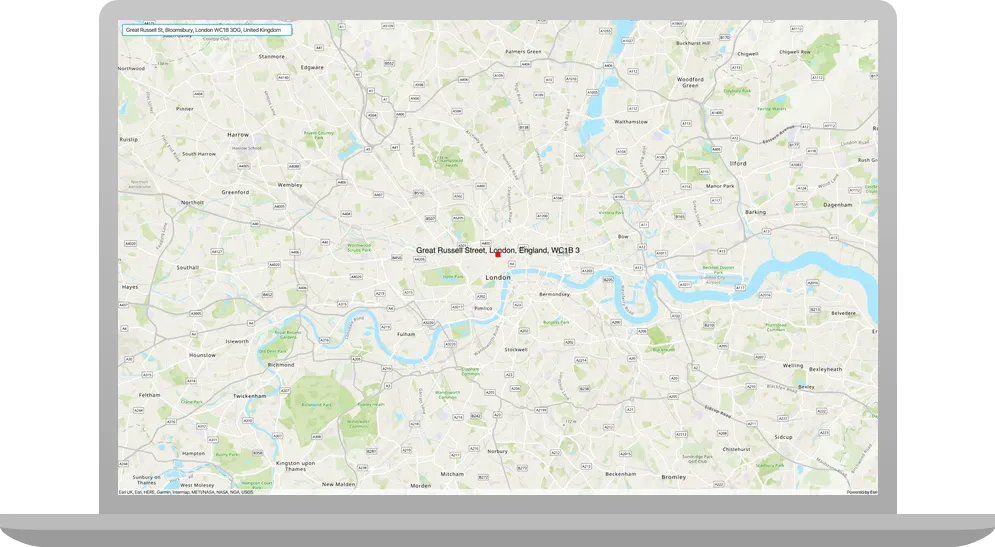
Geocoding is the process of converting address or place
In this tutorial, you use a search bar in the user interface to access the Geocoding service and search for addresses and places.
Prerequisites
Before starting this tutorial:
-
You need an ArcGIS Location Platform or ArcGIS Online account.
-
Confirm that your system meets the minimum system requirements.
-
An IDE for Java.
Steps
Get an access token
You need an access token
-
Go to the Create an API key tutorial to obtain an access token
An access token is an authorization string that provides access to secure ArcGIS content, data, and services. Its capabilities are determined by the privileges it supports. It is obtained by implementing API key authentication, User authentication, or App authentication. using your ArcGIS Location PlatformAn ArcGIS Location Platform account, formerly known as an ArcGIS Developer account, is an identity associated with an ArcGIS Location Platform subscription. or ArcGIS OnlineAn ArcGIS Online account, also known as an ArcGIS Organization account, is an identity associated with an ArcGIS Online subscription. It can be used to access ArcGIS tools and develop applications with ArcGIS location services for an organization. account. -
Ensure that the following privileges
Privileges are a set of permissions assigned to ArcGIS accounts, developer credentials, and applications that grant access to secure resources and functionality in ArcGIS. are enabled: Location services > Basemaps > Basemap styles service and Location services > Geocoding. -
Copy the access token as it will be used in the next step.
To learn more about other ways to get an access token, go to Types of authentication.
Open a Java project with Gradle
-
To start this tutorial, complete the Display a map tutorial, or download and unzip the Display a map solution into a new folder.
-
Open the build.gradle file as a project in IntelliJ IDEA.
-
In IntelliJ IDEA’s Project tool window, open src/main/java/com.example.app and double-click App.
-
In the
start()method, set the API key property on theArcGISRuntimeEnvironmentwith your access tokenAn access token is an authorization string that provides access to secure ArcGIS content, data, and services. Its capabilities are determined by the privileges it supports. It is obtained by implementing API key authentication, User authentication, or App authentication. . Replace YOUR_ACCESS_TOKEN with your copied access token. Be sure to surround your access token with double quotes as it is a string.App.javaArcGISRuntimeEnvironment.setApiKey("YOUR_ACCESS_TOKEN");
Add import statements and variable declarations
Add import statements and variable declarations to reference the packages and classes required for this tutorial.
-
In IntelliJ IDEA’s Project tool window, open src/main/java/com.example.app and double-click App.
-
Add the following imports above the existing imports:
App.javaimport java.util.List;import java.util.concurrent.ExecutionException;import javafx.geometry.Insets;import javafx.geometry.Pos;import javafx.scene.paint.Color;import javafx.scene.control.Alert;import javafx.scene.control.TextField;import com.esri.arcgisruntime.concurrent.ListenableFuture;import com.esri.arcgisruntime.mapping.view.Graphic;import com.esri.arcgisruntime.mapping.view.GraphicsOverlay;import com.esri.arcgisruntime.symbology.SimpleMarkerSymbol;import com.esri.arcgisruntime.symbology.TextSymbol;import com.esri.arcgisruntime.tasks.geocode.GeocodeParameters;import com.esri.arcgisruntime.tasks.geocode.GeocodeResult;import com.esri.arcgisruntime.tasks.geocode.LocatorTask;import com.esri.arcgisruntime.ArcGISRuntimeEnvironment;import com.esri.arcgisruntime.mapping.ArcGISMap;import com.esri.arcgisruntime.mapping.BasemapStyle;import com.esri.arcgisruntime.mapping.Viewpoint;import com.esri.arcgisruntime.mapping.view.MapView;import javafx.application.Application;import javafx.scene.Scene;import javafx.scene.layout.StackPane;import javafx.stage.Stage; -
Within the
Appclass, add the following member variables to easily reference them from other parts of the application:App.javapublic class App extends Application {private MapView mapView;private GeocodeParameters geocodeParameters;private GraphicsOverlay graphicsOverlay;private LocatorTask locatorTask;private TextField searchBox;
Add a graphics overlay
A graphics overlay
-
In the
start()method, create a newGraphicsOverlayand add it to themapView.App.java80 collapsed lines// Copyright 2020 Esri// Licensed under the Apache License, Version 2.0 (the "License");// you may not use this file except in compliance with the License.// You may obtain a copy of the License at//// http://www.apache.org/licenses/LICENSE-2.0//// Unless required by applicable law or agreed to in writing, software// distributed under the License is distributed on an "AS IS" BASIS,// WITHOUT WARRANTIES OR CONDITIONS OF ANY KIND, either express or implied.// See the License for the specific language governing permissions and// limitations under the License.package com.example.app;import java.util.List;import java.util.concurrent.ExecutionException;import javafx.geometry.Insets;import javafx.geometry.Pos;import javafx.scene.paint.Color;import javafx.scene.control.Alert;import javafx.scene.control.TextField;import com.esri.arcgisruntime.concurrent.ListenableFuture;import com.esri.arcgisruntime.mapping.view.Graphic;import com.esri.arcgisruntime.mapping.view.GraphicsOverlay;import com.esri.arcgisruntime.symbology.SimpleMarkerSymbol;import com.esri.arcgisruntime.symbology.TextSymbol;import com.esri.arcgisruntime.tasks.geocode.GeocodeParameters;import com.esri.arcgisruntime.tasks.geocode.GeocodeResult;import com.esri.arcgisruntime.tasks.geocode.LocatorTask;import com.esri.arcgisruntime.ArcGISRuntimeEnvironment;import com.esri.arcgisruntime.mapping.ArcGISMap;import com.esri.arcgisruntime.mapping.BasemapStyle;import com.esri.arcgisruntime.mapping.Viewpoint;import com.esri.arcgisruntime.mapping.view.MapView;import javafx.application.Application;import javafx.scene.Scene;import javafx.scene.layout.StackPane;import javafx.stage.Stage;public class App extends Application {private MapView mapView;private GeocodeParameters geocodeParameters;private GraphicsOverlay graphicsOverlay;private LocatorTask locatorTask;private TextField searchBox;public static void main(String[] args) {Application.launch(args);}@Overridepublic void start(Stage stage) {// set the title and size of the stage and show itstage.setTitle("Search for an address tutorial");stage.setWidth(800);stage.setHeight(700);stage.show();// create a JavaFX scene with a stack pane as the root node// and add it to the sceneStackPane stackPane = new StackPane();Scene scene = new Scene(stackPane);stage.setScene(scene);ArcGISRuntimeEnvironment.setApiKey("YOUR_ACCESS_TOKEN");// create a map view to display the map and add it to the stack panemapView = new MapView();stackPane.getChildren().add(mapView);ArcGISMap map = new ArcGISMap(BasemapStyle.ARCGIS_TOPOGRAPHIC);// set the map on the map viewmapView.setMap(map);mapView.setViewpoint(new Viewpoint(34.02700, -118.80543, 144447.638572));// create a graphics overlay and add it to the map viewgraphicsOverlay = new GraphicsOverlay();mapView.getGraphicsOverlays().add(graphicsOverlay);14 collapsed lines}/*** Stops and releases all resources used in application.*/@Overridepublic void stop() {if (mapView != null) {mapView.dispose();}}}
Add a UI for user input
To search an address using the application, add a UI element to prompt the user for text input. The text input will be used as the geocode search text in a later step.
-
Create a new private method named
setupTextField(). -
Within the method body, create a JavaFX
TextField, assign it to thesearchBoxmember variable, and set its width and prompt text.App.java88 collapsed lines// Copyright 2020 Esri// Licensed under the Apache License, Version 2.0 (the "License");// you may not use this file except in compliance with the License.// You may obtain a copy of the License at//// http://www.apache.org/licenses/LICENSE-2.0//// Unless required by applicable law or agreed to in writing, software// distributed under the License is distributed on an "AS IS" BASIS,// WITHOUT WARRANTIES OR CONDITIONS OF ANY KIND, either express or implied.// See the License for the specific language governing permissions and// limitations under the License.package com.example.app;import java.util.List;import java.util.concurrent.ExecutionException;import javafx.geometry.Insets;import javafx.geometry.Pos;import javafx.scene.paint.Color;import javafx.scene.control.Alert;import javafx.scene.control.TextField;import com.esri.arcgisruntime.concurrent.ListenableFuture;import com.esri.arcgisruntime.mapping.view.Graphic;import com.esri.arcgisruntime.mapping.view.GraphicsOverlay;import com.esri.arcgisruntime.symbology.SimpleMarkerSymbol;import com.esri.arcgisruntime.symbology.TextSymbol;import com.esri.arcgisruntime.tasks.geocode.GeocodeParameters;import com.esri.arcgisruntime.tasks.geocode.GeocodeResult;import com.esri.arcgisruntime.tasks.geocode.LocatorTask;import com.esri.arcgisruntime.ArcGISRuntimeEnvironment;import com.esri.arcgisruntime.mapping.ArcGISMap;import com.esri.arcgisruntime.mapping.BasemapStyle;import com.esri.arcgisruntime.mapping.Viewpoint;import com.esri.arcgisruntime.mapping.view.MapView;import javafx.application.Application;import javafx.scene.Scene;import javafx.scene.layout.StackPane;import javafx.stage.Stage;public class App extends Application {private MapView mapView;private GeocodeParameters geocodeParameters;private GraphicsOverlay graphicsOverlay;private LocatorTask locatorTask;private TextField searchBox;public static void main(String[] args) {Application.launch(args);}@Overridepublic void start(Stage stage) {// set the title and size of the stage and show itstage.setTitle("Search for an address tutorial");stage.setWidth(800);stage.setHeight(700);stage.show();// create a JavaFX scene with a stack pane as the root node// and add it to the sceneStackPane stackPane = new StackPane();Scene scene = new Scene(stackPane);stage.setScene(scene);ArcGISRuntimeEnvironment.setApiKey("YOUR_ACCESS_TOKEN");// create a map view to display the map and add it to the stack panemapView = new MapView();stackPane.getChildren().add(mapView);ArcGISMap map = new ArcGISMap(BasemapStyle.ARCGIS_TOPOGRAPHIC);// set the map on the map viewmapView.setMap(map);mapView.setViewpoint(new Viewpoint(34.02700, -118.80543, 144447.638572));// create a graphics overlay and add it to the map viewgraphicsOverlay = new GraphicsOverlay();mapView.getGraphicsOverlays().add(graphicsOverlay);}private void setupTextField() {searchBox = new TextField();searchBox.setMaxWidth(400);searchBox.setPromptText("Search for an address");}12 collapsed lines/*** Stops and releases all resources used in application.*/@Overridepublic void stop() {if (mapView != null) {mapView.dispose();}}} -
Call the
setupTextField()method in thestart()method.App.java88 collapsed lines// Copyright 2020 Esri// Licensed under the Apache License, Version 2.0 (the "License");// you may not use this file except in compliance with the License.// You may obtain a copy of the License at//// http://www.apache.org/licenses/LICENSE-2.0//// Unless required by applicable law or agreed to in writing, software// distributed under the License is distributed on an "AS IS" BASIS,// WITHOUT WARRANTIES OR CONDITIONS OF ANY KIND, either express or implied.// See the License for the specific language governing permissions and// limitations under the License.package com.example.app;import java.util.List;import java.util.concurrent.ExecutionException;import javafx.geometry.Insets;import javafx.geometry.Pos;import javafx.scene.paint.Color;import javafx.scene.control.Alert;import javafx.scene.control.TextField;import com.esri.arcgisruntime.concurrent.ListenableFuture;import com.esri.arcgisruntime.mapping.view.Graphic;import com.esri.arcgisruntime.mapping.view.GraphicsOverlay;import com.esri.arcgisruntime.symbology.SimpleMarkerSymbol;import com.esri.arcgisruntime.symbology.TextSymbol;import com.esri.arcgisruntime.tasks.geocode.GeocodeParameters;import com.esri.arcgisruntime.tasks.geocode.GeocodeResult;import com.esri.arcgisruntime.tasks.geocode.LocatorTask;import com.esri.arcgisruntime.ArcGISRuntimeEnvironment;import com.esri.arcgisruntime.mapping.ArcGISMap;import com.esri.arcgisruntime.mapping.BasemapStyle;import com.esri.arcgisruntime.mapping.Viewpoint;import com.esri.arcgisruntime.mapping.view.MapView;import javafx.application.Application;import javafx.scene.Scene;import javafx.scene.layout.StackPane;import javafx.stage.Stage;public class App extends Application {private MapView mapView;private GeocodeParameters geocodeParameters;private GraphicsOverlay graphicsOverlay;private LocatorTask locatorTask;private TextField searchBox;public static void main(String[] args) {Application.launch(args);}@Overridepublic void start(Stage stage) {// set the title and size of the stage and show itstage.setTitle("Search for an address tutorial");stage.setWidth(800);stage.setHeight(700);stage.show();// create a JavaFX scene with a stack pane as the root node// and add it to the sceneStackPane stackPane = new StackPane();Scene scene = new Scene(stackPane);stage.setScene(scene);ArcGISRuntimeEnvironment.setApiKey("YOUR_ACCESS_TOKEN");// create a map view to display the map and add it to the stack panemapView = new MapView();stackPane.getChildren().add(mapView);ArcGISMap map = new ArcGISMap(BasemapStyle.ARCGIS_TOPOGRAPHIC);// set the map on the map viewmapView.setMap(map);mapView.setViewpoint(new Viewpoint(34.02700, -118.80543, 144447.638572));// create a graphics overlay and add it to the map viewgraphicsOverlay = new GraphicsOverlay();mapView.getGraphicsOverlays().add(graphicsOverlay);setupTextField();20 collapsed lines}private void setupTextField() {searchBox = new TextField();searchBox.setMaxWidth(400);searchBox.setPromptText("Search for an address");}/*** Stops and releases all resources used in application.*/@Overridepublic void stop() {if (mapView != null) {mapView.dispose();}}} -
Add the
searchBoxto the top left of the map, setting its alignment and margins as shown:App.java90 collapsed lines// Copyright 2020 Esri// Licensed under the Apache License, Version 2.0 (the "License");// you may not use this file except in compliance with the License.// You may obtain a copy of the License at//// http://www.apache.org/licenses/LICENSE-2.0//// Unless required by applicable law or agreed to in writing, software// distributed under the License is distributed on an "AS IS" BASIS,// WITHOUT WARRANTIES OR CONDITIONS OF ANY KIND, either express or implied.// See the License for the specific language governing permissions and// limitations under the License.package com.example.app;import java.util.List;import java.util.concurrent.ExecutionException;import javafx.geometry.Insets;import javafx.geometry.Pos;import javafx.scene.paint.Color;import javafx.scene.control.Alert;import javafx.scene.control.TextField;import com.esri.arcgisruntime.concurrent.ListenableFuture;import com.esri.arcgisruntime.mapping.view.Graphic;import com.esri.arcgisruntime.mapping.view.GraphicsOverlay;import com.esri.arcgisruntime.symbology.SimpleMarkerSymbol;import com.esri.arcgisruntime.symbology.TextSymbol;import com.esri.arcgisruntime.tasks.geocode.GeocodeParameters;import com.esri.arcgisruntime.tasks.geocode.GeocodeResult;import com.esri.arcgisruntime.tasks.geocode.LocatorTask;import com.esri.arcgisruntime.ArcGISRuntimeEnvironment;import com.esri.arcgisruntime.mapping.ArcGISMap;import com.esri.arcgisruntime.mapping.BasemapStyle;import com.esri.arcgisruntime.mapping.Viewpoint;import com.esri.arcgisruntime.mapping.view.MapView;import javafx.application.Application;import javafx.scene.Scene;import javafx.scene.layout.StackPane;import javafx.stage.Stage;public class App extends Application {private MapView mapView;private GeocodeParameters geocodeParameters;private GraphicsOverlay graphicsOverlay;private LocatorTask locatorTask;private TextField searchBox;public static void main(String[] args) {Application.launch(args);}@Overridepublic void start(Stage stage) {// set the title and size of the stage and show itstage.setTitle("Search for an address tutorial");stage.setWidth(800);stage.setHeight(700);stage.show();// create a JavaFX scene with a stack pane as the root node// and add it to the sceneStackPane stackPane = new StackPane();Scene scene = new Scene(stackPane);stage.setScene(scene);ArcGISRuntimeEnvironment.setApiKey("YOUR_ACCESS_TOKEN");// create a map view to display the map and add it to the stack panemapView = new MapView();stackPane.getChildren().add(mapView);ArcGISMap map = new ArcGISMap(BasemapStyle.ARCGIS_TOPOGRAPHIC);// set the map on the map viewmapView.setMap(map);mapView.setViewpoint(new Viewpoint(34.02700, -118.80543, 144447.638572));// create a graphics overlay and add it to the map viewgraphicsOverlay = new GraphicsOverlay();mapView.getGraphicsOverlays().add(graphicsOverlay);setupTextField();stackPane.getChildren().add(searchBox);StackPane.setAlignment(searchBox, Pos.TOP_LEFT);StackPane.setMargin(searchBox, new Insets(10, 0, 0, 10));}18 collapsed linesprivate void setupTextField() {searchBox = new TextField();searchBox.setMaxWidth(400);searchBox.setPromptText("Search for an address");}/*** Stops and releases all resources used in application.*/@Overridepublic void stop() {if (mapView != null) {mapView.dispose();}}}
Create a locator task with geocode parameters
Geocoding is implemented with a locator
-
Create a new private method named
createLocatorTaskAndDefaultParameters(). -
Within the method body, create a new
LocatorTaskbased on the Geocoding service, and assign it to thelocatorTaskmember variable.A locator task is used to convert an address to a point (geocode) or vice-versa (reverse geocode). An address includes any type of information that distinguishes a place. A locator
A locator is an ArcGIS dataset that stores address information and the rules for translating descriptions of places (such as street addresses or place names) into spatial data that can be displayed on a map. involves finding matching locations for a given address. Reverse-geocoding is the opposite and finds the closest address for a given location. -
Create new
GeocodeParameters, and assign it to thegeocodeParametersmember variable. Specify the geocode’s attributes as follows:- Specify which attributes to return by calling the
.add()method on theGeocodeParameters.getResultAttributeNames().*is used to return all attributes. - Set the maximum number of results to be returned with
GeocodeParameters.setMaxResults(). In this tutorial, only return the best match by passing in1. Results are ordered byscore, so returning only the first result will return the highest scoring result. - Set the spatial reference
A spatial reference is a set of parameters, typically defined by a WKID, that define the coordinate system and spatial properties for geographic data. Applications use a spatial reference to correctly display the position of geographic data in a map or scene. withGeocodeParameters.setOutputSpatialReference(). By default the output spatial reference is determined by the geocode service. For optimal performance when displaying the geocode result, ensure the returned coordinates match those of the map view by providingmapView.getSpatialReference()as a parameter.
When geocoding an address, you can optionally provide
GeocodeParametersto control certain aspects of the geocoding operation, and specify the kinds of results to return from the locator task.App.java98 collapsed lines// Copyright 2020 Esri// Licensed under the Apache License, Version 2.0 (the "License");// you may not use this file except in compliance with the License.// You may obtain a copy of the License at//// http://www.apache.org/licenses/LICENSE-2.0//// Unless required by applicable law or agreed to in writing, software// distributed under the License is distributed on an "AS IS" BASIS,// WITHOUT WARRANTIES OR CONDITIONS OF ANY KIND, either express or implied.// See the License for the specific language governing permissions and// limitations under the License.package com.example.app;import java.util.List;import java.util.concurrent.ExecutionException;import javafx.geometry.Insets;import javafx.geometry.Pos;import javafx.scene.paint.Color;import javafx.scene.control.Alert;import javafx.scene.control.TextField;import com.esri.arcgisruntime.concurrent.ListenableFuture;import com.esri.arcgisruntime.mapping.view.Graphic;import com.esri.arcgisruntime.mapping.view.GraphicsOverlay;import com.esri.arcgisruntime.symbology.SimpleMarkerSymbol;import com.esri.arcgisruntime.symbology.TextSymbol;import com.esri.arcgisruntime.tasks.geocode.GeocodeParameters;import com.esri.arcgisruntime.tasks.geocode.GeocodeResult;import com.esri.arcgisruntime.tasks.geocode.LocatorTask;import com.esri.arcgisruntime.ArcGISRuntimeEnvironment;import com.esri.arcgisruntime.mapping.ArcGISMap;import com.esri.arcgisruntime.mapping.BasemapStyle;import com.esri.arcgisruntime.mapping.Viewpoint;import com.esri.arcgisruntime.mapping.view.MapView;import javafx.application.Application;import javafx.scene.Scene;import javafx.scene.layout.StackPane;import javafx.stage.Stage;public class App extends Application {private MapView mapView;private GeocodeParameters geocodeParameters;private GraphicsOverlay graphicsOverlay;private LocatorTask locatorTask;private TextField searchBox;public static void main(String[] args) {Application.launch(args);}@Overridepublic void start(Stage stage) {// set the title and size of the stage and show itstage.setTitle("Search for an address tutorial");stage.setWidth(800);stage.setHeight(700);stage.show();// create a JavaFX scene with a stack pane as the root node// and add it to the sceneStackPane stackPane = new StackPane();Scene scene = new Scene(stackPane);stage.setScene(scene);ArcGISRuntimeEnvironment.setApiKey("YOUR_ACCESS_TOKEN");// create a map view to display the map and add it to the stack panemapView = new MapView();stackPane.getChildren().add(mapView);ArcGISMap map = new ArcGISMap(BasemapStyle.ARCGIS_TOPOGRAPHIC);// set the map on the map viewmapView.setMap(map);mapView.setViewpoint(new Viewpoint(34.02700, -118.80543, 144447.638572));// create a graphics overlay and add it to the map viewgraphicsOverlay = new GraphicsOverlay();mapView.getGraphicsOverlays().add(graphicsOverlay);setupTextField();stackPane.getChildren().add(searchBox);StackPane.setAlignment(searchBox, Pos.TOP_LEFT);StackPane.setMargin(searchBox, new Insets(10, 0, 0, 10));}private void setupTextField() {searchBox = new TextField();searchBox.setMaxWidth(400);searchBox.setPromptText("Search for an address");}private void createLocatorTaskAndDefaultParameters() {locatorTask = new LocatorTask("https://geocode-api.arcgis.com/arcgis/rest/services/World/GeocodeServer");geocodeParameters = new GeocodeParameters();geocodeParameters.getResultAttributeNames().add("*");geocodeParameters.setMaxResults(1);geocodeParameters.setOutputSpatialReference(mapView.getSpatialReference());}12 collapsed lines/*** Stops and releases all resources used in application.*/@Overridepublic void stop() {if (mapView != null) {mapView.dispose();}}} - Specify which attributes to return by calling the
-
Call the
createLocatorTaskAndDefaultParameters()method in thestart()method.App.java90 collapsed lines// Copyright 2020 Esri// Licensed under the Apache License, Version 2.0 (the "License");// you may not use this file except in compliance with the License.// You may obtain a copy of the License at//// http://www.apache.org/licenses/LICENSE-2.0//// Unless required by applicable law or agreed to in writing, software// distributed under the License is distributed on an "AS IS" BASIS,// WITHOUT WARRANTIES OR CONDITIONS OF ANY KIND, either express or implied.// See the License for the specific language governing permissions and// limitations under the License.package com.example.app;import java.util.List;import java.util.concurrent.ExecutionException;import javafx.geometry.Insets;import javafx.geometry.Pos;import javafx.scene.paint.Color;import javafx.scene.control.Alert;import javafx.scene.control.TextField;import com.esri.arcgisruntime.concurrent.ListenableFuture;import com.esri.arcgisruntime.mapping.view.Graphic;import com.esri.arcgisruntime.mapping.view.GraphicsOverlay;import com.esri.arcgisruntime.symbology.SimpleMarkerSymbol;import com.esri.arcgisruntime.symbology.TextSymbol;import com.esri.arcgisruntime.tasks.geocode.GeocodeParameters;import com.esri.arcgisruntime.tasks.geocode.GeocodeResult;import com.esri.arcgisruntime.tasks.geocode.LocatorTask;import com.esri.arcgisruntime.ArcGISRuntimeEnvironment;import com.esri.arcgisruntime.mapping.ArcGISMap;import com.esri.arcgisruntime.mapping.BasemapStyle;import com.esri.arcgisruntime.mapping.Viewpoint;import com.esri.arcgisruntime.mapping.view.MapView;import javafx.application.Application;import javafx.scene.Scene;import javafx.scene.layout.StackPane;import javafx.stage.Stage;public class App extends Application {private MapView mapView;private GeocodeParameters geocodeParameters;private GraphicsOverlay graphicsOverlay;private LocatorTask locatorTask;private TextField searchBox;public static void main(String[] args) {Application.launch(args);}@Overridepublic void start(Stage stage) {// set the title and size of the stage and show itstage.setTitle("Search for an address tutorial");stage.setWidth(800);stage.setHeight(700);stage.show();// create a JavaFX scene with a stack pane as the root node// and add it to the sceneStackPane stackPane = new StackPane();Scene scene = new Scene(stackPane);stage.setScene(scene);ArcGISRuntimeEnvironment.setApiKey("YOUR_ACCESS_TOKEN");// create a map view to display the map and add it to the stack panemapView = new MapView();stackPane.getChildren().add(mapView);ArcGISMap map = new ArcGISMap(BasemapStyle.ARCGIS_TOPOGRAPHIC);// set the map on the map viewmapView.setMap(map);mapView.setViewpoint(new Viewpoint(34.02700, -118.80543, 144447.638572));// create a graphics overlay and add it to the map viewgraphicsOverlay = new GraphicsOverlay();mapView.getGraphicsOverlays().add(graphicsOverlay);setupTextField();createLocatorTaskAndDefaultParameters();24 collapsed linesstackPane.getChildren().add(searchBox);StackPane.setAlignment(searchBox, Pos.TOP_LEFT);StackPane.setMargin(searchBox, new Insets(10, 0, 0, 10));}private void setupTextField() {searchBox = new TextField();searchBox.setMaxWidth(400);searchBox.setPromptText("Search for an address");}/*** Stops and releases all resources used in application.*/@Overridepublic void stop() {if (mapView != null) {mapView.dispose();}}}
Get the geocode results with a geocode operation
An asynchronous geocode operation is required to find and return the location candidates for a given address and geocode parameters.
-
Create a new private method named
performGeocode()that takes aStringparameter for the address. -
To find the location for a given address, call the
LocatorTask.geocodeAsync()method on thelocatorTask, providing theaddressstring andgeocodeParametersas parameters, and store the result in a local variable namedgeocodeResults. The result is an immutable list ofGeocodeResultobjects. In this tutorial, only one result will be returned, as the maximum results parameter was set to 1. Get the location result by calling anListenableFuture.addDoneListener()on thegeocodeResults. The result will be displayed visually in the next step.App.java106 collapsed lines// Copyright 2020 Esri// Licensed under the Apache License, Version 2.0 (the "License");// you may not use this file except in compliance with the License.// You may obtain a copy of the License at//// http://www.apache.org/licenses/LICENSE-2.0//// Unless required by applicable law or agreed to in writing, software// distributed under the License is distributed on an "AS IS" BASIS,// WITHOUT WARRANTIES OR CONDITIONS OF ANY KIND, either express or implied.// See the License for the specific language governing permissions and// limitations under the License.package com.example.app;import java.util.List;import java.util.concurrent.ExecutionException;import javafx.geometry.Insets;import javafx.geometry.Pos;import javafx.scene.paint.Color;import javafx.scene.control.Alert;import javafx.scene.control.TextField;import com.esri.arcgisruntime.concurrent.ListenableFuture;import com.esri.arcgisruntime.mapping.view.Graphic;import com.esri.arcgisruntime.mapping.view.GraphicsOverlay;import com.esri.arcgisruntime.symbology.SimpleMarkerSymbol;import com.esri.arcgisruntime.symbology.TextSymbol;import com.esri.arcgisruntime.tasks.geocode.GeocodeParameters;import com.esri.arcgisruntime.tasks.geocode.GeocodeResult;import com.esri.arcgisruntime.tasks.geocode.LocatorTask;import com.esri.arcgisruntime.ArcGISRuntimeEnvironment;import com.esri.arcgisruntime.mapping.ArcGISMap;import com.esri.arcgisruntime.mapping.BasemapStyle;import com.esri.arcgisruntime.mapping.Viewpoint;import com.esri.arcgisruntime.mapping.view.MapView;import javafx.application.Application;import javafx.scene.Scene;import javafx.scene.layout.StackPane;import javafx.stage.Stage;public class App extends Application {private MapView mapView;private GeocodeParameters geocodeParameters;private GraphicsOverlay graphicsOverlay;private LocatorTask locatorTask;private TextField searchBox;public static void main(String[] args) {Application.launch(args);}@Overridepublic void start(Stage stage) {// set the title and size of the stage and show itstage.setTitle("Search for an address tutorial");stage.setWidth(800);stage.setHeight(700);stage.show();// create a JavaFX scene with a stack pane as the root node// and add it to the sceneStackPane stackPane = new StackPane();Scene scene = new Scene(stackPane);stage.setScene(scene);ArcGISRuntimeEnvironment.setApiKey("YOUR_ACCESS_TOKEN");// create a map view to display the map and add it to the stack panemapView = new MapView();stackPane.getChildren().add(mapView);ArcGISMap map = new ArcGISMap(BasemapStyle.ARCGIS_TOPOGRAPHIC);// set the map on the map viewmapView.setMap(map);mapView.setViewpoint(new Viewpoint(34.02700, -118.80543, 144447.638572));// create a graphics overlay and add it to the map viewgraphicsOverlay = new GraphicsOverlay();mapView.getGraphicsOverlays().add(graphicsOverlay);setupTextField();createLocatorTaskAndDefaultParameters();stackPane.getChildren().add(searchBox);StackPane.setAlignment(searchBox, Pos.TOP_LEFT);StackPane.setMargin(searchBox, new Insets(10, 0, 0, 10));}private void setupTextField() {searchBox = new TextField();searchBox.setMaxWidth(400);searchBox.setPromptText("Search for an address");}private void createLocatorTaskAndDefaultParameters() {locatorTask = new LocatorTask("https://geocode-api.arcgis.com/arcgis/rest/services/World/GeocodeServer");geocodeParameters = new GeocodeParameters();geocodeParameters.getResultAttributeNames().add("*");geocodeParameters.setMaxResults(1);geocodeParameters.setOutputSpatialReference(mapView.getSpatialReference());}private void performGeocode(String address) {ListenableFuture<List<GeocodeResult>> geocodeResults = locatorTask.geocodeAsync(address, geocodeParameters);geocodeResults.addDoneListener(() -> {try {List<GeocodeResult> geocodes = geocodeResults.get();if (geocodes.size() > 0) {GeocodeResult result = geocodes.get(0);} else {new Alert(Alert.AlertType.INFORMATION, "No results found.").show();}} catch (InterruptedException | ExecutionException e) {new Alert(Alert.AlertType.ERROR, "Error getting result.").show();e.printStackTrace();}});}12 collapsed lines/*** Stops and releases all resources used in application.*/@Overridepublic void stop() {if (mapView != null) {mapView.dispose();}}}
Display the result
The result obtained from the geocode operation can be displayed by adding a graphic
-
Create a new private method taking a
GeocodeResult(the result to be displayed on the map) as a parameter, and name itdisplayResult(). -
Within the method body, create and style two
Graphicobjects and add them to thegraphicsOverlay. Use thegeocodeResult’s label and display location to add one graphic showing the geocode result’s label text (the address), and another showing the geocode result’s location.App.java124 collapsed lines// Copyright 2020 Esri// Licensed under the Apache License, Version 2.0 (the "License");// you may not use this file except in compliance with the License.// You may obtain a copy of the License at//// http://www.apache.org/licenses/LICENSE-2.0//// Unless required by applicable law or agreed to in writing, software// distributed under the License is distributed on an "AS IS" BASIS,// WITHOUT WARRANTIES OR CONDITIONS OF ANY KIND, either express or implied.// See the License for the specific language governing permissions and// limitations under the License.package com.example.app;import java.util.List;import java.util.concurrent.ExecutionException;import javafx.geometry.Insets;import javafx.geometry.Pos;import javafx.scene.paint.Color;import javafx.scene.control.Alert;import javafx.scene.control.TextField;import com.esri.arcgisruntime.concurrent.ListenableFuture;import com.esri.arcgisruntime.mapping.view.Graphic;import com.esri.arcgisruntime.mapping.view.GraphicsOverlay;import com.esri.arcgisruntime.symbology.SimpleMarkerSymbol;import com.esri.arcgisruntime.symbology.TextSymbol;import com.esri.arcgisruntime.tasks.geocode.GeocodeParameters;import com.esri.arcgisruntime.tasks.geocode.GeocodeResult;import com.esri.arcgisruntime.tasks.geocode.LocatorTask;import com.esri.arcgisruntime.ArcGISRuntimeEnvironment;import com.esri.arcgisruntime.mapping.ArcGISMap;import com.esri.arcgisruntime.mapping.BasemapStyle;import com.esri.arcgisruntime.mapping.Viewpoint;import com.esri.arcgisruntime.mapping.view.MapView;import javafx.application.Application;import javafx.scene.Scene;import javafx.scene.layout.StackPane;import javafx.stage.Stage;public class App extends Application {private MapView mapView;private GeocodeParameters geocodeParameters;private GraphicsOverlay graphicsOverlay;private LocatorTask locatorTask;private TextField searchBox;public static void main(String[] args) {Application.launch(args);}@Overridepublic void start(Stage stage) {// set the title and size of the stage and show itstage.setTitle("Search for an address tutorial");stage.setWidth(800);stage.setHeight(700);stage.show();// create a JavaFX scene with a stack pane as the root node// and add it to the sceneStackPane stackPane = new StackPane();Scene scene = new Scene(stackPane);stage.setScene(scene);ArcGISRuntimeEnvironment.setApiKey("YOUR_ACCESS_TOKEN");// create a map view to display the map and add it to the stack panemapView = new MapView();stackPane.getChildren().add(mapView);ArcGISMap map = new ArcGISMap(BasemapStyle.ARCGIS_TOPOGRAPHIC);// set the map on the map viewmapView.setMap(map);mapView.setViewpoint(new Viewpoint(34.02700, -118.80543, 144447.638572));// create a graphics overlay and add it to the map viewgraphicsOverlay = new GraphicsOverlay();mapView.getGraphicsOverlays().add(graphicsOverlay);setupTextField();createLocatorTaskAndDefaultParameters();stackPane.getChildren().add(searchBox);StackPane.setAlignment(searchBox, Pos.TOP_LEFT);StackPane.setMargin(searchBox, new Insets(10, 0, 0, 10));}private void setupTextField() {searchBox = new TextField();searchBox.setMaxWidth(400);searchBox.setPromptText("Search for an address");}private void createLocatorTaskAndDefaultParameters() {locatorTask = new LocatorTask("https://geocode-api.arcgis.com/arcgis/rest/services/World/GeocodeServer");geocodeParameters = new GeocodeParameters();geocodeParameters.getResultAttributeNames().add("*");geocodeParameters.setMaxResults(1);geocodeParameters.setOutputSpatialReference(mapView.getSpatialReference());}private void performGeocode(String address) {ListenableFuture<List<GeocodeResult>> geocodeResults = locatorTask.geocodeAsync(address, geocodeParameters);geocodeResults.addDoneListener(() -> {try {List<GeocodeResult> geocodes = geocodeResults.get();if (geocodes.size() > 0) {GeocodeResult result = geocodes.get(0);} else {new Alert(Alert.AlertType.INFORMATION, "No results found.").show();}} catch (InterruptedException | ExecutionException e) {new Alert(Alert.AlertType.ERROR, "Error getting result.").show();e.printStackTrace();}});}private void displayResult(GeocodeResult geocodeResult) {graphicsOverlay.getGraphics().clear(); // clears the overlay of any previous result// create a graphic to display the address textString label = geocodeResult.getLabel();TextSymbol textSymbol = new TextSymbol(18, label, Color.BLACK, TextSymbol.HorizontalAlignment.CENTER, TextSymbol.VerticalAlignment.BOTTOM);Graphic textGraphic = new Graphic(geocodeResult.getDisplayLocation(), textSymbol);graphicsOverlay.getGraphics().add(textGraphic);// create a graphic to display the location as a red squareSimpleMarkerSymbol markerSymbol = new SimpleMarkerSymbol(SimpleMarkerSymbol.Style.SQUARE, Color.RED, 12.0f);Graphic markerGraphic = new Graphic(geocodeResult.getDisplayLocation(), geocodeResult.getAttributes(), markerSymbol);graphicsOverlay.getGraphics().add(markerGraphic);mapView.setViewpointCenterAsync(geocodeResult.getDisplayLocation());}12 collapsed lines/*** Stops and releases all resources used in application.*/@Overridepublic void stop() {if (mapView != null) {mapView.dispose();}}} -
In the
performGeocode()method, in the lambda expression body, call thedisplayResult()method, passing inresultas the parameter. This will display the result of the geocode operation on the map.App.java118 collapsed lines// Copyright 2020 Esri// Licensed under the Apache License, Version 2.0 (the "License");// you may not use this file except in compliance with the License.// You may obtain a copy of the License at//// http://www.apache.org/licenses/LICENSE-2.0//// Unless required by applicable law or agreed to in writing, software// distributed under the License is distributed on an "AS IS" BASIS,// WITHOUT WARRANTIES OR CONDITIONS OF ANY KIND, either express or implied.// See the License for the specific language governing permissions and// limitations under the License.package com.example.app;import java.util.List;import java.util.concurrent.ExecutionException;import javafx.geometry.Insets;import javafx.geometry.Pos;import javafx.scene.paint.Color;import javafx.scene.control.Alert;import javafx.scene.control.TextField;import com.esri.arcgisruntime.concurrent.ListenableFuture;import com.esri.arcgisruntime.mapping.view.Graphic;import com.esri.arcgisruntime.mapping.view.GraphicsOverlay;import com.esri.arcgisruntime.symbology.SimpleMarkerSymbol;import com.esri.arcgisruntime.symbology.TextSymbol;import com.esri.arcgisruntime.tasks.geocode.GeocodeParameters;import com.esri.arcgisruntime.tasks.geocode.GeocodeResult;import com.esri.arcgisruntime.tasks.geocode.LocatorTask;import com.esri.arcgisruntime.ArcGISRuntimeEnvironment;import com.esri.arcgisruntime.mapping.ArcGISMap;import com.esri.arcgisruntime.mapping.BasemapStyle;import com.esri.arcgisruntime.mapping.Viewpoint;import com.esri.arcgisruntime.mapping.view.MapView;import javafx.application.Application;import javafx.scene.Scene;import javafx.scene.layout.StackPane;import javafx.stage.Stage;public class App extends Application {private MapView mapView;private GeocodeParameters geocodeParameters;private GraphicsOverlay graphicsOverlay;private LocatorTask locatorTask;private TextField searchBox;public static void main(String[] args) {Application.launch(args);}@Overridepublic void start(Stage stage) {// set the title and size of the stage and show itstage.setTitle("Search for an address tutorial");stage.setWidth(800);stage.setHeight(700);stage.show();// create a JavaFX scene with a stack pane as the root node// and add it to the sceneStackPane stackPane = new StackPane();Scene scene = new Scene(stackPane);stage.setScene(scene);ArcGISRuntimeEnvironment.setApiKey("YOUR_ACCESS_TOKEN");// create a map view to display the map and add it to the stack panemapView = new MapView();stackPane.getChildren().add(mapView);ArcGISMap map = new ArcGISMap(BasemapStyle.ARCGIS_TOPOGRAPHIC);// set the map on the map viewmapView.setMap(map);mapView.setViewpoint(new Viewpoint(34.02700, -118.80543, 144447.638572));// create a graphics overlay and add it to the map viewgraphicsOverlay = new GraphicsOverlay();mapView.getGraphicsOverlays().add(graphicsOverlay);setupTextField();createLocatorTaskAndDefaultParameters();stackPane.getChildren().add(searchBox);StackPane.setAlignment(searchBox, Pos.TOP_LEFT);StackPane.setMargin(searchBox, new Insets(10, 0, 0, 10));}private void setupTextField() {searchBox = new TextField();searchBox.setMaxWidth(400);searchBox.setPromptText("Search for an address");}private void createLocatorTaskAndDefaultParameters() {locatorTask = new LocatorTask("https://geocode-api.arcgis.com/arcgis/rest/services/World/GeocodeServer");geocodeParameters = new GeocodeParameters();geocodeParameters.getResultAttributeNames().add("*");geocodeParameters.setMaxResults(1);geocodeParameters.setOutputSpatialReference(mapView.getSpatialReference());}private void performGeocode(String address) {ListenableFuture<List<GeocodeResult>> geocodeResults = locatorTask.geocodeAsync(address, geocodeParameters);geocodeResults.addDoneListener(() -> {try {List<GeocodeResult> geocodes = geocodeResults.get();if (geocodes.size() > 0) {GeocodeResult result = geocodes.get(0);displayResult(result);39 collapsed lines} else {new Alert(Alert.AlertType.INFORMATION, "No results found.").show();}} catch (InterruptedException | ExecutionException e) {new Alert(Alert.AlertType.ERROR, "Error getting result.").show();e.printStackTrace();}});}private void displayResult(GeocodeResult geocodeResult) {graphicsOverlay.getGraphics().clear(); // clears the overlay of any previous result// create a graphic to display the address textString label = geocodeResult.getLabel();TextSymbol textSymbol = new TextSymbol(18, label, Color.BLACK, TextSymbol.HorizontalAlignment.CENTER, TextSymbol.VerticalAlignment.BOTTOM);Graphic textGraphic = new Graphic(geocodeResult.getDisplayLocation(), textSymbol);graphicsOverlay.getGraphics().add(textGraphic);// create a graphic to display the location as a red squareSimpleMarkerSymbol markerSymbol = new SimpleMarkerSymbol(SimpleMarkerSymbol.Style.SQUARE, Color.RED, 12.0f);Graphic markerGraphic = new Graphic(geocodeResult.getDisplayLocation(), geocodeResult.getAttributes(), markerSymbol);graphicsOverlay.getGraphics().add(markerGraphic);mapView.setViewpointCenterAsync(geocodeResult.getDisplayLocation());}/*** Stops and releases all resources used in application.*/@Overridepublic void stop() {if (mapView != null) {mapView.dispose();}}} -
In the
start()method, set an action on thesearchBoxto get the input text. Get the text from the search box and callperformGeocode(), passing in the text as the parameter.App.java92 collapsed lines// Copyright 2020 Esri// Licensed under the Apache License, Version 2.0 (the "License");// you may not use this file except in compliance with the License.// You may obtain a copy of the License at//// http://www.apache.org/licenses/LICENSE-2.0//// Unless required by applicable law or agreed to in writing, software// distributed under the License is distributed on an "AS IS" BASIS,// WITHOUT WARRANTIES OR CONDITIONS OF ANY KIND, either express or implied.// See the License for the specific language governing permissions and// limitations under the License.package com.example.app;import java.util.List;import java.util.concurrent.ExecutionException;import javafx.geometry.Insets;import javafx.geometry.Pos;import javafx.scene.paint.Color;import javafx.scene.control.Alert;import javafx.scene.control.TextField;import com.esri.arcgisruntime.concurrent.ListenableFuture;import com.esri.arcgisruntime.mapping.view.Graphic;import com.esri.arcgisruntime.mapping.view.GraphicsOverlay;import com.esri.arcgisruntime.symbology.SimpleMarkerSymbol;import com.esri.arcgisruntime.symbology.TextSymbol;import com.esri.arcgisruntime.tasks.geocode.GeocodeParameters;import com.esri.arcgisruntime.tasks.geocode.GeocodeResult;import com.esri.arcgisruntime.tasks.geocode.LocatorTask;import com.esri.arcgisruntime.ArcGISRuntimeEnvironment;import com.esri.arcgisruntime.mapping.ArcGISMap;import com.esri.arcgisruntime.mapping.BasemapStyle;import com.esri.arcgisruntime.mapping.Viewpoint;import com.esri.arcgisruntime.mapping.view.MapView;import javafx.application.Application;import javafx.scene.Scene;import javafx.scene.layout.StackPane;import javafx.stage.Stage;public class App extends Application {private MapView mapView;private GeocodeParameters geocodeParameters;private GraphicsOverlay graphicsOverlay;private LocatorTask locatorTask;private TextField searchBox;public static void main(String[] args) {Application.launch(args);}@Overridepublic void start(Stage stage) {// set the title and size of the stage and show itstage.setTitle("Search for an address tutorial");stage.setWidth(800);stage.setHeight(700);stage.show();// create a JavaFX scene with a stack pane as the root node// and add it to the sceneStackPane stackPane = new StackPane();Scene scene = new Scene(stackPane);stage.setScene(scene);ArcGISRuntimeEnvironment.setApiKey("YOUR_ACCESS_TOKEN");// create a map view to display the map and add it to the stack panemapView = new MapView();stackPane.getChildren().add(mapView);ArcGISMap map = new ArcGISMap(BasemapStyle.ARCGIS_TOPOGRAPHIC);// set the map on the map viewmapView.setMap(map);mapView.setViewpoint(new Viewpoint(34.02700, -118.80543, 144447.638572));// create a graphics overlay and add it to the map viewgraphicsOverlay = new GraphicsOverlay();mapView.getGraphicsOverlays().add(graphicsOverlay);setupTextField();createLocatorTaskAndDefaultParameters();searchBox.setOnAction(event -> {String address = searchBox.getText();if (!address.isBlank()) {performGeocode(address);}});71 collapsed linesstackPane.getChildren().add(searchBox);StackPane.setAlignment(searchBox, Pos.TOP_LEFT);StackPane.setMargin(searchBox, new Insets(10, 0, 0, 10));}private void setupTextField() {searchBox = new TextField();searchBox.setMaxWidth(400);searchBox.setPromptText("Search for an address");}private void createLocatorTaskAndDefaultParameters() {locatorTask = new LocatorTask("https://geocode-api.arcgis.com/arcgis/rest/services/World/GeocodeServer");geocodeParameters = new GeocodeParameters();geocodeParameters.getResultAttributeNames().add("*");geocodeParameters.setMaxResults(1);geocodeParameters.setOutputSpatialReference(mapView.getSpatialReference());}private void performGeocode(String address) {ListenableFuture<List<GeocodeResult>> geocodeResults = locatorTask.geocodeAsync(address, geocodeParameters);geocodeResults.addDoneListener(() -> {try {List<GeocodeResult> geocodes = geocodeResults.get();if (geocodes.size() > 0) {GeocodeResult result = geocodes.get(0);displayResult(result);} else {new Alert(Alert.AlertType.INFORMATION, "No results found.").show();}} catch (InterruptedException | ExecutionException e) {new Alert(Alert.AlertType.ERROR, "Error getting result.").show();e.printStackTrace();}});}private void displayResult(GeocodeResult geocodeResult) {graphicsOverlay.getGraphics().clear(); // clears the overlay of any previous result// create a graphic to display the address textString label = geocodeResult.getLabel();TextSymbol textSymbol = new TextSymbol(18, label, Color.BLACK, TextSymbol.HorizontalAlignment.CENTER, TextSymbol.VerticalAlignment.BOTTOM);Graphic textGraphic = new Graphic(geocodeResult.getDisplayLocation(), textSymbol);graphicsOverlay.getGraphics().add(textGraphic);// create a graphic to display the location as a red squareSimpleMarkerSymbol markerSymbol = new SimpleMarkerSymbol(SimpleMarkerSymbol.Style.SQUARE, Color.RED, 12.0f);Graphic markerGraphic = new Graphic(geocodeResult.getDisplayLocation(), geocodeResult.getAttributes(), markerSymbol);graphicsOverlay.getGraphics().add(markerGraphic);mapView.setViewpointCenterAsync(geocodeResult.getDisplayLocation());}/*** Stops and releases all resources used in application.*/@Overridepublic void stop() {if (mapView != null) {mapView.dispose();}}} -
Run the app. Ensure to run the app as a Gradle task and not as an application in your IDE. In the Gradle tool window, under Tasks > application, double-click run.
You should see a search box on the top left of the map. Search for an address by entering an address and press Return on the keyboard. The result of the search should display on the map as a red square.
What’s next?
Learn how to use additional API features, ArcGIS location services, and ArcGIS tools in these tutorials: