Run a filtered trace to locate operable features that will isolate an area from the flow of network resources.
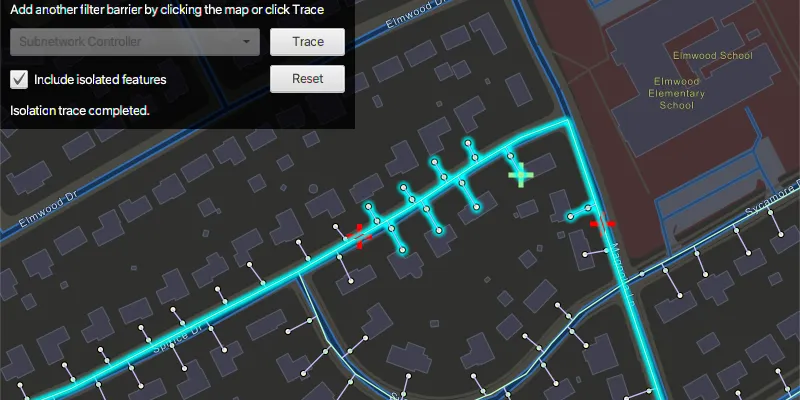
Use case
Determine the set of operable features required to stop a network’s resource, effectively isolating an area of the network. For example, you can choose to return only accessible and operable valves: ones that are not paved over or rusted shut.
How to use the sample
Click on one or more features on the map to add filter barriers (marked as red crosses) or create and set the configuration’s filter barriers by selecting a utility category from the drop down menu. Toggle “Isolated Features” to update trace configuration. Click “Trace” to run a subnetwork-based isolation trace, and click “Reset” to clear filter barriers and trace results.
How it works
- Create an
ArcGISMapand add it to aMapView. - Create and load a
ServiceGeodatabasewith a feature service URL and get tables with their layer IDs. - Create
FeatureLayers from the service geodatabase’s tables, and add them to the operational layers of the map. - Create a
UtilityNetworkwith the same feature service URL and add it to the map’s utility networks list, then load it. - Get a default
UtilityTraceConfigurationfrom a given tier in a domain network. Set its filter with a newUtilityTraceFilter. - Create a
UtilityElementto represent a default starting location from theUtilityNetwork, using a given asset type and global ID. - Create a
UtilityTraceParameterswith aUtilityTraceType.ISOLATIONand the starting location. - Use
utilityNetwork.fetchFeaturesForElementsAsync()to obtain theGeometryof this element, and create aGraphicwith that geometry. - Add a
GraphicsOverlaywith the graphic that represents the starting location. - Populate the combo box for choosing the filter barrier category from
UtilityNetworkDefinition.getCategories(). - When “Trace” is clicked,
- Create a new
UtilityCategoryComparisonwith the selected category andUtilityCategoryComparisonOperator.EXISTS. - Assign this condition to
utilityTraceFilter.setBarriers()from the default configuration from step 5. Update this configuration’sutilityTraceConfiguration.isIncludeIsolatedFeatures()property. - Create a
UtilityTraceParameterswithUtilityTraceType.ISOLATIONand default starting location from step 6. - Set its utility trace configuration with this configuration and then, run a
utilityNetwork.traceAsync().
- Create a new
- Add a listener for clicks on the map view. When the map view is clicked,
- Use
mapView.identifyLayersAsync()to identify clicked features. - Create a
UtilityElementfrom the feature, and add it to theutilityTraceParameterslist of filter barriers.- If the element is a junction with more than one terminal, display a terminal picker. Then set the junction’s terminal property with the selected terminal.
- If it is an edge, set its
fractionAlongEdgeproperty usingGeometryEngine.fractionAlong()method.
- Create a
Graphicfor the filter barrier and add it to the map.
- Use
- Get the list of
UtilityElements from the first trace result. - For every feature layer in the map, select all the features for which the layer’s
FeatureTable.getTableName()matches theUtilityNetworkSource.getName()of one of the utility elements.
Relevant API
- GeometryEngine.fractionAlong
- ServiceGeodatabase
- UtilityCategory
- UtilityCategoryComparison
- UtilityCategoryComparisonOperator
- UtilityDomainNetwork
- UtilityElement
- UtilityElementTraceResult
- UtilityNetwork
- UtilityNetworkDefinition
- UtilityTerminal
- UtilityTier
- UtilityTraceFilter
- UtilityTraceParameters
- UtilityTraceResult
- UtilityTraceType
About the data
The Naperville gas network feature service, hosted on ArcGIS Online, contains a utility network used to run the isolation trace shown in this sample.
Tags
category comparison, condition barriers, filter barriers, isolated features, network analysis, subnetwork trace, trace configuration, trace filter, utility network
Sample code
/* * Copyright 2020 Esri. * * Licensed under the Apache License, Version 2.0 (the "License"); * you may not use this file except in compliance with the License. * You may obtain a copy of the License at * * http://www.apache.org/licenses/LICENSE-2.0 * * Unless required by applicable law or agreed to in writing, software * distributed under the License is distributed on an "AS IS" BASIS, * WITHOUT WARRANTIES OR CONDITIONS OF ANY KIND, either express or implied. * See the License for the specific language governing permissions and * limitations under the License. */
package com.esri.samples.perform_valve_isolation_trace;
import com.esri.arcgisruntime.ArcGISRuntimeEnvironment;import com.esri.arcgisruntime.data.ArcGISFeature;import com.esri.arcgisruntime.data.QueryParameters;import com.esri.arcgisruntime.data.ServiceGeodatabase;import com.esri.arcgisruntime.geometry.Geometry;import com.esri.arcgisruntime.geometry.GeometryEngine;import com.esri.arcgisruntime.geometry.Point;import com.esri.arcgisruntime.geometry.Polyline;import com.esri.arcgisruntime.geometry.ProximityResult;import com.esri.arcgisruntime.layers.FeatureLayer;import com.esri.arcgisruntime.loadable.LoadStatus;import com.esri.arcgisruntime.mapping.ArcGISMap;import com.esri.arcgisruntime.mapping.BasemapStyle;import com.esri.arcgisruntime.mapping.Viewpoint;import com.esri.arcgisruntime.mapping.view.Graphic;import com.esri.arcgisruntime.mapping.view.GraphicsOverlay;import com.esri.arcgisruntime.mapping.view.MapView;import com.esri.arcgisruntime.security.UserCredential;import com.esri.arcgisruntime.symbology.SimpleMarkerSymbol;import com.esri.arcgisruntime.symbology.SimpleRenderer;import com.esri.arcgisruntime.utilitynetworks.*;
import javafx.fxml.FXML;import javafx.geometry.Point2D;import javafx.scene.control.Alert;import javafx.scene.control.Button;import javafx.scene.control.CheckBox;import javafx.scene.control.ChoiceDialog;import javafx.scene.control.ComboBox;import javafx.scene.control.Label;import javafx.scene.control.ProgressIndicator;import javafx.scene.input.MouseButton;import javafx.scene.input.MouseEvent;import javafx.scene.layout.GridPane;import javafx.scene.paint.Color;
import java.util.ArrayList;import java.util.Arrays;import java.util.Collections;import java.util.Optional;import java.util.List;import java.util.UUID;
public class PerformValveIsolationTraceController {
  @FXML private MapView mapView;  @FXML private ProgressIndicator progressIndicator;  @FXML private ComboBox<UtilityCategory> categorySelectionComboBox;  @FXML private Button resetButton;  @FXML private Button traceButton;  @FXML private Label promptLabel;  @FXML private Label statusLabel;  @FXML private CheckBox includeIsolatedFeaturesCheckbox;
  private GraphicsOverlay filterBarriersGraphicsOverlay;  private UtilityNetwork utilityNetwork;  private UtilityTraceConfiguration traceConfiguration;  private UtilityTraceParameters utilityTraceParameters;  private UtilityElement startingLocation;
  public void initialize() {
    try {      // authentication with an API key or named user is required to access basemaps and other location services      String yourAPIKey = System.getProperty("apiKey");      ArcGISRuntimeEnvironment.setApiKey(yourAPIKey);
      // create a map with the streets night basemap style and set it to the map view      ArcGISMap map = new ArcGISMap(BasemapStyle.ARCGIS_STREETS_NIGHT);      mapView.setMap(map);
      String featureServiceURL =        "https://sampleserver7.arcgisonline.com/server/rest/services/UtilityNetwork/NapervilleGas/FeatureServer";      // set user credentials to authenticate with the service      // NOTE: a licensed user is required to perform utility network operations      var userCredential = new UserCredential("viewer01", "I68VGU^nMurF");      // create a new service geodatabase from the feature service url and set the user credential      var serviceGeodatabase = new ServiceGeodatabase(featureServiceURL);      serviceGeodatabase.setCredential(userCredential);
      // load the service geodatabase and get tables by their layer IDs      serviceGeodatabase.loadAsync();      serviceGeodatabase.addDoneLoadingListener(() -> {        if (serviceGeodatabase.getLoadStatus() == LoadStatus.LOADED) {          // the gas device layer ./0 and gas line layer ./3 are created from the service geodatabase          var gasDeviceFeatureLayer = new FeatureLayer(serviceGeodatabase.getTable(0));          var gasLineFeatureLayer = new FeatureLayer(serviceGeodatabase.getTable(3));          // add the utility network feature layers to the map for display          map.getOperationalLayers().addAll(Arrays.asList(gasDeviceFeatureLayer, gasLineFeatureLayer));
          // create and add the utility network to the map before loading          utilityNetwork = new UtilityNetwork(featureServiceURL);          map.getUtilityNetworks().add(utilityNetwork);          // load the utility network          utilityNetwork.loadAsync();          utilityNetwork.addDoneLoadingListener(() -> {            if (utilityNetwork.getLoadStatus() == LoadStatus.LOADED) {
              // get a trace configuration from a tier              UtilityNetworkDefinition networkDefinition = utilityNetwork.getDefinition();              UtilityDomainNetwork domainNetwork = networkDefinition.getDomainNetwork("Pipeline");              UtilityTier tier = domainNetwork.getTier("Pipe Distribution System");              traceConfiguration = tier.getDefaultTraceConfiguration();
              // create a trace filter              traceConfiguration.setFilter(new UtilityTraceFilter());
              // get a default starting location              UtilityNetworkSource networkSource = networkDefinition.getNetworkSource("Gas Device");              UtilityAssetGroup assetGroup = networkSource.getAssetGroup("Meter");              UtilityAssetType assetType = assetGroup.getAssetType("Customer");              startingLocation = utilityNetwork.createElement(assetType, UUID.fromString("98A06E95-70BE-43E7-91B7-E34C9D3CB9FF"));              // create new base trace parameters              utilityTraceParameters = new UtilityTraceParameters(UtilityTraceType.ISOLATION, Collections.singletonList(startingLocation));
              // get the first feature for the starting location, and get its geometry              utilityNetwork.fetchFeaturesForElementsAsync(Collections.singletonList(startingLocation)).toCompletableFuture()                .whenComplete((startingLocationFeatures, ex) -> {                  if (ex == null) {                    if (!startingLocationFeatures.isEmpty()) {                      Geometry startingLocationGeometry = startingLocationFeatures.get(0).getGeometry();
                      if (startingLocationGeometry instanceof Point) {                        Point startingLocationGeometryPoint = (Point) startingLocationGeometry;
                        // create a graphics overlay for the starting location and add it to the map view                        var startingLocationGraphicsOverlay = new GraphicsOverlay();                        mapView.getGraphicsOverlays().add(startingLocationGraphicsOverlay);
                        // create and apply a renderer for the starting point graphics overlay                        var startingPointSymbol = new SimpleMarkerSymbol(SimpleMarkerSymbol.Style.CROSS, Color.LIGHTGREEN, 25);                        startingLocationGraphicsOverlay.setRenderer(new SimpleRenderer(startingPointSymbol));
                        // create a graphic for the starting location and add it to the graphics overlay                        var startingLocationGraphic = new Graphic(startingLocationGeometry, startingPointSymbol);                        startingLocationGraphicsOverlay.getGraphics().add(startingLocationGraphic);
                        // create a graphics overlay for filter barriers and add it to the map view                        filterBarriersGraphicsOverlay = new GraphicsOverlay();                        mapView.getGraphicsOverlays().add(filterBarriersGraphicsOverlay);
                        // create and apply a renderer for the filter barriers graphics overlay                        var barrierPointSymbol = new SimpleMarkerSymbol(SimpleMarkerSymbol.Style.CROSS, Color.RED, 25);                        filterBarriersGraphicsOverlay.setRenderer(new SimpleRenderer(barrierPointSymbol));
                        // set the map's viewpoint to the starting location                        mapView.setViewpointAsync(new Viewpoint(startingLocationGeometryPoint, 3000));
                        // build the choice list for categories populated with the 'Name' property of each 'UtilityCategory' in the 'UtilityNetworkDefinition'                        categorySelectionComboBox.getItems().addAll(networkDefinition.getCategories());                        categorySelectionComboBox.getSelectionModel().select(0);                        categorySelectionComboBox.setCellFactory(param -> new UtilityCategoryListCell());                        categorySelectionComboBox.setButtonCell(new UtilityCategoryListCell());
                        // enable the UI                        categorySelectionComboBox.setDisable(false);                        enableUI(true);
                        // update the status text                        statusLabel.setText("Utility network loaded. Ready to perform trace...");                      }
                    } else {                      // if the fetched feature list is empty, display an error                      new Alert(Alert.AlertType.ERROR, "Error getting starting location geometry.").show();                    }                  } else {                    // if the feature fetch operation completed exceptionally, display an error                    new Alert(Alert.AlertType.ERROR, "Error getting starting location feature.").show();                  }                });
            } else {              new Alert(Alert.AlertType.ERROR, "Error loading Utility Network.").show();            }          });
        } else {          new Alert(Alert.AlertType.ERROR, "Failed to load service geodatabase").show();        }      });
    } catch (Exception e) {      e.printStackTrace();    }  }
  /**   * Uses the starting location and the selected filter barrier category to perform a valve isolation trace, then   * selects all connected elements found in the trace to highlight them.   */  @FXML  private void handleTraceClick() {    try {
      clearSelectedFeatureLayersOnMap();
      // disable the UI, show the progress indicator and update the status text      enableUI(false);      statusLabel.setText("Running isolation trace...");
      // get the selected utility category      UtilityCategory selectedCategory = categorySelectionComboBox.getSelectionModel().getSelectedItem();      if (selectedCategory != null) {        // create a category comparison for the trace        // NOTE: UtilityNetworkAttributeComparison or UtilityCategoryComparison with Operator.DoesNotExists        // can also be used. These conditions can be joined with either UtilityTraceOrCondition or UtilityTraceAndCondition.        var utilityCategoryComparison = new UtilityCategoryComparison(selectedCategory, UtilityCategoryComparisonOperator.EXISTS);        // set the category comparison to the barriers of the configuration's trace filter        traceConfiguration.setFilter(new UtilityTraceFilter());        traceConfiguration.getFilter().setBarriers(utilityCategoryComparison);
      }
      // set the configuration to include or leave out isolated features      traceConfiguration.setIncludeIsolatedFeatures(includeIsolatedFeaturesCheckbox.isSelected());
      // build parameters for the isolation trace      utilityTraceParameters.setTraceConfiguration(traceConfiguration);
      // run the trace and get the result      utilityNetwork.traceAsync(utilityTraceParameters).toCompletableFuture().whenComplete(        (utilityTraceResults, exception) -> {          if (exception == null) {            if (utilityTraceResults.get(0) instanceof UtilityElementTraceResult) {              var utilityElementTraceResult = (UtilityElementTraceResult) utilityTraceResults.get(0);
              if (!utilityElementTraceResult.getElements().isEmpty()) {
                // iterate through the map's feature layers                mapView.getMap().getOperationalLayers().stream()                  .filter(layer -> layer instanceof FeatureLayer)                  .map(layer -> (FeatureLayer) layer)                  .forEach(layer -> {
                    // create query parameters to find features whose network source name matches the layer's feature                    // table name                    var queryParameters = new QueryParameters();                    queryParameters.getObjectIds().addAll(utilityElementTraceResult.getElements().stream()                      .filter(utilityElement ->                        utilityElement.getNetworkSource().getName().equals(layer.getFeatureTable().getTableName()))                      .map(UtilityElement::getObjectId).toList());
                    // select features that match the query                    layer.selectFeaturesAsync(queryParameters, FeatureLayer.SelectionMode.NEW)                      .toCompletableFuture().whenComplete((result, throwable) -> {                        // update the status text, enable the buttons and hide the progress indicator                        statusLabel.setText("Isolation trace completed.");                        enableUI(true);                      });                  });
              } else {                statusLabel.setText("Isolation trace completed.");                new Alert(Alert.AlertType.INFORMATION, "Isolation trace returned no elements.").show();                enableUI(true);              }
            } else {              statusLabel.setText("Trace failed.");              new Alert(Alert.AlertType.ERROR, "Isolation trace result is not a utility element.").show();              enableUI(true);            }          } else {            // if the utility trace completed exceptionally, display an error            statusLabel.setText("Trace failed.");            new Alert(Alert.AlertType.ERROR, "Error getting isolation trace result.").show();            enableUI(true);          }        });
    } catch (Exception e) {      new Alert(Alert.AlertType.ERROR, "Error performing isolation trace.").show();      enableUI(true);    }  }
  /**   *  Uses the clicked map point to identify any utility elements in the utility network at the clicked location. The   *  clicked utility element is added to the utility trace parameter's filter barrier list. A graphic is created   *  at the clicked location to mark the element as a filter barrier.   *   *  @param e event registered when the map view is clicked on   */  @FXML  private void handleMapViewClicked(MouseEvent e) {
    if (e.getButton() == MouseButton.PRIMARY && e.isStillSincePress()) {
      categorySelectionComboBox.setDisable(true);      promptLabel.setText("Add another filter barrier by clicking the map or click Trace");
      // ensure the utility network is loaded before processing clicks on the map view      if (utilityNetwork.getLoadStatus() == LoadStatus.LOADED && e.getButton() == MouseButton.PRIMARY &&        e.isStillSincePress()) {
        // show the progress indicator        progressIndicator.setVisible(true);
        // get the clicked map point        Point2D screenPoint = new Point2D(e.getX(), e.getY());        Point mapPoint = mapView.screenToLocation(screenPoint);
        // identify the feature to be used        mapView.identifyLayersAsync(screenPoint, 10, false).toCompletableFuture().whenComplete(          (identifyLayerResults, ex) -> {            if (ex == null) {
              // return if no features are identified              if (!identifyLayerResults.isEmpty()) {
                // get and store a list of features from the result of the query (there may be more than one)                List<ArcGISFeature> listOfFeatures = new ArrayList<>();                identifyLayerResults.forEach(result -> listOfFeatures.add((ArcGISFeature) result.getElements().get(0)));
                // create utility element for each feature and store it in a list                List<UtilityElement> utilityElementList = new ArrayList<>();                listOfFeatures.forEach(feature -> utilityElementList.add(utilityNetwork.createElement(feature)));
                utilityElementList.stream().filter(utilityElement ->                  utilityElement.getNetworkSource().getSourceType() == UtilityNetworkSource.Type.JUNCTION)                  .filter(junction -> junction.getAssetType().getTerminalConfiguration() != null                    && junction.getAssetType().getTerminalConfiguration().getTerminals().size() > 1)                  .forEach(junction -> {                    // prompt the user to select a terminal for this feature                    Optional<UtilityTerminal> userSelectedTerminal = promptForTerminalSelection(junction.getAssetType().getTerminalConfiguration().getTerminals());
                    // apply the selected terminal                    if (userSelectedTerminal.isPresent()) {                      UtilityTerminal terminal = userSelectedTerminal.get();                      junction.setTerminal(terminal);                      // show the terminals name in the status label                      String terminalName = terminal.getName() != null ? terminal.getName() : "default";                      statusLabel.setText("Feature added at terminal: " + terminalName);
                      // don't create the element if no terminal was selected                    } else {                      statusLabel.setText("No terminal selected - no feature added");                    }                  });
                // handle edges                utilityElementList.stream().filter(utilityElement -> utilityElement.getNetworkSource().getSourceType() == UtilityNetworkSource.Type.EDGE)                  .forEach(edge -> {                    // get the geometry of the identified feature as a polyline, and remove the z component                    Polyline polyline = (Polyline) GeometryEngine.removeZ(listOfFeatures.get(0).getGeometry());
                    // compute how far the clicked location is along the edge feature                    double fractionAlongEdge = GeometryEngine.fractionAlong(polyline, mapPoint, -1);                    if (Double.isNaN(fractionAlongEdge)) {                      new Alert(Alert.AlertType.ERROR, "Cannot add starting location / barrier here.");                      return;                    }
                    // set the fraction along edge                    edge.setFractionAlongEdge(fractionAlongEdge);                    // update the status label text                    statusLabel.setText("Fraction along edge: " + Math.round(edge.getFractionAlongEdge() * 1000d) / 1000d);                  });
                // add the element to the list of filter barriers                utilityTraceParameters.getFilterBarriers().add(utilityElementList.get(0));
                // create a graphic for the new utility element                var traceLocationGraphic = new Graphic();
                // find the closest coordinate on the selected element to the clicked point                ProximityResult proximityResult =                  GeometryEngine.nearestCoordinate(listOfFeatures.get(0).getGeometry(), mapPoint);
                // set the graphic's geometry to the coordinate on the element and add it to the graphics overlay                traceLocationGraphic.setGeometry(proximityResult.getCoordinate());                filterBarriersGraphicsOverlay.getGraphics().add(traceLocationGraphic);              }            } else {              statusLabel.setText("Error identifying clicked features.");              new Alert(Alert.AlertType.ERROR, "Error identifying clicked features.").show();            }            progressIndicator.setVisible(false);          });      }    }  }
  /**   * Prompts the user to select a terminal from a provided list.   *   * @param terminals a list of terminals for the user to choose from   * @return the user's selected terminal   */  private Optional<UtilityTerminal> promptForTerminalSelection(List<UtilityTerminal> terminals) {
    // create a dialog for terminal selection    ChoiceDialog<UtilityTerminal> utilityTerminalSelectionDialog = new ChoiceDialog<>(terminals.get(0), terminals);    utilityTerminalSelectionDialog.initOwner(mapView.getScene().getWindow());    utilityTerminalSelectionDialog.setTitle("Choose Utility Terminal");    utilityTerminalSelectionDialog.setHeaderText("Junction selected. Choose the Utility Terminal to add as the trace element:");
    // override the list cell in the dialog's combo box to show the terminal name    @SuppressWarnings("unchecked") ComboBox<UtilityTerminal> comboBox =      (ComboBox<UtilityTerminal>) ((GridPane) utilityTerminalSelectionDialog.getDialogPane()        .getContent()).getChildren().get(1);    comboBox.setCellFactory(param -> new UtilityTerminalListCell());    comboBox.setButtonCell(new UtilityTerminalListCell());
    // show the terminal selection dialog and capture the user selection    return utilityTerminalSelectionDialog.showAndWait();  }
  /**   * Enables/disables the UI and hides/shows the progress indicator.   *   * @param enable whether to enable or disable the UI   */  private void enableUI(boolean enable) {    progressIndicator.setVisible(!enable);    traceButton.setDisable(!enable);    resetButton.setDisable(!enable);    includeIsolatedFeaturesCheckbox.setDisable(!enable);  }
  /**   * Clears the selection of feature layers from the map, clears the utility trace parameter's list of filter barriers   * and clears the graphics within the filter barriers graphics overlay.   */  @FXML  private void handleResetButtonClick() {    statusLabel.setText("Ready to perform trace");    promptLabel.setText("Choose category for filter barrier:");    categorySelectionComboBox.setDisable(false);    clearSelectedFeatureLayersOnMap();    utilityTraceParameters.getFilterBarriers().clear();    filterBarriersGraphicsOverlay.getGraphics().clear();  }
  /**   * Clears the previous selection of feature layers from the map.   */  private void clearSelectedFeatureLayersOnMap() {    // clear previous selection from the layers    mapView.getMap().getOperationalLayers().forEach(layer -> {      if (layer instanceof FeatureLayer) {        ((FeatureLayer) layer).clearSelection();      }    });  }
  /**   * Stops and releases all resources used in application.   */  public void terminate() {
    if (mapView != null) {      mapView.dispose();    }  }}
/* * Copyright 2020 Esri. * * Licensed under the Apache License, Version 2.0 (the "License"); * you may not use this file except in compliance with the License. * You may obtain a copy of the License at * * http://www.apache.org/licenses/LICENSE-2.0 * * Unless required by applicable law or agreed to in writing, software * distributed under the License is distributed on an "AS IS" BASIS, * WITHOUT WARRANTIES OR CONDITIONS OF ANY KIND, either express or implied. * See the License for the specific language governing permissions and * limitations under the License. */
package com.esri.samples.perform_valve_isolation_trace;
import javafx.application.Application;import javafx.fxml.FXMLLoader;import javafx.scene.Parent;import javafx.scene.Scene;import javafx.stage.Stage;
public class PerformValveIsolationTraceSample extends Application {
private PerformValveIsolationTraceController controller;
@Override public void start(Stage stage) throws Exception {
// set up the scene FXMLLoader loader = new FXMLLoader(getClass().getResource("/perform_valve_isolation_trace/main.fxml")); Parent root = loader.load(); controller = loader.getController(); Scene scene = new Scene(root);
// set title, size and add scene to stage stage.setTitle("Perform Valve Isolation Trace Sample"); stage.setWidth(800); stage.setHeight(700); stage.setScene(scene); stage.show(); }
/** * Stops and releases all resources used in application. */ @Override public void stop() { controller.terminate(); }
/** * Opens and runs application. * * @param args arguments passed to this application */ public static void main(String[] args) {
Application.launch(args); }}/* * Copyright 2020 Esri. * * Licensed under the Apache License, Version 2.0 (the "License"); * you may not use this file except in compliance with the License. * You may obtain a copy of the License at * * http://www.apache.org/licenses/LICENSE-2.0 * * Unless required by applicable law or agreed to in writing, software * distributed under the License is distributed on an "AS IS" BASIS, * WITHOUT WARRANTIES OR CONDITIONS OF ANY KIND, either express or implied. * See the License for the specific language governing permissions and * limitations under the License. */
package com.esri.samples.perform_valve_isolation_trace;
import com.esri.arcgisruntime.utilitynetworks.UtilityCategory;import javafx.scene.control.ListCell;
/** * Shows the name of the UtilityCategory in the selection combobox. */public class UtilityCategoryListCell extends ListCell<UtilityCategory> { @Override protected void updateItem(UtilityCategory item, boolean empty) { super.updateItem(item, empty); if (empty) { setText(null); } else { setText(item.getName()); } }}/* * Copyright 2019 Esri. * * Licensed under the Apache License, Version 2.0 (the "License"); * you may not use this file except in compliance with the License. * You may obtain a copy of the License at * * http://www.apache.org/licenses/LICENSE-2.0 * * Unless required by applicable law or agreed to in writing, software * distributed under the License is distributed on an "AS IS" BASIS, * WITHOUT WARRANTIES OR CONDITIONS OF ANY KIND, either express or implied. * See the License for the specific language governing permissions and * limitations under the License. */
package com.esri.samples.perform_valve_isolation_trace;
import com.esri.arcgisruntime.utilitynetworks.UtilityTerminal;import javafx.scene.control.ListCell;
public class UtilityTerminalListCell extends ListCell<UtilityTerminal> { @Override protected void updateItem(UtilityTerminal item, boolean empty) { super.updateItem(item, empty); if (empty) { setText(null); } else { setText(item.getName()); } }}