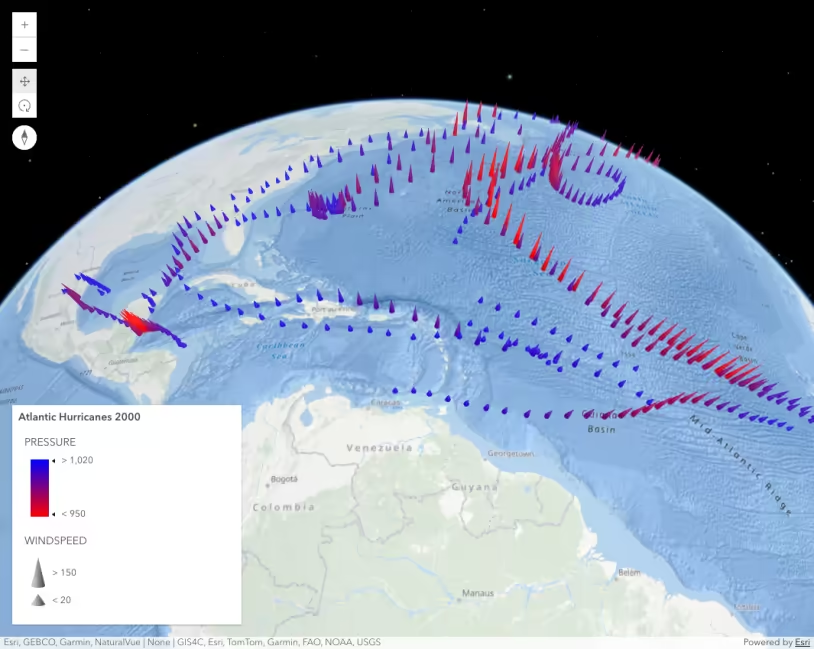
This sample demonstrates how to visualize features in a layer along a continuous size ramp based on data in a numeric field.
In this case, we’ll use a SimpleRenderer with visual variables to alter the size of each feature based on the percentage of the population living below the poverty line. The layer used contains polygon features of counties. We can assign a marker symbol to the renderer so the centroid of each county is overlaid with a marker whose size can be altered based on a numeric attribute
Prior to completing the following steps, you should be familiar with the Map component and FeatureLayer. The basic components of this app, such as creating instances of the Map component, and understanding HTML and CSS structure will not be reviewed in this sample.
Create a SimpleRenderer with a default symbol
All that’s required when creating a renderer with a continuous size ramp is a SimpleRenderer with visual variables.
In the snippet below, we set a default symbol on the symbol property of the renderer. We don’t need to define a size on the symbol because each feature’s size will be determined by visual variables.
let renderer = { type: "simple", // autocasts as new SimpleRenderer() symbol: { type: "simple-marker", // autocasts as new SimpleMarkerSymbol() color: [0, 0, 0, 0], outline: { // autocasts as new SimpleLineSymbol() color: "#71de6e", width: 1, }, }, };Set a size visual variable on the renderer
Setting any visual variable requires a field name, which indicates the data from which to base the visualization. You can also specify a normalizationField to normalize the data values specified in field. In this sample, we’re pointing the field to POP_POVERTY, which stores the total number of people living in poverty within the boundaries of the feature. We’ll normalize based on the total population with the TOTPOP_CY field.
Then you set the size ramp using either a series of stops in the stops array…
renderer.visualVariables = [ { type: "size", field: "POP_POVERTY", normalizationField: "TOTPOP_CY", legendOptions: { title: "% population in poverty by county", }, stops: [ { value: 0.15, size: 4, label: "<15%", }, { value: 0.25, size: 12, label: "25%", }, { value: 0.35, size: 20, label: ">35%", }, ], }, ];…or with the minSize and maxSize properties that would be applied based on a minDataValue and maxDataValue.
const renderer = { type: "simple", // autocasts as new SimpleRenderer() symbol: defaultSym, // the default symbol defined in step 1 label: "% population in poverty by county", // label for the legend visualVariables: [ { type: "color", // indicates this is a color visual variable field: "POP_POVERTY", // total population in poverty normalizationField: "TOTPOP_CY", // total population minDataValue: 0.1, // features where < 10% of the pop in poverty maxDataValue: 0.3, // features where > 30% of the pop in poverty minSize: 4, // size of marker in pts maxSize: 24, // size of marker in pts }, ],};In the first scenario, you can specify more than two stops and assign data values to specific sizes in each stop. You can also set size visual variables on the minSize and maxSize properties to define the screen size of features for various scale ranges. See the documentation for size visual variables for more details.
Summary
Once the renderer is defined, you can set it on the layer and the view and legend will automatically update.
Additional visualization samples and resources
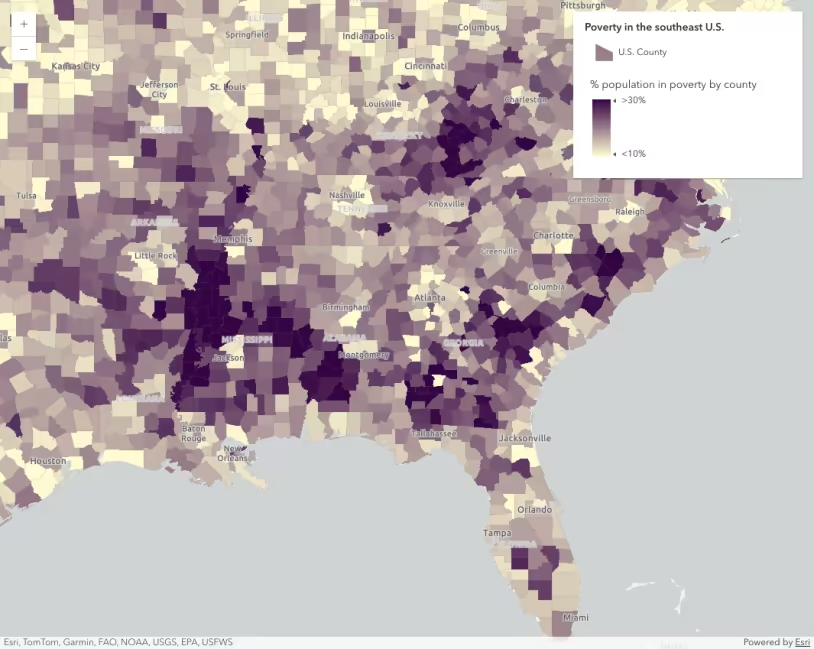
Data-driven continuous color
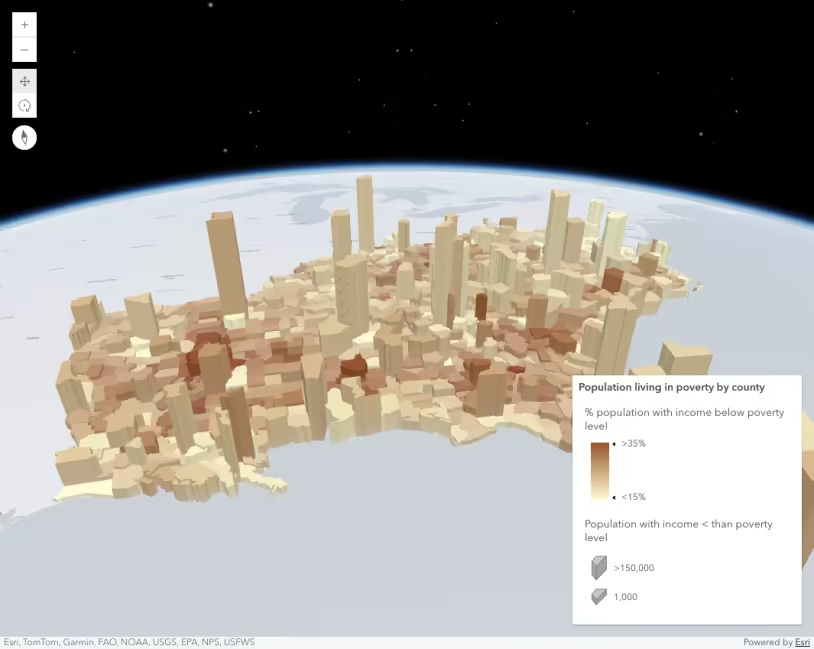
Data-driven extrusion
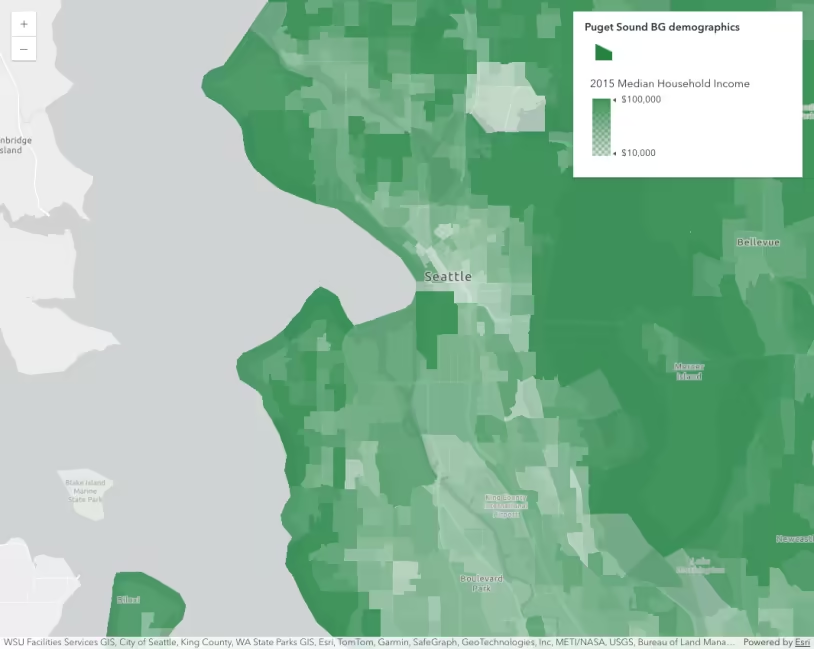
Data-driven opacity
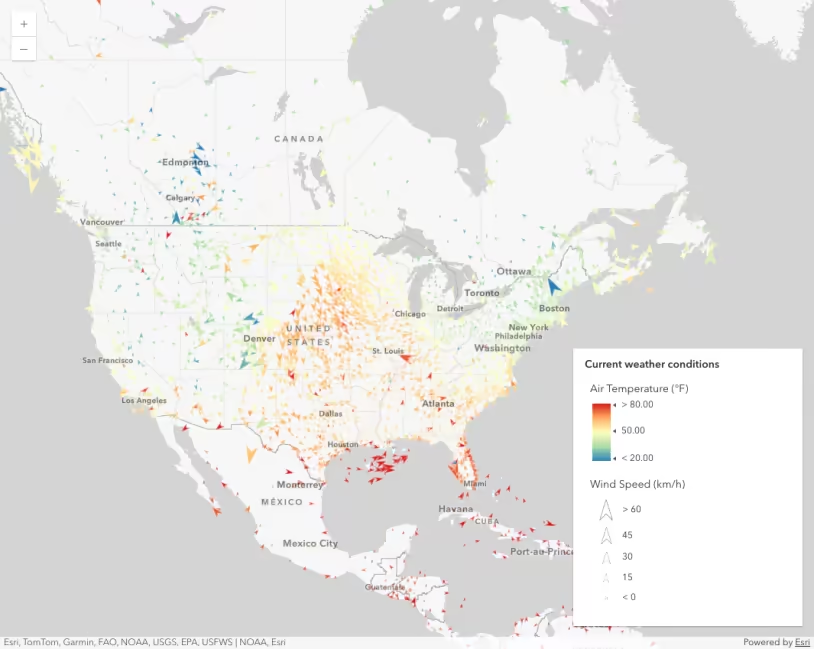
Thematic multivariate visualization (2D)