Perform an exploratory viewshed analysis from a defined vantage point.
Use case
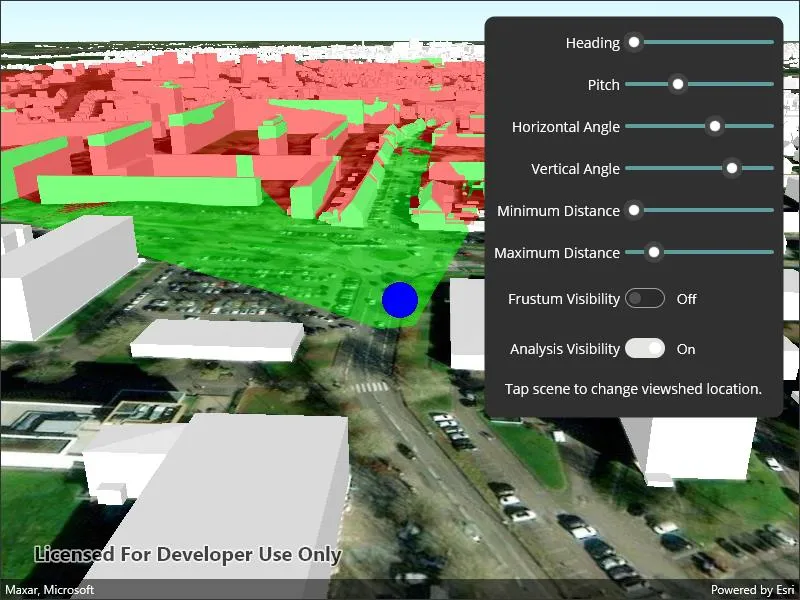
An exploratory viewshed analysis is a type of visual analysis you can perform at the current rendered resolution of a scene. The exploratory viewshed shows what can be seen from a given location. The output is an overlay with two different colors - one representing the visible areas (green) and the other representing the obstructed areas (red).
Note: This analysis is a form of “exploratory analysis”, which means the results are calculated on the current scale of the data, and the results are generated very quickly but not persisted. If persisted analysis performed at the full resolution of the data is required, consider using a ViewshedFunction to perform a viewshed calculation instead.
How to use the sample
Use the sliders to change the properties (heading, pitch, etc.) of the exploratory viewshed and see them updated in real time. Tap on the map to move the exploratory viewshed.
How it works
- Create an
ExploratoryLocationViewshedpassing in the observer location, heading, pitch, horizontal/vertical angles, and min/max distances. - Set the property values on the exploratory viewshed instance for location, direction, range, and visibility properties.
Relevant API
- AnalysisOverlay
- ArcGISSceneLayer
- ArcGISTiledElevationSource
- ExploratoryLocationViewshed
- ExploratoryViewshed
About the data
The scene shows a buildings layer in Brest, France hosted on ArcGIS Online.
Tags
3D, exploratory viewshed, frustum, scene, visibility analysis
Sample code
// Copyright 2022 Esri.//// Licensed under the Apache License, Version 2.0 (the "License"); you may not use this file except in compliance with the License.// You may obtain a copy of the License at: https://www.apache.org/licenses/LICENSE-2.0//// Unless required by applicable law or agreed to in writing, software distributed under the License is distributed on an// "AS IS" BASIS, WITHOUT WARRANTIES OR CONDITIONS OF ANY KIND, either express or implied. See the License for the specific// language governing permissions and limitations under the License.
using Esri.ArcGISRuntime.Geometry;using Esri.ArcGISRuntime.Mapping;using Esri.ArcGISRuntime.Symbology;using Esri.ArcGISRuntime.UI;using Esri.ArcGISRuntime.UI.GeoAnalysis;
using Colors = System.Drawing.Color;using GeoViewInputEventArgs = Esri.ArcGISRuntime.Maui.GeoViewInputEventArgs;
namespace ArcGIS.Samples.ShowExploratoryViewshedFromPointInScene{    [ArcGIS.Samples.Shared.Attributes.Sample(        name: "Show exploratory viewshed from point in scene",        category: "Analysis",        description: "Perform an exploratory viewshed analysis from a defined vantage point.",        instructions: "Use the sliders to change the properties (heading, pitch, etc.) of the exploratory viewshed and see them updated in real time. Tap on the map to move the exploratory viewshed.",        tags: new[] { "3D", "exploratory viewshed", "frustum", "scene", "visibility analysis" })]    public partial class ShowExploratoryViewshedFromPointInScene : ContentPage    {        // Hold the URL to the elevation source.        private readonly Uri _localElevationImageService = new Uri("https://elevation3d.arcgis.com/arcgis/rest/services/WorldElevation3D/Terrain3D/ImageServer");
        // Hold the URL to the buildings scene layer.        private readonly Uri _buildingsUrl = new Uri("https://tiles.arcgis.com/tiles/P3ePLMYs2RVChkJx/arcgis/rest/services/Buildings_Brest/SceneServer/layers/0");
        // Hold a reference to the viewshed analysis.        private ExploratoryLocationViewshed _viewshed;
        // Hold a reference to the analysis overlay that will hold the viewshed analysis.        private AnalysisOverlay _analysisOverlay;
        // Graphics overlay for viewpoint symbol.        private GraphicsOverlay _viewpointOverlay;
        // Symbol for viewpoint.        private SimpleMarkerSceneSymbol _viewpointSymbol;
        public ShowExploratoryViewshedFromPointInScene()        {            InitializeComponent();
            // Initialize the sample            Initialize();        }
        private void Initialize()        {            // Create the scene with the imagery basemap.            Scene myScene = new Scene(BasemapStyle.ArcGISImageryStandard);            MySceneView.Scene = myScene;
            // Add the surface elevation.            Surface mySurface = new Surface();            mySurface.ElevationSources.Add(new ArcGISTiledElevationSource(_localElevationImageService));            myScene.BaseSurface = mySurface;
            // Add the scene layer.            ArcGISSceneLayer sceneLayer = new ArcGISSceneLayer(_buildingsUrl);            myScene.OperationalLayers.Add(sceneLayer);
            // Create the MapPoint representing the initial location.            MapPoint initialLocation = new MapPoint(-4.5, 48.4, 56.0);
            // Create the location viewshed analysis.            _viewshed = new ExploratoryLocationViewshed(                initialLocation,                HeadingSlider.Value,                PitchSlider.Value,                HorizontalAngleSlider.Value,                VerticalAngleSlider.Value,                MinimumDistanceSlider.Value,                MaximumDistanceSlider.Value);
            // Create a camera based on the initial location.            Camera camera = new Camera(initialLocation, 200.0, 20.0, 70.0, 0.0);
            // Create a symbol for the viewpoint.            _viewpointSymbol = SimpleMarkerSceneSymbol.CreateSphere(Colors.Blue, 10, SceneSymbolAnchorPosition.Center);
            // Add the symbol to the viewpoint overlay.            _viewpointOverlay = new GraphicsOverlay            {                SceneProperties = new LayerSceneProperties(SurfacePlacement.Absolute)            };            _viewpointOverlay.Graphics.Add(new Graphic(initialLocation, _viewpointSymbol));
            // Apply the camera to the scene view.            MySceneView.SetViewpointCamera(camera);
            // Create an analysis overlay for showing the viewshed analysis.            _analysisOverlay = new AnalysisOverlay();
            // Add the viewshed analysis to the overlay.            _analysisOverlay.Analyses.Add(_viewshed);
            // Add the analysis overlay to the SceneView.            MySceneView.AnalysisOverlays.Add(_analysisOverlay);
            // Add the graphics overlay            MySceneView.GraphicsOverlays.Add(_viewpointOverlay);
            // Update the frustum outline color.            // The frustum outline shows the volume in which the viewshed analysis is performed.            ExploratoryViewshed.FrustumOutlineColor = Colors.Blue;
            // Subscribe to tap events to enable moving the observer.            MySceneView.GeoViewTapped += MySceneViewOnGeoViewTapped;        }
        private void MySceneViewOnGeoViewTapped(object sender, GeoViewInputEventArgs viewInputEventArgs)        {            if (viewInputEventArgs.Location == null)            {                // User clicked on the sky - don't update the location with invalid value.                return;            }
            // Update the viewshed location.            _viewshed.Location = viewInputEventArgs.Location;
            // Move the location off of the ground.            _viewshed.Location = new MapPoint(_viewshed.Location.X, _viewshed.Location.Y, _viewshed.Location.Z + 10.0);
            // Update the viewpoint symbol.            _viewpointOverlay.Graphics.Clear();            _viewpointOverlay.Graphics.Add(new Graphic(_viewshed.Location, _viewpointSymbol));        }
        private void HandleSettingsChange(object sender, EventArgs e)        {            // Return if viewshed hasn't been created yet. This happens when the sample is starting.            if (_viewshed == null)            {                return;            }
            // Update the viewshed settings.            _viewshed.Heading = HeadingSlider.Value;            _viewshed.Pitch = PitchSlider.Value;            _viewshed.HorizontalAngle = HorizontalAngleSlider.Value;            _viewshed.VerticalAngle = VerticalAngleSlider.Value;            _viewshed.MinDistance = MinimumDistanceSlider.Value;            _viewshed.MaxDistance = MaximumDistanceSlider.Value;
            // Update visibility of the viewshed analysis.            _viewshed.IsVisible = AnalysisVisibilityCheck.IsToggled;
// Update visibility of the frustum. Note that the frustum will be invisible // regardless of this setting if the viewshed analysis is not visible. _viewshed.IsFrustumOutlineVisible = FrustumVisibilityCheck.IsToggled; } }}<?xml version="1.0" encoding="utf-8" ?><ContentPage x:Class="ArcGIS.Samples.ShowExploratoryViewshedFromPointInScene.ShowExploratoryViewshedFromPointInScene" xmlns="http://schemas.microsoft.com/dotnet/2021/maui" xmlns:x="http://schemas.microsoft.com/winfx/2009/xaml" xmlns:esriUI="clr-namespace:Esri.ArcGISRuntime.Maui;assembly=Esri.ArcGISRuntime.Maui"> <Grid Style="{DynamicResource EsriSampleContainer}"> <esriUI:SceneView x:Name="MySceneView" Style="{DynamicResource EsriSampleGeoView}" /> <Border Style="{DynamicResource EsriSampleControlPanel}"> <ScrollView> <Grid ColumnDefinitions="auto,*" ColumnSpacing="5" RowDefinitions="auto,auto,auto,auto,auto,auto,auto,auto,auto,auto" RowSpacing="10"> <Label Grid.Row="0" Grid.Column="0" HorizontalTextAlignment="End" VerticalTextAlignment="Center"> Heading </Label> <Label Grid.Row="1" Grid.Column="0" HorizontalTextAlignment="End" VerticalTextAlignment="Center"> Pitch </Label> <Label Grid.Row="2" Grid.Column="0" HorizontalTextAlignment="End" VerticalTextAlignment="Center"> Horizontal Angle </Label> <Label Grid.Row="3" Grid.Column="0" HorizontalTextAlignment="End" VerticalTextAlignment="Center"> Vertical Angle </Label> <Label Grid.Row="4" Grid.Column="0" HorizontalTextAlignment="End" VerticalTextAlignment="Center"> Minimum Distance </Label> <Label Grid.Row="5" Grid.Column="0" HorizontalTextAlignment="End" VerticalTextAlignment="Center"> Maximum Distance </Label> <Label Grid.Row="6" Grid.Column="0" HorizontalTextAlignment="End" VerticalTextAlignment="Center"> Frustum Visibility </Label> <Label Grid.Row="7" Grid.Column="0" HorizontalTextAlignment="End" VerticalTextAlignment="Center"> Analysis Visibility </Label> <Slider x:Name="HeadingSlider" Grid.Row="0" Grid.Column="1" Maximum="360" MaximumTrackColor="CadetBlue" MinimumTrackColor="CadetBlue" ValueChanged="HandleSettingsChange" Value="0" /> <Slider x:Name="PitchSlider" Grid.Row="1" Grid.Column="1" Maximum="180" MaximumTrackColor="CadetBlue" MinimumTrackColor="CadetBlue" ValueChanged="HandleSettingsChange" Value="60" /> <Slider x:Name="HorizontalAngleSlider" Grid.Row="2" Grid.Column="1" Maximum="120" MaximumTrackColor="CadetBlue" Minimum="1" MinimumTrackColor="CadetBlue" ValueChanged="HandleSettingsChange" Value="75" /> <Slider x:Name="VerticalAngleSlider" Grid.Row="3" Grid.Column="1" Maximum="120" MaximumTrackColor="CadetBlue" Minimum="1" MinimumTrackColor="CadetBlue" ValueChanged="HandleSettingsChange" Value="90" /> <Slider x:Name="MinimumDistanceSlider" Grid.Row="4" Grid.Column="1" Maximum="8999" MaximumTrackColor="CadetBlue" Minimum="5" MinimumTrackColor="CadetBlue" ValueChanged="HandleSettingsChange" Value="5" /> <Slider x:Name="MaximumDistanceSlider" Grid.Row="5" Grid.Column="1" Maximum="9999" MaximumTrackColor="CadetBlue" MinimumTrackColor="CadetBlue" ValueChanged="HandleSettingsChange" Value="1500" /> <Switch x:Name="FrustumVisibilityCheck" Grid.Row="6" Grid.Column="1" HorizontalOptions="Start" Toggled="HandleSettingsChange" /> <Switch x:Name="AnalysisVisibilityCheck" Grid.Row="7" Grid.Column="1" HorizontalOptions="Start" IsToggled="True" Toggled="HandleSettingsChange" /> <Label Grid.Row="8" Grid.Column="0" Grid.ColumnSpan="2" HorizontalOptions="Center"> Tap scene to change viewshed location. </Label> </Grid> </ScrollView> </Border> </Grid></ContentPage>