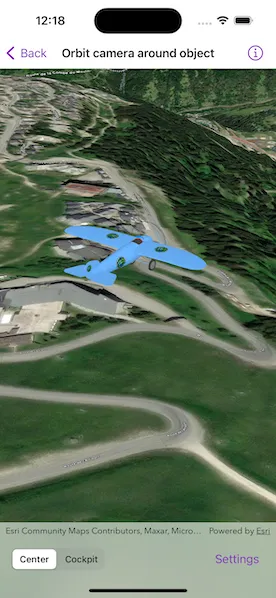
Fix the camera to point at and rotate around a target object.
Use case
The orbit geoelement camera controller provides control over the following camera behaviors:
- Automatically track the target
- Stay near the target by setting a minimum and maximum distance offset
- Restrict where you can rotate around the target
- Automatically rotate the camera when the target’s heading and pitch changes
- Disable user interactions for rotating the camera
- Animate camera movement over a specified duration
- Control the vertical positioning of the target on the screen
- Set a target offset (e.g., to orbit around the tail of the plane) instead of defaulting to orbiting the center of the object
How to use the sample
The sample loads with the camera orbiting an airplane model. The camera is preset with a restricted camera heading, pitch, and a limited minimum and maximum camera distance set from the plane. The position of the plane on the screen is also set just below center.
Tap “Cockpit” to offset and fix the camera into the cockpit of the airplane. The camera will follow the pitch of the plane in this mode. In this view, adjusting the camera distance is disabled. Tap “Center” to exit the cockpit view and fix the camera controller on the center of the plane.
Use the “Camera Heading” slider to adjust the camera heading. Use the “Plane Pitch” slider to adjust the plane’s pitch. When not in Cockpit view, the plane’s pitch will change independently to that of the camera pitch.
Toggle on the “Allow Camera Distance Interaction” switch to allow zooming in and out by pinching. When the toggle is off, the user will be unable to adjust the camera distance.
How it works
- Instantiate an
OrbitGeoElementCameraControllerwith aGeoElementand camera distance as parameters. - Set the camera controller to the scene view.
- Set the
cameraHeadingOffset,cameraPitchOffset, andcameraDistanceproperties for the camera controller. - Set the minimum and maximum angle of heading and pitch, and minimum and maximum distance for the camera.
- Set the distance from which the camera is offset from the plane using
setTargetOffsets(x:y:z:duration:)or the properties. - Set the
targetVerticalScreenFactorproperty to determine where the plane appears in the scene. - Animate the camera to the cockpit using
moveCamera(distanceDelta:headingDelta:pitchDelta:duration:). - Set
cameraDistanceIsInteractiveif the camera distance will adjust when zooming or panning using mouse or keyboard (default is true). - Set
autoPitchIsEnabledif the camera will follow the pitch of the plane (default is true).
Relevant API
- OrbitGeoElementCameraController
Tags
3D, camera, object, orbit, rotate, scene
Sample code
// Copyright 2024 Esri//// Licensed under the Apache License, Version 2.0 (the "License");// you may not use this file except in compliance with the License.// You may obtain a copy of the License at////   https://www.apache.org/licenses/LICENSE-2.0//// Unless required by applicable law or agreed to in writing, software// distributed under the License is distributed on an "AS IS" BASIS,// WITHOUT WARRANTIES OR CONDITIONS OF ANY KIND, either express or implied.// See the License for the specific language governing permissions and// limitations under the License.
import ArcGISimport SwiftUI
struct OrbitCameraAroundObjectView: View {    /// The view model for the sample.    @StateObject private var model = Model()
    /// The camera view selection.    @State private var selectedCameraView = CameraView.center
    /// A Boolean value indicating whether the settings sheet is presented.    @State private var settingsSheetIsPresented = false
    /// A Boolean value indicating whether scene interaction is disabled.    @State private var sceneIsDisabled = false
    /// The error shown in the error alert.    @State private var error: (any Error)?
    var body: some View {        SceneView(            scene: model.scene,            cameraController: model.cameraController,            graphicsOverlays: [model.graphicsOverlay]        )        .disabled(sceneIsDisabled)        .toolbar {            ToolbarItemGroup(placement: .bottomBar) {                cameraViewPicker                settingsButton            }        }        .errorAlert(presentingError: $error)    }
    /// The picker for selecting the camera view.    private var cameraViewPicker: some View {        Picker("Camera View", selection: $selectedCameraView) {            Text("Center").tag(CameraView.center)            Text("Cockpit").tag(CameraView.cockpit)        }        .pickerStyle(.segmented)        .task(id: selectedCameraView) {            // Move the camera to the new view selection.            do {                // Disable scene interaction while the camera is moving.                sceneIsDisabled = true                defer { sceneIsDisabled = false }
                switch selectedCameraView {                case .center:                    try await model.moveToPlaneView()                case .cockpit:                    try await model.moveToCockpit()                }            } catch {                self.error = error            }        }    }
    /// The button that brings up the settings sheet.    private var settingsButton: some View {        Button("Settings") {            settingsSheetIsPresented = true        }        .popover(isPresented: $settingsSheetIsPresented) {            SettingsView(model: model)                .presentationDetents([.fraction(0.5)])                .frame(idealWidth: 320, idealHeight: 290)        }    }}
private extension OrbitCameraAroundObjectView {    /// The camera and plane settings for the sample.    struct SettingsView: View {        /// The view model for the sample.        @ObservedObject var model: Model
        /// The action to dismiss the view.        @Environment(\.dismiss) private var dismiss: DismissAction
        /// The heading offset of the camera controller.        @State private var cameraHeading = Measurement<UnitAngle>(value: 0, unit: .degrees)
        /// The pitch of the plane in the scene.        @State private var planePitch = Measurement<UnitAngle>(value: 0, unit: .degrees)
        /// A Boolean value indicating whether the camera distance is interactive.        @State private var cameraDistanceIsInteractive = false
        var body: some View {            NavigationStack {                List {                    VStack {                        LabeledContent("Camera Heading", value: cameraHeading, format: .degrees)
                        Slider(value: $cameraHeading.value, in: -45...45)                            .onChange(of: cameraHeading.value) {                                model.cameraController.cameraHeadingOffset = cameraHeading.value                            }                    }
                    VStack {                        LabeledContent("Plane Pitch", value: planePitch, format: .degrees)
                        Slider(value: $planePitch.value, in: -90...90)                            .onChange(of: planePitch.value) {                                model.planeGraphic.setAttributeValue(planePitch.value, forKey: "PITCH")                            }                    }
                    Toggle("Allow Camera Distance Interaction", isOn: $cameraDistanceIsInteractive)                        .toggleStyle(.switch)                        .disabled(model.cameraController.autoPitchIsEnabled)                        .onChange(of: cameraDistanceIsInteractive) {                            model.cameraController.cameraDistanceIsInteractive = cameraDistanceIsInteractive                        }                }                .navigationTitle("Settings")                .navigationBarTitleDisplayMode(.inline)                .toolbar {                    ToolbarItem(placement: .confirmationAction) {                        Button("Done") {                            dismiss()                        }                    }                }            }            .onAppear {                planePitch.value = model.planeGraphic.attributes["PITCH"] as! Double                cameraHeading.value = model.cameraController.cameraHeadingOffset                cameraDistanceIsInteractive = model.cameraController.cameraDistanceIsInteractive            }        }    }
    /// An enumeration representing a camera controller view.    enum CameraView: CaseIterable {        /// The view with the plane centered.        case center        /// The view from the plane's cockpit.        case cockpit    }}
private extension FormatStyle where Self == Measurement<UnitAngle>.FormatStyle {    /// The format style for degrees.    static var degrees: Self {        .measurement(            width: .narrow,            usage: .asProvided,            numberFormatStyle: .number.precision(.fractionLength(0))        )    }}
// Copyright 2024 Esri//// Licensed under the Apache License, Version 2.0 (the "License");// you may not use this file except in compliance with the License.// You may obtain a copy of the License at//// https://www.apache.org/licenses/LICENSE-2.0//// Unless required by applicable law or agreed to in writing, software// distributed under the License is distributed on an "AS IS" BASIS,// WITHOUT WARRANTIES OR CONDITIONS OF ANY KIND, either express or implied.// See the License for the specific language governing permissions and// limitations under the License.
import ArcGISimport Combineimport Foundation
extension OrbitCameraAroundObjectView { /// The view model for the sample. @MainActor class Model: ObservableObject { // MARK: Properties
/// A scene with an imagery basemap and world elevation surface. let scene: ArcGIS.Scene = { let scene = Scene(basemapStyle: .arcGISImagery) let elevationSource = ArcGISTiledElevationSource(url: .worldElevationService) scene.baseSurface.addElevationSource(elevationSource) return scene }()
/// The graphics overlay for the plane graphic. let graphicsOverlay: GraphicsOverlay = { let graphicsOverlay = GraphicsOverlay() graphicsOverlay.sceneProperties.surfacePlacement = .relative
let renderer = SimpleRenderer() renderer.sceneProperties.headingExpression = "[HEADING]" renderer.sceneProperties.pitchExpression = "[PITCH]" graphicsOverlay.renderer = renderer
return graphicsOverlay }()
/// The plane graphic created from a local URL. let planeGraphic: Graphic = { let planeSymbol = ModelSceneSymbol(url: .bristol, scale: 1) let planePosition = Point(x: 6.637, y: 45.399, z: 100, spatialReference: .wgs84) let planeGraphic = Graphic( geometry: planePosition, attributes: ["HEADING": 45.0, "PITCH": 0.0], symbol: planeSymbol ) return planeGraphic }()
/// The camera controller for the scene. let cameraController: OrbitGeoElementCameraController
init() { graphicsOverlay.addGraphic(planeGraphic)
// Create an orbit geo element camera controller targeted on the plane graphic. cameraController = OrbitGeoElementCameraController( target: planeGraphic, distance: 50 ) // Restrict the camera's heading to stay behind the plane. cameraController.minCameraHeadingOffset = -45 cameraController.maxCameraHeadingOffset = 45
// Restrict the camera to stay within 100 meters of the plane. cameraController.maxCameraDistance = 100
// Position the plane a third from the top of the screen, // so it isn't covered by the settings sheet. cameraController.targetVerticalScreenFactor = 0.66
// Don't pitch the camera when the plane pitches. cameraController.autoPitchIsEnabled = false }
// MARK: Methods
/// Moves the camera controller to center the plane in it's view. func moveToPlaneView() async throws { cameraController.cameraDistanceIsInteractive = true
// Animate the camera to center the plane graphic with a // 45° pitch and facing forward (0° heading). if !cameraController.targetOffsetIsZero { // Unlock the camera pitch for the rotation animation. cameraController.minCameraPitchOffset = -180 cameraController.maxCameraPitchOffset = 180
let pitchDelta = pitchDelta(for: 45) cameraController.autoPitchIsEnabled = false
await cameraController.moveCamera( distanceDelta: 50 - cameraController.cameraDistance, headingDelta: -cameraController.cameraHeadingOffset, pitchDelta: pitchDelta, duration: 1 ) _ = try await cameraController.setTargetOffsets(x: 0, y: 0, z: 0, duration: 1) }
// Restrict the camera's pitch so it doesn't collide with the ground. cameraController.minCameraPitchOffset = 10 cameraController.maxCameraPitchOffset = 100
cameraController.minCameraDistance = 10 }
/// Moves the view of the camera controller to the cockpit of the plane. func moveToCockpit() async throws { cameraController.cameraDistanceIsInteractive = false cameraController.minCameraDistance = 0.1
// Unlock the camera pitch for the rotation animation. cameraController.minCameraPitchOffset = -180 cameraController.maxCameraPitchOffset = 180
// Animate the camera to the cockpit, facing forward (0° heading), // and aligned with the horizon (90° pitch). _ = try await cameraController.setTargetOffsets(x: 0, y: -1.4, z: 1.3, duration: 1) await cameraController.moveCamera( distanceDelta: 0.1 - cameraController.cameraDistance, headingDelta: -cameraController.cameraHeadingOffset, pitchDelta: pitchDelta(for: 90), duration: 1 )
// Lock the camera pitch when the animation finishes. cameraController.minCameraPitchOffset = 90 cameraController.maxCameraPitchOffset = 90 cameraController.autoPitchIsEnabled = true }
/// The camera pitch delta for a given angle and the current plane pitch. /// - Parameter angle: The angle in degrees. /// - Returns: The change in pitch. private func pitchDelta(for angle: Double) -> Double { let planePitch = planeGraphic.attributes["PITCH"] as? Double ?? 0 let cameraPitchOffset = cameraController.cameraPitchOffset
if cameraController.autoPitchIsEnabled { return angle - cameraPitchOffset } else { return angle + planePitch - cameraPitchOffset } } }}
private extension OrbitGeoElementCameraController { /// A Boolean value indicating whether all the target offset values are zero. var targetOffsetIsZero: Bool { return [targetOffsetX, targetOffsetY, targetOffsetZ].allSatisfy(\.isZero) }}
private extension URL { /// A URL to the local Bristol 3D model files. static var bristol: URL { Bundle.main.url(forResource: "Bristol", withExtension: "dae", subdirectory: "Bristol")! }
/// A world elevation service from Terrain3D ArcGIS REST service. static var worldElevationService: URL { URL(string: "https://elevation3d.arcgis.com/arcgis/rest/services/WorldElevation3D/Terrain3D/ImageServer")! }}