Learn how to rotate API keys with ArcGIS Enterprise in a deployed application to extend the lifetime of the application.
An API key is a long-lived access token
API key credentials can generate up to two valid API keys at a time, known as AP and AP. The keys share identical privileges
This tutorial explains how to rotate between an AP and AP in a deployed application. This workflow is necessary for applications in production environments, such as live websites or apps published to the app store. Using this method, API keys can be rotated in deployed applications without any application downtime.
Prerequisites
-
You need an ArcGIS Enterprise account
An ArcGIS Enterprise account is an identity for an instance of ArcGIS Enterprise. It can be used to access ArcGIS Enterprise tools, applications, and services, and to develop applications. with the correct user type and role. Please review the Product and account requirements before proceeding. -
Your organization must be using ArcGIS Enterprise version 11.4 or greater. Learn more.
-
You need to complete the Create an API key tutorial and generate an
APwith your desired privilegesI key 1 Privileges are a set of permissions assigned to ArcGIS accounts, developer credentials, and applications that grant access to secure resources and functionality in ArcGIS. . -
You need to create and deploy an application that uses your API key, such as a native app built with an ArcGIS Maps SDK
ArcGIS Maps SDKs are developer products for building mapping and spatial analysis applications for web browsers, native devices, and game engines. or a web app built with ArcGIS REST JSArcGIS REST JS is a collection of JavaScript modules that can access ArcGIS location services and ArcGIS Enterprise services. .
Steps
Sign in to your portal
You use your portal to create and manage items, including API key credentials.
- In your web browser, go to your ArcGIS Enterprise portal and sign in to your portal with your ArcGIS Enterprise account.
Find your API key credentials
Developer credentials
-
Go to Content > My content.
-
Search for the developer credentials
Developer credentials are a type of item in a portal that contains parameters for authentication. There are two types of developer credentials: API key credentials and OAuth credentials. you created in the prerequisites step. -
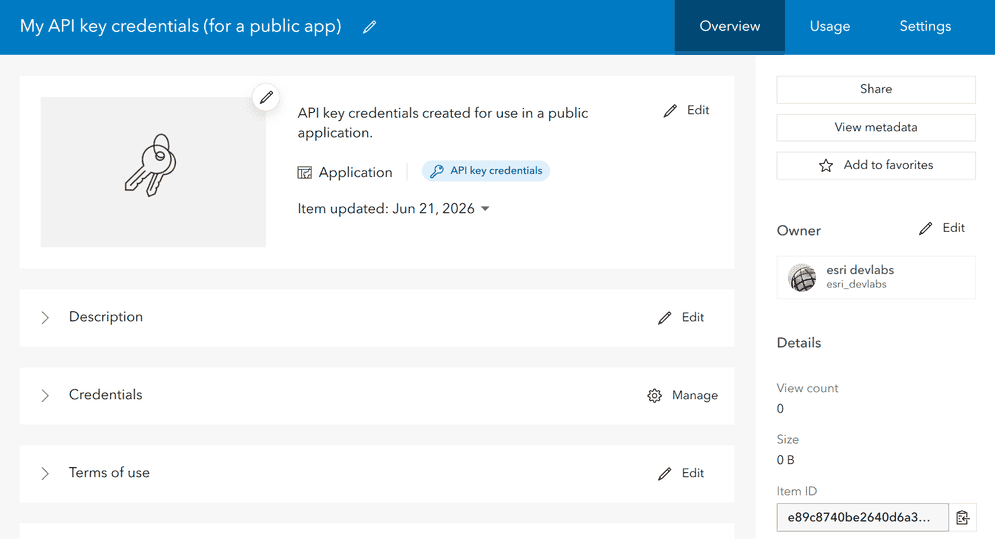
Click on the developer credentials to go to its item page
An item page is a web page in ArcGIS Online or the developer dashboard used to access and manage the properties for an item and the content it references such as a web map, hosted layer, or file. .
Check the API key 1 expiration date
API key credentials are used to manage up to two active API keys
-
On the item page
An item page is a web page in ArcGIS Online or the developer dashboard used to access and manage the properties for an item and the content it references such as a web map, hosted layer, or file. of your API key credentials, scroll down to Credentials > API keys. -
A partial record of each API key is listed along with its expiration date. Check the expiration date of your active
AP.I key 1 
Generate an API key 2
When you are ready to rotate API keys, use the same API key credentialsAP. This new key will share identical privileges and item access with AP, but has a unique expiration date.
-
Under Application > API keys, click Generate a secondary API key.

-
Set an Expiration date for the key and click Generate API key.

Copy the API key 2
-
Copy the API key
An API key is a long-lived access token created using API key credentials. They are valid for up to one year and are typically embedded directly into client applications. from the window that appears and paste it into your application.
-
Use the API key credentials item page
An item page is a web page in ArcGIS Online or the developer dashboard used to access and manage the properties for an item and the content it references such as a web map, hosted layer, or file. to view a partial version of the new key, as well as its expiration date.
Deploy your application
After generating an AP and pasting it into your application, your AP can be safely deleted from the code base. You must deploy your application to production before the AP can be invalidated.
- Deploy your application to production using your normal process. This process varies based on your chosen platform, programming language, and build system.
Invalidate the API key 1
Once your application has been deployed with a new API key, the previous API key is no longer required. Invalidate the key to prevent fraudulent usage.
-
Under Application > API keys, find the API key you want to regenerate. Click Invalidate API key.

-
Click Yes, invalidate API key.

-
Your
APhas been invalidated. It will no longer function in applications or REST API requests. YourI key 1 APwill continue to function as normal.I key 2 
What's next?
Your application has been deployed using a new API keyAP's expiration date approaches, this same workflow can be applied again to keep the application running indefinitely. Once the AP is about to expire, generate a new AP and deploy your application again using the new key.
Learn how to perform other management tasks for your API key credentials in the following tutorials:
Manage API key credentials
Manage previously created API key credentials to regenerate, edit privileges, and edit item access of API keys.
Create an API key
Create and configure API key credentials to get a long-lived API key access token.