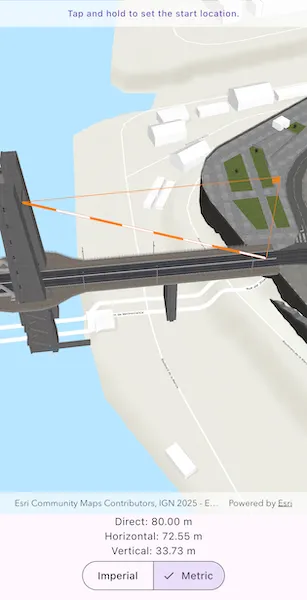
Measure distances between two points in 3D.
Use case
The distance measurement analysis allows you to add to your app the same interactive measuring experience found in ArcGIS Pro, City Engine, and the ArcGIS API for JavaScript. You can set the unit system of measurement (metric or imperial). The units automatically switch to one appropriate for the current scale.
How to use the sample
Choose a unit system for the measurement. Tap and hold on a location in the scene to start measuring. While continuing to hold, drag to position the end location.
How it works
- Specify the start location and end location to create an
ExploratoryLocationDistanceMeasurementobject. - Create an
AnalysisOverlayand add it to the analysis overlay collection of theArcGISSceneViewController. - Add the location distance measurement analysis to the analysis overlay.
- The
onMeasurementChangedcallback will trigger if the distances change. You can get the new values for thedirectDistance,horizontalDistance, andverticalDistancefrom the stream data passed through the callback.
Relevant API
- AnalysisOverlay
- ExploratoryLocationDistanceMeasurement
Additional information
The ExploratoryLocationDistanceMeasurement analysis only performs planar distance calculations. This may not be appropriate for large distances where the Earth’s curvature must be considered.
Tags
3D, analysis, distance, measure
Sample code
measure_distance_in_scene.dart
// Copyright 2026 Esri//// Licensed under the Apache License, Version 2.0 (the "License");// you may not use this file except in compliance with the License.// You may obtain a copy of the License at////   https://www.apache.org/licenses/LICENSE-2.0//// Unless required by applicable law or agreed to in writing, software// distributed under the License is distributed on an "AS IS" BASIS,// WITHOUT WARRANTIES OR CONDITIONS OF ANY KIND, either express or implied.// See the License for the specific language governing permissions and// limitations under the License.//
import 'package:arcgis_maps/arcgis_maps.dart';import 'package:arcgis_maps_sdk_flutter_samples/common/common.dart';import 'package:flutter/material.dart';
class MeasureDistanceInScene extends StatefulWidget {  const MeasureDistanceInScene({super.key});
  @override  State<MeasureDistanceInScene> createState() => _MeasureDistanceInSceneState();}
class _MeasureDistanceInSceneState extends State<MeasureDistanceInScene>    with SampleStateSupport {  // Create a controller for the scene view.  final _sceneViewController = ArcGISSceneView.createController();
  // Create the distance measurement analysis with initial locations in Brest, France.  final _locationDistanceMeasurement = ExploratoryLocationDistanceMeasurement(    startLocation: ArcGISPoint(      x: -4.494677,      y: 48.384472,      z: 24.772694,      spatialReference: .wgs84,    ),    endLocation: ArcGISPoint(      x: -4.495646,      y: 48.384377,      z: 58.501115,      spatialReference: .wgs84,    ),  );
  // A variable to track the current state of the measurement process.  var _measurementState = MeasurementState.setStartLocation;
  // A flag for when the scene view is ready and controls can be used.  var _ready = false;
  @override  Widget build(BuildContext context) {    return Scaffold(      body: SafeArea(        top: false,        left: false,        right: false,        child: Stack(          children: [            Column(              children: [                Expanded(                  child: Stack(                    children: [                      // Add a scene view to the widget tree and set a controller.                      ArcGISSceneView(                        controllerProvider: () => _sceneViewController,                        onSceneViewReady: onSceneViewReady,                      ),                      // Add a detector to handle long-press gestures for changing the measurement.                      GestureDetector(                        onLongPressStart: onLongPressStart,                        onLongPressMoveUpdate: onLongPressMoveUpdate,                        onLongPressEnd: onLongPressEnd,                      ),                    ],                  ),                ),                // Add a StreamBuilder to listen to changes in the measurement and display the distance values.                StreamBuilder(                  stream: _locationDistanceMeasurement.onMeasurementChanged,                  builder: (context, snapshot) {                    final measurement = snapshot.data;                    if (measurement == null) {                      return const SizedBox.shrink();                    }
                    return Column(                      children: [                        // Display the formatted distance values.                        Text('Direct: ${measurement.directDistance.formatted}'),                        Text(                          'Horizontal: ${measurement.horizontalDistance.formatted}',                        ),                        Text(                          'Vertical: ${measurement.verticalDistance.formatted}',                        ),                        // Add a segmented button to switch between unit systems.                        SegmentedButton(                          segments: [                            ...UnitSystem.values.map(                              (unitSystem) => ButtonSegment(                                value: unitSystem,                                label: Text(unitSystem.name.capitalized),                              ),                            ),                          ],                          selected: {_locationDistanceMeasurement.unitSystem},                          onSelectionChanged: (newSelection) {                            setState(                              () => _locationDistanceMeasurement.unitSystem =                                  newSelection.first,                            );                          },                        ),                      ],                    );                  },                ),              ],            ),            // Display a banner with instructions at the top.            MapBanner(text: _measurementState.instructions),            // Display a progress indicator and prevent interaction until state is ready.            LoadingIndicator(visible: !_ready),          ],        ),      ),    );  }
  Future<void> onSceneViewReady() async {    // Create a scene with a topographic basemap style.    final scene = ArcGISScene.withBasemapStyle(.arcGISTopographic);    _sceneViewController.arcGISScene = scene;
    // Set the initial camera position to look at the distance measurement locations.    final lookAtPoint = Envelope.fromPoints(      _locationDistanceMeasurement.startLocation,      _locationDistanceMeasurement.endLocation,    ).center;    final camera = Camera.withLookAtPoint(      lookAtPoint: lookAtPoint,      distance: 200,      heading: 0,      pitch: 45,      roll: 0,    );    scene.initialViewpoint = Viewpoint.withPointScaleCamera(      center: lookAtPoint,      scale: 1,      camera: camera,    );
    // Add the world elevation source to the scene's surface.    final elevationSource = ArcGISTiledElevationSource.withUri(      Uri.parse(        'https://elevation3d.arcgis.com/arcgis/rest/services/WorldElevation3D/Terrain3D/ImageServer',      ),    );    scene.baseSurface.elevationSources.add(elevationSource);
    // Add a scene layer of 3D buildings in Brest, France.    final buildingsLayer = ArcGISSceneLayer.withUri(      Uri.parse(        'https://tiles.arcgis.com/tiles/P3ePLMYs2RVChkJx/arcgis/rest/services/Buildings_Brest/SceneServer/layers/0',      ),    );    scene.operationalLayers.add(buildingsLayer);
    // Create an AnalysisOverlay and add the measurement analysis to it.    final analysisOverlay = AnalysisOverlay();    analysisOverlay.analyses.add(_locationDistanceMeasurement);
    // Add the AnalysisOverlay to the view controller.    _sceneViewController.analysisOverlays.add(analysisOverlay);
    // Set the ready state variable to true to enable the sample UI.    setState(() => _ready = true);  }
  Future<void> onLongPressStart(LongPressStartDetails details) async {    // Convert the screen point to a map point and set it as the start and end locations of the measurement.    final mapPoint = await _sceneViewController.screenToLocation(      screen: details.localPosition,    );    _locationDistanceMeasurement.startLocation = mapPoint;    _locationDistanceMeasurement.endLocation = mapPoint;
    // Update the measurement state to be setting the end location.    setState(() => _measurementState = MeasurementState.setEndLocation);  }
  Future<void> onLongPressMoveUpdate(LongPressMoveUpdateDetails details) async {    // Convert the screen point to a map point and update the end location of the measurement.    final mapPoint = await _sceneViewController.screenToLocation(      screen: details.localPosition,    );    _locationDistanceMeasurement.endLocation = mapPoint;  }
  void onLongPressEnd(LongPressEndDetails details) {    // Return the measurement state back to setting the start location.    setState(() => _measurementState = MeasurementState.setStartLocation);  }}
// An enum to track the state of the long-press-and-drag measurement sequence.enum MeasurementState {  setStartLocation(instructions: 'Tap and hold to set the start location.'),  setEndLocation(instructions: 'While holding, drag to set the end location.');
  const MeasurementState({required this.instructions});
  final String instructions;}
extension on Distance {  // A helper method to format the distance value with its unit for display.  String get formatted => '${value.toStringAsFixed(2)} ${unit.abbreviation}';}
extension on String {  // A helper method to capitalize the first letter of a string.  String get capitalized =>      isEmpty ? this : '${this[0].toUpperCase()}${substring(1)}';}