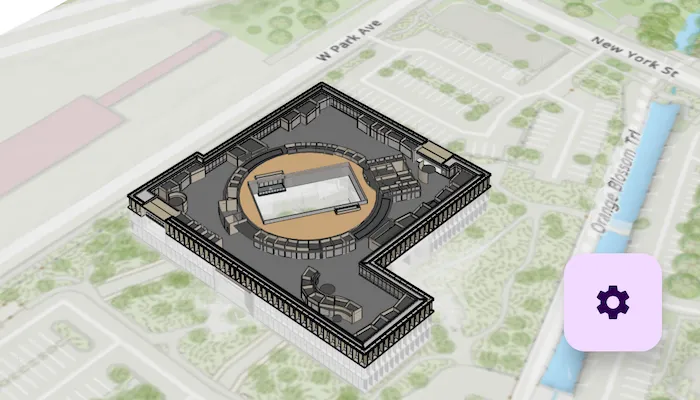
Explore details of a building scene by using filters and sublayer visibility.
Use case
Buildings and their component parts (in this example, structural, electrical, or architectural) can be difficult to explain and visualize. An architectural firm might share a 3D building model visualization with clients and contractors to let them explore these components by floor and component type.
How to use the sample
In the filter controls, select floor and category options to filter what parts of the Building Scene Layer are displayed in the scene. Click on any of the building features to identify them.
How it works
- Create an
ArcGISScenewith the URL to a Building Scene Layer service. - Create a
LocalSceneViewand add the scene. - Retrieve the
BuildingSceneLayerfrom the scene’s operational layers. - Click the floating action button to view the filtering options.
- Select a floor from the “Floor” dropdown to view the internal details of each floor or “All” to view the entire model.
- Expand the categories to show or hide individual items in the building model. The entire category may be shown or hidden as well.
- Click on any of the building features to view the attributes of the feature.
Relevant API
- ArcGISScene
- BuildingComponentSublayer
- BuildingFilter
- BuildingFilterBlock
- BuildingSceneLayer
- LocalSceneView
- Popup
About the data
This sample uses the Esri Building E Local Scene web scene, which contains a Building Scene Layer representing Building E on the Esri Campus in Redlands, CA. The Revit BIM model was brought into ArcGIS using the BIM capabilities in ArcGIS Pro and published to the web as a Building Scene Layer.
Additional information
Buildings in a Building Scene Layer can be very complex models composed of sublayers containing internal and external features of the structure. Sublayers may include structural components like columns, architectural components like floors and windows, and electrical components.
Applying filters to the Building Scene Layer can highlight features of interest in the model. Filters are made up of filter blocks, which contain several properties that allow control over the filter’s function. Setting the filter mode to X-Ray, for instance, will render features with a semi-transparent white color so other interior features can be seen. In addition, toggling the visibility of sublayers can show or hide all the features of a sublayer.
This sample uses the Popup toolkit component. For information about setting up the toolkit, as well as code for the underlying component, visit the toolkit docs.
Tags
3D, building scene layer, layers, popup, toolkit
Sample code
/* Copyright 2025 Esri * * Licensed under the Apache License, Version 2.0 (the "License"); * you may not use this file except in compliance with the License. * You may obtain a copy of the License at * *    http://www.apache.org/licenses/LICENSE-2.0 * * Unless required by applicable law or agreed to in writing, software * distributed under the License is distributed on an "AS IS" BASIS, * WITHOUT WARRANTIES OR CONDITIONS OF ANY KIND, either express or implied. * See the License for the specific language governing permissions and * limitations under the License. * */
package com.esri.arcgismaps.sample.filterbuildingscenelayer.components
import android.app.Applicationimport androidx.compose.runtime.getValueimport androidx.compose.runtime.mutableStateOfimport androidx.compose.runtime.setValueimport androidx.lifecycle.AndroidViewModelimport androidx.lifecycle.viewModelScopeimport com.arcgismaps.mapping.ArcGISSceneimport com.arcgismaps.mapping.layers.BuildingSceneLayerimport com.arcgismaps.mapping.layers.buildingscene.BuildingComponentSublayerimport com.arcgismaps.mapping.layers.buildingscene.BuildingFilterimport com.arcgismaps.mapping.layers.buildingscene.BuildingFilterBlockimport com.arcgismaps.mapping.layers.buildingscene.BuildingGroupSublayerimport com.arcgismaps.mapping.layers.buildingscene.BuildingSolidFilterModeimport com.arcgismaps.mapping.layers.buildingscene.BuildingSublayerimport com.arcgismaps.mapping.layers.buildingscene.BuildingXrayFilterModeimport com.arcgismaps.mapping.popup.Popupimport com.arcgismaps.toolkit.popup.PopupStateimport com.esri.arcgismaps.sample.sampleslib.components.MessageDialogViewModelimport kotlinx.coroutines.flow.MutableStateFlowimport kotlinx.coroutines.flow.asStateFlowimport kotlinx.coroutines.launch
class FilterBuildingSceneLayerViewModel(app: Application) : AndroidViewModel(app) {    val scene = ArcGISScene("https://www.arcgis.com/home/item.html?id=b7c387d599a84a50aafaece5ca139d44")
    // State to control if a loading progress indicator is shown    private val _showLoadingDialog = MutableStateFlow(true)    val showLoadingDialog = _showLoadingDialog.asStateFlow()
    // Building scene layer that will be filtered. Set after the WebScene is loaded.    var buildingSceneLayer: BuildingSceneLayer? = null
    // The selected floor    var selectedFloor by mutableStateOf("All")
    // The list of available floors    val floors: MutableList<String> = mutableListOf(selectedFloor)
    // The list of building sublayer categories    val categories: MutableList<BuildingSublayer> = mutableListOf()
    // Create a message dialog view model for handling error messages    val messageDialogVM = MessageDialogViewModel()
    // Building scene layer sublayer that contains the currently selected feature    var sublayerWithSelection : BuildingComponentSublayer? = null
    // State that will contain a popup state for an identify result    private val _popupState = MutableStateFlow<PopupState?>(null)    val popupState = _popupState.asStateFlow()
    init {        viewModelScope.launch {            scene.load().onFailure {                messageDialogVM.showMessageDialog(it)                _showLoadingDialog.value = false            }.onSuccess {                _showLoadingDialog.value = false
                buildingSceneLayer =                    scene.operationalLayers.first { layer ->                        layer is BuildingSceneLayer                    } as BuildingSceneLayer
                buildingSceneLayer?.let { buildingSceneLayer ->                    // Get the floor listing from the statistics                    buildingSceneLayer.fetchStatistics().onSuccess { statistics ->                        statistics["BldgLevel"]?.mostFrequentValues?.let {                            floors.addAll(0, it.sorted())                        }
                        // The top-level sublayer groups will be the categories                        buildingSceneLayer.sublayers.find { sublayer ->                            sublayer.modelName == "FullModel"                        }?.let { buildingSublayer ->                            buildingSublayer as BuildingGroupSublayer                            categories.addAll(buildingSublayer.sublayers.sortedBy { it.name })                        }                    }                }            }        }    }
    /**     * Updates the building filters based on the selected floor     */    fun selectFloor(index: Int) {        selectedFloor = floors[index]
        buildingSceneLayer?.let { buildingSceneLayer ->            if (selectedFloor == "All") {                // No filtering applied if 'All' floors are selected                buildingSceneLayer.activeFilter = null                return            }            // Build a building filter to show the selected floor and a xray view of the floors below.            // Floors above the selected floor are not shown at all.            val buildingFilter = BuildingFilter(                name = "Floor filter",                description = "Show selected floor and xray filter for lower floors.",                listOf(                    BuildingFilterBlock(                        title = "solid block",                        whereClause = "BldgLevel = $selectedFloor",                        mode = BuildingSolidFilterMode()                    ),                    BuildingFilterBlock(                        title = "x ray block",                        whereClause = "BldgLevel < $selectedFloor",                        mode = BuildingXrayFilterMode()                    )                )            )            buildingSceneLayer.activeFilter = buildingFilter        }    }
    /**     * Creates a popup state to display identify result     */    fun createPopupState(popup: Popup) {        _popupState.value = PopupState(popup = popup, scope = viewModelScope)    }
    /**     * Dismisses an identify result     */    fun dismissPopup() {        _popupState.value = null    }}
/* Copyright 2025 Esri * * Licensed under the Apache License, Version 2.0 (the "License"); * you may not use this file except in compliance with the License. * You may obtain a copy of the License at * * http://www.apache.org/licenses/LICENSE-2.0 * * Unless required by applicable law or agreed to in writing, software * distributed under the License is distributed on an "AS IS" BASIS, * WITHOUT WARRANTIES OR CONDITIONS OF ANY KIND, either express or implied. * See the License for the specific language governing permissions and * limitations under the License. * */
package com.esri.arcgismaps.sample.filterbuildingscenelayer
import android.os.Bundleimport androidx.activity.ComponentActivityimport androidx.activity.enableEdgeToEdgeimport androidx.activity.compose.setContentimport androidx.compose.material3.MaterialThemeimport androidx.compose.material3.Surfaceimport androidx.compose.runtime.Composableimport com.arcgismaps.ArcGISEnvironmentimport com.esri.arcgismaps.sample.filterbuildingscenelayer.screens.FilterBuildingSceneLayerScreenimport com.esri.arcgismaps.sample.sampleslib.theme.SampleAppTheme
class MainActivity : ComponentActivity() {
override fun onCreate(savedInstanceState: Bundle?) { super.onCreate(savedInstanceState) ArcGISEnvironment.applicationContext = this
enableEdgeToEdge() setContent { SampleAppTheme { FilterBuildingSceneLayerApp() } } }
@Composable private fun FilterBuildingSceneLayerApp() { Surface(color = MaterialTheme.colorScheme.background) { FilterBuildingSceneLayerScreen( sampleName = getString(R.string.filter_building_scene_layer_app_name) ) } }}/* Copyright 2025 Esri * * Licensed under the Apache License, Version 2.0 (the "License"); * you may not use this file except in compliance with the License. * You may obtain a copy of the License at * * http://www.apache.org/licenses/LICENSE-2.0 * * Unless required by applicable law or agreed to in writing, software * distributed under the License is distributed on an "AS IS" BASIS, * WITHOUT WARRANTIES OR CONDITIONS OF ANY KIND, either express or implied. * See the License for the specific language governing permissions and * limitations under the License. * */
package com.esri.arcgismaps.sample.filterbuildingscenelayer.screens
import androidx.compose.foundation.layout.Columnimport androidx.compose.foundation.layout.Rowimport androidx.compose.foundation.layout.Spacerimport androidx.compose.foundation.layout.fillMaxHeightimport androidx.compose.foundation.layout.fillMaxSizeimport androidx.compose.foundation.layout.paddingimport androidx.compose.foundation.layout.wrapContentSizeimport androidx.compose.material.icons.Iconsimport androidx.compose.material.icons.filled.ArrowDropDownimport androidx.compose.material.icons.filled.ArrowDropUpimport androidx.compose.material.icons.filled.Settingsimport androidx.compose.material3.Checkboximport androidx.compose.material3.ExperimentalMaterial3Apiimport androidx.compose.material3.FloatingActionButtonimport androidx.compose.material3.HorizontalDividerimport androidx.compose.material3.Iconimport androidx.compose.material3.IconButtonimport androidx.compose.material3.ModalBottomSheetimport androidx.compose.material3.Scaffoldimport androidx.compose.material3.Textimport androidx.compose.material3.rememberModalBottomSheetStateimport androidx.compose.runtime.Composableimport androidx.compose.runtime.getValueimport androidx.compose.runtime.mutableStateOfimport androidx.compose.runtime.rememberimport androidx.compose.runtime.rememberCoroutineScopeimport androidx.compose.runtime.setValueimport androidx.compose.ui.Alignmentimport androidx.compose.ui.Modifierimport androidx.compose.ui.unit.dpimport androidx.lifecycle.compose.collectAsStateWithLifecycleimport androidx.lifecycle.viewmodel.compose.viewModelimport com.arcgismaps.data.Featureimport com.arcgismaps.mapping.layers.buildingscene.BuildingComponentSublayerimport com.arcgismaps.mapping.layers.buildingscene.BuildingGroupSublayerimport com.arcgismaps.toolkit.geoviewcompose.LocalSceneViewimport com.arcgismaps.toolkit.geoviewcompose.LocalSceneViewProxyimport com.arcgismaps.toolkit.popup.Popupimport com.esri.arcgismaps.sample.filterbuildingscenelayer.components.FilterBuildingSceneLayerViewModelimport com.esri.arcgismaps.sample.sampleslib.components.BottomSheetimport com.esri.arcgismaps.sample.sampleslib.components.DropDownMenuBoximport com.esri.arcgismaps.sample.sampleslib.components.LoadingDialogimport com.esri.arcgismaps.sample.sampleslib.components.MessageDialogimport com.esri.arcgismaps.sample.sampleslib.components.SampleTopAppBarimport kotlinx.coroutines.delayimport kotlinx.coroutines.launchimport kotlin.time.Duration.Companion.milliseconds
/** * Main screen layout for the sample app */@OptIn(ExperimentalMaterial3Api::class)@Composablefun FilterBuildingSceneLayerScreen(sampleName: String) { val viewModel: FilterBuildingSceneLayerViewModel = viewModel()
var isBottomSheetVisible by remember { mutableStateOf(false) }
val sheetState = rememberModalBottomSheetState()
var showIdentifyProgress by remember { mutableStateOf(false)}
val localSceneViewProxy = remember { LocalSceneViewProxy() }
val coroutineScope = rememberCoroutineScope()
val showLoadingDialog by viewModel.showLoadingDialog.collectAsStateWithLifecycle()
val popupState by viewModel.popupState.collectAsStateWithLifecycle()
Scaffold( topBar = { SampleTopAppBar(title = sampleName) }, floatingActionButton = { if (!isBottomSheetVisible) { FloatingActionButton( modifier = Modifier.padding(bottom = 36.dp, end = 12.dp), onClick = { isBottomSheetVisible = true } ) { Icon(Icons.Filled.Settings, contentDescription = "Show options") } } }, content = { // display a progress dialog to indicate the map loading status if (showLoadingDialog) { LoadingDialog(loadingMessage = "Loading layer...") }
// display a progress dialog when an identify is take longer than expected if (showIdentifyProgress) { LoadingDialog("Identifying...") }
Column( modifier = Modifier .fillMaxSize() .padding(it), ) { LocalSceneView( modifier = Modifier .fillMaxSize() .weight(1f), scene = viewModel.scene, localSceneViewProxy = localSceneViewProxy, onSingleTapConfirmed = { singleTapConfirmedEvent -> coroutineScope.launch { viewModel.sublayerWithSelection?.clearSelection()
// only show identify progress if it has been more than one second val identifyInProgress = coroutineScope.launch { delay(1000.milliseconds) showIdentifyProgress = true }
localSceneViewProxy.identify( layer = viewModel.buildingSceneLayer!!, screenCoordinate = singleTapConfirmedEvent.screenCoordinate, tolerance = 12.dp, returnPopupsOnly = false, maximumResults = 1 ).onSuccess { identifyLayerResult -> identifyInProgress.cancel() showIdentifyProgress = false
val results = identifyLayerResult.sublayerResults
if (results.isNotEmpty()) { val element = results.first().geoElements.first() val popup = com.arcgismaps.mapping.popup.Popup(element) viewModel.createPopupState(popup)
val sublayer = results.first().layerContent as BuildingComponentSublayer sublayer.selectFeature(element as Feature) viewModel.sublayerWithSelection = sublayer } }.onFailure { throwable -> identifyInProgress.cancel() showIdentifyProgress = false
viewModel.messageDialogVM.showMessageDialog(throwable) } } }, onCriticalErrorChanged = viewModel.messageDialogVM::showMessageDialog ) }
BottomSheet( isVisible = isBottomSheetVisible, sheetTitle = "Settings", onDismissRequest = { isBottomSheetVisible = false }, ) { Column(modifier = Modifier .fillMaxHeight(0.4f), horizontalAlignment = Alignment.CenterHorizontally ) { FloorSelector() HorizontalDivider() CategorySelector() } }
popupState?.let { popupState -> ModalBottomSheet(modifier = Modifier.wrapContentSize(), onDismissRequest = viewModel::dismissPopup, sheetState = sheetState) { Popup( popupState = popupState, onDismiss = viewModel::dismissPopup, modifier = Modifier.fillMaxSize() ) } }
viewModel.messageDialogVM.apply { if (dialogStatus) { MessageDialog( title = messageTitle, description = messageDescription, onDismissRequest = ::dismissDialog ) } } } )}
/** * A menu to select floors */@Composablefun FloorSelector() { val viewModel: FilterBuildingSceneLayerViewModel = viewModel()
DropDownMenuBox( textFieldValue = viewModel.selectedFloor, textFieldLabel = "Floor", dropDownItemList = viewModel.floors, onIndexSelected = viewModel::selectFloor )}
/** * Check boxes to select building categories and sub-categories */@Composablefun CategorySelector() { val viewModel: FilterBuildingSceneLayerViewModel = viewModel()
Column( horizontalAlignment = Alignment.CenterHorizontally ) { Text(text = "Categories:", modifier = Modifier.padding(8.dp))
Column { viewModel.categories.forEach { buildingSublayer -> var categoryChecked by remember { mutableStateOf(buildingSublayer.isVisible) } var showSubCategories by remember { mutableStateOf(false) }
Row(verticalAlignment = Alignment.CenterVertically) { Text(text = buildingSublayer.name, modifier = Modifier.padding(8.dp)) Spacer(modifier = Modifier.weight(1f)) Checkbox(checked = categoryChecked, onCheckedChange = { categoryChecked = it buildingSublayer.isVisible = categoryChecked }) IconButton( onClick = { showSubCategories = !showSubCategories } ) { Icon( imageVector = when { showSubCategories -> Icons.Default.ArrowDropUp else -> Icons.Default.ArrowDropDown }, contentDescription = "Show sub-categories", modifier = Modifier ) } } if (showSubCategories) { remember { val buildingGroupSublayer = buildingSublayer as BuildingGroupSublayer buildingGroupSublayer.sublayers.sortedBy { it.name } }.forEach { var subCategoryChecked by remember { mutableStateOf(it.isVisible) } Row(verticalAlignment = Alignment.CenterVertically) { Text(text = it.name, modifier = Modifier.padding(8.dp)) Spacer(modifier = Modifier.weight(1f)) Checkbox(checked = subCategoryChecked, onCheckedChange = { isChecked -> subCategoryChecked = isChecked it.isVisible = isChecked }) } } } HorizontalDivider() } } }}