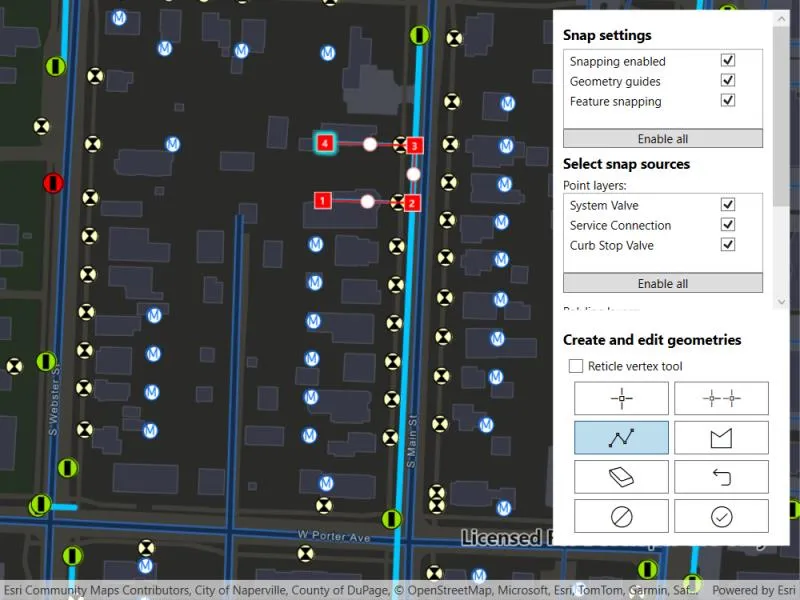
Use the Geometry Editor to edit a geometry and align it to existing geometries on a map.
Use case
A field worker can create new features by editing and snapping the vertices of a geometry to existing features on a map. In a water distribution network, service line features can be represented with the polyline geometry type. By snapping the vertices of a proposed service line to existing features in the network, an exact footprint can be identified to show the path of the service line and what features in the network it connects to. The feature layer containing the service lines can then be accurately modified to include the proposed line.
How to use the sample
To create a geometry, press the create button to choose the geometry type you want to create (i.e. points, multipoints, polyline, or polygon) and interactively tap and drag on the map view to create the geometry.
Snap settings can be configured by enabling and disabling snapping, feature snapping, geometry guides and snap sources.
To interactively snap a vertex to a feature or graphic, ensure that snapping is enabled for the relevant snap source and move the mouse pointer or drag a vertex to nearby an existing feature or graphic. When the pointer is close to that existing geoelement, the edit position will be adjusted to coincide with (or snap to), edges and vertices of its geometry. Click or release the touch pointer to place the vertex at the snapped location.
To edit a geometry, tap the geometry to be edited in the map to select it and then edit the geometry by tapping and dragging its vertices and snapping them to nearby features or graphics.
To undo changes made to the geometry, press the undo button.
To delete a geometry or a vertex, tap the geometry or vertex to select it and then press the delete button.
To save your edits, press the save button.
How it works
- Create a
Mapfrom theURLand connect it to theMapView. - Set the map’s
LoadSettings.FeatureTilingModetoEnabledWithFullResolutionWhenSupported. - Create a
GeometryEditorand connect it to the map view. - Call
SyncSourceSettingsafter the map’s operational layers are loaded and the geometry editor has connected to the map view. - Set
SnapSettings.IsEnabledandSnapSourceSettings.IsEnabledto true for theSnapSourceof interest. - Toggle geometry guides using
SnapSettings.IsGeometryGuidesEnabledand feature snapping usingSnapSettings.IsFeatureSnappingEnabled. - Start the geometry editor with a
GeometryType.
Relevant API
- FeatureLayer
- Geometry
- GeometryEditor
- GeometryEditorStyle
- GraphicsOverlay
- MapView
- SnapSettings
- SnapSource
- SnapSourceSettings
About the data
The Naperville water distribution network is based on ArcGIS Solutions for Water Utilities and provides a realistic depiction of a theoretical stormwater network.
Additional information
Snapping is used to maintain data integrity between different sources of data when editing, so it is important that each SnapSource provides full resolution geometries to be valid for snapping. This means that some of the default optimizations used to improve the efficiency of data transfer and display of polygon and polyline layers based on feature services are not appropriate for use with snapping.
To snap to polygon and polyline layers, the recommended approach is to set the FeatureLayer’s feature tiling mode to FeatureTilingMode.EnabledWithFullResolutionWhenSupported and use the default ServiceFeatureTable feature request mode FeatureRequestMode.OnInteractionCache. Local data sources, such as geodatabases, always provide full resolution geometries. Point and multipoint feature layers are also always full resolution.
Snapping can be used during interactive edits that move existing vertices using the VertexTool or ReticleVertexTool. It is also supported for adding new vertices for input devices with a hover event (such as a mouse move without a mouse button press). Using the ReticleVertexTool to add and move vertices allows users of touch screen devices to clearly see the visual cues for snapping.
Geometry guides are enabled by default when snapping is enabled. These allow for snapping to a point coinciding with, parallel to, perpendicular to or extending an existing geometry.
On supported platforms haptic feedback on SnapState.SnappedToFeature and SnapState.SnappedToGeometryGuide is enabled by default when snapping is enabled. Custom haptic feedback can be configured by setting SnapSettings.IsHapticFeedbackEnabled to false and listening to GeometryEditor.SnapChanged events to provide specific feedback depending on the SnapState.
When using SubtypeFeatureLayer objects as snap sources instead of FeatureLayer, child SubtypeSublayer objects are included as snap sources in the parent SnapSourceSettings.ChildSnapSources collection in the same order as the SubtypeFeatureLayer.SubtypeSublayers collection.
Tags
edit, feature, geometry editor, graphics, layers, map, snapping
Sample code
// Copyright 2024 Esri.//// Licensed under the Apache License, Version 2.0 (the "License"); you may not use this file except in compliance with the License.// You may obtain a copy of the License at: http://www.apache.org/licenses/LICENSE-2.0//// Unless required by applicable law or agreed to in writing, software distributed under the License is distributed on an// "AS IS" BASIS, WITHOUT WARRANTIES OR CONDITIONS OF ANY KIND, either express or implied. See the License for the specific// language governing permissions and limitations under the License.
using Esri.ArcGISRuntime.Data;using Esri.ArcGISRuntime.Geometry;using Esri.ArcGISRuntime.Mapping;using Esri.ArcGISRuntime.UI;using Esri.ArcGISRuntime.UI.Controls;using Esri.ArcGISRuntime.UI.Editing;using System;using System.Collections.Generic;using System.ComponentModel;using System.Linq;using System.Runtime.CompilerServices;using System.Threading.Tasks;using System.Windows;using System.Windows.Controls.Primitives;
namespace ArcGIS.WPF.Samples.SnapGeometryEdits{    [ArcGIS.Samples.Shared.Attributes.Sample(        name: "Snap geometry edits",        category: "Geometry",        description: "Use the Geometry Editor to edit a geometry and align it to existing geometries on a map.",        instructions: "To create a geometry, press the create button to choose the geometry type you want to create (i.e. points, multipoints, polyline, or polygon) and interactively tap and drag on the map view to create the geometry.",        tags: new[] { "edit", "feature", "geometry editor", "graphics", "layers", "map", "snapping" })]    public partial class SnapGeometryEdits    {        // Hold references for use in event handlers.        private GeometryEditor _geometryEditor;        private GraphicsOverlay _graphicsOverlay;        private Graphic _selectedGraphic;        private List<ToggleButton> _geometryEditorToolButtons;
        public SnapGeometryEdits()        {            InitializeComponent();            _ = Initialize();        }
        private async Task Initialize()        {            // Create a map using a Uri.            var myMap = new Map(new Uri("https://www.arcgis.com/home/item.html?id=b95fe18073bc4f7788f0375af2bb445e"));
            // Set the map load setting feature tiling mode.            // Enabled with full resolution when supported is used to ensure that snapping to geometries occurs in full resolution.            // Snapping in full resolution improves snapping accuracy.            myMap.LoadSettings.FeatureTilingMode = FeatureTilingMode.EnabledWithFullResolutionWhenSupported;
            // Set the initial viewpoint.            myMap.InitialViewpoint = new Viewpoint(new MapPoint(-9812798, 5126406, SpatialReferences.WebMercator), 2000);
            // Create a graphics overlay and add it to the map view.            _graphicsOverlay = new GraphicsOverlay();            MyMapView.GraphicsOverlays.Add(_graphicsOverlay);
            // Add the map to the map view.            MyMapView.Map = myMap;
            // Create and add a geometry editor to the map view.            _geometryEditor = new GeometryEditor();            MyMapView.GeometryEditor = _geometryEditor;
            // Load the map.            await myMap.LoadAsync();
            // Ensure all layers are loaded before setting the snap settings.            // If this is not awaited there is a risk that operational layers may not have loaded and therefore would not have been included in the snap sources.            await Task.WhenAll(MyMapView.Map.OperationalLayers.ToList().Select(layer => layer.LoadAsync()).ToList());
            // Set the snap source settings.            SetSnapSettings();
            // Show the UI.            SnappingControls.Visibility = Visibility.Visible;
            // Store a reference to the geometry editor tool buttons to update their background color when selected.            _geometryEditorToolButtons = new List<ToggleButton>()            {                PointButton,                PolylineButton,                PolygonButton,                MultipointButton            };
            // Add an event handler to detect geoview tapped events.            MyMapView.GeoViewTapped += MyMapView_GeoViewTapped;        }
        private void SetSnapSettings()        {            // Synchronize the snap source collection with the map's operational layers.            // Note that layers that have not been loaded will not synchronize.            _geometryEditor.SnapSettings.SyncSourceSettings();
            // Enable snapping on the geometry layer.            _geometryEditor.SnapSettings.IsEnabled = true;
            // Create a list of snap source settings with snapping disabled.            List<SnapSourceSettingsVM> snapSourceSettingsVMs = _geometryEditor.SnapSettings.SourceSettings.Select(sourceSettings => new SnapSourceSettingsVM(sourceSettings) { IsEnabled = false }).ToList();
            // Populate lists of snap source settings for point and polyline layers.            PointSnapSettingsList.ItemsSource = snapSourceSettingsVMs.Where(snapSourceSettingVM => snapSourceSettingVM.GeometryType == GeometryType.Point).ToList();            PolylineSnapSettingsList.ItemsSource = snapSourceSettingsVMs.Where(snapSourceSettingVM => snapSourceSettingVM.GeometryType == GeometryType.Polyline).ToList();
            // Populate a list of snap source settings for graphics overlays.            GraphicsOverlaySnapSettingsList.ItemsSource = snapSourceSettingsVMs.Where(snapSourceSettingsVM => snapSourceSettingsVM.SnapSourceSettings.Source is GraphicsOverlay).ToList();        }
        private void CreateNewGraphic()        {            // Get the new geometry from the geometry editor.            Geometry geometry = _geometryEditor.Stop();
            // Create a graphic.            var graphic = new Graphic(geometry);
            // Create a geometry editor style to get symbols for the new graphic.            var geometryEditorStyle = new GeometryEditorStyle();
            switch (geometry.GeometryType)            {                case GeometryType.Point:                    graphic.Symbol = geometryEditorStyle.VertexSymbol;                    break;                case GeometryType.Envelope:                    graphic.Symbol = geometryEditorStyle.LineSymbol;                    break;                case GeometryType.Polyline:                    graphic.Symbol = geometryEditorStyle.LineSymbol;                    break;                case GeometryType.Polygon:                    graphic.Symbol = geometryEditorStyle.FillSymbol;                    break;                case GeometryType.Multipoint:                    graphic.Symbol = geometryEditorStyle.VertexSymbol;                    break;            }
            // Add the graphic to the GraphicsOverlay and unselect it.            _graphicsOverlay.Graphics.Add(graphic);            graphic.IsSelected = false;        }
        private async void MyMapView_GeoViewTapped(object sender, GeoViewInputEventArgs e)        {            // If the geometry editor is active then stop.            if (_geometryEditor.IsStarted) return;
            try            {                // Get the list of identified graphics overlay results based on tap position.                IReadOnlyList<IdentifyGraphicsOverlayResult> results = await MyMapView.IdentifyGraphicsOverlaysAsync(e.Position, 10, false);
                // If a graphics overlay result has been tapped and contains a corresponding graphic,                // set the selected graphic and start the geometry editor.                if (results.Any() && results[0].Graphics.Any())                {                    _selectedGraphic = results[0].Graphics[0];                    _selectedGraphic.IsSelected = true;                }                else                {                    // No results have been found, update the selected graphic.                    _selectedGraphic = null;                }            }            catch (Exception ex)            {                MessageBox.Show(ex.Message);
                // Reset the UI.                ResetFromEditingSession();                return;            }
            if (_selectedGraphic == null) return;
            // Hide the selected graphic and start an editing session with a copy of it.            _geometryEditor.Start(_selectedGraphic.Geometry);            _selectedGraphic.IsVisible = false;        }
        // Reset the UI after the editor stops.        private void ResetFromEditingSession()        {            // Reset the selected graphic.            if (_selectedGraphic != null)            {                _selectedGraphic.IsSelected = false;                _selectedGraphic.IsVisible = true;            }
            foreach (var toggleButton in _geometryEditorToolButtons)            {                toggleButton.IsChecked = false;            }
            _selectedGraphic = null;        }
        #region Enable Snapping Button Handlers        // Enable all snap settings.        private void EnableAllSnapSettingsButton_Click(object sender, RoutedEventArgs e)        {            _geometryEditor.SnapSettings.IsEnabled = true;            _geometryEditor.SnapSettings.IsGeometryGuidesEnabled = true;            _geometryEditor.SnapSettings.IsFeatureSnappingEnabled = true;        }
        // Enable all point layer snap sources.        private void EnableAllPointSnapSourceButton_Click(object sender, RoutedEventArgs e)        {            foreach (var item in PointSnapSettingsList.ItemsSource)            {                if (item is SnapSourceSettingsVM snapSourceSettingsVM)                {                    snapSourceSettingsVM.IsEnabled = true;                }            }        }
        // Enable all polyline layer snap sources.        private void EnableAllPolylineSnapSourceButton_Click(object sender, RoutedEventArgs e)        {            foreach (var item in PolylineSnapSettingsList.ItemsSource)            {                if (item is SnapSourceSettingsVM snapSourceSettingsVM)                {                    snapSourceSettingsVM.IsEnabled = true;                }            }        }        #endregion
        #region Geometry Management Button Handlers        private void DeleteButton_Click(object sender, RoutedEventArgs e)        {            _geometryEditor.DeleteSelectedElement();        }
        private void UndoButton_Click(object sender, RoutedEventArgs e)        {            _geometryEditor.Undo();        }
        private void SaveButton_Click(object sender, RoutedEventArgs e)        {            if (_selectedGraphic?.Geometry != null)            {                _selectedGraphic.Geometry = _geometryEditor.Stop();                _selectedGraphic.IsSelected = false;            }            else if (_geometryEditor.IsStarted)            {                CreateNewGraphic();            }
            ResetFromEditingSession();        }
        private void DiscardButton_Click(object sender, RoutedEventArgs e)        {            _geometryEditor.Stop();
            ResetFromEditingSession();        }        #endregion
        #region Geometry Tool Buttons Handlers        private void ReticleVertexToolCheckBox_CheckedChanged(object sender, RoutedEventArgs e)        {            if (ReticleVertexToolCheckBox.IsChecked == true)            {                _geometryEditor.Tool = new ReticleVertexTool();            }            else            {                _geometryEditor.Tool = new VertexTool();            }        }
        private void PointButton_Click(object sender, RoutedEventArgs e)        {            if (_geometryEditor.IsStarted)            {                _geometryEditor.Stop();            }
            ResetFromEditingSession();
            PointButton.IsChecked = true;            _geometryEditor.Start(GeometryType.Point);        }
        private void MultipointButton_Click(object sender, RoutedEventArgs e)        {            if (_geometryEditor.IsStarted)            {                _geometryEditor.Stop();            }
            ResetFromEditingSession();
            MultipointButton.IsChecked = true;            _geometryEditor.Start(GeometryType.Multipoint);        }        private void PolylineButton_Click(object sender, RoutedEventArgs e)        {            if (_geometryEditor.IsStarted)            {                _geometryEditor.Stop();            }
            ResetFromEditingSession();
            PolylineButton.IsChecked = true;            _geometryEditor.Start(GeometryType.Polyline);        }        private void PolygonButton_Click(object sender, RoutedEventArgs e)        {            if (_geometryEditor.IsStarted)            {                _geometryEditor.Stop();            }
            ResetFromEditingSession();
            PolygonButton.IsChecked = true;            _geometryEditor.Start(GeometryType.Polygon);        }        #endregion    }
    public class SnapSourceSettingsVM : INotifyPropertyChanged    {        public SnapSourceSettings SnapSourceSettings { get; set; }
        // Wrap the snap source settings in a view model to expose them to the UI.        public SnapSourceSettingsVM(SnapSourceSettings snapSourceSettings)        {            SnapSourceSettings = snapSourceSettings;
            if (snapSourceSettings.Source is FeatureLayer featureLayer)            {                Name = featureLayer.Name;
                if (featureLayer.FeatureTable != null)                {                    GeometryType = featureLayer.FeatureTable.GeometryType;                }            }            else if (snapSourceSettings.Source is GraphicsOverlay)            {                Name = "Editor graphics overlay";            }
            IsEnabled = snapSourceSettings.IsEnabled;        }
        private string _name;        public string Name        {            get            {                return _name;            }            set            {                _name = value;                OnPropertyChanged();            }        }
        private bool _isEnabled;        public bool IsEnabled        {            get            {                return _isEnabled;            }            set            {                _isEnabled = value;                SnapSourceSettings.IsEnabled = value;                OnPropertyChanged();            }        }
        public GeometryType GeometryType { get; set; }
        public event PropertyChangedEventHandler PropertyChanged;
protected virtual void OnPropertyChanged([CallerMemberName] string propertyName = null) { var handler = PropertyChanged; if (handler != null) handler(this, new PropertyChangedEventArgs(propertyName)); } }}<UserControl x:Class="ArcGIS.WPF.Samples.SnapGeometryEdits.SnapGeometryEdits" xmlns="http://schemas.microsoft.com/winfx/2006/xaml/presentation" xmlns:x="http://schemas.microsoft.com/winfx/2006/xaml" xmlns:esri="http://schemas.esri.com/arcgis/runtime/2013"> <UserControl.Resources> <DataTemplate x:Key="SnapSettingTemplate"> <Grid> <Grid.ColumnDefinitions> <ColumnDefinition Width="auto" /> <ColumnDefinition Width="*" /> </Grid.ColumnDefinitions> <TextBlock Grid.Column="0" Width="150" Text="{Binding Path=Name}" /> <CheckBox Grid.Column="1" IsChecked="{Binding Path=IsEnabled}" /> </Grid> </DataTemplate> <Style x:Key="ButtonIconStyle" TargetType="Button"> <Style.Setters> <Setter Property="FontFamily" Value="{StaticResource CalciteUIIconsMediumFontFamily}" /> <Setter Property="FontSize" Value="24" /> <Setter Property="Background" Value="White" /> <Setter Property="HorizontalAlignment" Value="Stretch" /> <Setter Property="Padding" Value="3" /> <Setter Property="Margin" Value="3" /> </Style.Setters> <Style.Triggers> <Trigger Property="IsEnabled" Value="False"> <Setter Property="Opacity" Value="0.8" /> </Trigger> </Style.Triggers> </Style> <Style x:Key="ToggleButtonIconStyle" TargetType="ToggleButton"> <Style.Setters> <Setter Property="FontFamily" Value="{StaticResource CalciteUIIconsMediumFontFamily}" /> <Setter Property="FontSize" Value="24" /> <Setter Property="Background" Value="White" /> <Setter Property="HorizontalAlignment" Value="Stretch" /> <Setter Property="Padding" Value="3" /> <Setter Property="Margin" Value="3" /> </Style.Setters> <Style.Triggers> <Trigger Property="IsEnabled" Value="False"> <Setter Property="Opacity" Value="0.8" /> </Trigger> </Style.Triggers> </Style> </UserControl.Resources> <Grid> <esri:MapView x:Name="MyMapView" /> <Border x:Name="SnappingControls" Margin="10" HorizontalAlignment="Right" VerticalAlignment="Top" Background="White" Visibility="Collapsed"> <Grid> <Grid.RowDefinitions> <RowDefinition Height="auto" /> <RowDefinition Height="*" /> </Grid.RowDefinitions> <ScrollViewer Grid.Row="0" Height="325"> <StackPanel Margin="10" Orientation="Vertical"> <TextBlock Padding="0,5" FontSize="14" FontWeight="Bold" Text="Snap settings" /> <ListView> <Grid> <Grid.ColumnDefinitions> <ColumnDefinition Width="auto" /> <ColumnDefinition Width="*" /> </Grid.ColumnDefinitions> <TextBlock Grid.Column="0" Width="150" Text="Snapping enabled" /> <CheckBox Grid.Column="1" IsChecked="{Binding GeometryEditor.SnapSettings.IsEnabled, ElementName=MyMapView}" /> </Grid> <Grid> <Grid.ColumnDefinitions> <ColumnDefinition Width="auto" /> <ColumnDefinition Width="*" /> </Grid.ColumnDefinitions> <TextBlock Grid.Column="0" Width="150" Text="Geometry guides" /> <CheckBox Grid.Column="1" IsChecked="{Binding GeometryEditor.SnapSettings.IsGeometryGuidesEnabled, ElementName=MyMapView}" IsEnabled="{Binding GeometryEditor.SnapSettings.IsEnabled, ElementName=MyMapView}" /> </Grid> <Grid> <Grid.ColumnDefinitions> <ColumnDefinition Width="auto" /> <ColumnDefinition Width="*" /> </Grid.ColumnDefinitions> <TextBlock Grid.Column="0" Width="150" Text="Feature snapping" /> <CheckBox Grid.Column="1" IsChecked="{Binding GeometryEditor.SnapSettings.IsFeatureSnappingEnabled, ElementName=MyMapView}" IsEnabled="{Binding GeometryEditor.SnapSettings.IsEnabled, ElementName=MyMapView}" /> </Grid> </ListView> <Button Click="EnableAllSnapSettingsButton_Click" Content="Enable all" /> <TextBlock Padding="0,5" FontSize="14" FontWeight="Bold" Text="Select snap sources" /> <TextBlock Text="Point layers:" /> <ListView x:Name="PointSnapSettingsList" ItemTemplate="{StaticResource SnapSettingTemplate}" /> <Button Click="EnableAllPointSnapSourceButton_Click" Content="Enable all" /> <TextBlock Margin="0,10,0,0" Text="Polyline layers:" /> <ListView x:Name="PolylineSnapSettingsList" ItemTemplate="{StaticResource SnapSettingTemplate}" /> <Button Click="EnableAllPolylineSnapSourceButton_Click" Content="Enable all" /> <TextBlock Margin="0,10,0,0" Text="Graphics overlays:" /> <ListView x:Name="GraphicsOverlaySnapSettingsList" Width="200" Height="30" BorderThickness="0" ItemTemplate="{StaticResource SnapSettingTemplate}" /> </StackPanel> </ScrollViewer> <StackPanel Grid.Row="1" Margin="10" Orientation="Vertical"> <TextBlock Padding="0,10,0,5" FontSize="14" FontWeight="Bold" Text="Create and edit geometries" /> <CheckBox x:Name="ReticleVertexToolCheckBox" Margin="5" Checked="ReticleVertexToolCheckBox_CheckedChanged" Content="Reticle vertex tool" Unchecked="ReticleVertexToolCheckBox_CheckedChanged" /> <Grid Width="200"> <Grid.ColumnDefinitions> <ColumnDefinition Width="100" /> <ColumnDefinition Width="100" /> </Grid.ColumnDefinitions> <Grid.RowDefinitions> <RowDefinition Height="auto" /> <RowDefinition Height="auto" /> <RowDefinition Height="auto" /> <RowDefinition Height="auto" /> </Grid.RowDefinitions> <ToggleButton x:Name="PointButton" Grid.Row="0" Grid.Column="0" Click="PointButton_Click" Style="{StaticResource ToggleButtonIconStyle}" ToolTipService.ToolTip="Point" Content="{StaticResource CalciteUIIcons_Glyph_Point}" /> <ToggleButton x:Name="MultipointButton" Grid.Row="0" Grid.Column="1" Click="MultipointButton_Click" FontSize="20" Style="{StaticResource ToggleButtonIconStyle}" ToolTipService.ToolTip="Multipoint" Content="" /> <ToggleButton x:Name="PolylineButton" Grid.Row="1" Grid.Column="0" Click="PolylineButton_Click" Style="{StaticResource ToggleButtonIconStyle}" ToolTipService.ToolTip="Polyline / no shape fill" Content="{StaticResource CalciteUIIcons_Glyph_Line}" /> <ToggleButton x:Name="PolygonButton" Grid.Row="1" Grid.Column="1" Click="PolygonButton_Click" Style="{StaticResource ToggleButtonIconStyle}" ToolTipService.ToolTip="Polygon / shape fill" Content="{StaticResource CalciteUIIcons_Glyph_PolygonVertices}" /> <Button Grid.Row="2" Grid.Column="0" HorizontalAlignment="Stretch" Click="DeleteButton_Click" IsEnabled="{Binding GeometryEditor.SelectedElement.CanDelete, ElementName=MyMapView, FallbackValue=False}" Style="{StaticResource ButtonIconStyle}" ToolTipService.ToolTip="Delete selected" Content="{StaticResource CalciteUIIcons_Glyph_Erase}" /> <Button Grid.Row="2" Grid.Column="1" Click="UndoButton_Click" IsEnabled="{Binding GeometryEditor.CanUndo, ElementName=MyMapView}" Style="{StaticResource ButtonIconStyle}" ToolTipService.ToolTip="Undo" Content="{StaticResource CalciteUIIcons_Glyph_Undo}" /> <Button Grid.Row="3" Grid.Column="0" Click="DiscardButton_Click" IsEnabled="{Binding GeometryEditor.IsStarted, ElementName=MyMapView}" Style="{StaticResource ButtonIconStyle}" ToolTipService.ToolTip="Discard edits" Content="{StaticResource CalciteUIIcons_Glyph_CircleDisallowed}" /> <Button Grid.Row="3" Grid.Column="1" Click="SaveButton_Click" IsEnabled="{Binding GeometryEditor.CanUndo, ElementName=MyMapView}" Style="{StaticResource ButtonIconStyle}" ToolTipService.ToolTip="Save edits" Content="{StaticResource CalciteUIIcons_Glyph_CheckCircle}" /> </Grid> </StackPanel> </Grid> </Border> </Grid></UserControl>