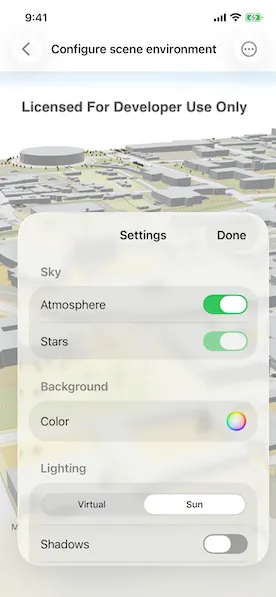
Configure the environment settings in a local scene to change the lighting conditions and background appearance.
Use case
The scene environment defines the appearance of the local scene. This includes sky and background color settings, whether objects in the local scene cast shadows, and if virtual lighting or simulated sunlight is used to light the scene.
For an exploration scenario, like a city planning app, a developer might decide to enable sun lighting and direct shadows so the user can see how buildings and trees cast shadows at a given date and time.
For an analytic scenario, like examining a building scene layer, the developer may choose to use a virtual light source with shadows disabled and a solid background color instead of the atmosphere.
How to use the sample
At start-up, you will see a local scene with a button at the bottom to open the scene environment controls. Adjusting the controls will change the scene’s environment, altering the presentation of the scene.
Sky and Background color settings
Toggling the “Stars” and “Atmosphere” buttons will enable or disable those features.
Selecting a color from the dropdown will set a solid color for the background color. Selecting a new background color will disable the stars and atmosphere so you can see the new color.
Some notes about the behavior of the sky and background:
- The atmosphere is rendered in front of the stars and the stars are rendered in front of the background color.
- Stars are not rendered when using virtual lighting.
- To fully see the background color, atmosphere and stars must be deactivated.
- The background color shows in the night sky if the atmosphere is enabled and the stars are disabled.
Lighting settings
The lighting buttons switch between sun lighting and virtual lighting. Switching to virtual lighting disables the “Stars” button since stars do not exist in a virtually lit scene. The time slider is also disabled under virtual lighting since time does not have an effect on the virtual light.
The “Shadows” button will enable or disable the rendering of shadows for 3d objects in the scene. Shadows are not rendered for surface terrain.
If sun lighting is active, the slider under the buttons will set the hour of the day ranging from 8AM to 10pm (22:00). Dragging the bar will change the position of the simulated sun causing changes to shading and direct shadows.
How it works
- Create a
Scenefrom an online resource and create aLocalSceneViewwith the new scene. The sample’s controls are updated to reflect the web scene’s initial environment. - Changes to the sky and background color settings will set values directly on the
SceneEnvironmentobject.atmosphereIsEnabledandstarsAreEnabledare Boolean properties indicating whether the atmosphere and star field are visible.- The color selected using the color picker is set to the
backgroundColor.
- Changes to the settings in the lighting controls manipulate the
SceneLightingobject in theSceneEnvironment.lightingproperty.- Switching between “Sun” and “Virtual” lighting assigns a new
SunLightingorVirtualLightingobject to the lighting property.- Sun lighting simulates the position of the sun based on a given date and time. This includes lighting conditions for day, twilight, and night.
- For virtual lighting, the light source is always on and is slightly offset from the camera. As the scene rotated or panned, the light source stays in the same position relative to the camera.
- The “Shadows” button sets the
directShadowsAreEnabledBoolean property on the lightning object. This toggles the shadows cast by objects in the scene. - If
SunLightingis active, manipulating the slider changes the seconds of thesimulatedDateproperty on the lighting object.VirtualLightingdoes not have a slider because the lighting is always the same regardless of time.
- Switching between “Sun” and “Virtual” lighting assigns a new
Relevant API
- LocalSceneView
- Scene
- SceneEnvironment
- SceneLighting
- SunLighting
- VirtualLighting
About the data
The WebM Open 3D Esri Local Scene used for this sample contains a clipped local scene consisting of a surface and 3D objects representing the buildings. The scene is located in Santa Fe, New Mexico, USA.
Tags
3D, environment, lighting, scene
Sample code
// Copyright 2026 Esri//// Licensed under the Apache License, Version 2.0 (the "License");// you may not use this file except in compliance with the License.// You may obtain a copy of the License at////   https://www.apache.org/licenses/LICENSE-2.0//// Unless required by applicable law or agreed to in writing, software// distributed under the License is distributed on an "AS IS" BASIS,// WITHOUT WARRANTIES OR CONDITIONS OF ANY KIND, either express or implied.// See the License for the specific language governing permissions and// limitations under the License.
import ArcGISimport SwiftUI
struct ConfigureSceneEnvironmentView: View {    /// A local scene with a scene layer in Santa Fe.    @State private var scene = Scene(url: URL(string: "https://www.arcgis.com/home/item.html?id=fcebd77958634ac3874bbc0e6b0677a4")!)!    /// The environment for the scene.    @State private var environment: SceneEnvironment?    /// A Boolean value indicating if the settings are visible or not.    @State private var settingsAreVisible = false
    var body: some View {        LocalSceneView(scene: scene)            .task {                try? await scene.load()                environment = scene.environment            }            .toolbar {                ToolbarItem(placement: .bottomBar) {                    if let environment {                        Button("Settings", systemImage: "gear") {                            settingsAreVisible = true                        }                        .popover(isPresented: $settingsAreVisible) { [environment] in                            EnvironmentSettingsView(environment: environment)                                .frame(idealWidth: 400, idealHeight: 500)                                .presentationCompactAdaptation(.popover)                        }                    } else {                        ProgressView()                    }                }            }    }}
private struct EnvironmentSettingsView: View {    /// The environment that backs the settings.    let environment: SceneEnvironment
    @Environment(\.dismiss) private var dismiss
    // Sky properties.
    /// A Boolean value that indicates if the atmosphere is enabled.    @State private var atmosphereIsEnabled = false    /// A Boolean value that indicates if stars are enabled.    @State private var starsAreEnabled = false
    // Background color properties.
    /// The background color for the environment.    @State private var backgroundColor: Color = .clear
    // Lighting properties.
    /// The lighting type that is selected in the picker.    @State private var lightingType: LightingType = .sun    /// A Boolean value that indicates if direct shadows are enabled.    @State private var directShadowsAreEnabled = false
    // Time slider properties.
    /// The simulated date for the sun lighting.    @State private var simulatedDate: Date = .now    /// The number seconds in the day that is driving the time slider.    @State private var dateSecond: TimeInterval = 0    /// The start of the day used for the time slider.    @State private var startOfDay: Date = .now
    var body: some View {        NavigationStack {            Form {                Section("Sky") {                    Toggle("Atmosphere", isOn: $atmosphereIsEnabled)                        .onChange(of: atmosphereIsEnabled) {                            environment.atmosphereIsEnabled = atmosphereIsEnabled                        }
                    if lightingType == .sun {                        Toggle("Stars", isOn: $starsAreEnabled)                            .onChange(of: starsAreEnabled) {                                environment.starsAreEnabled = starsAreEnabled                            }                            // The stars can't be seen without atmosphere disabled.                            // So we should only enable the stars toggle when                            // atmosphere is enabled.                            .disabled(atmosphereIsEnabled)                    }                }                Section("Background") {                    ColorPicker("Color", selection: $backgroundColor, supportsOpacity: false)                        .onChange(of: backgroundColor) {                            setBackgroundColor()                        }                }                Section("Lighting") {                    Picker("Lighting Type", selection: $lightingType.animation()) {                        ForEach(LightingType.allCases, id: \.self) { lightingType in                            Text(lightingType.label)                        }                    }                    .pickerStyle(.segmented)                    .onChange(of: lightingType) {                        environment.lighting = makeLighting(lightingType: lightingType)                    }
                    Toggle("Shadows", isOn: $directShadowsAreEnabled)                        .onChange(of: directShadowsAreEnabled) {                            environment.lighting.directShadowsAreEnabled = directShadowsAreEnabled                        }
                    // The time slider only applies to sun lighting                    // so we don't need to show it if virtual lighting                    // is selected.                    if lightingType == .sun {                        Slider(value: $dateSecond, in: .dateSecondValues) {                            Text("Time")                        } minimumValueLabel: {                            Image(systemName: "sun.max")                        } maximumValueLabel: {                            Image(systemName: "moon")                        }                        .symbolVariant(.fill)                        .onChange(of: dateSecond) {                            sliderValueChanged(toValue: dateSecond)                        }                        .onChange(of: simulatedDate) {                            (environment.lighting as! SunLighting).simulatedDate = simulatedDate                        }                    }                }            }            .onAppear {                // Update local properties with current environment values.                atmosphereIsEnabled = environment.atmosphereIsEnabled                starsAreEnabled = environment.starsAreEnabled                backgroundColor = Color(uiColor: environment.backgroundColor)
                let lighting = environment.lighting                directShadowsAreEnabled = environment.lighting.directShadowsAreEnabled
                if let sunLighting = lighting as? SunLighting {                    lightingType = .sun
                    // Calculate the seconds from the start of the                    // day to update the slider to the correct value.                    let simulatedDate = sunLighting.simulatedDate                    startOfDay = Calendar.current.startOfDay(for: simulatedDate)                    dateSecond = simulatedDate.timeIntervalSince(startOfDay)                } else {                    lightingType = .virtual                }            }            .navigationTitle("Settings")            .navigationBarTitleDisplayMode(.inline)            .toolbar {                ToolbarItem(placement: .confirmationAction) {                    Button("Done") { dismiss() }                }            }        }    }
    /// Sets the background color.    ///    /// We turn off the atmosphere and stars if the user sets the background color so they    /// can see it right away. The background color is rendered behind the atmosphere and stars    /// so we need to turn them both off to see the background color.    private func setBackgroundColor() {        guard backgroundColor != Color(uiColor: environment.backgroundColor) else {            return        }
        // Set the background color.        environment.backgroundColor = UIColor(backgroundColor)
        // We turn off the atmosphere and stars if the user explicitly set the        // background color so they can see the new background color they set.        atmosphereIsEnabled = false        starsAreEnabled = false    }
    private enum LightingType: CaseIterable {        case virtual        case sun
        var label: String {            switch self {            case .virtual: "Virtual"            case .sun: "Sun"            }        }    }
    private func makeLighting(lightingType: LightingType) -> SceneLighting {        switch lightingType {        case .virtual:            VirtualLighting(                directShadowsAreEnabled: directShadowsAreEnabled            )        case .sun:            SunLighting(                simulatedDate: simulatedDate,                directShadowsAreEnabled: directShadowsAreEnabled            )        }    }
    /// Handles the slider value changed event and sets the simulated date.    /// - Parameter value: The slider's value.    private func sliderValueChanged(toValue value: TimeInterval) {        let date = Calendar.current            .date(byAdding: .second, value: Int(value), to: startOfDay)!        simulatedDate = date    }}
private extension ClosedRange<TimeInterval> {    /// The range of possible date second values.    /// The range is 28,800 to 79,200 seconds in this example,    /// which means 8am to 10pm.    static var dateSecondValues: Self { 28_800...79_200 }}