Learn how to create and display a map
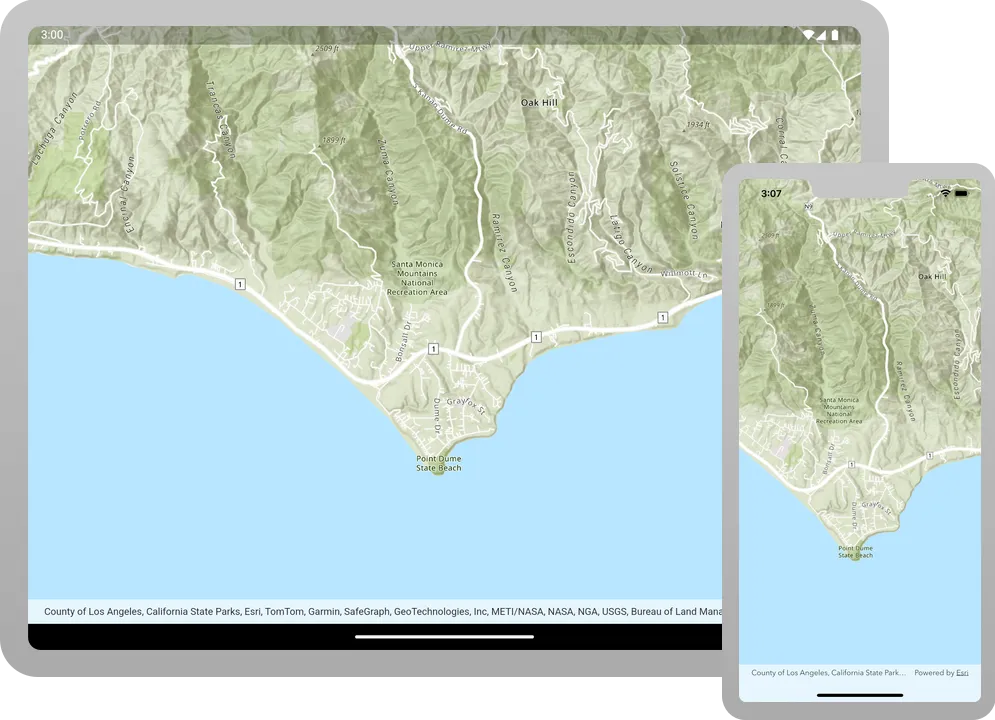
A map contains layers
In this tutorial, you create and display a map
The map and code will be used as the starting point for other 2D tutorials.
Prerequisites
Before starting this tutorial:
-
You need an ArcGIS Location Platform or ArcGIS Online account.
-
Your system meets the system requirements.
-
You need an IDE for Flutter - we recommend VS Code.
Set up authentication
To access the secure ArcGIS location services
Create a new API key access token
-
Complete the Create an API key tutorial and create an API key with the following privilege(s)
Privileges are a set of permissions assigned to ArcGIS accounts, developer credentials, and applications that grant access to secure resources and functionality in ArcGIS. :- Privileges
- Location services > Basemaps
- Privileges
-
Copy and paste the API key access token into a safe location. It will be used in a later step.
Develop or download
You have two options for completing this tutorial:
Option 1: Develop the code
Create a new Flutter app
-
Open VS Code, then select Open Folder… in the welcome tab. Choose your preferred project location.
-
Go to View > Terminal.
-
In the terminal window, use the following command to create a new Flutter app called display_a_map. Set your required target platform(s) and an org name, com.example.app.
flutter create -e display_a_map --platforms ios,android --org com.example.app
Add ArcGIS Maps SDK for Flutter
Add a dependency to the arcgis_maps package.
-
In VS Code’s terminal, change the directory to your new project:
cd display_a_map -
Run:
dart pub add arcgis_maps -
Run:
flutter pub upgrade -
Lastly, run:
dart run arcgis_maps install
Platform specific configuration
-
Update the minimum requirements by editing
android/app/build.gradle.ktsfile in your project:build.gradle.ktsandroid {namespace = "com.example.app.display_a_map"compileSdk = 36ndkVersion = "27.0.12077973"// ...defaultConfig {// TODO: Specify your own unique Application ID (https://developer.android.com/studio/build/application-id.html).applicationId = "com.example.app.display_a_map"// You can update the following values to match your application needs.// For more information, see: https://flutter.dev/to/review-gradle-config.minSdk = 28targetSdk = flutter.targetSdkVersionversionCode = flutter.versionCodeversionName = flutter.versionName}// ... -
Add a permission to
android/app/src/main/AndroidManifest.xmlto access online resources:AndroidManifest.xml<manifest xmlns:android="http://schemas.android.com/apk/res/android"><uses-permission android:name="android.permission.INTERNET" /><applicationandroid:label="display_a_map"android:name="${applicationName}"android:icon="@mipmap/ic_launcher"><!-- ... -->
-
Set iOS 17.0 minimum by editing the
ios/Podfilefile. Uncomment the line and update the version number.Podfile# Uncomment this line to define a global platform for your projectplatform :ios, '17.0' -
Add the
Runtimecoreandarcgis_maps_ffipods to theRunnertarget section.Podfiletarget 'Runner' douse_frameworks!pod 'Runtimecore', :podspec => '../arcgis_maps_core/ios/Runtimecore.podspec'pod 'arcgis_maps_ffi', :podspec => '../arcgis_maps_core/ios/arcgis_maps_ffi.podspec'flutter_install_all_ios_pods File.dirname(File.realpath(__FILE__))target 'RunnerTests' doinherit! :search_pathsendend -
Use
pod updateto configure Pods.cd ios && pod update && cd ..
Set developer credentials
To allow your app users to access ArcGIS location services
-
In VS Code, open
lib/main.dart. -
Import the
arcgis_mapspackage.main.dartimport 'package:flutter/material.dart';import 'package:arcgis_maps/arcgis_maps.dart'; -
In the
main()function, set theArcGISEnvironment.apiKeyvalue to your access tokenAn access token is an authorization string that provides access to secure ArcGIS content, data, and services. Its capabilities are determined by the privileges it supports. It is obtained by implementing API key authentication, User authentication, or App authentication. .main.dartvoid main() {ArcGISEnvironment.apiKey = 'YOUR_ACCESS_TOKEN';runApp(const MainApp());}Best Practice: The access token is stored directly in the code as a convenience for this tutorial. Do not store credentials directly in source code in a production environment.
-
Instantiate
MaterialAppinsiderunApp()and set the named argument,home, to an instance ofMainApp.main.dartvoid main() {ArcGISEnvironment.apiKey = 'YOUR_ACCESS_TOKEN';runApp(const MaterialApp(home: MainApp()));}
Add a map
Create a map
-
Refactor the template
MainAppclass definition to extendStatefulWidget. Hover your mouse over theStatelessWidgetkeyword, right-click, select Refactor…, and chose Convert to StatefulWidget to refactor your code.When working with the ArcGIS Maps SDK for Flutter, it is very common to require updates to application state, such as making updates to the UI in response to data changes. By implementing a stateful widget, your app is ready for this. It is also possible to simply display a map using a stateless widget implementation, see the Display map sample.
main.dartclass MainApp extends StatefulWidget {const MainApp({super.key});@overrideState<MainApp> createState() => _MainAppState();}class _MainAppState extends State<MainApp> {@overrideWidget build(BuildContext context) {return const MaterialApp(home: Scaffold(body: Center(child: Text('Hello World!'))),);}} -
Remove the
MaterialAppwidget that is returned within the build method of class_MainAppState. This code was generated by the Flutter create template and will be replaced with code to return a widget that contains a map next.main.dartclass _MainAppState extends State<MainApp> {@overrideWidget build(BuildContext context) {return const MaterialApp(home: Scaffold(body: Center(child: Text('Hello World!'))),);}} -
Inside
_MainAppStateclass define a final class member variable,_mapViewController, and initialize it withArcGISMapViewControllerby calling thecreateController()on theArcGISMapViewclass.The ArcGIS map view controller is a user interface control that displays two-dimensional (2D) geographic content defined by an
ArcGISMap.main.dartclass _MainAppState extends State<MainApp> {final _mapViewController = ArcGISMapView.createController();@overrideWidget build(BuildContext context) {}} -
Within the build method, add an widget to the widget tree consisting of
Scaffold,Column, andExpanded. Set the named argument,controllerProvider, to the class member variable_mapViewControllerand theonMapViewReadyargument to a new method with the same name as the argument that you will define next.The
Scaffoldwidget provides a basic material design visual layout structure, while theColumnwidget displays its children in a vertical array. TheArcGISMapViewwidget can only be used within a widget that has a bounded size. Using it with unbounded size will cause the application to throw an exception. For example, to use anArcGISMapViewwithin aColumnwidget, which would give it unbounded size, would produce such an exception. Instead, you could wrap theArcGISMapViewin anExpandedwidget to provide it proper bounds as illustrated in this step of the tutorial.main.dartclass _MainAppState extends State<MainApp> {final _mapViewController = ArcGISMapView.createController();@overrideWidget build(BuildContext context) {return Scaffold(body: Column(children: [Expanded(child: ArcGISMapView(controllerProvider: () => _mapViewController,onMapViewReady: onMapViewReady,),),],),);}} -
Within
_MainAppState, define a new method:onMapViewReady()that does not return anything.main.dartclass _MainAppState extends State<MainApp> {final _mapViewController = ArcGISMapView.createController();@overrideWidget build(BuildContext context) {return Scaffold(body: Column(children: [Expanded(child: ArcGISMapView(controllerProvider: () => _mapViewController,onMapViewReady: onMapViewReady,),),],),);}void onMapViewReady() {}} -
Within the new method define a final variable,
map, and initialize it to anArcGISMapwith the ArcGIS Topographic basemap style.main.dartclass _MainAppState extends State<MainApp> {final _mapViewController = ArcGISMapView.createController();@overrideWidget build(BuildContext context) {return Scaffold(body: Column(children: [Expanded(child: ArcGISMapView(controllerProvider: () => _mapViewController,onMapViewReady: onMapViewReady,),),],),);}void onMapViewReady() {final map = ArcGISMap.withBasemapStyle(BasemapStyle.arcGISTopographic);}} -
Set the ArcGIS map view controller’s
arcGISMapproperty to themap. In addition, callsetViewpoint()to zoom to the Santa Monica Mountains in California.Scale is an integral part of creating a viewpoint. It determines how closely you view your map. Scale is a ratio between measurements on a map view and measurements in the real-world. Use this conversion tool to see how scale works relative to zoom level and learn more about their relationship.
main.dartclass _MainAppState extends State<MainApp> {final _mapViewController = ArcGISMapView.createController();@overrideWidget build(BuildContext context) {return Scaffold(body: Column(children: [Expanded(child: ArcGISMapView(controllerProvider: () => _mapViewController,onMapViewReady: onMapViewReady,),),],),);}void onMapViewReady() {final map = ArcGISMap.withBasemapStyle(BasemapStyle.arcGISTopographic);_mapViewController.arcGISMap = map;_mapViewController.setViewpoint(Viewpoint.withLatLongScale(latitude: 34.02700,longitude: -118.80500,scale: 72000,),);}}
Run the app
-
Make sure you have an Android emulator, iOS simulator or physical device configured and running.
-
In VS Code, select Run > Run Without Debugging.
You will see a map
Alternatively, you can download the tutorial solution, as follows.
Option 2: Download the solution
-
Click the
Download solutionlink underSolutionand unzip the file to a location on your machine. -
Open the project in VS code.
Since the downloaded solution does not contain authentication credentials, you must add the developer credentials that you created in the Set up authentication section.
Set developer credentials in the solution
To allow your app users to access ArcGIS location services
-
In VS Code, open
lib/main.dart. -
In the
main()function, set theArcGISEnvironment.apiKeyvalue to your access tokenAn access token is an authorization string that provides access to secure ArcGIS content, data, and services. Its capabilities are determined by the privileges it supports. It is obtained by implementing API key authentication, User authentication, or App authentication. .main.dartvoid main() {ArcGISEnvironment.apiKey = 'YOUR_ACCESS_TOKEN';runApp(const MainApp());}Best Practice: The access token is stored directly in the code as a convenience for this tutorial. Do not store credentials directly in source code in a production environment.
Run the application
Follow these steps to run the application.
-
In VS Code’s terminal, run:
flutter pub upgrade -
Run:
dart run arcgis_maps install -
Make sure you have an Android emulator, iOS simulator or physical device configured and running.
-
In VS Code, select Run > Run Without Debugging.
You will see a map