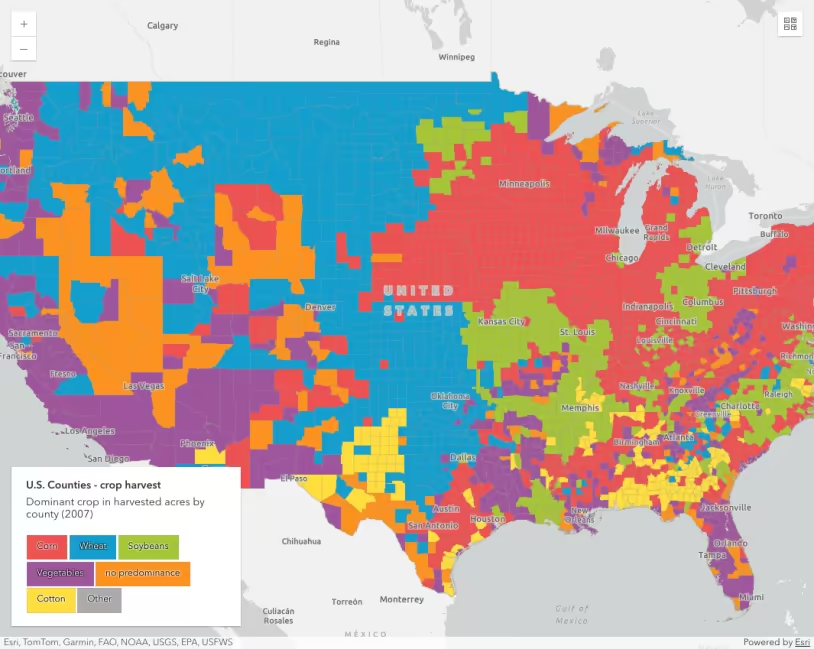
This sample demonstrates how to symbolize features based on unique values or types. The data is stored in a single layer where the visualization of each feature depends on the value of one or more fields.
Prior to completing the following steps, you should be familiar with the Map component and FeatureLayer. The basic components of this app, such as creating instances of the Map component, and understanding HTML and CSS structure will not be reviewed in this sample.
1. Initialize a symbol object and color ramp
In this sample we add a new renderer to a layer representing major highways and roads in the United States. For the purposes of this app, we want to visualize each highway based on whether it’s an interstate, U.S. highway, state highway, or other major road.
First, we’ll define a symbol object and a color ramp that will initialize each symbol in the renderer. We’ll use a SimpleLineSymbol to visualize each type since they are polyline geometries.
// Configure the base symbol style and color ramp for road types. const init = { type: "simple-line", style: "solid", width: "4px" }; const colors = ["#dc4b00", "#3c6ccc", "#d9dc00", "#91d900", "#986ba1"];2. Create an instance of UniqueValueRenderer
We must use a UniqueValueRenderer when defining how features should be visualized based on field values. Up to three fields may be used to create various combinations of types. In this case we’re only visualizing each feature based on one field: RTTYP (i.e. Route Type).
// Color and label each feature based on its matching field value. const renderer = { type: "unique-value", // autocasts as new UniqueValueRenderer() field: "RTTYP", // Treat features based on their route type code. defaultLabel: "Other", defaultSymbol: { ...init, color: colors[4] }, // The colors and labels defined here will reflect in the legend. uniqueValueInfos: [ { label: "Interstate", symbol: { ...init, color: colors[0] }, value: "I" }, { label: "US Highway", symbol: { ...init, color: colors[1] }, value: "U" }, { label: "State Highway", symbol: { ...init, color: colors[2] }, value: "S" }, { label: "Major road", symbol: { ...init, color: colors[3] }, value: "M" }, ], legendOptions: { title: "Route type" }, // Define feature draw order by class position in uniqueValueInfos. orderByClassesEnabled: true, };3. Match unique values with each symbol
You can match symbols with unique field values in one of two ways: Using uniqueValueInfos in the constructor…
// Color and label each feature based on its matching field value. const renderer = { type: "unique-value", // autocasts as new UniqueValueRenderer() field: "RTTYP", // Treat features based on their route type code. defaultLabel: "Other", defaultSymbol: { ...init, color: colors[4] }, // The colors and labels defined here will reflect in the legend. uniqueValueInfos: [ { label: "Interstate", symbol: { ...init, color: colors[0] }, value: "I" }, { label: "US Highway", symbol: { ...init, color: colors[1] }, value: "U" }, { label: "State Highway", symbol: { ...init, color: colors[2] }, value: "S" }, { label: "Major road", symbol: { ...init, color: colors[3] }, value: "M" }, ], legendOptions: { title: "Route type" }, // Define feature draw order by class position in uniqueValueInfos. orderByClassesEnabled: true, };Or with the addUniqueValueInfo() method. Note, you will need to explicitly instantiate the UniqueValueRenderer to do this.
const interstateSymbol = { ...init, color: colors[0] };roadRenderer.addUniqueValueInfo({ label: "Interstate", symbol: interstateSymbol, value: "I" });4. Summary
Once the renderer is defined, you can set it on the layer and the map and legend will automatically update.
Related samples and resources
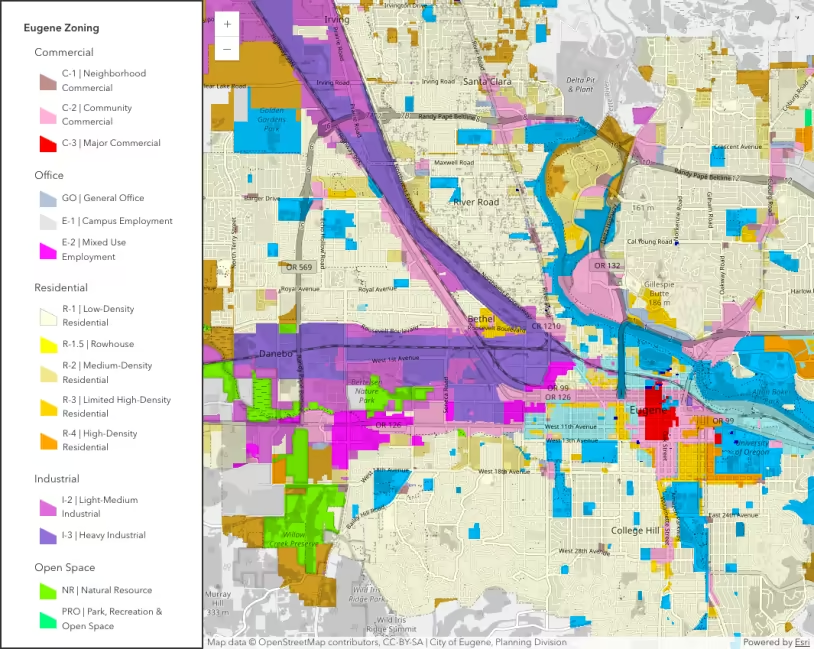
Unique value groups with headings
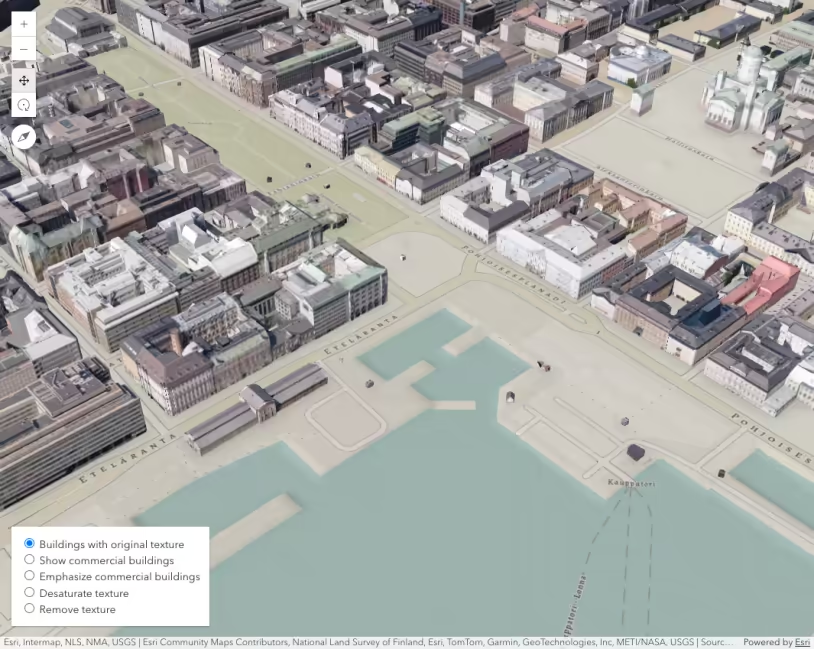
Coloring options for textured buildings