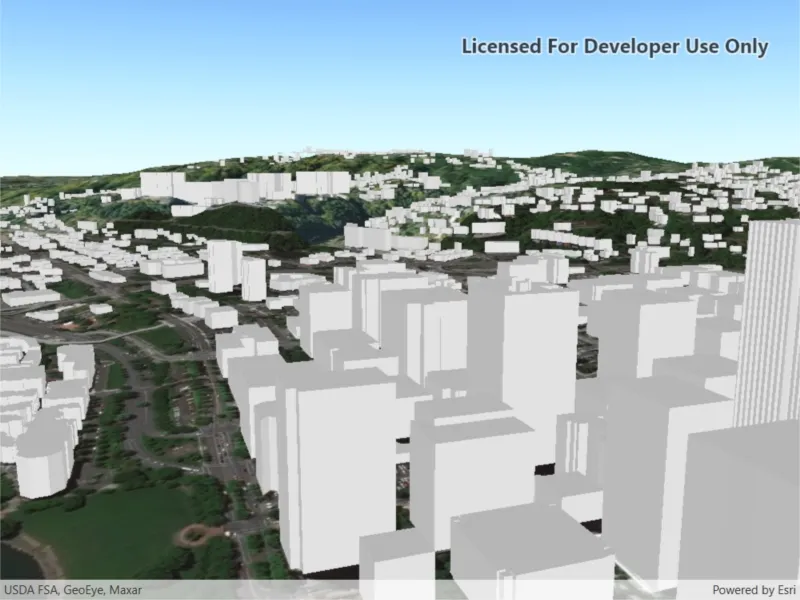
Display an ArcGIS scene layer from a URL.
Use case
Adding a scene layer from a URL allows you to author the scene layer elsewhere in the platform, say with ArcGIS Pro or CityEngine, and then add that scene layer to a scene in ArcGIS Maps SDK. Loading a scene layer from a URL also permits the layer source to change dynamically without updating the code. Each scene layer added to a scene can assist in performing helpful visual analysis. For example, if presenting the results of a shadow analysis of a major metropolitan downtown area in 3D, adding a scene layer of 3D buildings to the scene that could be toggled on/off would help to better contextualize the source of the shadows.
How to use the sample
Pan and zoom to explore the scene.
How it works
- Create an
ArcGISSceneLayerpassing in the URL to a scene layer service. - Create a
Sceneand add the scene layer to its operational layers. - Create a
Surfaceobject and add anArcGISTiledElevationSourceto it. - Set the surface to the scene’s base surface.
- Create a
SceneViewwith the scene.
Relevant API
- ArcGISSceneLayer
- ArcGISTiledElevationSource
- Scene
- SceneView
- Surface
About the data
This sample shows data from Esri 3D Buildings in Portland, Oregon.
Tags
3D, buildings, model, Portland, scene, service, URL
Sample code
// Copyright 2017 Esri.//// Licensed under the Apache License, Version 2.0 (the "License"); you may not use this file except in compliance with the License.// You may obtain a copy of the License at: http://www.apache.org/licenses/LICENSE-2.0//// Unless required by applicable law or agreed to in writing, software distributed under the License is distributed on an// "AS IS" BASIS, WITHOUT WARRANTIES OR CONDITIONS OF ANY KIND, either express or implied. See the License for the specific// language governing permissions and limitations under the License.
using Esri.ArcGISRuntime.Geometry;using Esri.ArcGISRuntime.Mapping;using System;using System.Threading.Tasks;using System.Windows;
namespace ArcGIS.WPF.Samples.AddSceneLayerWithElevation{    [ArcGIS.Samples.Shared.Attributes.Sample(        name: "Add scene layer with elevation",        category: "Layers",        description: "Display an ArcGIS scene layer from a URL.",        instructions: "Pan and zoom to explore the scene.",        tags: new[] { "3D", "Portland", "URL", "buildings", "model", "scene", "service" })]    public partial class AddSceneLayerWithElevation    {        // URL for a service to use as an elevation source.        private readonly Uri _elevationSourceUrl = new Uri(            "https://elevation3d.arcgis.com/arcgis/rest/services/WorldElevation3D/Terrain3D/ImageServer");
        // URL for the scene layer.        private readonly Uri _serviceUri = new Uri(            "https://www.arcgis.com/home/item.html?id=b8fec5af7dfe4866b1b8ac2d2800f282");
        public AddSceneLayerWithElevation()        {            InitializeComponent();            _ = Initialize();        }
        private async Task Initialize()        {            // Create new Scene.            Scene myScene = new Scene { Basemap = new Basemap(BasemapStyle.ArcGISImageryStandard) };
            // Create and add an elevation source for the Scene.            ArcGISTiledElevationSource elevationSrc = new ArcGISTiledElevationSource(_elevationSourceUrl);            myScene.BaseSurface.ElevationSources.Add(elevationSrc);
            // Create new scene layer from the URL.            ArcGISSceneLayer sceneLayer = new ArcGISSceneLayer(_serviceUri);
            // Add created layer to the operational layers collection.            myScene.OperationalLayers.Add(sceneLayer);
            try            {                // Load the layer.                await sceneLayer.LoadAsync();
                // Create a center point in Portland, Oregon.                MapPoint center = new MapPoint(-122.670, 45.517, 175.0, SpatialReferences.Wgs84);
                // Create a camera with coordinates showing layer data.                Camera camera = new Camera(center, 215, 75, 0);
                // Assign the Scene to the SceneView.                MySceneView.Scene = myScene;
// Set view point of scene view using camera. await MySceneView.SetViewpointCameraAsync(camera); } catch (Exception e) { MessageBox.Show(e.ToString(), "Error"); } } }}<UserControl x:Class="ArcGIS.WPF.Samples.AddSceneLayerWithElevation.AddSceneLayerWithElevation" xmlns="http://schemas.microsoft.com/winfx/2006/xaml/presentation" xmlns:x="http://schemas.microsoft.com/winfx/2006/xaml" xmlns:esri="http://schemas.esri.com/arcgis/runtime/2013"> <Grid> <esri:SceneView x:Name="MySceneView" /> </Grid></UserControl>