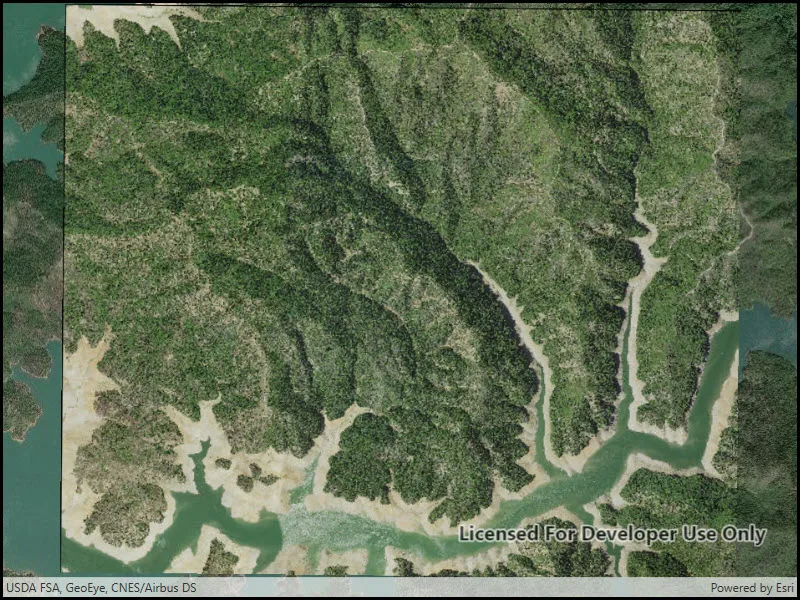
Create and use a raster layer made from a local raster file.
Use case
Rasters can be digital aerial photographs, imagery from satellites, digital pictures, or even scanned maps. An end-user will frequently need to import raster files acquired through various data-collection methods into their map to view and analyze the data.
How to use the sample
When the sample starts, a raster will be loaded from a file and displayed in the map view.
How it works
- Create a
Rasterfrom a raster file. - Create a
RasterLayerfrom the raster. - Add it as an operational layer with
Map.OperationalLayers.Add(layer).
Relevant API
- Raster
- RasterLayer
Offline data
This sample downloads the following items from ArcGIS Online automatically:
- raster-file.zip - Tif raster file
Additional information
See the topic Introduction to image and raster data in the ArcGIS Pro documentation for more information about raster images.
Tags
data, image, import, layer, raster, visualization
Sample code
// Copyright 2017 Esri.//// Licensed under the Apache License, Version 2.0 (the "License"); you may not use this file except in compliance with the License.// You may obtain a copy of the License at: http://www.apache.org/licenses/LICENSE-2.0//// Unless required by applicable law or agreed to in writing, software distributed under the License is distributed on an// "AS IS" BASIS, WITHOUT WARRANTIES OR CONDITIONS OF ANY KIND, either express or implied. See the License for the specific// language governing permissions and limitations under the License.
using ArcGIS.Samples.Managers;using Esri.ArcGISRuntime.Mapping;using Esri.ArcGISRuntime.Rasters;using System;using System.Threading.Tasks;using System.Windows;
namespace ArcGIS.WPF.Samples.RasterLayerFile{    [ArcGIS.Samples.Shared.Attributes.Sample(        name: "Raster layer (file)",        category: "Layers",        description: "Create and use a raster layer made from a local raster file.",        instructions: "When the sample starts, a raster will be loaded from a file and displayed in the map view.",        tags: new[] { "data", "image", "import", "layer", "raster", "visualization" })]    [ArcGIS.Samples.Shared.Attributes.OfflineData("7c4c679ab06a4df19dc497f577f111bd")]    public partial class RasterLayerFile    {        public RasterLayerFile()        {            InitializeComponent();
            // Call a function to set up the map            _ = Initialize();        }
        private async Task Initialize()        {            // Add an imagery basemap            Map myMap = new Map(BasemapStyle.ArcGISImageryStandard);
            // Get the file name            string filepath = GetRasterPath();
            // Load the raster file            Raster myRasterFile = new Raster(filepath);
            // Create the layer            RasterLayer myRasterLayer = new RasterLayer(myRasterFile);
            // Add the layer to the map            myMap.OperationalLayers.Add(myRasterLayer);
            // Add map to the mapview            MyMapView.Map = myMap;
            try            {                // Wait for the layer to load                await myRasterLayer.LoadAsync();
                // Set the viewpoint                await MyMapView.SetViewpointGeometryAsync(myRasterLayer.FullExtent);            }            catch (Exception e)            {                MessageBox.Show(e.ToString(), "Error");            }        }
private static string GetRasterPath() { return DataManager.GetDataFolder("7c4c679ab06a4df19dc497f577f111bd", "raster-file", "Shasta.tif"); } }}<UserControl x:Class="ArcGIS.WPF.Samples.RasterLayerFile.RasterLayerFile" xmlns="http://schemas.microsoft.com/winfx/2006/xaml/presentation" xmlns:x="http://schemas.microsoft.com/winfx/2006/xaml" xmlns:esri="http://schemas.esri.com/arcgis/runtime/2013"> <Grid> <esri:MapView x:Name="MyMapView" /> </Grid></UserControl>