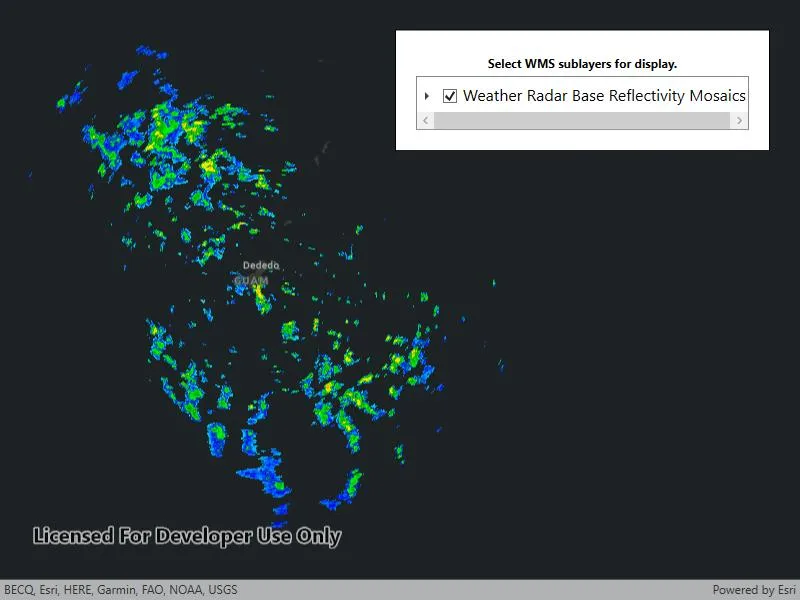
Connect to a WMS service and show the available layers and sublayers.
Use case
WMS services often contain many layers and sublayers. Presenting the layers and sublayers in a UI allows you to explore what is available in the service and add individual layers to a map.
How to use the sample
- Open the sample. A hierarchical list of layers and sublayers will appear.
- Select a layer to enable it for display. If the layer has any children, the children will also be selected.
How it works
- A
WmsServiceis created and loaded. WmsServicehas aServiceInfoproperty, which is aWmsServiceInfo.WmsServiceInfohas aWmsLayerInfoobject for each layer (excluding sublayers) in theLayerInfoscollection.- A method is called to recursively discover sublayers for each layer. Layers are wrapped in a view model and added to a list.
- The view model has a
Selectmethod which recursively selects or deselects itself and sublayers. - The view model tracks the children and parent of each layer.
- The view model has a
- Once the layer selection has been updated, another method is called to create a new
WmsLayerfrom a list of selectedWmsLayerInfo.
Relevant API
- WmsLayer(List
) - WmsLayerInfo
- WmsService
- WmsServiceInfo
About the data
This sample shows Weather Radar Base Reflectivity Mosaics produced by the US NOAA National Weather Service. The service provides weather radar data from the NWS & OAR Multi-Radar/Multi-Sensor (MRMS) System.
Tags
catalog, OGC, web map service, WMS
Sample code
// Copyright 2017 Esri.//// Licensed under the Apache License, Version 2.0 (the "License"); you may not use this file except in compliance with the License.// You may obtain a copy of the License at: http://www.apache.org/licenses/LICENSE-2.0//// Unless required by applicable law or agreed to in writing, software distributed under the License is distributed on an// "AS IS" BASIS, WITHOUT WARRANTIES OR CONDITIONS OF ANY KIND, either express or implied. See the License for the specific// language governing permissions and limitations under the License.
using Esri.ArcGISRuntime.Mapping;using Esri.ArcGISRuntime.Ogc;using System;using System.Collections.Generic;using System.Collections.ObjectModel;using System.ComponentModel;using System.Linq;using System.Runtime.CompilerServices;using System.Threading.Tasks;using System.Windows;
namespace ArcGIS.WPF.Samples.WmsServiceCatalog{    [ArcGIS.Samples.Shared.Attributes.Sample(        name: "WMS service catalog",        category: "Layers",        description: "Connect to a WMS service and show the available layers and sublayers.",        instructions: "1. Open the sample. A hierarchical list of layers and sublayers will appear.",        tags: new[] { "OGC", "WMS", "catalog", "web map service" })]    public partial class WmsServiceCatalog    {        // Hold the URL to the WMS service providing the US NOAA National Weather Service forecast weather chart.        private readonly Uri _wmsUrl = new Uri(            "https://nowcoast.noaa.gov/geoserver/weather_radar/wms?SERVICE=WMS&VERSION=1.3.0&REQUEST=GetCapabilities");
        // Hold a list of LayerDisplayVM; this is the ViewModel.        private readonly ObservableCollection<LayerDisplayVM> _viewModelList = new ObservableCollection<LayerDisplayVM>();
        public WmsServiceCatalog()        {            InitializeComponent();
            // Execute initialization.            _ = Initialize();        }
        private async Task Initialize()        {            // Apply an imagery basemap to the map.            MyMapView.Map = new Map(BasemapStyle.ArcGISDarkGray);
            // Create the WMS Service.            var service = new WmsService(_wmsUrl);
            try            {                // Load the WMS Service.                await service.LoadAsync();
                // Get the service info (metadata) from the service.                WmsServiceInfo info = service.ServiceInfo;
                // Get the list of layer infos.                foreach (var layerInfo in info.LayerInfos)                {                    LayerDisplayVM.BuildLayerInfoList(new LayerDisplayVM(layerInfo, null), _viewModelList);                }
                // Update the map display based on the viewModel.                UpdateMapDisplay(_viewModelList);
                // Update the list of layers.                LayerTreeView.ItemsSource = _viewModelList.Take(1);            }            catch (Exception e)            {                MessageBox.Show(e.ToString(), "Error");            }        }
        /// <summary>        /// Updates the map with the latest layer selection.        /// </summary>        private void UpdateMapDisplay(ObservableCollection<LayerDisplayVM> displayList)        {            // Remove all existing layers.            MyMapView.Map.OperationalLayers.Clear();
            // Get a list of selected LayerInfos.            List<WmsLayerInfo> selectedLayers = displayList.Where(vm => vm.IsEnabled).Select(vm => vm.Info).ToList();
            // Only WMS layer infos without sub layers can be used to construct a WMS layer.            // Group layers that have sub layers must be excluded.            selectedLayers = selectedLayers.Where(info => info.LayerInfos.Count == 0).ToList();
            // Return if no layers are selected.            if (!selectedLayers.Any())            {                return;            }
            // Create a new WmsLayer from the selected layers.            var myLayer = new WmsLayer(selectedLayers);
            // Add the layer to the map.            MyMapView.Map.OperationalLayers.Add(myLayer);        }
        private void ToggleButton_OnChecked(object sender, RoutedEventArgs e)        {            // Update the map. Note: updating selection is handled by the IsEnabled property on LayerDisplayVM.            UpdateMapDisplay(_viewModelList);        }    }
    /// <summary>    /// This is a ViewModel class for maintaining the state of a layer selection.    /// Typically, this would go in a separate file, but it is included here for clarity.    /// </summary>    public class LayerDisplayVM : INotifyPropertyChanged    {        private bool _isEnabled;
        public WmsLayerInfo Info { get; set; }
        // True if layer is selected for display.        public bool IsEnabled        {            get { return _isEnabled; }            set { Select(value); }        }
        public List<LayerDisplayVM> Children { get; set; }
        private LayerDisplayVM Parent { get; set; }
        public LayerDisplayVM(WmsLayerInfo info, LayerDisplayVM parent)        {            Info = info;            Parent = parent;        }
        // Select this layer and all child layers.        private void Select(bool isSelected = true)        {            _isEnabled = isSelected;            if (Children == null)            {                return;            }
            foreach (var child in Children)            {                child.Select(isSelected);            }            OnPropertyChanged("IsEnabled");        }
        // Override ToString to enhance display formatting.        public override string ToString()        {            return Info.Title;        }
        public static void BuildLayerInfoList(LayerDisplayVM root, IList<LayerDisplayVM> result)        {            // Add the root node to the result list.            result.Add(root);
            // Initialize the child collection for the root.            root.Children = new List<LayerDisplayVM>();
            // Recursively add sublayers.            foreach (WmsLayerInfo layer in root.Info.LayerInfos)            {                // Create the view model for the sublayer.                var layerVM = new LayerDisplayVM(layer, root);
                // Add the sublayer to the root's sublayer collection.                root.Children.Add(layerVM);
                // Recursively add children.                BuildLayerInfoList(layerVM, result);            }        }
        public event PropertyChangedEventHandler PropertyChanged;
protected virtual void OnPropertyChanged([CallerMemberName] string propertyName = null) { var handler = PropertyChanged; if (handler != null) handler(this, new PropertyChangedEventArgs(propertyName)); } }}<UserControl x:Class="ArcGIS.WPF.Samples.WmsServiceCatalog.WmsServiceCatalog" xmlns="http://schemas.microsoft.com/winfx/2006/xaml/presentation" xmlns:x="http://schemas.microsoft.com/winfx/2006/xaml" xmlns:esri="http://schemas.esri.com/arcgis/runtime/2013" xmlns:wmsServiceCatalog="clr-namespace:ArcGIS.WPF.Samples.WmsServiceCatalog"> <Grid> <esri:MapView x:Name="MyMapView" /> <Border Style="{StaticResource BorderStyle}"> <Grid> <Grid.RowDefinitions> <RowDefinition Height="auto" /> <RowDefinition Height="*" /> </Grid.RowDefinitions> <TextBlock Grid.Row="0" Margin="5" FontWeight="Bold" Foreground="Black" Text="Select WMS sublayers for display." TextAlignment="Center" /> <TreeView Name="LayerTreeView" Grid.Row="1" FontSize="14" BorderBrush="Black" BorderThickness="1" ScrollViewer.HorizontalScrollBarVisibility="Auto"> <TreeView.ItemTemplate> <HierarchicalDataTemplate DataType="{x:Type wmsServiceCatalog:LayerDisplayVM}" ItemsSource="{Binding Children}"> <StackPanel Orientation="Horizontal"> <CheckBox Margin="5" VerticalAlignment="Center" Checked="ToggleButton_OnChecked" IsChecked="{Binding IsEnabled, Mode=TwoWay}" Unchecked="ToggleButton_OnChecked" /> <TextBlock Text="{Binding}" /> </StackPanel> </HierarchicalDataTemplate> </TreeView.ItemTemplate> </TreeView> </Grid> </Border> </Grid></UserControl>