Identify features in a scene to select.
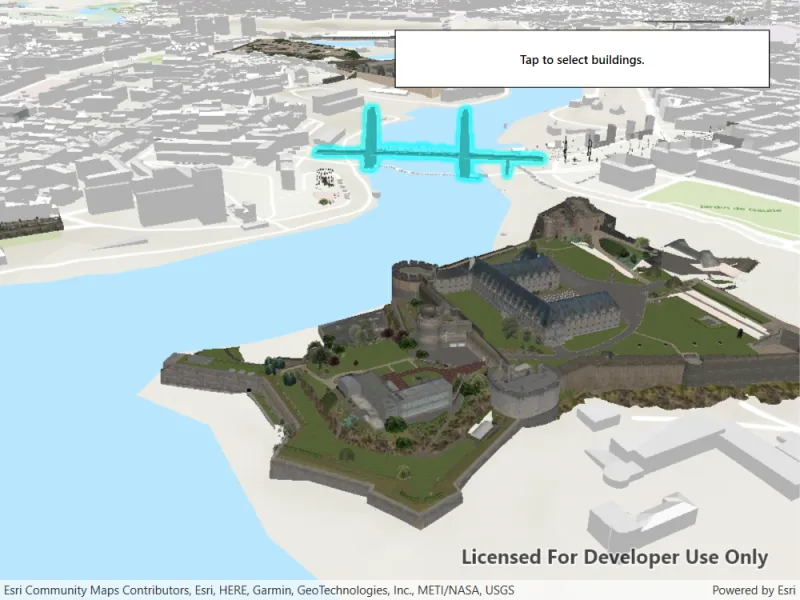
Use case
You can select features to visually distinguish them with a selection color or highlighting. This can be useful to demonstrate the physical extent or associated attributes of a feature, or to initiate another action such as centering that feature in the scene view.
How to use the sample
Click on a building in the scene layer to select it. Deselect buildings by clicking away from the buildings.
How it works
- Create an
ArcGISSceneLayerpassing in the URL to a scene layer service. - Wait for the user to tap with the
sceneView.GeoViewTappedevent and get the tapped screen point. - Call
sceneView.IdentifyLayersAsync(sceneLayer, screenPoint, tolerance, false, 1)to identify features in the scene. - From the resulting
IdentifyLayerResult, get the list of identifiedGeoElementswithresult.GeoElements. - Get the first element in the list, checking that it is a feature, and call
sceneLayer.SelectFeature(feature)to select it.
Relevant API
- ArcGISSceneLayer
- Scene
- SceneView
About the data
This sample shows a Brest France Buildings Scene hosted on ArcGIS Online.
Tags
3D, buildings, identify, model, query, search, select
Sample code
// Copyright 2018 Esri.//// Licensed under the Apache License, Version 2.0 (the "License"); you may not use this file except in compliance with the License.// You may obtain a copy of the License at: http://www.apache.org/licenses/LICENSE-2.0//// Unless required by applicable law or agreed to in writing, software distributed under the License is distributed on an// "AS IS" BASIS, WITHOUT WARRANTIES OR CONDITIONS OF ANY KIND, either express or implied. See the License for the specific// language governing permissions and limitations under the License.
using Esri.ArcGISRuntime.Data;using Esri.ArcGISRuntime.Mapping;using System;using System.Collections.Generic;using System.Linq;using System.Windows;
namespace ArcGIS.WPF.Samples.SceneLayerSelection{    [ArcGIS.Samples.Shared.Attributes.Sample(        name: "Scene layer selection",        category: "Layers",        description: "Identify features in a scene to select.",        instructions: "Click on a building in the scene layer to select it. Deselect buildings by clicking away from the buildings.",        tags: new[] { "3D", "buildings", "identify", "model", "query", "search", "select" })]    public partial class SceneLayerSelection    {        public SceneLayerSelection()        {            InitializeComponent();            Initialize();        }
        private void Initialize()        {            // Create a new Scene with a topographic basemap.            Scene scene = new Scene(BasemapStyle.ArcGISTopographic);
            // Add a base surface with elevation data.            Surface elevationSurface = new Surface();            Uri elevationService = new Uri("https://elevation3d.arcgis.com/arcgis/rest/services/WorldElevation3D/Terrain3D/ImageServer");            elevationSurface.ElevationSources.Add(new ArcGISTiledElevationSource(elevationService));            scene.BaseSurface = elevationSurface;
            // Add a scene layer.            Uri buildingsService = new Uri("https://tiles.arcgis.com/tiles/P3ePLMYs2RVChkJx/arcgis/rest/services/Buildings_Brest/SceneServer/layers/0");            ArcGISSceneLayer buildingsLayer = new ArcGISSceneLayer(buildingsService);            scene.OperationalLayers.Add(buildingsLayer);
            // Assign the Scene to the SceneView.            MySceneView.Scene = scene;
            try            {                // Create a camera with an interesting view.                Camera viewCamera = new Camera(48.378, -4.494, 200, 345, 65, 0);
                // Set the viewpoint with the camera.                MySceneView.SetViewpointCamera(viewCamera);            }            catch (Exception e)            {                MessageBox.Show(e.ToString(), "Error");            }        }
        private async void SceneViewTapped(object sender, Esri.ArcGISRuntime.UI.Controls.GeoViewInputEventArgs e)        {            // Get the scene layer from the scene (first and only operational layer).            ArcGISSceneLayer sceneLayer = (ArcGISSceneLayer)MySceneView.Scene.OperationalLayers.First();
            // Clear any existing selection.            sceneLayer.ClearSelection();
            try            {                // Identify the layer at the tap point.                // Use a 10-pixel tolerance around the point and return a maximum of one feature.                IdentifyLayerResult result = await MySceneView.IdentifyLayerAsync(sceneLayer, e.Position, 10, false, 1);
                // Get the GeoElements that were identified (will be 0 or 1 element).                IReadOnlyList<GeoElement> geoElements = result.GeoElements;
// If a GeoElement was identified, select it in the scene. if (geoElements.Any()) { GeoElement geoElement = geoElements.FirstOrDefault(); if (geoElement != null) { // Select the feature to highlight it in the scene view. sceneLayer.SelectFeature((Feature)geoElement); } } } catch (Exception ex) { MessageBox.Show(ex.ToString(), "Error"); } } }}<UserControl x:Class="ArcGIS.WPF.Samples.SceneLayerSelection.SceneLayerSelection" xmlns="http://schemas.microsoft.com/winfx/2006/xaml/presentation" xmlns:x="http://schemas.microsoft.com/winfx/2006/xaml" xmlns:esri="http://schemas.esri.com/arcgis/runtime/2013"> <Grid> <esri:SceneView x:Name="MySceneView" GeoViewTapped="SceneViewTapped" /> <Border Style="{StaticResource BorderStyle}"> <TextBlock FontWeight="SemiBold" Text="Tap to select buildings." TextAlignment="Center" /> </Border> </Grid></UserControl>