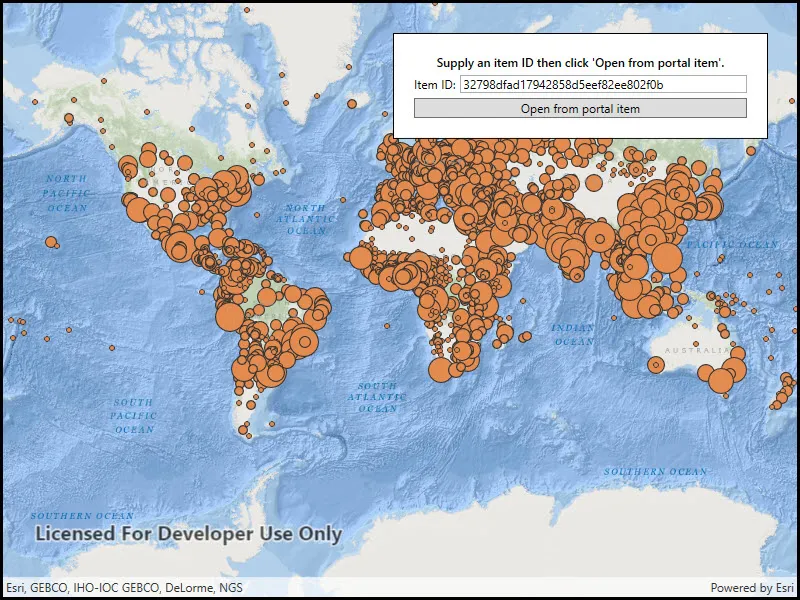
Create a feature collection layer from a portal item.
Use case
Feature collection layers are often used to hold features with mixed geometry or unstructured data. You can display feature collections stored in a Portal, which are often used for showing content from a CSV or map notes.
How to use the sample
The feature collection is loaded from the Portal item when the sample starts.
How it works
- Create a
Portal. - Create the
PortalItem, referring to the portal and an item ID. - Verify that the item represents a feature collection.
- Create a
FeatureCollectionfrom the item. - Create a
FeatureCollectionLayer, referring to the feature collection. - Add the feature collection layer to the map’s
OperationalLayerscollection.
Relevant API
- FeatureCollection
- FeatureCollectionLayer
- Portal
- PortalItem
About the data
The sample uses a sample layer depicting world populations.
Tags
collection, feature collection, feature collection layer, id, item, map notes, portal
Sample code
// Copyright 2018 Esri.//// Licensed under the Apache License, Version 2.0 (the "License"); you may not use this file except in compliance with the License.// You may obtain a copy of the License at: http://www.apache.org/licenses/LICENSE-2.0//// Unless required by applicable law or agreed to in writing, software distributed under the License is distributed on an// "AS IS" BASIS, WITHOUT WARRANTIES OR CONDITIONS OF ANY KIND, either express or implied. See the License for the specific// language governing permissions and limitations under the License.
using Esri.ArcGISRuntime.Data;using Esri.ArcGISRuntime.Mapping;using Esri.ArcGISRuntime.Portal;using System;using System.Threading.Tasks;using System.Windows;
namespace ArcGIS.WPF.Samples.FeatureCollectionLayerFromPortal{    [ArcGIS.Samples.Shared.Attributes.Sample(        name: "Create feature collection layer (Portal item)",        category: "Layers",        description: "Create a feature collection layer from a portal item.",        instructions: "The feature collection is loaded from the Portal item when the sample starts.",        tags: new[] { "collection", "feature collection", "feature collection layer", "id", "item", "map notes", "portal" })]    public partial class FeatureCollectionLayerFromPortal    {        // Default portal item Id to load features from.        private const string FeatureCollectionItemId = "32798dfad17942858d5eef82ee802f0b";
        public FeatureCollectionLayerFromPortal()        {            InitializeComponent();
            // Call a function to set up the map and UI.            Initialize();        }
        private void Initialize()        {            // Add a default value for the portal item Id.            CollectionItemIdTextBox.Text = FeatureCollectionItemId;
            // Create a new map with the oceans basemap and add it to the map view.            Map myMap = new Map(BasemapStyle.ArcGISOceans);            MyMapView.Map = myMap;        }
        private async Task OpenFeaturesFromArcGISOnline(string itemId)        {            try            {                // Open a portal item containing a feature collection.                ArcGISPortal portal = await ArcGISPortal.CreateAsync();                PortalItem collectionItem = await PortalItem.CreateAsync(portal, itemId);
                // Verify that the item is a feature collection.                if (collectionItem.Type == PortalItemType.FeatureCollection)                {                    // Create a new FeatureCollection from the item.                    FeatureCollection featCollection = new FeatureCollection(collectionItem);
                    // Create a layer to display the collection and add it to the map as an operational layer.                    FeatureCollectionLayer featCollectionLayer = new FeatureCollectionLayer(featCollection)                    {                        Name = collectionItem.Title                    };                    MyMapView.Map.OperationalLayers.Add(featCollectionLayer);                }                else                {                    MessageBox.Show("Portal item with ID '" + itemId + "' is not a feature collection.", "Feature Collection");                }            }            catch (Exception ex)            {                MessageBox.Show("Unable to open item with ID '" + itemId + "': " + ex.Message, "Error");            }        }
        private void OpenPortalFeatureCollectionClick(object sender, RoutedEventArgs e)        {            // Get the portal item Id from the user.            string collectionItemId = CollectionItemIdTextBox.Text.Trim();
            // Make sure an Id was entered.            if (String.IsNullOrEmpty(collectionItemId))            {                MessageBox.Show("Please enter a portal item ID", "Feature Collection ID");                return;            }
// Call a function to add the feature collection from the specified portal item. _ = OpenFeaturesFromArcGISOnline(collectionItemId); } }}<UserControl x:Class="ArcGIS.WPF.Samples.FeatureCollectionLayerFromPortal.FeatureCollectionLayerFromPortal" xmlns="http://schemas.microsoft.com/winfx/2006/xaml/presentation" xmlns:x="http://schemas.microsoft.com/winfx/2006/xaml" xmlns:esri="http://schemas.esri.com/arcgis/runtime/2013"> <Grid> <esri:MapView x:Name="MyMapView" /> <Border Style="{StaticResource BorderStyle}"> <Grid> <Grid.RowDefinitions> <RowDefinition /> <RowDefinition /> <RowDefinition /> </Grid.RowDefinitions> <Grid.ColumnDefinitions> <ColumnDefinition Width="Auto" /> <ColumnDefinition Width="*" /> </Grid.ColumnDefinitions> <TextBlock Grid.Row="0" Grid.Column="0" Grid.ColumnSpan="2" FontWeight="SemiBold" Text="Supply an item ID then click 'Open from portal item'." TextAlignment="Center" /> <TextBlock Grid.Row="1" Grid.Column="0" Margin="0,5,5,0" VerticalAlignment="Center" Text="Item ID:" /> <TextBox x:Name="CollectionItemIdTextBox" Grid.Row="1" Grid.Column="1" Margin="0,5,0,0" /> <Button x:Name="OpenPortalFeatureCollectionButton" Grid.Row="2" Grid.Column="0" Grid.ColumnSpan="2" Margin="0,5,0,0" Click="OpenPortalFeatureCollectionClick" Content="Open from portal item" /> </Grid> </Border> </Grid></UserControl>