Create, save and preview a KML multi-track, captured from a location data source.
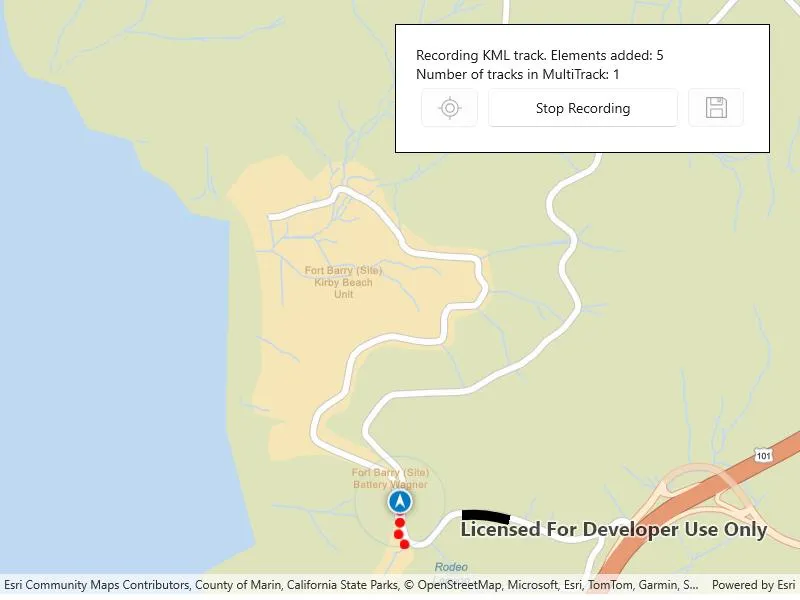
Use case
When capturing location data for outdoor activities such as hiking or skiing, it can be useful to record and share your path. This sample demonstrates how you can collect individual KML tracks during a navigation session, then combine and export them as a KML multi-track.
How to use the sample
Tap Start Navigation to begin moving along a simulated trail. Tap Record Track to start recording your current path. Tap Stop Recording to end recording and capture a KML track. Repeat these steps to capture multiple KML tracks in a single session. Tap the Save button to save your recorded tracks as a .kmz file to local storage. Then load the created .kmz file containing your KML multi-track to view all created tracks on the map.
How it works
- Create an
ArcGISMapwith a basemap and aGraphicsOverlayto display the path geometry for your navigation route. - Create a
SimulatedLocationDataSourceto drive theLocationDisplay. - As you receive
Locationupdates, add each point to a list ofKmlTrackElementobjects while recording. - Once recording stops, create a
KmlTrackusing one or moreKmlTrackElementobjects. - Combine one or more
KmlTrackobjects into aKmlMultiTrack. - Save the
KmlMultiTrackinside aKmlDocument, then export the document to a.kmzfile. - Load the saved
.kmzfile into aKmlDatasetand locate theKmlDocumentin the dataset’sRootNodes. From the document’sChildNodesget theKmlPlacemarkand retrieve theKmlMultiTrackgeometry. - Retrieve the geometry of each track in the
KmlMultiTrackby iterating through the list of tracks and obtaining the respectiveKmlTrack.Geometry.
Relevant API
- KmlDataset
- KmlDocument
- KmlMultiTrack
- KmlPlacemark
- KmlTrack
- LocationDisplay
- SimulatedLocationDataSource
Tags
export, geoview-compose, hiking, kml, kmz, multi-track, record, track
Sample code
// Copyright 2025 Esri.//// Licensed under the Apache License, Version 2.0 (the "License"); you may not use this file except in compliance with the License.// You may obtain a copy of the License at: http://www.apache.org/licenses/LICENSE-2.0//// Unless required by applicable law or agreed to in writing, software distributed under the License is distributed on an// "AS IS" BASIS, WITHOUT WARRANTIES OR CONDITIONS OF ANY KIND, either express or implied. See the License for the specific// language governing permissions and limitations under the License.
using ArcGIS.Samples.Managers;using Esri.ArcGISRuntime.Geometry;using Esri.ArcGISRuntime.Location;using Esri.ArcGISRuntime.Mapping;using Esri.ArcGISRuntime.Ogc;using Esri.ArcGISRuntime.Symbology;using Esri.ArcGISRuntime.UI;using Microsoft.UI.Xaml;using Microsoft.UI.Xaml.Controls;using System;using System.Collections.Generic;using System.IO;using System.Linq;using System.Threading.Tasks;
namespace ArcGIS.WinUI.Samples.CreateKmlMultiTrack{    [ArcGIS.Samples.Shared.Attributes.Sample(        name: "Create KML multi-track",        category: "Data",        description: "Create, save and preview a KML multi-track, captured from a location data source.",        instructions: "Tap **Start Navigation** to begin moving along a simulated trail. Tap **Record Track** to start recording your current path. Tap **Stop Recording** to end recording and capture a KML track. Repeat these steps to capture multiple KML tracks in a single session. Tap the **Save** button to save your recorded tracks as a `.kmz` file to local storage. Then load the created `.kmz` file containing your KML multi-track to view all created tracks on the map.",        tags: new[] { "export", "geoview-compose", "hiking", "kml", "kmz", "multi-track", "record", "track" })]    [ArcGIS.Samples.Shared.Attributes.OfflineData()]    public partial class CreateKmlMultiTrack    {        // Flag to indicate whether the app is recording a KML track.        private bool _isRecordingTrack = false;
        // Lists for storing KML track elements and KML tracks.        private List<KmlTrackElement> _kmlTrackElements = new List<KmlTrackElement>();        private List<KmlTrack> _kmlTracks = new List<KmlTrack>();
        // Graphics overlay indexes for the KML track elements and the KML tracks.        private int _elementsIndex = 0;        private int _tracksIndex = 1;
        // Symbology to differentiate the KML track elements and the KML tracks.        private SimpleMarkerSymbol _locationSymbol = new SimpleMarkerSymbol(SimpleMarkerSymbolStyle.Circle, System.Drawing.Color.Red, 10);        private SimpleLineSymbol _routeSymbol = new SimpleLineSymbol(SimpleLineSymbolStyle.Solid, System.Drawing.Color.Black, 10);
        // Route geometry for the simulation.        private Polyline _routeGeometry;
        // File path for the .kmz file.        private string _filePath;
        public CreateKmlMultiTrack()        {            InitializeComponent();            Initialize();        }
        private void Initialize()        {            // Create a map with a street basemap style.            MyMapView.Map = new Map(BasemapStyle.ArcGISStreets);
            // Get the hiking path geometry.            _routeGeometry = Geometry.FromJson(COASTAL_TRAIL_JSON) as Polyline;
            // Create a simulated location data source from json data with simulation parameters to set a consistent velocity.            var simulatedLocationDataSource = new SimulatedLocationDataSource();            simulatedLocationDataSource.SetLocationsWithPolyline(                _routeGeometry,                new SimulationParameters(DateTimeOffset.Now, 25, 0, 0));
            // Set the map's initial viewpoint.            MyMapView.SetViewpoint(new Viewpoint(_routeGeometry, 25));
            // Set the simulated location data source as the location data source for this app.            MyMapView.LocationDisplay.DataSource = simulatedLocationDataSource;
            StartNavigation();
            // Add graphics overlays for the KML track elements and the KML tracks.            MyMapView.GraphicsOverlays.Add(new GraphicsOverlay());            MyMapView.GraphicsOverlays.Add(new GraphicsOverlay());
            // Enable the recenter button when autopan mode isn't navigation.            MyMapView.LocationDisplay.AutoPanModeChanged += (s, e) =>            {                RecenterButton.IsEnabled = MyMapView.LocationDisplay.AutoPanMode != LocationDisplayAutoPanMode.Navigation;            };
            // Define the save file path.            _filePath = Path.Combine(DataManager.GetDataFolder(), "SampleData", "CreateKmlMultiTrack", "HikingTracks", "HikingTracks.kmz");        }
        #region KML track recording state
        /// <summary>        /// Toggles the recording state and updates the UI accordingly. A KML track is created from the recorded elements when recording is stopped.        /// </summary>        private void RecordTrackButton_Click(object sender, RoutedEventArgs e)        {            // Toggle the recording state.            _isRecordingTrack = !_isRecordingTrack;
            // Update the UI based on the recording state.            if (!_isRecordingTrack)            {                RecordTrackButton.Content = "Start Recording";                ElementsCountTextBox.Text = "Click record to capture KML track elements.";                SaveButton.IsEnabled = true;                DisplayKmlTrack();            }            else            {                RecordTrackButton.Content = "Stop Recording";                ElementsCountTextBox.Text = "Recording KML track. Elements added: 0";                SaveButton.IsEnabled = false;                ElementsCountTextBox.Visibility = Visibility.Visible;                RecordTrackButton.IsEnabled = false;            }        }
        /// <summary>        /// Creates a KML track and displays it on the map.        /// </summary>        private void DisplayKmlTrack()        {            // Remove the red location markers from the map.            MyMapView.GraphicsOverlays[_elementsIndex].Graphics.Clear();
            // Create a new KML track from the recorded elements.            var kmlTrack = new KmlTrack(_kmlTrackElements, KmlAltitudeMode.RelativeToGround);            _kmlTracks.Add(kmlTrack);
            // Set the KML geometry to use the same projection as the map.            var multipoint = kmlTrack.Geometry as Multipoint;
            // Add the KML track as a graphic to the map.            var graphic = new Graphic(new Polyline(multipoint.Points), _routeSymbol);            MyMapView.GraphicsOverlays[_tracksIndex].Graphics.Add(graphic);
            // Clear the list of track elements.            _kmlTrackElements.Clear();
            // Increment the track count in the UI.            TracksCountTextBlock.Text = $"Number of tracks in MultiTrack: {_kmlTracks.Count}";        }
        /// <summary>        /// When recording is enabled, add the given location to the list        /// of KML track elements and display the graphic on the map.        /// </summary>        private void LocationDisplay_LocationChanged(object sender, Location e)        {            if (_isRecordingTrack)            {                // Ensure the code runs on the UI thread.                DispatcherQueue.TryEnqueue(Microsoft.UI.Dispatching.DispatcherQueuePriority.Normal, () =>                {                    // Add a new element to the KMl track.                    _kmlTrackElements.Add(new KmlTrackElement(DateTime.Now, e.Position));
                    // Add a graphic at the location's position.                    MyMapView.GraphicsOverlays[_elementsIndex].Graphics.Add(new Graphic(e.Position, _locationSymbol));
                    ElementsCountTextBox.Text = $"Recording KML track. Elements added: {_kmlTrackElements.Count}";
                    // KML tracks require at least two elements to be valid, so recording can only be stopped when this requirement is met.                    if (_kmlTrackElements.Count >= 2)                    {                        RecordTrackButton.IsEnabled = true;                    }                });            }        }
        /// <summary>        /// Recenters the map view on the simulated location. This is helpful after panning away from the location.        /// </summary>        private void RecenterButton_Click(object sender, RoutedEventArgs e)        {            MyMapView.LocationDisplay.AutoPanMode = LocationDisplayAutoPanMode.Navigation;        }
        #endregion KML track recording state
        #region KML track viewing state
        /// <summary>        /// Saves the KML muli-track to a file, loads it back and displays it on the map. Transitions the UI to the KML track viewing state.        /// </summary>        private async void SaveButton_Click(object sender, RoutedEventArgs e)        {            ToggleUIVisibility();            await ExportKlmMultiTrack();            _kmlTracks.Clear();            StopNavigation();            await LoadLocalKmlFile();        }
        /// <summary>        /// Exports the KML multi-track to a .kmz file.        /// </summary>        private async Task ExportKlmMultiTrack()        {            // Create a default KML document which will export file to device.            var kmlDocument = new KmlDocument();
            // Create a KML multi track using the current list of tracks.            var multiTrack = new KmlMultiTrack(_kmlTracks);
            // Add the multi track as a placemark KML node to the KML document.            kmlDocument.ChildNodes.Add(new KmlPlacemark(multiTrack));
            // Delete the file if it already exists.            if (File.Exists(_filePath))            {                File.Delete(_filePath);            }
            // Save the KML document to the file path.            await kmlDocument.SaveAsAsync(_filePath);        }
        /// <summary>        /// Loads a local KML file and displays the KML tracks on the map. Adds the KML tracks to the combo box for selection.        /// </summary>        private async Task LoadLocalKmlFile()        {            // Create a KML dataset using the local file path.            var kmlDataset = new KmlDataset(new Uri(_filePath));
            // Load the KML dataset.            await kmlDataset.LoadAsync();
            // Get the document's node which contains the placemark.            var kmlDocument = kmlDataset.RootNodes.OfType<KmlDocument>().FirstOrDefault();            var kmlPlacemark = kmlDocument.ChildNodes.OfType<KmlPlacemark>().FirstOrDefault();
            // Get the multi-track geometry from the placemark.            var kmlMultiTrack = kmlPlacemark.KmlGeometry as KmlMultiTrack;
            // Obtain all the KML tracks from the multi-track.            var trackGeometries = kmlMultiTrack.Tracks.Select(track => track.Geometry);
            // Calculate the union of all the KML tracks.            var allTracksGeometry = GeometryEngine.Union(trackGeometries);
            // Clear track graphics from the previous UI state.            MyMapView.GraphicsOverlays[_tracksIndex].Graphics.Clear();
            // Project the KML tracks to the map's spatial reference and add them as graphics to the map.            // Populate a dictionary with the track names as keys and geometries as values.            var tracksDictionary = new Dictionary<string, object>();            for (int i = 0; i < kmlMultiTrack.Tracks.Count; i++)            {                var trackGeometry = kmlMultiTrack.Tracks[i].Geometry as Multipoint;                MyMapView.GraphicsOverlays[_tracksIndex].Graphics.Add(new Graphic(new Polyline(trackGeometry.Points), _routeSymbol));                tracksDictionary.Add($"Track {i + 1}", trackGeometry);            }
            // Set the combo box's item source to the dictionary.            // Make the first item in the combo box a `Show all KML tracks` option.            TracksComboBox.ItemsSource = tracksDictionary.Prepend(new KeyValuePair<string, object>("Show all KML tracks", allTracksGeometry)).ToList();
            // Set the viewpoint to the union geometry by invoking the selection changed event.            TracksComboBox.SelectedIndex = 0;        }
        /// <summary>        /// Zooms to the selected KML track.        /// </summary>        private void TracksComboBox_SelectionChanged(object sender, SelectionChangedEventArgs e)        {            if (TracksComboBox.ItemsSource != null)            {                // Get the value as stored in the combo box.                var selectedGeometry = ((KeyValuePair<string, object>)TracksComboBox.SelectedItem).Value as Geometry;
                // Set the viewpoint to the selected geometry.                MyMapView.SetViewpointGeometryAsync(selectedGeometry, 25);            }        }
        #endregion KML track viewing state
        #region Start and stop navigation
        /// <summary>        /// Configures and starts the location display for navigation.        /// </summary>        private void StartNavigation()        {            // Start the location data source.            MyMapView.LocationDisplay.DataSource.StartAsync();
            // Set the location display to auto pan mode.            MyMapView.LocationDisplay.AutoPanMode = LocationDisplayAutoPanMode.Navigation;
            // Listen for changes in location.            MyMapView.LocationDisplay.LocationChanged += LocationDisplay_LocationChanged;
            // Enable the location display.            MyMapView.LocationDisplay.IsEnabled = true;        }
        /// <summary>        /// Turns off the location display and stops listening for location changes.        /// </summary>        private void StopNavigation()        {            MyMapView.LocationDisplay.IsEnabled = false;            MyMapView.LocationDisplay.LocationChanged -= LocationDisplay_LocationChanged;            MyMapView.LocationDisplay.DataSource.StopAsync();            MyMapView.LocationDisplay.AutoPanMode = LocationDisplayAutoPanMode.Off;        }
        #endregion Start and stop navigation
        #region Change UI state
        /// <summary>        /// Resets the state for KML track recording.        /// </summary>        private void ResetButton_Click(object sender, RoutedEventArgs e)        {            ToggleUIVisibility();            StartNavigation();            TracksCountTextBlock.Text = "Number of tracks in MultiTrack: 0";            SaveButton.IsEnabled = false;            TracksComboBox.ItemsSource = null;            MyMapView.GraphicsOverlays[_tracksIndex].Graphics.Clear();        }
        /// <summary>        /// Toggles the visibility of the recording and viewing UIs.        /// </summary>        private void ToggleUIVisibility()        {            RecordingUI.Visibility = RecordingUI.Visibility == Visibility.Visible ? Visibility.Collapsed : Visibility.Visible;            ViewingUI.Visibility = ViewingUI.Visibility == Visibility.Visible ? Visibility.Collapsed : Visibility.Visible;        }
        #endregion Change UI state
        #region Data
        private const string COASTAL_TRAIL_JSON =        """        { "paths" : [ [ [ -122.4835314726743, 37.83211865911945 ], [ -122.48368189197535, 37.83187118241683 ], [ -122.48380566095689, 37.83165751914316 ], [ -122.48388894197024, 37.83145169600181 ], [ -122.48397936099687, 37.83118043717595 ], [ -122.48400315647044, 37.83104956678124 ], [ -122.48402338114072, 37.830918696154455 ], [ -122.48402814041512, 37.830775928900714 ], [ -122.48402725647286, 37.83065575512642 ], [ -122.4840254014518, 37.8306072300538 ], [ -122.48401768492351, 37.83055928604177 ], [ -122.48400422097404, 37.830512629058774 ], [ -122.48398520902936, 37.8304679452088 ], [ -122.48396092666893, 37.83042589221653 ], [ -122.48393173142219, 37.83038708736564 ], [ -122.48389805358218, 37.83035210182205 ], [ -122.48386038812063, 37.830321452119506 ], [ -122.4837611170952, 37.83025151926742 ], [ -122.48375681057175, 37.830247746053175 ], [ -122.48366652719073, 37.83019051634461 ], [ -122.48350989334455, 37.83007565307785 ], [ -122.48338378245505, 37.82997452594437 ], [ -122.48337304219753, 37.82996166234225 ], [ -122.48334246534189, 37.82993380302198 ], [ -122.48331659206505, 37.82990152834285 ], [ -122.48330212200248, 37.829883812313646 ], [ -122.48328996510173, 37.82986443529098 ], [ -122.48327420775335, 37.82983760474022 ], [ -122.4832628090307, 37.82980865270958 ], [ -122.48325604381832, 37.82977828304244 ], [ -122.48325465951446, 37.829736521980415 ], [ -122.48325940890734, 37.82969500922772 ], [ -122.48327019228401, 37.829654640912736 ], [ -122.48328677518418, 37.82961628833229 ], [ -122.48330880007832, 37.829580780923116 ], [ -122.48333579085934, 37.82954888426596 ], [ -122.48336716541894, 37.82952128802347 ], [ -122.4833988256428, 37.82949318304136 ], [ -122.48343379705682, 37.82946932029889 ], [ -122.4834715110274, 37.82945008578193 ], [ -122.4835113611917, 37.82943579026623 ], [ -122.48355047743246, 37.82942204817761 ], [ -122.48359096270566, 37.82941311099388 ], [ -122.48363223041152, 37.82940911210755 ], [ -122.4836736777804, 37.829410106152956 ], [ -122.48383061435887, 37.8294303950351 ], [ -122.48388774451598, 37.82944460824695 ], [ -122.48394601373688, 37.82945299696391 ], [ -122.48400483272674, 37.82945547462583 ], [ -122.48433804301844, 37.82945355606976 ], [ -122.4847002015202, 37.82946846815932 ], [ -122.48476089259908, 37.82947500572284 ], [ -122.48482190527488, 37.82947691789268 ], [ -122.48488387645307, 37.82947778706078 ], [ -122.48494567066315, 37.82947301692427 ], [ -122.48500677406878, 37.82946264792504 ], [ -122.48504444851348, 37.82945476510069 ], [ -122.48508119410018, 37.829443311944246 ], [ -122.48511667575728, 37.829428394173405 ], [ -122.48516495211896, 37.82940757456553 ], [ -122.48521008617378, 37.829380612586306 ], [ -122.48525130267564, 37.82934797296873 ], [ -122.48535147291467, 37.829272927762155 ], [ -122.48573645311619, 37.82892955211324 ], [ -122.48591674050213, 37.828760237428405 ], [ -122.48595566360507, 37.82873302900504 ], [ -122.48598939803894, 37.828721079063996 ], [ -122.48602446467437, 37.82871392059287 ], [ -122.48606018438501, 37.82871169053279 ], [ -122.48609110799036, 37.82871612794789 ], [ -122.48612131833336, 37.82872408393298 ], [ -122.48615041656204, 37.82873545347624 ], [ -122.48626991585101, 37.82881679064391 ], [ -122.48686379927189, 37.82921515592806 ], [ -122.48689678540913, 37.82924047754071 ], [ -122.48692585219676, 37.82927021665974 ], [ -122.48695041303496, 37.829303773729634 ], [ -122.48696997295194, 37.82934047185724 ], [ -122.48698413579072, 37.82937956958323 ], [ -122.48699261768361, 37.82942028074957 ], [ -122.48699524795076, 37.8294617815949 ], [ -122.48699197179495, 37.82950323771682 ], [ -122.48698398038215, 37.82993403361622 ], [ -122.48700845677871, 37.830648260533444 ], [ -122.48700761056573, 37.83067257982134 ], [ -122.48700868764573, 37.83069688916802 ], [ -122.48701571875947, 37.83075467119421 ], [ -122.48702933272759, 37.830811264742294 ], [ -122.48704934898875, 37.83086592269937 ], [ -122.48707550253995, 37.83091792491589 ], [ -122.48710744842808, 37.83096658317209 ], [ -122.48714476713994, 37.83101125465843 ], [ -122.487323504932, 37.83124731116835 ], [ -122.48741675724503, 37.83139446297001 ], [ -122.48744101984254, 37.831443582800446 ], [ -122.4875141148589, 37.831616409760244 ], [ -122.48754615776508, 37.83168849608147 ], [ -122.48758326177958, 37.83175811184267 ], [ -122.48762523915447, 37.83182490300923 ], [ -122.48767187429414, 37.831888529737434 ], [ -122.4877229300433, 37.83194866566494 ], [ -122.48777814589057, 37.83200500713399 ], [ -122.48783724066321, 37.832057264677225 ], [ -122.48786344182511, 37.83207726690301 ], [ -122.48786530403268, 37.83207815590645 ], [ -122.48807228126402, 37.832205450731635 ], [ -122.4881376372942, 37.83225954857125 ], [ -122.48819890958313, 37.83231823185467 ], [ -122.48825577473723, 37.83238119406823 ], [ -122.4882838668528, 37.83243614956031 ], [ -122.48831646581614, 37.83248855792079 ], [ -122.48835334255688, 37.8325380487985 ], [ -122.48839423836019, 37.83258427454664 ], [ -122.48843886396857, 37.83262691093234 ], [ -122.48848690586995, 37.832665657136175 ], [ -122.48865428895684, 37.8327738428775 ], [ -122.48875650735471, 37.83282875408856 ], [ -122.48884649069839, 37.83286507585097 ], [ -122.48889117020568, 37.83287425171545 ], [ -122.48893661867086, 37.83287811702946 ], [ -122.4889822063749, 37.832876618581736 ], [ -122.48902730359879, 37.832869777656875 ], [ -122.48907128421679, 37.83285768790635 ], [ -122.48911354096774, 37.83284051818675 ], [ -122.4891724542807, 37.83282177764611 ], [ -122.48954335069523, 37.832650632883166 ], [ -122.48959461575184, 37.83262831147479 ], [ -122.48964780230489, 37.83261106152894 ], [ -122.48970240909438, 37.8325990441045 ], [ -122.48975792408062, 37.83259237201367 ], [ -122.48981382354579, 37.83259110769355 ], [ -122.48986958377212, 37.83259526462479 ], [ -122.48992467744847, 37.83260480307474 ], [ -122.48997621110139, 37.832614560047894 ], [ -122.49002627960206, 37.8326301859597 ], [ -122.49007421460394, 37.832651473634094 ], [ -122.49011937920147, 37.832678140687506 ], [ -122.49016117242178, 37.832709830948126 ], [ -122.49023068226181, 37.83275956574309 ], [ -122.49026306922278, 37.832780573839855 ], [ -122.49030543556819, 37.832804600113775 ], [ -122.49035076635404, 37.83282241193269 ], [ -122.49039815518022, 37.83283365384526 ], [ -122.49044665612074, 37.832838101654836 ], [ -122.49049530079171, 37.832835668094994 ], [ -122.490543114521, 37.832826398572614 ], [ -122.49058914419615, 37.8328104811008 ], [ -122.49063246994231, 37.832788230690106 ], [ -122.49067222578353, 37.8327600950252 ], [ -122.49070761671078, 37.832726634599354 ], [ -122.49073793664826, 37.832688518458234 ], [ -122.49082473456593, 37.83257808774918 ], [ -122.49086935029284, 37.83252239945379 ], [ -122.49089077062078, 37.83249764301668 ], [ -122.49091592883865, 37.83247669443703 ], [ -122.49094415659981, 37.83246011351073 ], [ -122.49098463019493, 37.83244232147022 ], [ -122.49099373372202, 37.83243859590428 ], [ -122.4910023314976, 37.83243381744524 ], [ -122.49101030224914, 37.83242805491412 ], [ -122.491018105914, 37.832420952852864 ], [ -122.49102474266732, 37.832412749652015 ], [ -122.49103005889717, 37.832403635456345 ], [ -122.49103393063605, 37.83239382098607 ], [ -122.49103627074737, 37.832383531860984 ], [ -122.49103702353558, 37.832373007890915 ], [ -122.49103937263004, 37.832361138003094 ], [ -122.49104356327085, 37.83234978675593 ], [ -122.49104948945677, 37.83233923794863 ], [ -122.49105700476245, 37.8323297548051 ], [ -122.49106591964332, 37.83232157358853 ], [ -122.49107601221553, 37.832314899344134 ], [ -122.49108703095081, 37.83230989951385 ], [ -122.49109869916803, 37.83230669755051 ], [ -122.49114375147617, 37.83229005485964 ], [ -122.49119043153159, 37.83227875894242 ], [ -122.49123810781863, 37.832272960924264 ], [ -122.4912861344487, 37.83227273956087 ], [ -122.49133386283806, 37.83227809981875 ], [ -122.4913806444031, 37.83228896648985 ], [ -122.4914497032889, 37.832311761945334 ], [ -122.49146307830515, 37.83231896973225 ], [ -122.49147522262948, 37.832328100966336 ], [ -122.49148585958076, 37.83233894989266 ], [ -122.49149475020712, 37.83235127031487 ], [ -122.49150169418427, 37.832364784818786 ], [ -122.4915065334087, 37.83237918761059 ], [ -122.49150915828595, 37.83239415232114 ], [ -122.49151461734795, 37.832407376633014 ], [ -122.49152190987142, 37.83241968569183 ], [ -122.49153088583776, 37.83243082691724 ], [ -122.49154136109226, 37.83244057185197 ], [ -122.49155312093764, 37.83244871970903 ], [ -122.49165264708462, 37.83251124050483 ], [ -122.49170158370804, 37.83254221992262 ], [ -122.4917477903513, 37.83257714057318 ], [ -122.49179095080746, 37.832615762641574 ], [ -122.49183076953072, 37.83265782289962 ], [ -122.49186697253498, 37.832703031867915 ], [ -122.49202598601836, 37.83298442443593 ], [ -122.49210611574172, 37.833117423416 ], [ -122.4921433778597, 37.833163624678505 ], [ -122.49218487014437, 37.83320606845782 ], [ -122.49223021440496, 37.83324436879858 ], [ -122.49227900100973, 37.833278177348404 ], [ -122.49233078259763, 37.83330718761463 ], [ -122.49238509294308, 37.83333113567338 ], [ -122.49283970066398, 37.833413136821356 ], [ -122.49312652105611, 37.833456201967486 ], [ -122.49324314304124, 37.833477260948875 ], [ -122.49335882538858, 37.83350298834403 ], [ -122.49346332011737, 37.83352714847554 ], [ -122.49356913536963, 37.83354464156086 ], [ -122.49361827052074, 37.83355233593457 ], [ -122.49366794825427, 37.833554671561714 ], [ -122.49371758825855, 37.8335516214824 ], [ -122.49379700112628, 37.83354132258596 ], [ -122.49387536745672, 37.83352485257872 ], [ -122.4939522075495, 37.83350231291309 ], [ -122.49402705248401, 37.8334738398049 ], [ -122.49409944501782, 37.83343960849056 ], [ -122.49416925579352, 37.83339903363501 ], [ -122.49423571225992, 37.83335316881714 ], [ -122.49429841197178, 37.83330228930838 ], [ -122.49453762434882, 37.83312377476988 ], [ -122.49458938886875, 37.83308543179706 ], [ -122.49463757809386, 37.83304268215786 ], [ -122.49468181832493, 37.83299585717693 ], [ -122.49472176550732, 37.83294532010619 ], [ -122.49475710882386, 37.83289146470621 ], [ -122.49478757608503, 37.83283470531341 ], [ -122.4948129292373, 37.83277548677341 ], [ -122.49483297244791, 37.832714265284764 ], [ -122.49498619000107, 37.83220090142562 ], [ -122.49499765340244, 37.83214462608956 ], [ -122.49501311430679, 37.83208931633994 ], [ -122.4950265324422, 37.83204720609278 ], [ -122.49504488143018, 37.832006999411824 ], [ -122.49506789806439, 37.83196926957701 ], [ -122.49509525445976, 37.83193455723217 ], [ -122.49513805738638, 37.831887085191816 ], [ -122.49518490452846, 37.83184359839491 ], [ -122.4952354239834, 37.83180443953837 ], [ -122.49528811107314, 37.83176867421362 ], [ -122.49534435369475, 37.83173881122903 ], [ -122.4954034942815, 37.83171519895808 ], [ -122.49546483933392, 37.83169811553204 ], [ -122.49552767019985, 37.831687758197596 ], [ -122.49559125295568, 37.83168425041114 ], [ -122.4961075955978, 37.8317212872069 ], [ -122.49613495289148, 37.8317209069131 ], [ -122.49623972789465, 37.831720735213274 ], [ -122.49634437623536, 37.83171555512881 ], [ -122.49644865626678, 37.831705381558166 ], [ -122.49655233173205, 37.8316902343655 ], [ -122.49665516457756, 37.83167015115136 ], [ -122.49675691944475, 37.831645175901 ], [ -122.4967770479953, 37.831640510911264 ], [ -122.49697923361293, 37.831584102470416 ], [ -122.49705029394518, 37.831565446041715 ], [ -122.4971199556005, 37.83154209694165 ], [ -122.49718790506692, 37.831514159463005 ], [ -122.4972538423071, 37.831481754926116 ], [ -122.49726954395994, 37.8314719644564 ], [ -122.49730905635771, 37.83144600931114 ], [ -122.49734523959904, 37.831415584976455 ], [ -122.49737759152569, 37.83138111431287 ], [ -122.49740566118335, 37.83134307623196 ], [ -122.4974290604999, 37.831301999311215 ], [ -122.4974474624885, 37.83125845328032 ], [ -122.49746061202762, 37.83121304476455 ], [ -122.49750996457102, 37.83101837743121 ], [ -122.49752449122748, 37.83096557992402 ], [ -122.49754512013965, 37.83091485415169 ], [ -122.49757156474499, 37.83086690395394 ], [ -122.49760345853082, 37.830822391310846 ], [ -122.4976403604244, 37.830781932795055 ], [ -122.49767692275478, 37.830737544975015 ], [ -122.49771008047021, 37.830705203953194 ], [ -122.49774190149253, 37.83067164397307 ], [ -122.49777243343242, 37.83063874169697 ], [ -122.49780693053596, 37.830610026248856 ], [ -122.4978448250679, 37.83058597017017 ], [ -122.49788549180082, 37.83056697008407 ], [ -122.49808111881853, 37.83047276281848 ], [ -122.49814084331021, 37.83044946232918 ], [ -122.49818555605516, 37.83043219484554 ], [ -122.4982277580089, 37.830409473308514 ], [ -122.49826678801135, 37.830381650342645 ], [ -122.49830203161491, 37.83034916513296 ], [ -122.49833293545731, 37.8303125271065 ], [ -122.4983590144483, 37.83027231167552 ], [ -122.49837986075279, 37.8302291510146 ], [ -122.49839514468903, 37.83018372199883 ], [ -122.49840462640687, 37.83013673910934 ], [ -122.49840815858256, 37.830088938114436 ], [ -122.49840568462227, 37.83004107110319 ], [ -122.49823317035847, 37.829449845962415 ], [ -122.49822651204559, 37.82942865385972 ], [ -122.4982172620931, 37.829391938747385 ], [ -122.49819795999261, 37.82932136218335 ], [ -122.49817403516164, 37.82925221595857 ], [ -122.4981455918048, 37.82918480162631 ], [ -122.49811275568624, 37.82911941506465 ], [ -122.4980756678414, 37.82905634221925 ], [ -122.49802898778596, 37.82899575693072 ], [ -122.49797913488098, 37.82893775357273 ], [ -122.4979262519585, 37.82888249960063 ], [ -122.49789337182249, 37.8288388669981 ], [ -122.4978645260204, 37.8287924679063 ], [ -122.49783994452095, 37.828743674824274 ], [ -122.49781982405521, 37.828692880118815 ], [ -122.49780400292644, 37.82863373701263 ], [ -122.49778639415025, 37.82857510188516 ], [ -122.49776761846248, 37.82851554218796 ], [ -122.49775808104911, 37.8284864001929 ], [ -122.49775257527475, 37.82845623503713 ], [ -122.49775120175067, 37.828425602994976 ], [ -122.49775398742636, 37.82839506672737 ], [ -122.4977558891598, 37.82837721907239 ], [ -122.49775589005814, 37.82835926853041 ], [ -122.49775315738304, 37.828339510796106 ], [ -122.49775289238003, 37.82831956715807 ], [ -122.49775509864237, 37.828299742716744 ], [ -122.49775504025189, 37.82829435307889 ], [ -122.49775412307199, 37.828289042199195 ], [ -122.49775237225548, 37.828283944179994 ], [ -122.49774983181987, 37.828279189576165 ], [ -122.49774656824043, 37.828274899718394 ], [ -122.4977426623656, 37.828271186004095 ], [ -122.49773821480662, 37.82826813996359 ], [ -122.49772966823501, 37.828263032009424 ], [ -122.49772202986013, 37.828256644760316 ], [ -122.49771549102317, 37.828249135732946 ], [ -122.49771298292691, 37.82824308693168 ], [ -122.49771131385711, 37.828236755734196 ], [ -122.49771051615315, 37.828230255666426 ], [ -122.4977106023914, 37.82822370876859 ], [ -122.49771194088117, 37.82820150380411 ], [ -122.49771620248889, 37.82817967063058 ], [ -122.4977233090611, 37.828158591689146 ], [ -122.49773313932525, 37.828138636649626 ], [ -122.4977483127687, 37.82811292015561 ], [ -122.49776756636018, 37.82809009502134 ], [ -122.49779035841559, 37.828070802672265 ], [ -122.4978160493344, 37.828055583779545 ], [ -122.49783288016957, 37.828045169880234 ], [ -122.49786895291813, 37.82803058105274 ], [ -122.4978894884055, 37.828020969638466 ], [ -122.49791097970038, 37.82801374653139 ], [ -122.49791707926114, 37.828012578630116 ], [ -122.49793710720041, 37.82800721380515 ], [ -122.49795773431596, 37.828005095121334 ], [ -122.49797843509337, 37.82800627579443 ], [ -122.49799868581479, 37.82801072673316 ], [ -122.49801515103566, 37.82801536215173 ], [ -122.49803215704229, 37.828017199148256 ], [ -122.49804923311754, 37.82801618805518 ], [ -122.49806590315424, 37.82801235583484 ], [ -122.49833957490557, 37.827932762538865 ], [ -122.49834853021062, 37.82793002158651 ], [ -122.49835701030693, 37.82792604603464 ], [ -122.49836484271789, 37.82792091393246 ], [ -122.49837187472993, 37.82791472887262 ], [ -122.49837796530757, 37.8279076136052 ], [ -122.49839488058437, 37.827888585866916 ], [ -122.49841417100677, 37.82787197198021 ], [ -122.4984354961133, 37.82785806498696 ], [ -122.49845847950984, 37.82784711180884 ], [ -122.4984945594449, 37.82783261305393 ], [ -122.4985323084498, 37.82781874507803 ], [ -122.49856835155393, 37.827800905798135 ], [ -122.49860227104074, 37.827779301687926 ], [ -122.49862292330913, 37.82776567139835 ], [ -122.49864314258954, 37.82775238594348 ] ] ], "spatialReference" : { "wkid" : 4326 } }        """;
#endregion Data }}<UserControl x:Class="ArcGIS.WinUI.Samples.CreateKmlMultiTrack.CreateKmlMultiTrack" xmlns="http://schemas.microsoft.com/winfx/2006/xaml/presentation" xmlns:x="http://schemas.microsoft.com/winfx/2006/xaml" xmlns:esri="using:Esri.ArcGISRuntime" xmlns:esriUI="using:Esri.ArcGISRuntime.UI.Controls"> <UserControl.Resources> <Style x:Key="IconStyle" TargetType="Button"> <Style.Setters> <Setter Property="FontFamily" Value="{StaticResource CalciteUIIconsMediumFontFamily}" /> <Setter Property="FontSize" Value="24" /> <Setter Property="HorizontalAlignment" Value="Stretch" /> <Setter Property="Margin" Value="5" /> <Setter Property="CornerRadius" Value="5" /> </Style.Setters> </Style> </UserControl.Resources> <Grid> <esriUI:MapView x:Name="MyMapView" /> <Border Style="{StaticResource BorderStyle}"> <StackPanel> <StackPanel x:Name="RecordingUI"> <TextBlock x:Name="ElementsCountTextBox" Text="Click record to capture KML track elements." /> <TextBlock x:Name="TracksCountTextBlock" Text="Number of tracks in MultiTrack: 0" /> <Grid> <Grid.ColumnDefinitions> <ColumnDefinition Width="*" /> <ColumnDefinition Width="3*" /> <ColumnDefinition Width="*" /> </Grid.ColumnDefinitions> <Button x:Name="RecenterButton" Click="RecenterButton_Click" Content="{StaticResource CalciteUIIcons_Glyph_GpsOn}" IsEnabled="False" Style="{StaticResource IconStyle}" ToolTipService.ToolTip="Recenter" /> <Button x:Name="RecordTrackButton" Grid.Column="1" Margin="5" HorizontalAlignment="Stretch" VerticalAlignment="Stretch" Click="RecordTrackButton_Click" Content="Record Track" /> <Button x:Name="SaveButton" Grid.Column="2" Click="SaveButton_Click" Content="{StaticResource CalciteUIIcons_Glyph_Save}" IsEnabled="False" Style="{StaticResource IconStyle}" ToolTipService.ToolTip="Save" /> </Grid> </StackPanel> <StackPanel x:Name="ViewingUI" Visibility="Collapsed"> <TextBlock Text="Displaying contents of saved HikingTracks.kmz file." /> <Grid> <Grid.ColumnDefinitions> <ColumnDefinition Width="3*" /> <ColumnDefinition Width="*" /> </Grid.ColumnDefinitions> <ComboBox x:Name="TracksComboBox" Margin="5" HorizontalAlignment="Stretch" VerticalAlignment="Stretch" HorizontalContentAlignment="Center" VerticalContentAlignment="Center" DisplayMemberPath="Key" SelectionChanged="TracksComboBox_SelectionChanged" /> <Button Grid.Column="1" Click="ResetButton_Click" Content="{StaticResource CalciteUIIcons_Glyph_Reset}" Style="{StaticResource IconStyle}" ToolTipService.ToolTip="Reset" /> </Grid> </StackPanel> </StackPanel> </Border> </Grid></UserControl>