Maps
You can use a scene
- Display a basemap layer
A basemap layer is the layer in a map or scene that displays basemap data. The data source for a basemap layer is typically a basemap service. such as streets or satellite imagery. - Access and display data layers
A data layer is a layer that references geographic data from a file or a service and is used to visualize the data in a map or scene. based on files or services, including data you have authored. - Display terrain with an elevation layer
An elevation layer is a layer that defines the ground height or the surface for a scene. . - Display real-world objects such as buildings, cars, and trees.
- Display 3D visualizations of 2D objects.
- Perform 3D analysis, such as line-of-sight, visibility, and 3D measurements.
- Provide context for temporary points, lines, polygons, or text displayed as graphics
A graphic is a visual element composed of a geometry, symbol, and attributes that is displayed on a map or scene. . - Measure distance and explore spatial relationships between geometries
A geometry is a geometric shape, such as a point, polyline, or polygon, that contains one or more coordinates and a spatial reference. . - Inspect data layers and display information from attributes
Attributes are fields and values for a single feature or non-spatial record. They are typically stored in a database or service such as a feature service. .
How a scene works
A scene
For offline
Scene
A scene contains a collection of layers
You can instantiate a new ArcGISScene object by creating a new scene and building it entirely with code. With this approach, you typically first add a basemap layer
// Authenticate your application using a supported method:// - API key authentication// - User authentication
// Create a new ArcGISScene with the topographic basemap style.final scene = ArcGISScene.withBasemapStyle(BasemapStyle.arcGISTopographic);
// Use the world 3D terrain service, which provides global elevation to use// as a ground surface.const elevationUrl =    'https://elevation3d.arcgis.com/arcgis/rest/services/WorldElevation3D/Terrain3D/ImageServer';
// Create an elevation source using the global elevation service.final source = ArcGISTiledElevationSource.withUri(Uri.parse(elevationUrl));
// Create a new surface.final surface = Surface();
// Add the elevation source to the surface.surface.elevationSources.add(source);
// Set the base surface of the ArcGISScene to the surface.scene.baseSurface = surface;
// Set the scene to the scene view controller's arcGISScene property.sceneViewController.arcGISScene = scene;
You can also instantiate a ArcGISScene that’s stored in a portal
// Instantiate a Portal object to connect to the portal anonymously.final portal = Portal.arcGISOnline();const itemId = '579f97b2f3b94d4a8e48a5f140a6639b'; // Web scene item ID.
// Create a PortalItem object using the item ID that// references the web scene.final portalItem =    PortalItem.withPortalAndItemId(portal: portal, itemId: itemId);
// Create a scene with the portal item.final scene = ArcGISScene.withItem(portalItem);
// Set the scene to the scene view controller's arcGISScene property.sceneViewController.arcGISScene = scene;
When the ArcGISScene first appears in the ArcGISSceneView, you can focus the initial display at a specified view point by setting the ArcGISScene.initialViewpoint property. If an initial view point is not defined, the scene will initially display at a global scale.
Layer
Each layer
Scenes can also contain scene layers
The Layer class is the base class for all types of layers used in ArcGIS Maps SDK for Flutter. The type of layer you create depends on the type of data you want to display. For example, to display feature data you can create a FeatureLayer that references an online service (such as a feature serviceArcGISVectorTiledLayer and AnnotationLayer. Similarly, 3D layers cannot be displayed in a mapArcGISSceneLayer.
// Create a new trail heads feature layer from its URL.final trailheadsLayer = FeatureLayer.withFeatureTable(  ServiceFeatureTable.withUri(    Uri.parse(      'https://services3.arcgis.com/GVgbJbqm8hXASVYi/arcgis/rest/services/Trailheads_Styled/FeatureServer/0',    ),  ),);
// Create a new trails feature layer from its URL.final trailsLayer = FeatureLayer.withFeatureTable(  ServiceFeatureTable.withUri(    Uri.parse(      'https://services3.arcgis.com/GVgbJbqm8hXASVYi/arcgis/rest/services/Trails_Styled/FeatureServer/0',    ),  ),);
// Create a new open spaces feature layer from its URL.final openSpacesLayer = FeatureLayer.withFeatureTable(  ServiceFeatureTable.withUri(    Uri.parse(      'https://services3.arcgis.com/GVgbJbqm8hXASVYi/arcgis/rest/services/Parks_and_Open_Space_Styled/FeatureServer/0',    ),  ),);
// Add all feature layers to the scene.scene.operationalLayers      .addAll([trailheadsLayer, trailsLayer, openSpacesLayer]);
Camera
Scenes and scene views extend the concept of two dimensional viewpoints with a camera
The following properties define the camera position:
- Geographic location on the surface (longitude and latitude)
- Altitude (height, in meters, above sea level)
- Heading (angle about the z axis the camera is rotated, in degrees)
- Pitch (angle the camera is rotated up or down, in degrees)
- Roll (angle the camera is rotated side-to-side, in degrees)
// Define an ArcGIS point to stipulate a location for the camera.final point = ArcGISPoint(  x: -118.804,  y: 34.027,  z: 5330.0,  spatialReference: SpatialReference.wgs84,);
// Create a camera based on the point and set the other properties.final camera = Camera.withLocation(  location: point,  heading: 355.0,  pitch: 72.0,  roll: 0,);
// Set the scene's initial view point providing a point as the visible area// and the camera.scene.initialViewpoint =    Viewpoint.withExtentCamera(targetExtent: point, camera: camera);
A scene view
When a camera controller other than the default GlobeCameraController is active, the scene view’s viewpoint cannot be assigned. Attempts to do so do not raise an exception, but they are ignored.
The following camera controllers are available:
GlobeCameraController(default) — Provides the default scene view camera behavior. Allows the user to freely move and focus the camera anywhere in the scene.OrbitGeoElementCameraController— Locks the scene view’s camera to maintain focus relative to a (possibly moving) graphic. The camera can only move relative to the target graphic.OrbitLocationCameraController— Locks the scene view’s camera to orbit a fixed location (map point). The camera can only move relative to the target map point.TransformationMatrixCameraController— Provides navigation by using aTransformationMatrixto control the camera’s location and rotation. You need to pass this object to allTransformationMatrixCameraControllerfunctions. This can be used with transformation matrices produced by Augmented Reality APIs like ARKit (iOS) and ARCore (Android).§
// Create a camera controller to follow a GeoElement in the scene view.// Pass a GeoElement (graphic) and a distance the camera will be positioned// from the GeoElement.final cameraController = OrbitGeoElementCameraController(  targetGeoElement: _planeGraphic!,  distance: 1700,)  ..cameraPitchOffset = 3  ..cameraHeadingOffset = 150;
// Add the camera controller to the scene view controller.sceneViewController.cameraController = cameraController;SceneView
A scene view
After creating a scene view
Add a ArcGISScene to a ArcGISSceneView control to display it. Changes you make to the scene, such as adding, removing, or reordering layers, will immediately be reflected in the display. The ArcGISScene.initialViewpoint property will determine the area shown when the scene loads.
// Set the scene to the scene view controller's arcGISScene property.sceneViewController.arcGISScene = scene;
// Display the viewpoint specified by the camera.sceneViewController.setViewpointCamera(  Camera.withLatLong(    latitude: 33.961,    longitude: -118.808,    altitude: 2000,    heading: 0,    pitch: 75,    roll: 0,  ),);
A scene view
- Adjust light, atmosphere, and space effects.
- Display image overlays on the scene surface.
- Lock the camera to a location or geoelement
A geoelement refers to any geographic element in a map or map view that can be identified by its location to return attribute information. . - Add analysis overlays to visualize analysis results.
- Identify and select features using a mouse or tap location.
- Export an image of the current display.
- Apply a time extent to filter the display of features.
Examples
Display a scene with elevation
This example uses a ArcGISScene and ArcGISSceneView to display the topographic basemap layerCamera is created to define the initial view of the scene.
Steps
-
Create a
ArcGISSceneand add a basemap layerA basemap layer is the layer in a map or scene that displays basemap data. The data source for a basemap layer is typically a basemap service. . -
Use an elevation service to define the
ArcGISScene.baseSurface. -
Create a
ArcGISSceneViewand set the camera position.
37 collapsed lines
import 'package:arcgis_maps/arcgis_maps.dart';import 'package:flutter/material.dart';
void main() { ArcGISEnvironment.apiKey = 'YOUR_ACCESS_TOKEN';
runApp( const MaterialApp( home: DisplayASceneWithElevationExample(), ), );}
class DisplayASceneWithElevationExample extends StatefulWidget { const DisplayASceneWithElevationExample({super.key});
@override State<DisplayASceneWithElevationExample> createState() => _DisplayASceneWithElevationState();}
class _DisplayASceneWithElevationState extends State<DisplayASceneWithElevationExample> { final _sceneViewController = ArcGISSceneView.createController();
@override Widget build(BuildContext context) { return Scaffold( body: ArcGISSceneView( controllerProvider: () => _sceneViewController, onSceneViewReady: onSceneViewReady, ), ); }
void onSceneViewReady() {
// Create a new ArcGISScene with the topographic basemap style. final scene = ArcGISScene.withBasemapStyle(BasemapStyle.arcGISTopographic);
// Use the world 3D terrain service, which provides global elevation to use // as a ground surface. const elevationUrl = 'https://elevation3d.arcgis.com/arcgis/rest/services/WorldElevation3D/Terrain3D/ImageServer';
// Create an elevation source using the global elevation service. final elevationSource = ArcGISTiledElevationSource.withUri(Uri.parse(elevationUrl));
// Create a new surface. final surface = Surface();
// Add the elevation source to the surface. surface.elevationSources.add(elevationSource);
// Set the base surface of the ArcGISScene to the surface. scene.baseSurface = surface;
// Set the scene to the scene view controller's arcGISScene property. _sceneViewController.arcGISScene = scene;
// Display the viewpoint specified by the camera. _sceneViewController.setViewpointCamera( Camera.withLatLong( latitude: 33.961, longitude: -118.808, altitude: 2000, heading: 0, pitch: 75, roll: 0, ), );3 collapsed lines
}}Display a scene from a mobile scene package
This example displays a scene
Steps
-
Create a
MobileScenePackageusing the path to a local .mspk file. -
Call
MobileScenePackage.load()to load the package. -
When the package loads, get the first scene from the package using the
MobileScenePackage.scenesproperty. -
Display the scene in a
ArcGISSceneView.
66 collapsed lines
import 'dart:io';
import 'package:arcgis_maps/arcgis_maps.dart';import 'package:flutter/material.dart';import 'package:flutter/services.dart';import 'package:path_provider/path_provider.dart';
void main() { runApp(const MaterialApp(home: DisplaySceneFromMobileScenePackageExample()));}
class DisplaySceneFromMobileScenePackageExample extends StatefulWidget { const DisplaySceneFromMobileScenePackageExample({super.key});
@override State<DisplaySceneFromMobileScenePackageExample> createState() => _DisplaySceneFromMobileScenePackageExampleState();}
class _DisplaySceneFromMobileScenePackageExampleState extends State<DisplaySceneFromMobileScenePackageExample> { final _sceneViewController = ArcGISSceneView.createController();
@override Widget build(BuildContext context) { return Scaffold( body: Column( children: [ Expanded( child: ArcGISSceneView( controllerProvider: () => _sceneViewController, onSceneViewReady: onSceneViewReady, ), ), ], ), ); }
void onSceneViewReady() async { const mobileScenePackageName = 'philadelphia.mspk';
// Retrieve the mobile scene package from the asset bundle. final mobileScenePackageData = await rootBundle.load( 'assets/$mobileScenePackageName', );
// Path to a temporary directory on the device. // NOTE: This location is not backed up and is suitable for storing // caches of downloaded files, in this case, your mobile scene package. final platformTempDir = await getTemporaryDirectory();
// Define the path on the device to the mobile scene package. final pathToFile = '${platformTempDir.absolute.path}/$mobileScenePackageName';
// Create a new file using the path to the mobile scene package. final mobileScenePackageFile = File(pathToFile);
// Synchronously write the mobile scene package to the file // on the device. mobileScenePackageFile.writeAsBytesSync( mobileScenePackageData.buffer.asUint8List(), flush: true, );
// Create a mobile scene package using the Uri to the mobile scene // package file. final mobileScenePackage = MobileScenePackage.withFileUri( mobileScenePackageFile.uri, );
// Load the metadata for the mobile scene package. await mobileScenePackage.load();
// Check that the mobile scene package is not empty. if (mobileScenePackage.scenes.isNotEmpty) { // Display the first scene in the mobile scene package in the scene // view controller. _sceneViewController.arcGISScene = mobileScenePackage.scenes.first; }3 collapsed lines
}}Samples
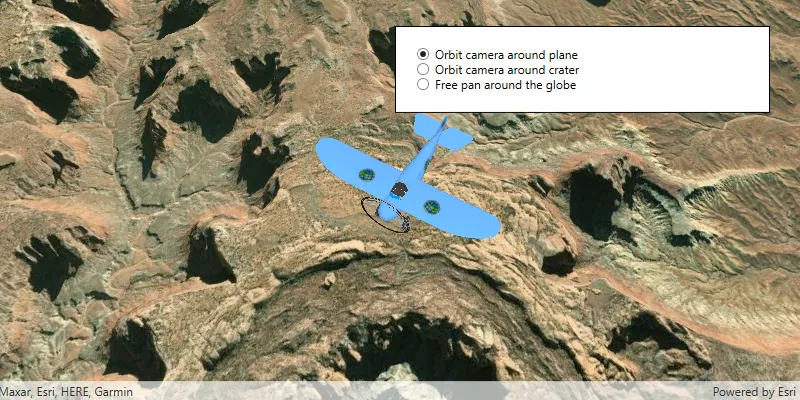
Change camera controller

Show realistic light and shadows

Animate images with image overlay

Display a web scene from a portal item
