Position graphics relative to a surface using different surface placement modes.
Use case
Depending on the use case, data might be displayed at an absolute height (e.g. flight data recorded with altitude information), at a relative height to the terrain (e.g. transmission lines positioned relative to the ground), at a relative height to objects in the scene (e.g. extruded polygons, integrated mesh scene layer), or draped directly onto the terrain (e.g. location markers, area boundaries).
How to use the sample
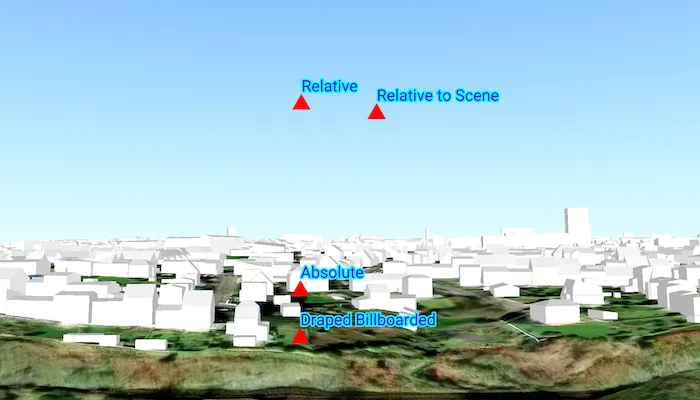
The sample loads a scene showing four points that use the individual surface placement rules (absolute, relative, relative to scene, and either draped billboarded or draped flat). Use the toggle to change the draped mode and the slider to dynamically adjust the z value of the graphics. Explore the scene by zooming in/out and by panning around to observe the effects of the surface placement rules.
How it works
- Create a
GraphicsOverlayfor eachSurfacePlacement:Absolutepositions the graphic using only its z-value.DrapedBillboardedpositions the graphic upright on the surface, always facing the camera, ignoring its z-value.DrapedFlatpositions the graphic flat on the surface, ignoring its z-value.Relativepositions the graphic using its z-value plus the elevation of the surface.RelativeToScenepositions the graphic using its z-value plus the altitude values of the scene.
- Create and add graphics to the graphics overlays.
- Set
GraphicsOverlay.sceneProperties.surfacePlacementto the respectiveSurfacePlacement. - Create a
SceneViewinstance with a scene and the graphics overlays.
Relevant API
- GeometryEngine.createWithZ
- Graphic
- GraphicsOverlay
- LayerSceneProperties
- Surface
- SurfacePlacement
About the data
The scene shows a view of Brest, France. Four points are shown hovering with positions defined by each of the different surface placement modes (absolute, relative, relative to scene, and either draped billboarded or draped flat).
Additional information
This sample uses an elevation service to add elevation/terrain to the scene. Graphics are positioned relative to that surface for the drapedBillboarded, drapedFlat, and relative surface placement modes. It also uses a scene layer containing 3D models of buildings. Graphics are positioned relative to that scene layer for the relativeToScene surface placement mode.
Tags
3D, absolute, altitude, draped, elevation, floating, relative, scenes, sea level, surface placement
Sample code
/* Copyright 2025 Esri * * Licensed under the Apache License, Version 2.0 (the "License"); * you may not use this file except in compliance with the License. * You may obtain a copy of the License at * *    http://www.apache.org/licenses/LICENSE-2.0 * * Unless required by applicable law or agreed to in writing, software * distributed under the License is distributed on an "AS IS" BASIS, * WITHOUT WARRANTIES OR CONDITIONS OF ANY KIND, either express or implied. * See the License for the specific language governing permissions and * limitations under the License. * */
package com.esri.arcgismaps.sample.setsurfaceplacementmode.components
import android.app.Applicationimport androidx.compose.runtime.getValueimport androidx.compose.runtime.mutableDoubleStateOfimport androidx.compose.runtime.mutableStateOfimport androidx.compose.runtime.setValueimport androidx.lifecycle.AndroidViewModelimport androidx.lifecycle.viewModelScopeimport com.arcgismaps.Colorimport com.arcgismaps.geometry.GeometryEngineimport com.arcgismaps.geometry.Pointimport com.arcgismaps.geometry.SpatialReferenceimport com.arcgismaps.mapping.ArcGISSceneimport com.arcgismaps.mapping.ArcGISTiledElevationSourceimport com.arcgismaps.mapping.BasemapStyleimport com.arcgismaps.mapping.Surfaceimport com.arcgismaps.mapping.Viewpointimport com.arcgismaps.mapping.layers.ArcGISSceneLayerimport com.arcgismaps.mapping.view.Cameraimport com.arcgismaps.mapping.view.Graphicimport com.arcgismaps.mapping.view.GraphicsOverlayimport com.arcgismaps.mapping.view.SurfacePlacementimport com.arcgismaps.mapping.symbology.HorizontalAlignmentimport com.arcgismaps.mapping.symbology.SimpleMarkerSymbolimport com.arcgismaps.mapping.symbology.SimpleMarkerSymbolStyleimport com.arcgismaps.mapping.symbology.TextSymbolimport com.arcgismaps.mapping.symbology.VerticalAlignmentimport com.esri.arcgismaps.sample.sampleslib.components.MessageDialogViewModelimport kotlinx.coroutines.launch
class SetSurfacePlacementModeViewModel(application: Application) : AndroidViewModel(application) {
    private val arcGISSceneLayerUrl =        "https://tiles.arcgis.com/tiles/P3ePLMYs2RVChkJx/arcgis/rest/services/Buildings_Brest/SceneServer"    private val elevationSourceUrl =        "https://elevation3d.arcgis.com/arcgis/rest/services/WorldElevation3D/Terrain3D/ImageServer"
    // Z-value range used for interactive elevation updates    val zMin = 0.0    val zMax = 140.0    val zMid = (zMin + zMax) / 2.0
    // Create ArcGISScene    val arcGISScene: ArcGISScene = ArcGISScene(BasemapStyle.ArcGISImagery).apply {        // Add elevation to the base surface        baseSurface = Surface().apply {            elevationSources.add(ArcGISTiledElevationSource(elevationSourceUrl))        }        // Add scene layer from a URL        operationalLayers.add(ArcGISSceneLayer(uri = arcGISSceneLayerUrl))
        // Set an initial viewpoint        val viewpointPoint = Point(            x = -4.4595,            y = 48.3889,            z = 80.0,            spatialReference = SpatialReference.wgs84()        )        val camera = Camera(            locationPoint = viewpointPoint,            heading = 330.0,            pitch = 97.0,            roll = 0.0        )        initialViewpoint = Viewpoint(            boundingGeometry = viewpointPoint,            camera = camera        )    }
    // Graphics overlays for each surface placement mode    private val overlayAbsolute = createGraphicsOverlay(        surfacePlacement = SurfacePlacement.Absolute,        label = "Absolute",        offset = 0.0    )    private val overlayDrapedBillboarded = createGraphicsOverlay(        surfacePlacement = SurfacePlacement.DrapedBillboarded,        label = "Draped Billboarded",        offset = 0.0    )    private val overlayDrapedFlat = createGraphicsOverlay(        surfacePlacement = SurfacePlacement.DrapedFlat,        label = "Draped Flat",        offset = 0.0    )    private val overlayRelative = createGraphicsOverlay(        surfacePlacement = SurfacePlacement.Relative,        label = "Relative",        offset = 0.0    )    private val overlayRelativeToScene = createGraphicsOverlay(        surfacePlacement = SurfacePlacement.RelativeToScene,        label = "Relative to Scene",        // Tiny X/Y offset helps differentiate symbols rendered at the same location        offset = 2e-4    )
    // Expose overlays as a list for the SceneView composable    val graphicsOverlays: List<GraphicsOverlay> = listOf(        overlayAbsolute,        overlayDrapedBillboarded,        overlayDrapedFlat,        overlayRelative,        overlayRelativeToScene    )
    // Current draped mode selection    var drapedMode by mutableStateOf(DrapedMode.Billboarded)        private set
    // Current Z-value in meters used by all graphics    var zValue by mutableDoubleStateOf(zMid)        private set
    // Create a message dialog view model for handling error messages    val messageDialogVM = MessageDialogViewModel()
    init {        // Set initial draped overlay visibility        updateDrapedOverlayVisibility(DrapedMode.Billboarded)        // Load the scene and handle any errors        viewModelScope.launch {            arcGISScene.load().onFailure { messageDialogVM.showMessageDialog(it) }        }    }
    // Update currently selected draped mode and toggle visibility    fun updateDrapedMode(mode: DrapedMode) {        drapedMode = mode        updateDrapedOverlayVisibility(mode)    }
    // Update the Z-value (in meters) applied to all placement graphics    fun updateZValue(valueMeters: Float) {        val newZ = valueMeters.toDouble()        zValue = newZ        updateGraphicsZValue(newZ)    }
    // Toggle visibility between DrapedBillboarded and DrapedFlat overlays    private fun updateDrapedOverlayVisibility(mode: DrapedMode) {        overlayDrapedBillboarded.isVisible = mode == DrapedMode.Billboarded        overlayDrapedFlat.isVisible = mode == DrapedMode.Flat    }
    // Apply the given Z-value to all graphics    private fun updateGraphicsZValue(zMeters: Double) {        graphicsOverlays.forEach { overlay ->            overlay.graphics.forEach { graphic ->                graphic.geometry?.let { geometry ->                    graphic.geometry = GeometryEngine.createWithZ(geometry, zMeters)                }            }        }    }
    // Create a GraphicsOverlay with a marker and label configured for the given SurfacePlacement    private fun createGraphicsOverlay(        surfacePlacement: SurfacePlacement,        label: String,        offset: Double    ): GraphicsOverlay {        // Simple red triangle marker        val markerSymbol = SimpleMarkerSymbol(            style = SimpleMarkerSymbolStyle.Triangle,            color = Color.red,            size = 20f        )        // Blue text label with cyan halo for readability        val textSymbol = TextSymbol(            text = label,            color = Color.fromRgba(0, 0, 255, 255),            size = 20f,            horizontalAlignment = HorizontalAlignment.Left,            verticalAlignment = VerticalAlignment.Middle        ).apply {            haloColor = Color.cyan            haloWidth = 2f            // Vertical offset avoids overlapping label and marker            offsetY = 20f        }
        // apply tiny XY offset when requested to avoid overlap        val point = Point(            x = -4.4609257 + offset,            y = 48.3903965 + offset,            z = zMid,            spatialReference = SpatialReference.wgs84()        )
        // Create overlay with both graphics and set its placement behavior        return GraphicsOverlay().apply {            graphics.addAll(                listOf(                    Graphic(geometry = point, symbol = markerSymbol),                    Graphic(geometry = point, symbol = textSymbol)                )            )            sceneProperties.surfacePlacement = surfacePlacement        }    }
    enum class DrapedMode { Billboarded, Flat }}
/* Copyright 2025 Esri * * Licensed under the Apache License, Version 2.0 (the "License"); * you may not use this file except in compliance with the License. * You may obtain a copy of the License at * * http://www.apache.org/licenses/LICENSE-2.0 * * Unless required by applicable law or agreed to in writing, software * distributed under the License is distributed on an "AS IS" BASIS, * WITHOUT WARRANTIES OR CONDITIONS OF ANY KIND, either express or implied. * See the License for the specific language governing permissions and * limitations under the License. * */
package com.esri.arcgismaps.sample.setsurfaceplacementmode
import android.os.Bundleimport androidx.activity.ComponentActivityimport androidx.activity.enableEdgeToEdgeimport androidx.activity.compose.setContentimport androidx.compose.material3.MaterialThemeimport androidx.compose.material3.Surfaceimport androidx.compose.runtime.Composableimport com.esri.arcgismaps.sample.sampleslib.theme.SampleAppThemeimport com.esri.arcgismaps.sample.setsurfaceplacementmode.screens.SetSurfacePlacementModeScreen
class MainActivity : ComponentActivity() {
override fun onCreate(savedInstanceState: Bundle?) { super.onCreate(savedInstanceState)
enableEdgeToEdge() setContent { SampleAppTheme { SetSurfacePlacementModeApp() } } }
@Composable private fun SetSurfacePlacementModeApp() { Surface(color = MaterialTheme.colorScheme.background) { SetSurfacePlacementModeScreen( sampleName = getString(R.string.set_surface_placement_mode_app_name) ) } }}/* Copyright 2025 Esri * * Licensed under the Apache License, Version 2.0 (the "License"); * you may not use this file except in compliance with the License. * You may obtain a copy of the License at * * http://www.apache.org/licenses/LICENSE-2.0 * * Unless required by applicable law or agreed to in writing, software * distributed under the License is distributed on an "AS IS" BASIS, * WITHOUT WARRANTIES OR CONDITIONS OF ANY KIND, either express or implied. * See the License for the specific language governing permissions and * limitations under the License. * */
package com.esri.arcgismaps.sample.setsurfaceplacementmode.screens
import androidx.compose.foundation.layout.Arrangementimport androidx.compose.foundation.layout.Boximport androidx.compose.foundation.layout.Columnimport androidx.compose.foundation.layout.Rowimport androidx.compose.foundation.layout.fillMaxSizeimport androidx.compose.foundation.layout.fillMaxWidthimport androidx.compose.foundation.layout.paddingimport androidx.compose.material.icons.Iconsimport androidx.compose.material.icons.filled.Settingsimport androidx.compose.material3.FloatingActionButtonimport androidx.compose.material3.Iconimport androidx.compose.material3.MaterialThemeimport androidx.compose.material3.Scaffoldimport androidx.compose.material3.SegmentedButtonimport androidx.compose.material3.SegmentedButtonDefaultsimport androidx.compose.material3.SingleChoiceSegmentedButtonRowimport androidx.compose.material3.Sliderimport androidx.compose.material3.Textimport androidx.compose.runtime.Composableimport androidx.compose.runtime.getValueimport androidx.compose.runtime.mutableStateOfimport androidx.compose.runtime.rememberimport androidx.compose.runtime.setValueimport androidx.compose.ui.Alignmentimport androidx.compose.ui.Modifierimport androidx.compose.ui.unit.dpimport androidx.lifecycle.viewmodel.compose.viewModelimport com.arcgismaps.toolkit.geoviewcompose.SceneViewimport com.esri.arcgismaps.sample.sampleslib.components.BottomSheetimport com.esri.arcgismaps.sample.sampleslib.components.MessageDialogimport com.esri.arcgismaps.sample.sampleslib.components.SampleTopAppBarimport com.esri.arcgismaps.sample.setsurfaceplacementmode.components.SetSurfacePlacementModeViewModelimport com.esri.arcgismaps.sample.setsurfaceplacementmode.components.SetSurfacePlacementModeViewModel.DrapedModeimport java.util.Locale
@Composablefun SetSurfacePlacementModeScreen(sampleName: String) { val sceneViewModel: SetSurfacePlacementModeViewModel = viewModel()
var isBottomSheetVisible by remember { mutableStateOf(false) }
Scaffold( topBar = { SampleTopAppBar(title = sampleName) }, floatingActionButton = { if (!isBottomSheetVisible) { FloatingActionButton( modifier = Modifier.padding(bottom = 36.dp, end = 12.dp), onClick = { isBottomSheetVisible = true } ) { Icon(Icons.Filled.Settings, contentDescription = "Show options") } } }, content = { padding -> Box(modifier = Modifier.padding(padding)) { SceneView( modifier = Modifier.fillMaxSize(), arcGISScene = sceneViewModel.arcGISScene, graphicsOverlays = sceneViewModel.graphicsOverlays )
BottomSheet( isVisible = isBottomSheetVisible, sheetTitle = "Surface Placement Options", onDismissRequest = { isBottomSheetVisible = false } ) { Column( modifier = Modifier .fillMaxWidth() .padding(12.dp), verticalArrangement = Arrangement.spacedBy(8.dp), horizontalAlignment = Alignment.CenterHorizontally ) { Row( modifier = Modifier.fillMaxWidth(), horizontalArrangement = Arrangement.spacedBy(12.dp), verticalAlignment = Alignment.CenterVertically ) { Text( text = "Draped mode:", style = MaterialTheme.typography.titleMedium ) SingleChoiceSegmentedButtonRow { DrapedMode.entries.forEach { mode -> SegmentedButton( shape = SegmentedButtonDefaults.itemShape( index = mode.ordinal, count = DrapedMode.entries.size), onClick = { sceneViewModel.updateDrapedMode(mode) }, selected = sceneViewModel.drapedMode == mode ) { Text(mode.name) } } } }
Row( modifier = Modifier.fillMaxWidth(), horizontalArrangement = Arrangement.spacedBy(12.dp), verticalAlignment = Alignment.CenterVertically ) { Text( text = "Z-value: ${String.format(Locale.getDefault(),"%.1f", sceneViewModel.zValue)} m", style = MaterialTheme.typography.titleMedium ) Slider( value = sceneViewModel.zValue.toFloat(), onValueChange = { newValue -> sceneViewModel.updateZValue(newValue) }, valueRange = sceneViewModel.zMin.toFloat()..sceneViewModel.zMax.toFloat() ) } } } }
sceneViewModel.messageDialogVM.apply { if (dialogStatus) { MessageDialog( title = messageTitle, description = messageDescription, onDismissRequest = ::dismissDialog ) } } } )}