When symbolizing geoelements
Each component of a dictionary renderer’s symbol is based on an attribute value and describes something about the geoelement

A dictionary renderer
How a dictionary renderer works
A renderer
A dictionary renderer.stylx file created in ArcGIS Pro that contains symbol primitives, such as the symbol frame, lines that make up inner icons. .stylx extension. Each symbol

You can create your own dictionary style with the symbols you need as well as the logic for how they are applied. The logic for applying symbols from a dictionary style is implemented as an Arcade.stylx file created in ArcGIS Pro that contains symbol primitives, such as the symbol frame, lines that make up inner icons.
One or more symbols are read from a dictionary style to build a composite multilayer symbol for a geoelement$feature.healthgrade), determines the corresponding letter grade, and stores the appropriate key to return.
if (!isempty($feature.healthgrade) && $feature.healthgrade > 0) { if($feature.healthgrade > 89){ healthgradekey = 'inspection-A' } else if($feature.healthgrade > 79){ healthgradekey = 'inspection-B' } else if($feature.healthgrade > 69){ healthgradekey = 'inspection-C' } else { healthgradekey = 'inspection-yuk' } }While you can open a dictionary style in ArcGIS Pro for editing symbols, you cannot access the Arcade logic or configuration there. You can use a utility for opening SQLite databases (such as DB Browser for SQLite), however, to view and edit those properties of the style.
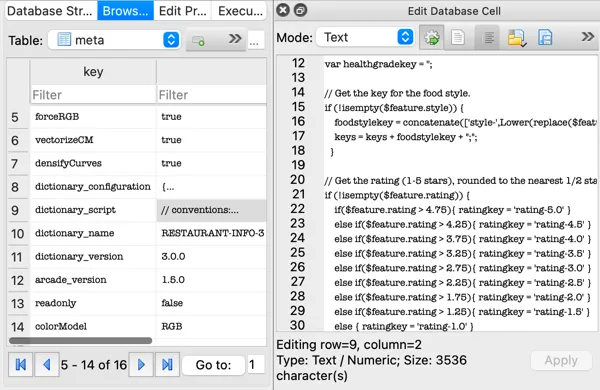
For more information about creating your own dictionary style, see the Dictionary Renderer Toolkit.
Dictionary style properties
Dictionary style properties include symbol properties, text properties, and configuration properties. Symbol and text properties define the attribute
The following example shows the configuration JSON for the restaurant dictionary style illustrated previously. In this case, there is only one configuration property, which is the ability to turn text display on or off. Symbol properties are defined with a list of the expected attributes
{ "configuration": [{ "name": "text", "value": "ON", "domain": ["ON", "OFF"], "info": "indicates if the text is rendered" } ], "symbol": ["style", "rating", "price", "healthgrade", "opentime", "closetime"], "text": ["name"]}Map geoelement fields to configuration fields
A DictionaryRenderer will automatically read fields in your data that have names matching those required by the style specification. For any fields in your data that don’t exactly match the expected names, map the field names by setting the DictionaryRenderer::symbologyFieldOverrides() and DictionaryRenderer::textFieldOverrides() properties of the dictionary renderer. These operations take a set of key-value pairs, in which the key is the expected attribute
If you’re not sure what attributesDictionarySymbolStyle by calling DictionarySymbolStyle::symbologyFieldNames and DictionarySymbolStyle::textFieldNames.
Military symbols
Military symbols are based on military standards, such as MIL-STD-2525C and MIL-STD-2525D, and are composed of many elements such as frames, icons, modifiers, graphic amplifiers, and text amplifiers. In ArcGIS, military symbols are composed of multiple symbol layers. Esri builds desktop and web military symbology dictionary styles for the US and NATO standards: MIL-STD-2525B with CHANGE 2, MIL-STD-2525C, MIL-STD-2525D, MIL-STD-2525D with CHANGE 1, MIL-STD-2525E, APP-6(B), APP-6(D) and APP-6(E).
Military symbol dictionary styles allow you to choose whether to assemble and render the symbol
The ArcGIS Military Symbology Editor is an ArcGIS Pro tool for creating and sharing military overlays. It leverages a specific schema for each military symbol standard (such as identity, symbol set, and so on). Data created using this tool will work by default with the military symbol dictionary styles, configured with the DictionaryRenderer.
Regardless of the specification, all military symbols are based on a varying combination of attributes or codes and a set of rules about how the symbols should display.
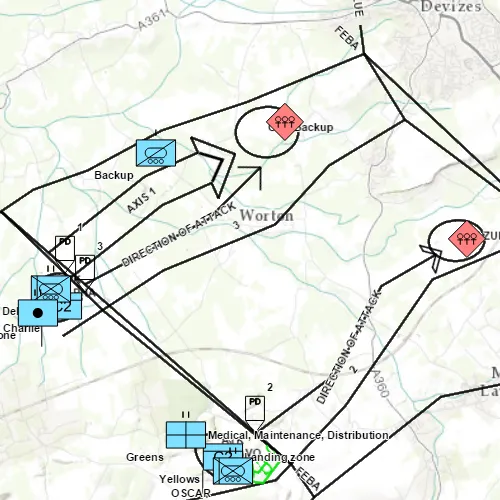
Text can be displayed as additional symbol components using the values contained in the specified field or fields. The configuration property for showing or hiding text can be used to turn off all text display, regardless of the input attribute
Dictionary styles for the military symbology standards MIL-STD 2525 and APP-6 support symbolizing control measure lines based on ordered anchor points. To ensure this specification is applied, iterate through the collection of dictionary symbol style configurations (DictionarySymbolStyle::configurations()) and find the configuration that has the DictionarySymbolStyleConfiguration::name() of "model". Set DictionarySymbolStyleConfiguration::setValue() to be "ORDERED ANCHOR POINTS". Note, you can download these military dictionary symbol styles from ArcGIS Online.
Examples
Symbolize a feature layer or graphics overlay
-
Point to the dictionary style file
A style file is a (.stylxfile created in ArcGIS Pro that contains symbol primitives, such as the symbol frame, lines that make up inner icons..stylx) and create aDictionarySymbolStyleobject.This can be one of the standard military styles, or a custom dictionary style. Custom styles use the newer ( Arcade
Arcade is a lightweight and secure expression language used in ArcGIS products and APIs. Arcade expressions are commonly used to calculate or format field values for data-driven visualizations, labels, and popups. The expressions work against data stored in data services. -based) styles that have metadata with the specification name. TheDictionarySymbolStyle::createFromFilemethod is used for newer Arcade-based styles and will fail if you provide an older style. -
If the input field names match the dictionary style’s expected fields for symbols and text, they will be used to symbolize the data. If field names don’t match (or you want to use different fields), you can explicitly map the expected fields to the appropriate fields in the data.
Field mapping overrides are defined with two sets of key-value pairs: one for symbol fields and one for text fields. Each key identifies an expected field (defined in the dictionary’s symbol and text properties) and the value identifies the corresponding mapped field (from the dataset). Field names are not case sensitive.
-
Set configuration property values for the style.
Configuration properties are stored in a read-only list of symbol style configuration objects. Access the desired configuration in the list and change its value. This step is only necessary if you want to change any of the default configuration settings.
-
Create a dictionary renderer
A dictionary renderer is a renderer that uses a style file generated in ArcGIS Pro from a rule engine and is used to display types of advanced symbology on a map, such as military symbology. that uses the style. If you need to use custom field mappings, include the key-value pairs that define them. -
Assign the
DictionaryRendererto the layer or graphics overlay.
    // Create a DictionaryRenderer using the local .stylx file    DictionarySymbolStyle* localDictionaryStyle = DictionarySymbolStyle::createFromFile(defaultDataPath() + "/ArcGIS/Runtime/Data/styles/arcade_style/Restaurant.stylx", this);    DictionaryRenderer* dictionaryRenderer = new DictionaryRenderer(localDictionaryStyle, this);
    // Set initial FeatureLayer renderer to the local DictionaryRenderer    featureLayer->setRenderer(dictionaryRenderer);
    // Create a DictionarySymbolStyle from a portal item, using the default arcgis.com path    PortalItem* portalItem = new PortalItem("adee951477014ec68d7cf0ea0579c800", this);    DictionarySymbolStyle* dictSymbStyleFromPortal = new DictionarySymbolStyle(portalItem, this);
    // The source feature layer fields do not match those of the the DictionarySymbolStyle so we create a fieldMap to correct this    QMap<QString, QString> fieldMap;    // With the following override, the feature layer's "inspection" field will be mapped to the dictionary symbol style's "healthgrade" field    fieldMap["healthgrade"] = "inspection";    DictionaryRenderer* webDictionaryRenderer = new DictionaryRenderer(dictSymbStyleFromPortal, fieldMap, fieldMap, this);
Get a symbol for a specified set of attributes
-
Point to the dictionary style file
A style file is a (.stylxfile created in ArcGIS Pro that contains symbol primitives, such as the symbol frame, lines that make up inner icons..stylx) and create aDictionarySymbolStyleobject. -
Define a set of attributes
Attributes are fields and values for a single feature or non-spatial record. They are typically stored in a database or service such as a feature service. with which to build the symbol. These are key-value pairs containing the expected attribute name and the input value. -
Use the attribute values to search the style and return the appropriate multilayer symbol.
    // Open a custom Arcade-based style using a path to the .stylx file.    DictionarySymbolStyle* restaurantStyle = DictionarySymbolStyle::createFromFile(filePath, this);
    QMap<QString,QVariant> attributes        {            {"style", "Pizza"},            {"healthgrade", 83.0},            {"rating", 2.52},            {"price", 1}        };
    Symbol* symbolResult = nullptr;
    // Fetch the symbol with the given attributes    restaurantStyle->fetchSymbolAsync(attributes).then([&](Symbol* symbol) {        // do something with the symbol        symbolResult = symbol;    });


