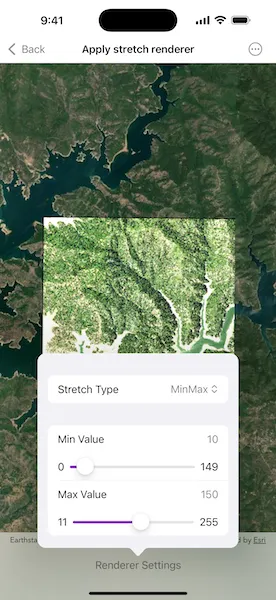
Use a stretch renderer to enhance the visual contrast of raster data for analysis.
Use case
An appropriate stretch renderer can enhance the contrast of raster imagery, allowing the user to control how their data is displayed for efficient imagery analysis.
How to use the sample
Choose one of the stretch parameter types:
- Standard deviation - a linear stretch defined by the standard deviation of the pixel values
- Min-max - a linear stretch based on minimum and maximum pixel values
- Percent clip - a linear stretch between the defined percent clip minimum and percent clip maximum pixel values
Then configure the parameters.
How it works
- Create a raster from a raster file using
Raster.init(fileURL:). - Create a raster layer from the raster using
RasterLayer.init(raster:). - Add the layer to the map using
Map.addOperationalLayer(_:). - Create a stretch renderer, specifying the stretch parameters and other properties using
StretchRenderer.init(parameters:gammas:estimatesStatistics:colorRamp:). - Set the renderer on the raster layer using
RasterLayer.renderer.
Relevant API
- ColorRamp
- MinMaxStretchParameters
- PercentClipStretchParameters
- Raster
- RasterLayer
- StandardDeviationStretchParameters
- StretchParameters
- StretchRenderer
Offline data
This sample uses the Shasta raster. It is downloaded from ArcGIS Online automatically.
About the data
This sample uses a raster imagery tile of an area of forested mountainous terrain and rivers.
Additional information
See Stretch function in the ArcGIS Pro documentation for more information about the types of stretches that can be performed.
Tags
analysis, deviation, histogram, imagery, interpretation, min-max, percent clip, pixel, raster, stretch, symbology, visualization
Sample code
// Copyright 2025 Esri//// Licensed under the Apache License, Version 2.0 (the "License");// you may not use this file except in compliance with the License.// You may obtain a copy of the License at////   https://www.apache.org/licenses/LICENSE-2.0//// Unless required by applicable law or agreed to in writing, software// distributed under the License is distributed on an "AS IS" BASIS,// WITHOUT WARRANTIES OR CONDITIONS OF ANY KIND, either express or implied.// See the License for the specific language governing permissions and// limitations under the License.
import ArcGISimport SwiftUI
struct ApplyStretchRendererView: View {    /// Creates the raster layer used by this sample.    static func makeRasterLayer() -> RasterLayer {        let shastaURL = Bundle.main.url(            forResource: "Shasta",            withExtension: "tif",            subdirectory: "raster-file/raster-file"        )!        let raster = Raster(fileURL: shastaURL)        return RasterLayer(raster: raster)    }
    /// Creates the map for this sample.    static func makeMap() -> Map {        let map = Map(basemapStyle: .arcGISImageryStandard)        map.addOperationalLayer(makeRasterLayer())        return map    }
    /// The map displayed by the map view.    @State private var map = makeMap()    /// The error if the raster layer load operation failed, otherwise `nil`.    @State private var rasterLayerLoadError: (any Error)?    /// A Boolean value that indicates whether the settings sheet is presented.    @State private var isSettingsFormPresented = false
    /// The settings for a stretch renderer.    struct RendererSettings: Equatable {        enum StretchType: CaseIterable { // swiftlint:disable:this nesting            case minMax, percentClip, standardDeviation        }
        var stretchType: StretchType = .minMax
        // MinMax
        var valueMin = 10.0        var valueMax = 150.0
        // PercentClip
        var percentMin = 0.0        var percentMax = 50.0
        // StdDeviation
        var factor = 0.5    }
    /// The settings used to create the parameters of the stretch renderer.    @State private var rendererSettings = RendererSettings()
    /// The raster layer from the map.    var rasterLayer: RasterLayer { map.operationalLayers.first as! RasterLayer }
    var body: some View {        MapViewReader { mapView in            MapView(map: map)                .task {                    do {                        try await rasterLayer.load()                        if let fullExtent = rasterLayer.fullExtent {                            let viewpoint = Viewpoint(center: fullExtent.center, scale: 80_000)                            await mapView.setViewpoint(viewpoint)                        }                    } catch {                        rasterLayerLoadError = error                    }                }                .errorAlert(presentingError: $rasterLayerLoadError)                .onChange(of: rendererSettings, initial: true) {                    let parameters: StretchParameters = switch rendererSettings.stretchType {                    case .minMax:                        MinMaxStretchParameters(                            minValues: [rendererSettings.valueMin],                            maxValues: [rendererSettings.valueMax]                        )                    case .percentClip:                        PercentClipStretchParameters(                            min: rendererSettings.percentMin,                            max: rendererSettings.percentMax                        )                    case .standardDeviation:                        StandardDeviationStretchParameters(                            factor: rendererSettings.factor                        )                    }                    rasterLayer.renderer = StretchRenderer(                        parameters: parameters,                        gammas: [],                        estimatesStatistics: true,                        colorRamp: nil                    )                }                .toolbar {                    ToolbarItem(placement: .bottomBar) {                        Button("Renderer Settings") {                            isSettingsFormPresented = true                        }                        .popover(isPresented: $isSettingsFormPresented) {                            settingsForm                                .frame(idealWidth: 320, idealHeight: 310)                                .presentationCompactAdaptation(.popover)                        }                    }                }        }    }
    var settingsForm: some View {        Form {            Section {                Picker("Stretch Type", selection: $rendererSettings.stretchType) {                    ForEach(RendererSettings.StretchType.allCases, id: \.self) { stretchType in                        let label = switch stretchType {                        case .minMax: "MinMax"                        case .percentClip: "PercentClip"                        case .standardDeviation: "StdDeviation"                        }                        Text(label)                    }                }            }            Section {                switch rendererSettings.stretchType {                case .minMax:                    let valueRange = 0.0...255.0                    let format = FloatingPointFormatStyle<Double>()                        .precision(.fractionLength(0))                    LabeledContent(                        "Min Value",                        value: rendererSettings.valueMin,                        format: format                    )                    Slider(                        value: $rendererSettings.valueMin,                        in: valueRange.lowerBound...(rendererSettings.valueMax - 1)                    ) {                        Text("Min Value")                    } minimumValueLabel: {                        Text(valueRange.lowerBound, format: format)                    } maximumValueLabel: {                        Text(rendererSettings.valueMax - 1, format: format)                    }                    .listRowSeparator(.hidden, edges: .top)                    LabeledContent(                        "Max Value",                        value: rendererSettings.valueMax,                        format: format                    )                    Slider(                        value: $rendererSettings.valueMax,                        in: (rendererSettings.valueMin + 1)...valueRange.upperBound                    ) {                        Text("Max Value")                    } minimumValueLabel: {                        Text(rendererSettings.valueMin + 1, format: format)                    } maximumValueLabel: {                        Text(valueRange.upperBound, format: format)                    }                    .listRowSeparator(.hidden, edges: .top)                case .percentClip:                    let percentRange = 0.0...100.0                    let format = FloatingPointFormatStyle<Double>.Percent()                        .precision(.fractionLength(0))                        .scale(1)                    LabeledContent(                        "Min",                        value: rendererSettings.percentMin,                        format: format                    )                    Slider(                        value: $rendererSettings.percentMin,                        in: percentRange.lowerBound...rendererSettings.percentMax                    ) {                        Text("Min")                    } minimumValueLabel: {                        Text(percentRange.lowerBound, format: format)                    } maximumValueLabel: {                        Text(rendererSettings.percentMax, format: format)                    }                    .listRowSeparator(.hidden, edges: .top)                    LabeledContent(                        "Max",                        value: rendererSettings.percentMax,                        format: format                    )                    Slider(                        value: $rendererSettings.percentMax,                        in: rendererSettings.percentMin...percentRange.upperBound                    ) {                        Text("Max")                    } minimumValueLabel: {                        Text(rendererSettings.percentMin, format: format)                    } maximumValueLabel: {                        Text(percentRange.upperBound, format: format)                    }                    .listRowSeparator(.hidden, edges: .top)                case .standardDeviation:                    let format = FloatingPointFormatStyle<Double>()                        .precision(.fractionLength(0...2))                    LabeledContent(                        "Factor",                        value: rendererSettings.factor,                        format: format                    )                    let factorRange = 0.25...4.0                    Slider(                        value: $rendererSettings.factor,                        in: factorRange                    ) {                        Text("Factor")                    } minimumValueLabel: {                        Text(factorRange.lowerBound, format: format)                    } maximumValueLabel: {                        Text(factorRange.upperBound, format: format)                    }                    .listRowSeparator(.hidden, edges: .top)                }            }            .multilineTextAlignment(.trailing)        }        .animation(.default, value: rendererSettings.stretchType)    }}