Construct a KML document and save it as a KMZ file.

Use case
If you need to create and save data on the fly, you can use KML to create points, lines, and polygons by sketching on the map, customizing the style, and serializing them as KML nodes in a KML Document. Once complete, you can share the KML data with others that are using a KML reading application, such as ArcGIS Earth.
How to use the sample
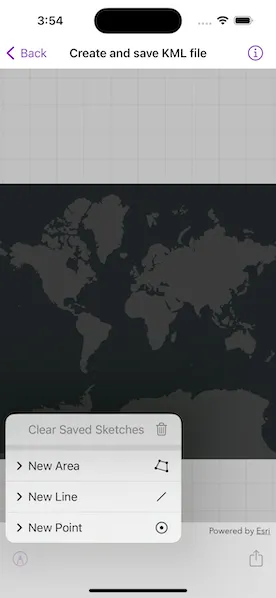
Tap on the sketch button in the toolbar to add a new KML. Select a type of feature and choose its color or icon. Tap on the map to sketch the KML. Tap the sketch button and tap “Save Sketch” to complete the sketch. Tap the file export button in the toolbar to export the file. Tap the sketch button and the “Clear Saved Sketches” button to clear the current KML document.
How it works
- Create an
KMLDocument. - Create an
KMLDatasetusing theKMLDocument. - Create an
KMLLayerusing theKMLDatasetand add it to the map’soperationalLayersarray. - Create
GeometryusingGeometryEditor. - Project that
Geometryto WGS84 usingGeometryEngine.project(_:into:). - Create an
KMLGeometryobject using that projectedGeometry. - Create an
KMLPlacemarkusing theKMLGeometry. - Add the
KMLPlacemarkto theKMLDocument. - Set the
KMLStylefor theKMLPlacemark. - When finished with adding
KMLPlacemarknodes to theKMLDocument, save theKMLDocumentto a file using theKMLNode.save(to:)method.
Relevant API
- GeometryEditor
- GeometryEngine
- KMLDataset
- KMLDocument
- KMLGeometry
- KMLLayer
- KMLNode
- KMLPlacemark
- KMLStyle
Tags
Keyhole, KML, KMZ, OGC
Sample code
// Copyright 2023 Esri//// Licensed under the Apache License, Version 2.0 (the "License");// you may not use this file except in compliance with the License.// You may obtain a copy of the License at////   https://www.apache.org/licenses/LICENSE-2.0//// Unless required by applicable law or agreed to in writing, software// distributed under the License is distributed on an "AS IS" BASIS,// WITHOUT WARRANTIES OR CONDITIONS OF ANY KIND, either express or implied.// See the License for the specific language governing permissions and// limitations under the License.
import ArcGISimport SwiftUIimport UniformTypeIdentifiers
struct CreateAndSaveKMLView: View {    /// The view model for this sample.    @StateObject var model = Model()
    var body: some View {        MapView(map: model.map)            .geometryEditor(model.geometryEditor)            .errorAlert(presentingError: $model.error)            .toolbar {                ToolbarItemGroup(placement: .bottomBar) {                    Menu {                        if !model.isStarted {                            // If the geometry editor is not started, show the main menu.                            mainMenuContent                        } else {                            // If the geometry editor is started, show the edit menu.                            editMenuContent                        }                    }  label: {                        Label("Geometry Editor", systemImage: "pencil.tip.crop.circle")                    }
                    Spacer()
                    Button {                        model.showingFileExporter = true                    } label: {                        Label("Export File", systemImage: "square.and.arrow.up")                    }                    .disabled(model.fileExporterButtonIsDisabled)                }            }            .task {                for await geometry in model.geometryEditor.$geometry {                    model.geometry = geometry                }            }            .fileExporter(isPresented: $model.showingFileExporter, document: model.kmzFile, contentType: .kmz) { result in                switch result {                case .success:                    // We no longer need the file locally.                    model.kmzFile.deleteFile()
                    // We no longer have a local file so disable file exporter button.                    model.fileExporterButtonIsDisabled = true                case .failure(let error):                    model.error = error                }            }    }}
extension CreateAndSaveKMLView {    /// A KMZ file that can be used with the native file exporter.    final class KMZFile: FileDocument {        /// The KML document that is used to create the KMZ file.        private let document: KMLDocument
        /// The temporary directory where the KMZ file will be stored.        private let temporaryDirectory = FileManager.createTemporaryDirectory()
        /// The temporary URL to the KMZ file.        private var temporaryDocumentURL: URL? {            temporaryDirectory                .appendingPathComponent("\(document.name).kmz")        }
        static var readableContentTypes: [UTType] { [.kmz] }
        /// Creates a KMZ file with a KML document.        /// - Parameter document: The KML document that is used when creating the KMZ file.        init(document: KMLDocument) {            self.document = document        }
        // This initializer loads data that has been saved previously.        init(configuration: ReadConfiguration) throws {            fatalError("Loading KML files is not supported by this sample")        }
        // This will be called when the system wants to write our data to disk        func fileWrapper(configuration: WriteConfiguration) throws -> FileWrapper {            guard let temporaryDocumentURL else { return FileWrapper() }            return try FileWrapper(url: temporaryDocumentURL)        }
        /// Deletes the temporarily stored KMZ file.        func deleteFile() {            try? FileManager.default.removeItem(at: temporaryDirectory)        }
        /// Saves the KML document as a KMZ file to a temporary location.        func saveFile() async throws {            if document.name.isEmpty {                document.name = "Untitled"            }
            try await document.save(to: temporaryDocumentURL!)        }    }}
private extension FileManager {    /// Creates a temporary directory and returns the URL of the created directory.    static func createTemporaryDirectory() -> URL {        try! FileManager.default.url(            for: .itemReplacementDirectory,            in: .userDomainMask,            appropriateFor: FileManager.default.temporaryDirectory,            create: true        )    }}
private extension UTType {    /// A type that represents a KMZ file.    static let kmz = UTType(filenameExtension: "kmz")!}
#Preview {    NavigationStack {        CreateAndSaveKMLView()    }}
// Copyright 2023 Esri//// Licensed under the Apache License, Version 2.0 (the "License");// you may not use this file except in compliance with the License.// You may obtain a copy of the License at//// https://www.apache.org/licenses/LICENSE-2.0//// Unless required by applicable law or agreed to in writing, software// distributed under the License is distributed on an "AS IS" BASIS,// WITHOUT WARRANTIES OR CONDITIONS OF ANY KIND, either express or implied.// See the License for the specific language governing permissions and// limitations under the License.
import ArcGISimport Combine
extension CreateAndSaveKMLView { /// The model used to store the geo model and other expensive objects used in this view. @MainActor class Model: ObservableObject { /// A dark gray map. let map = Map(basemapStyle: .arcGISDarkGray)
/// The geometry editor that deals with the sketching. let geometryEditor: GeometryEditor
/// The KML style used for the geometry. var kmlStyle: KMLStyle?
/// A KML document that serves as a container for features and styles. var kmlDocument = KMLDocument()
/// A KMZ file that can be exported with the system's file exporter. var kmzFile = KMZFile(document: .init())
/// A Boolean value indicating if the clear button is disabled. @Published private(set) var clearButtonIsDisabled = true
/// A Boolean value indicating if the saved sketches can be cleared. @Published private(set) var canClearSavedSketches = false
/// A Boolean value indicating if the geometry editor has started. @Published private(set) var isStarted = false
/// A Boolean value indicating if the geometry can be saved to a graphics overlay. @Published private(set) var canSave = false
/// The current geometry of the geometry editor. @Published var geometry: Geometry? { didSet { clearButtonIsDisabled = geometry.map(\.isEmpty) ?? true canSave = geometry?.sketchIsValid ?? false } }
/// A Boolean value indicating if we should show the file exporter. @Published var showingFileExporter = false
/// A Boolean value indicating if the file exporter button should be disabled. @Published var fileExporterButtonIsDisabled = true
/// The error shown in the error alert. @Published var error: (any Error)?
/// Creates the model for this view. init() { self.geometryEditor = GeometryEditor()
resetKMLLayer() }
/// Clears all the saved sketches on the graphics overlay. func clearSavedSketches() { canClearSavedSketches = false fileExporterButtonIsDisabled = true map.removeAllOperationalLayers() resetKMLLayer() }
/// Stops editing with the geometry editor. func stop() { geometryEditor.stop() isStarted = false kmlStyle = nil }
/// Saves the current geometry to the graphics overlay and stops editing. /// - Precondition: `canSave` func save() { precondition(canSave) let geometry = geometryEditor.geometry! let projectedGeometry = GeometryEngine.project(geometry, into: .wgs84)!
let kmlGeometry = KMLGeometry(geometry: projectedGeometry, altitudeMode: .clampToGround)! let currentPlacemark = KMLPlacemark(geometry: kmlGeometry) currentPlacemark.style = kmlStyle kmlDocument.addChildNode(currentPlacemark)
stop() canClearSavedSketches = true fileExporterButtonIsDisabled = false
Task { try? await kmzFile.saveFile() } }
/// Resets the KML Layer that is used on the map. func resetKMLLayer() { kmlDocument = KMLDocument() kmzFile = KMZFile(document: kmlDocument) let kmlDataset = KMLDataset(rootNode: kmlDocument) map.addOperationalLayer(KMLLayer(dataset: kmlDataset)) }
/// Starts the geometry editor with a geometry type. /// - Parameter geometryType: The geometry type used to start the geometry editor. func startGeometryEditor(withType geometryType: Geometry.Type) { geometryEditor.tool = VertexTool() geometryEditor.start(withType: geometryType) isStarted = true } }}// Copyright 2023 Esri//// Licensed under the Apache License, Version 2.0 (the "License");// you may not use this file except in compliance with the License.// You may obtain a copy of the License at//// https://www.apache.org/licenses/LICENSE-2.0//// Unless required by applicable law or agreed to in writing, software// distributed under the License is distributed on an "AS IS" BASIS,// WITHOUT WARRANTIES OR CONDITIONS OF ANY KIND, either express or implied.// See the License for the specific language governing permissions and// limitations under the License.
import ArcGISimport SwiftUI
extension CreateAndSaveKMLView { /// The content of the main menu. var mainMenuContent: some View { VStack { Menu { pointStyleMenuContent } label: { Label("New Point", systemImage: "smallcircle.filled.circle") }
Menu { polylineStyleMenuContent } label: { Label("New Line", systemImage: "line.diagonal") }
Menu { polygonStyleMenuContent } label: { Label("New Area", systemImage: "skew") }
Divider()
Button(role: .destructive) { model.clearSavedSketches() } label: { Label("Clear Saved Sketches", systemImage: "trash") } .disabled(!model.canClearSavedSketches) } }
/// The content of the editing menu. var editMenuContent: some View { VStack { Button(role: .destructive) { model.geometryEditor.clearGeometry() } label: { Label("Clear Current Sketch", systemImage: "trash") } .disabled(model.clearButtonIsDisabled)
Divider()
Button { model.save() } label: { Label("Save Sketch", systemImage: "square.and.arrow.down") } .disabled(!model.canSave)
Button { model.stop() } label: { Label("Cancel Sketch", systemImage: "xmark") } } }
/// The point style menu. private var pointStyleMenuContent: some View { VStack { Button { model.kmlStyle = KMLStyle(iconURL: URL(string: "http://resources.esri.com/help/900/arcgisexplorer/sdk/doc/bitmaps/148cca9a-87a8-42bd-9da4-5fe427b6fb7b127.png")!) model.startGeometryEditor(withType: Point.self) } label: { Text("No Style") }
Button { model.kmlStyle = KMLStyle(iconURL: URL(string: "https://static.arcgis.com/images/Symbols/Shapes/BlueStarLargeB.png")!) model.startGeometryEditor(withType: Point.self) } label: { Text("Star") }
Button { model.kmlStyle = KMLStyle(iconURL: URL(string: "https://static.arcgis.com/images/Symbols/Shapes/BlueDiamondLargeB.png")!) model.startGeometryEditor(withType: Point.self) } label: { Text("Diamond") }
Button { model.kmlStyle = KMLStyle(iconURL: URL(string: "https://static.arcgis.com/images/Symbols/Shapes/BlueCircleLargeB.png")!) model.startGeometryEditor(withType: Point.self) } label: { Text("Circle") }
Button { model.kmlStyle = KMLStyle(iconURL: URL(string: "https://static.arcgis.com/images/Symbols/Shapes/BlueSquareLargeB.png")!) model.startGeometryEditor(withType: Point.self) } label: { Text("Square") }
Button { model.kmlStyle = KMLStyle(iconURL: URL(string: "https://static.arcgis.com/images/Symbols/Shapes/BluePin1LargeB.png")!) model.startGeometryEditor(withType: Point.self) } label: { Text("Round pin") }
Button { model.kmlStyle = KMLStyle(iconURL: URL(string: "https://static.arcgis.com/images/Symbols/Shapes/BluePin2LargeB.png")!) model.startGeometryEditor(withType: Point.self) } label: { Text("Square pin") } } }
/// The polyline style menu. private var polylineStyleMenuContent: some View { VStack { Button { model.kmlStyle = KMLStyle(lineColor: .red) model.startGeometryEditor(withType: Polyline.self) } label: { Text("Red") }
Button { model.kmlStyle = KMLStyle(lineColor: .yellow) model.startGeometryEditor(withType: Polyline.self) } label: { Text("Yellow") }
Button { model.kmlStyle = KMLStyle(lineColor: .white) model.startGeometryEditor(withType: Polyline.self) } label: { Text("White") }
Button { model.kmlStyle = KMLStyle(lineColor: .purple) model.startGeometryEditor(withType: Polyline.self) } label: { Text("Purple") }
Button { model.kmlStyle = KMLStyle(lineColor: .orange) model.startGeometryEditor(withType: Polyline.self) } label: { Text("Orange") }
Button { model.kmlStyle = KMLStyle(lineColor: .magenta) model.startGeometryEditor(withType: Polyline.self) } label: { Text("Magenta") } } }
/// The polygon style menu. private var polygonStyleMenuContent: some View { VStack { Button { model.kmlStyle = KMLStyle(fillColor: .red) model.startGeometryEditor(withType: Polygon.self) } label: { Text("Red") }
Button { model.kmlStyle = KMLStyle(fillColor: .yellow) model.startGeometryEditor(withType: Polygon.self) } label: { Text("Yellow") }
Button { model.kmlStyle = KMLStyle(fillColor: .white) model.startGeometryEditor(withType: Polygon.self) } label: { Text("White") }
Button { model.kmlStyle = KMLStyle(fillColor: .purple) model.startGeometryEditor(withType: Polygon.self) } label: { Text("Purple") }
Button { model.kmlStyle = KMLStyle(fillColor: .orange) model.startGeometryEditor(withType: Polygon.self) } label: { Text("Orange") }
Button { model.kmlStyle = KMLStyle(fillColor: .magenta) model.startGeometryEditor(withType: Polygon.self) } label: { Text("Magenta") } } }}
private extension KMLStyle { /// Creates a KML style with an icon URL. /// - Parameter iconURL: The icon URL used with the KML icon style. convenience init(iconURL: URL) { let icon = KMLIcon(url: iconURL)
self.init() self.iconStyle = KMLIconStyle(icon: icon) }
/// Creates a KML style with a line color. /// - Parameter lineColor: The line color used with the KML line style. convenience init(lineColor: UIColor) { self.init() self.lineStyle = KMLLineStyle(color: lineColor, width: 1) }
/// Creates a KML style with a fill color. /// - Parameter fillColor: The fill color used with the KML polygon style. convenience init(fillColor: UIColor) { self.init()
let polygonStyle = KMLPolygonStyle(fillColor: fillColor) polygonStyle.isFilled = true polygonStyle.isOutlined = false
self.polygonStyle = polygonStyle }}